For videographers, raw footage captured with their camera is not enough, especially since not everything can be captured once with the correct angle, resolution, and quality. That's why, accompanied by this profession or hobby, is video editing to get the desired outcome from the videographer's desired outcome. In this case, a video editor such as VideoProc AI is suitable for many. But of course, if you are unfamiliar with this tool, you might want to read this article, as it may answer some questions bubbling in your mind. Is it reliable for any video file type? Is it beginner-friendly or even budget-friendly? With that said, let's get started.
Part 1. Main Features of VideoProc AI
VideoProc Converter AI is designed as an intelligent tool to upscale video and image files. You can use VideoProc to enhance details and increase quality up to 10K. In addition, it reduces video instability, making scenes look smoother and more detailed. Its latest update introduced advanced GPU acceleration, enabling up to 47 times faster processing. Below, you'll find a comprehensive list of its features:
- Video & Image Enhancer: Upscale media files up to 8K or 10K, sharpening details in the process.
- Frame Interpolation: Best for VideoProc vloggers to boost the video frame rate and remove incoherent motions.
- Converter: Supports hundreds of video and image formats, allowing users to convert them for compatibility.
- Real-time Recorder: Record screen, webcam, and audio on Windows and Mac.
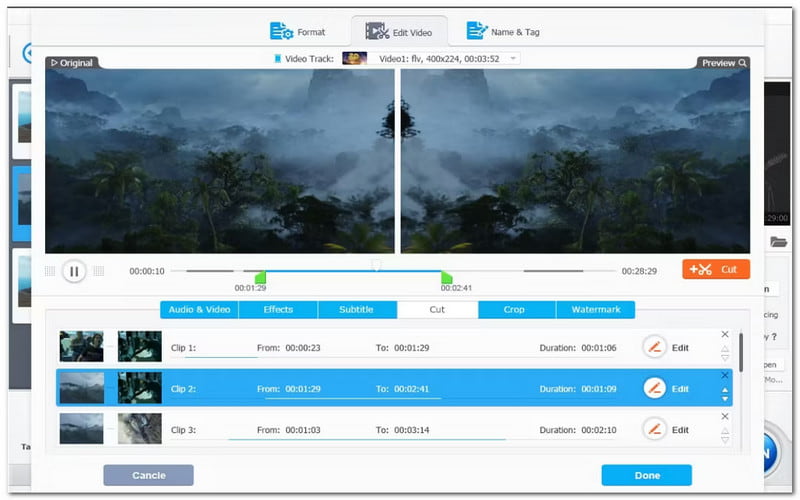
- Built-In Editing Tools: Offers essential editing options, such as trimming, cutting, adding subtitles, and more.
- Video Compressor: Able to compress video to a smaller file size without losing too much quality.
- Built-In Downloader: Download various videos from different sources like YouTube, Twitch, Facebook, etc. through VideoProc Converter AI.
- Digitalized DVD: Enable to convert DVDs to digital formats like MP4, HEVC, and MKV while preserving the DVD quality.
Part 2. How to Use VideoProc AI and Its Performance
This VideoProc Converter AI review has put the tool through different tests to see its full potential. Since it has different models before the recent update, they are evaluated to see how each model performs with consistent hardware and video file types. Below is the summarization of each VideoProc model.
Summarization of Model Performance:
VideoProc Converter AI Model 1: Gen Detail v2
This model is more ideal if you prioritize the video quality, especially for nature landscapes. But you have to be more cautious when using this, as VideoProc tends to overly process videos if left unsupervised.
- Pros
- Enhance details for videos of landscapes and nature scenes.
- Boost the colors and hues, providing higher contrast and better depth.
- Able to restore important details, especially textures in objects.
- Cons
- Excessive sharpening results in videos that look unnatural.
- Causes color distortion if not properly adjusted manually.
VideoProc Converter AI Model 2: Real Smooth v2
This model is more likely to give viewers natural-looking videos instead of sharpened details. It is a better preference for daily footage as it provides balance in clarity and smoothness.

- Pros
- Better to enhance the smoothness of the video by eliminating the grainy textures in the images.
- Denoise video details, which results in clearer visuals.
- Cons
- VideoProc model 2 can also reduce the sharpness, in which some parts of the video appear less crisp.
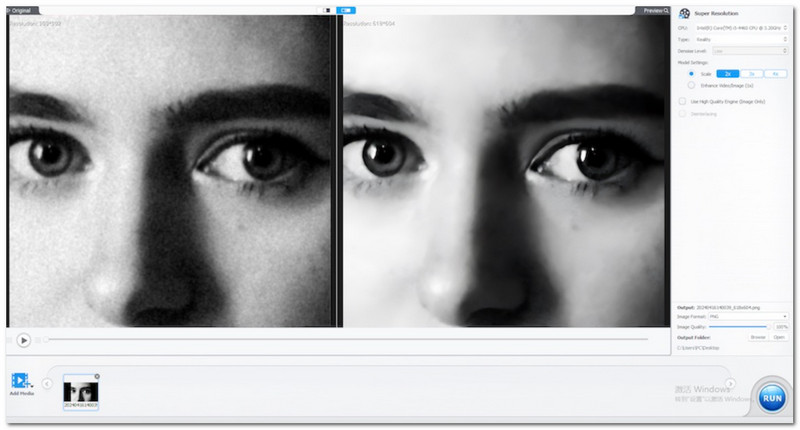
VideoProc Converter AI Model 3: Animation
Model 3 is suitable for you if you are working on animation instead of capturing real-time videos. This model is developed for animation content, but not a better option for natural videos because of unfitted formats and a higher chance of quality loss.
- Pros
- Boost the cartoons and animations with enhanced edges.
- Eliminate skin blemishes and unwanted textures.
- Emphasizing visual focus on outlines and edges.
- Cons
- Oversimplified details it distorts the light variation and appear to be visually flat.
VideoProc Converter AI Model 4: Zyxt
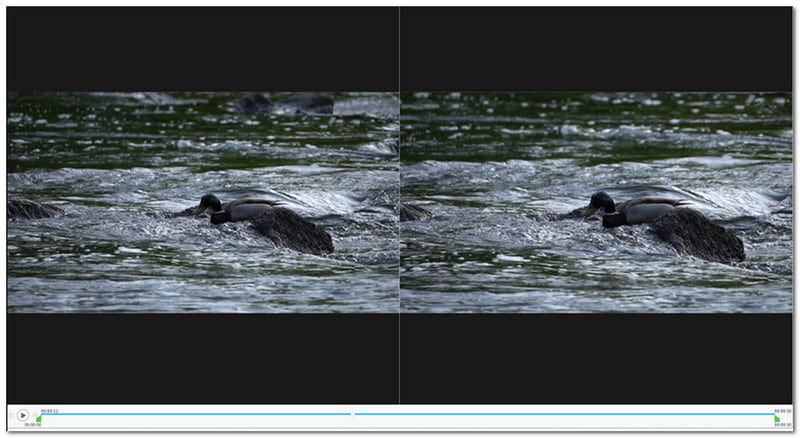
This VideoProc Converter AI cracks the colors and textures, boosting the hues of a video. While it focuses on colors, this model is even better to work on the softness rather than the sharp edges and details of the footage.
- Pros
- Provide vivid colors and hues, perfect for colorful visuals.
- More noticeable changes on different textures like sand and waves.
- Better but soft lighting effects, avoiding edgy shadows.
- Cons
- Inconsistent colors and hues in some areas of the video.
- Weak sharpness, making the overall visual a little blurry.
Part 3. Pricing of VideoProc AI
It is unavoidable to ask, "How much is VideoProc Converter AI?" Although it comes with a free version, it eventually becomes very restrictive, and you might want to invest in its premium version. See below the full price list of VideoProc for your reference.
- Options
- Free Trial Version
- Premium 365
- One-Time Purchase
- Family License (Lifetime)
| Price | Features Included |
| Free | Limited |
| $34.95/yearly subscriptions, 3 devices | Ideal for 4K and HDR videos. Include high-quality conversion, Super Resolution, and Frame Interpolation |
| $54.95/lifetime, 1 device | Support the latest video and audio codecs.Include high-quality conversion, Super Resolution, and Frame Interpolation |
| $79.95, 3-5 devices | Support the latest video and audio codecs.Include high-quality conversion, Super Resolution, and Frame Interpolation. |
Part 4. User Review and Rating of VideoProc AI
No doubt, VideoProc Converter provides the best features for video editing. But many users voiced out their experience with the software's inconsistent performance and the customer support. The majority of the latest feedback from users can be summarized into one: VideoProc is good in both performance and in your pocket. However, it can be a hit or miss when it comes to AI upscale video, as there are many events when there are noticeable grainy textures after the process.
Sum Up: Should You Trust VideoProc AI
Overall, VideoProc AI provides a good service for video editing, and it truly holds convenience for many users. Unfortunately, it is still inconsistent with its results, resulting in not-so-good user feedback. If you are looking for a more reliable tool for demanding video making and editing, AVAide Video Converter is the alternative you are looking for.

FREE DOWNLOAD For Windows 7 or later
 Secure Download
FREE DOWNLOAD For Mac OS X 10.13 or later
Secure DownloadThis tool is on par with VideoProc AI in terms of features, providing options to convert, enhance, upscale, and edit any part of your video. It is also reliable for multiple formats, which helps to compile MKV, MP4, AVI, and other formats with ease. Not only that, it takes care of the output settings, such as the bitrate, sample rate, and resolution, allowing you to export films up to 4K.
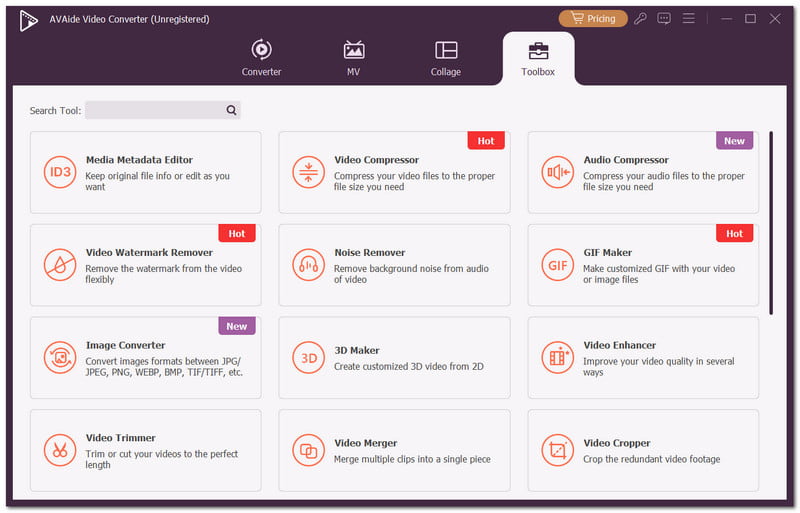
VideoProc AI may be very limited for the free trial, but AVAide Video Converter gives you a chance to fully utilize its functions for any type of video file. As for the pro version, it can be a little bit pricey compared to VideoProc AI, but it is a good deal of one-time purchase of $59.00 for one device.
With the VideoProc review, the choice is up to you. The software is truly a magnificent tool for AI-upscaling as it performs differently, depending on its model. It is even budget-friendly with many price options for you to choose from. But this tool can be inconsistent in its performance, evident to current users and their feedback. In this case, AVAide Video Converter is the best recommendation as your alternative. It is amazing as a multifunctional tool, providing a powerful enhancement and upscaling of your videos in just a few clicks. Start today by downloading AVAide for free on Windows or Mac.
Your complete video toolbox that supports 350+ formats for conversion in lossless quality.