high-res can end up with a massive file size, eating up storage or exceeding platform limits. To store and send such videos, we need to compress them into smaller files. Here, we list the video file size reducer tools you can use. Read this post to learn the important details and pick the best tool.
- Part 1. How We Tested the Video Size Reducers
- Part 2. Video Size Reducers with No Watermarks on Desktop
- Part 3. Top Free Video Compressors Online
- Part 4. Video Compression Apps for iOS and Android
- Part 5. Comparison of the Best Video Compressors
- Part 6. What Affects Video Compression Quality
- Part 7. FAQs About Top Video Size Reducers
Part 1. How We Tested the Video Size Reducers
We had 2 videos as test materials:
- Clip A: 1080p/30fps H.264 MP4, 20 seconds, 18MB
- Clip B: 4K/60fps H.264 MP4, 20 seconds, 90MB
We compressed the clips to a similar size and measured each tool on these aspects:
- Visual quality: Check fine details, motion, text, faces, gradients, and scenes with heavy movement. Rate the result as Excellent/Good/Fair/Noticeable loss.
- Compression controls: See whether the tool lets us change resolution, bitrate, frame rate, codec, CRF, and the final output format.
- Format support: Record the main video formats the tool can actually take in and export.
- Ease of use: Count how many steps a beginner needs to finish one simple compression job.
- Speed: Compare processing time under the same test conditions.
- Watermark and free limits: Check whether free exports contain watermarks, maximum file size, resolution limits, usage limits, and current paid pricing.
Our test environment:
1. Desktop
- System: Windows 10 Pro 22H2
- Processor: Intel(R) Core(TM) i5-10400 CPU @ 2.90GHz 2.90 GHz
- Installed RAM: 16.0 GB with 15.8 GB usable
- Graphics Card: Intel(R) UHD Graphics 630 (128 MB)
2. Mobile
- Device: Samsung Galaxy S24
- System: Android 14 (One UI 6.1)
- Processor: Snapdragon 8 Gen 3
- RAM: 8 GB
- Storage: 256 GB
Part 2. Video Size Reducers with No Watermarks on Desktop
AVAide Video Converter
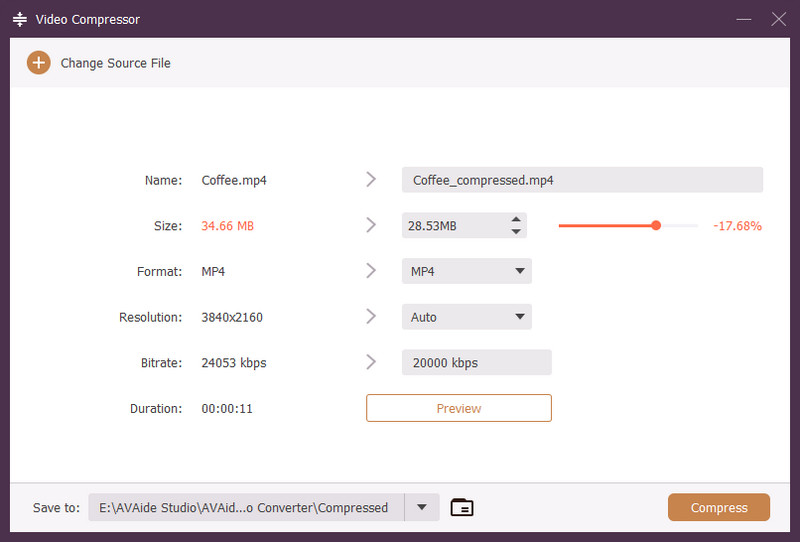
If you want watermark-free video compression software, AVAide Video Converter is one of the best. The Video Compressor in its Toolbox lets you set a target size, format, resolution, and bitrate, and preview before compression.
With this all-in-one media editor, you can also convert, rip, make MVs, and create collages. It supports 1,000+ video and audio formats, batch conversion, and output up to 8K. With GPU acceleration, it can compress videos up to 120× faster than regular tools.
Key Features:
- Convert media files to over 300 various formats.
- Straightforward and easy-to-use interface.
- The tool offers extensive video editing tools.
- It allows importing standard, HD, 4K, and 8K videos.
- It also has a multifunctional toolbox that has a Video Compressor option. It enables users to compress their videos to a smaller size.
- Compress and convert videos up to 30× faster.

 Secure Download
- Pros
- Simple interface for beginners
- Broad format coverage
- Customizable output settings
- Batch conversion
- Cons
- Free version can only process up to 5 minutes per file
Price: Currently 39$ per year or 59$ lifetime for 1 computer.
Supported Video Formats: 1000+ formats, including common ones like MP4, MOV, MKV, AVI, and more.
Quality: Excellent
Processing time: An average of 9 seconds
HandBrake
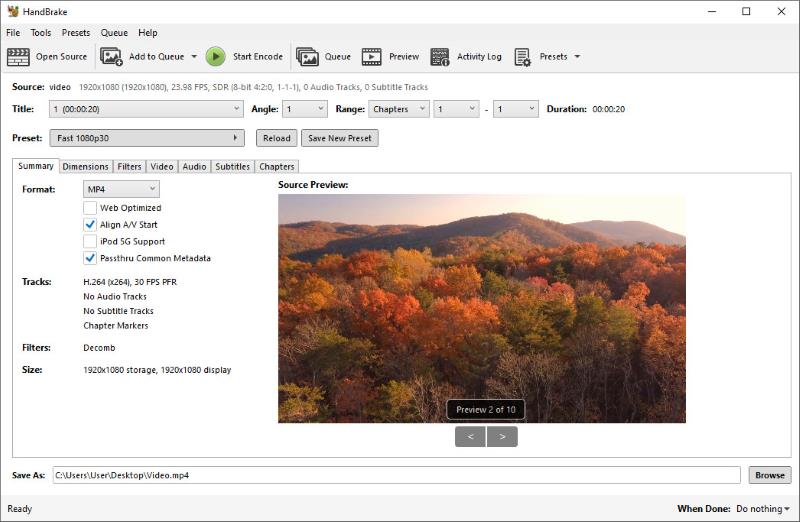
If you want free, watermark-free video compression and conversion, HandBrake is one of the best options out there. It's an open-source transcoder that lets you take almost any video and turn it into a smaller file. You can customize quality levels, resolution, frame rate, bitrate, and codecs.
It's designed for converting and compressing, but it handles cropping, resizing, deinterlacing, denoising, and subtitle work cleanly as well. Hardware acceleration for NVENC, Quick Sync, VideoToolbox, etc. is available.
- Pros
- Completely free and open-source with no limits or watermarks
- Excellent format support on the input side
- Strong quality and compression control
- Batch processing and hardware acceleration
- Cons
- Interface can feel technical for beginners
- Output containers limited to MP4, MKV, and WebM
- Software encodes of high-quality H.265 or AV1 can take a while
Price: Free
Supported Video Formats: Reads nearly everything. Outputs to MP4, MKV, WebM with H.264, H.265, AV1, VP8/VP9, etc.
Quality: Excellent
Processing time: 11 seconds on average
Any Video Converter
Another tool you can use as a video size decreaser with no watermarks is Any Video Converter. With this tool, you can customize factors such as resolution, bitrate, frame rate, and many more. Most of the time, these are the main reasons why you have a large video file size. You can adjust these factors to achieve your desired file size. Here are the tool’s features, pros and cons.
Features
◆ Serves as a DVD converter/creator, video editor, and screen recorder on Windows and Mac.
◆ It offers video editing tools like trimming, cropping, and rotating videos.
◆ Supports various formats.
- Pros
- Video editing options.
- Easy-to-use and intuitive interface.
- It can be used on Windows, Mac computer, and Android.
- Cons
- Not all features are available on the trial version.
Price: Free
Supported Video Formats: Common inputs/outputs include MP4 and MKV with H.264, H.265/HEVC, AV1, and more.
Quality: Good
Processing Time: 19 seconds on average
Part 3. Top Free Video Compressors Online
1. Clideo
Clideo is an online platform that lets users quickly reduce their videos' file size. As an online tool, it works with almost all web browsers. It also supports various websites, such as Facebook, Twitter, YouTube, and more.
Features
◆ It supports several video formats.
◆ Allows users to crop videos.
◆ Offers customizable video settings and options.
◆ Cloud-based tool.
◆ Users can upload up to 500 MB size of the video.
◆ It protects your file using an SSL certification.
- Pros
- Easy-to-use online tool.
- Web-based, with no need for software installation.
- Option to customize video settings.
- Works with the popular video formats.
- Cons
- Limited to a certain amount of free usage per day.
- No extra features like editing and converting.
Price: 500 MB per file; watermark; up to 720p. Pro: $9/month or $108/year based on current public pricing.
Supported Video Formats: MP4, MOV, WMV, AVI, WEBM, FLV, MKV, MPG, MPEG, MTS.
Quality: Good
Processing Speed: 23 seconds in average
2. Veed.io
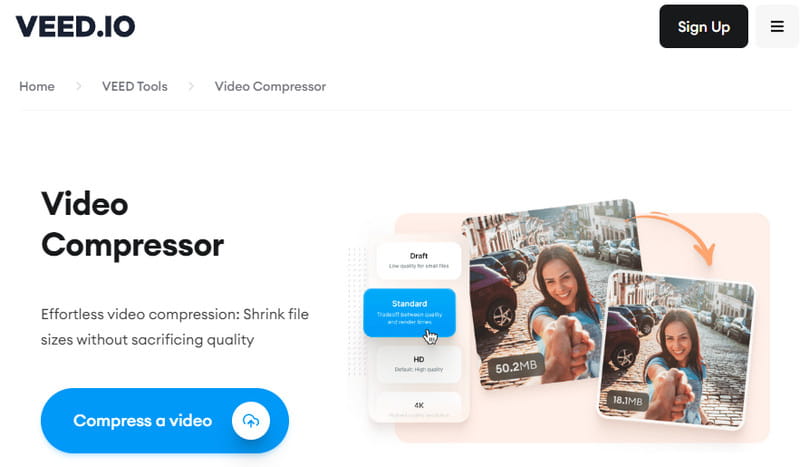
Veed.io is a multifunctional online tool that includes a video size compressor feature. The platform also offers video editing, collaboration, and sharing tools. To save space on your device and make your video shareable, use Veed.io.
Features
◆ Video compression
◆ It offers video editing tools, like adding transcriptions, effects, or filters.
◆ It has collaboration features.
◆ Direct sharing to social media platforms.
- Pros
- Simple to use.
- Easy sharing to different social media platforms.
- A comprehensive suite of video editing and compression tools.
- Collaboration options for team projects.
- Cons
- The free version has limitations.
- There is a watermark. To remove it, users need to pay.
Price: Free compressor: up to 1 GB per file, unlimited uses. Current paid pricing should be taken from VEED's pricing page; Lite is $24/month or $9/month when billed annually, and Pro is $55/month or $24/month when billed annually.
Supported Video Formats: MP4, M4V, MOV, MKV, WEBM, AVI, OGV, FLV, TS, GIF, and more.
Quality: Good
Processing Speed: 21 seconds on average
3. Video Candy
Video Candy is a straightforward video compressor online. It is designed for quick and hassle-free video compression. Using it, you can compress up to 1.5GB of video without any issues. It also offers various video editing features.
Features
◆ Support almost all popular video formats.
◆ Works on all types of devices, like mobile phones and computers.
◆ Quick data processing because of its innovative compression algorithms.
◆ Users can crop, trim, and convert their videos.
◆ Removing audio from the compressed video is also possible.
- Pros
- Quick and easy compression procedure.
- No watermarks on compressed videos.
- User-friendly interface.
- Cons
- A network connection is required.
- Limited advanced customization options.
Price: Free
Supported Video Formats: MP4, MOV, AVI, MKV, WebM, and many more.
Quality: Fair
Processing Speed: 30 seconds on average
Part 4. Video Compression Apps for iOS and Android
Video Compress - Shrink Vids (iOS)
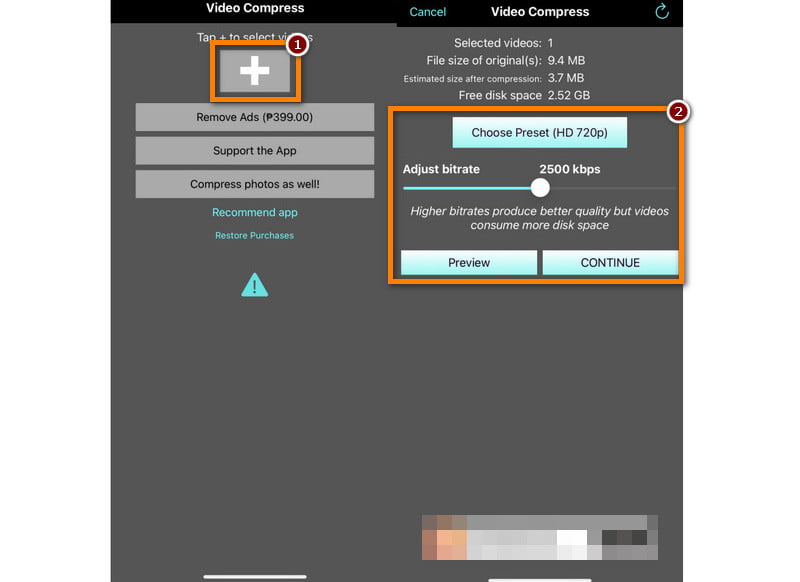
Video Compress - Shrink Vids is designed to reduce the file size of a video on iOS devices. Using this tool, you can shrink your videos to send or share them on WhatsApp or iMessage or post them on Facebook.
Features
◆ Video compression functionality for shrinking video files.
◆ User-friendly and intuitive interface.
◆ Support various video formats.
◆ Customizable compression settings.
◆ Typically, it does not add watermarks to compressed videos.
- Pros
- Efficient batch processing for time savings.
- Offers options to maintain reasonable video quality while reducing file size.
- Supports multiple video formats, enhancing versatility.
- Cons
- It slows down when users are importing large files to compress.
- The free version has limitations in terms of usage or file size.
- It could contain ads or offer in-app purchases for additional features.
Price: Free version has ads. In-app purchases vary by region, ranging from around $2.99 to $9.99 for upgrades or monthly/yearly plans.
Supported Video Formats: MP4, AVI, MKV, FLV, RMVB, 3GP, MPEG, WebM, WMV, MOV.
Quality: Good
Processing Speed: 29 seconds on average
Video Compressor Panda Resizer (Android)
One great video compression tool option for Android users is the Video Compressor Panda Resizer. Aside from being a video compressor, it offers additional features and options. Here are the features, including their pros and cons.
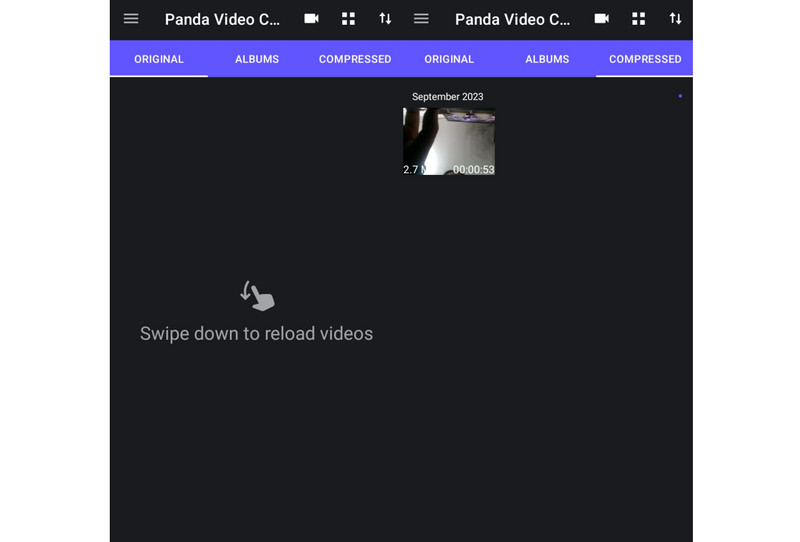
Features
◆ Video compression capabilities.
◆ Easy to navigate interface.
◆ Offers preset resolutions for compressed videos.
◆ Saves space on devices.
- Pros
- Batch compression option.
- Easy to use.
- Adjustable video bitrate, and format, and increase video resolution.
- Support multiple video formats.
- Cons
- The tool contains ads.
- Sometimes, the video’s audio gets removed after the compression.
Price: Free version allows compressing up to 3 videos at the same time. Premium: 1 Month $4.99, 1 Year $69.99, and lifetime $149.99. Price varies by rigions.
Supported Video Formats: MP4, AVI, MKV, FLV, RMVB, 3GP, MPEG, WebM, WMV, and MOV.
Quality: Fair
Processing Speed: 48 seconds on average
Part 5. Comparison of the Best Video Compressors
| Tool | Supported Input Formats | Supported Output Formats | Export Videos witd Watermarks | Compression Quality | Compression Capability |
| AVAide Video Converter | Almost all popular video formats, such as MP4, MOV, MKV, AVI, AVI, etc. | MP4, WMV, MOV, WOB, 3GP, WebM, MPEG, and many more. | No | Excellent | Comprehensive video conversion and compression capabilities. |
| Any Video Converter | MP4, AVI, MOV, and more. | MP4, MOV, MKV, AVI, FLV, WebM. | No | Good | Multi-purpose video converter includes compression feature. |
| Clideo | MP4, MOV, AVI, and more. | MP4, AVI, MOV, WMV, WebM, FLV, and more. | Yes | Good | Online and general-purpose compression. |
| VEED.IO | MP4, MKV, MOV, AVI, etc. | MP4, MOV, MOV, AVI, GIF, GIFV, and more. | No | Good | Online video editing, general-purpose compression |
| Video Candy | MP4, AVI, WMV, MOV, etc. | MP4, MOV, WMV, WebM, FLV, etc. | No | Good | Online and general-purpose compression |
| Video Compress – Shrink Vids (iOS) | MP4 | MP4 | No | Good | iOS device video compression app |
| Video Compressor Panda Resizer (Android) | MP4, AVI, MOV, etc. | AVI, MP4, MOV, and more. | No | Good | Android device video compression app |
Part 6. What Affects Video Compression Quality
Resolution: 4K to 1080p or 1080p to 720p usually reduces size substantially, but it also removes spatial detail.
Bitrate: Lower bitrate produces smaller files. But it can introduce blocking, banding, blur, or other artifacts when pushed too low.
Codec: Modern codecs such as H.265/HEVC and AV1 can often achieve smaller files at comparable quality than older codecs.
Frame rate: Reducing 60 fps to 30 fps cuts temporal data, but motion may look less smooth.
RF/CRF: In constant-quality workflows such as HandBrake's x264/x265 presets, lower RF generally means higher quality and larger files.
Source complexity: Fast motion, film grain, foliage, water, smoke, and delicate textures are harder to compress cleanly than simple scenes.
Audio settings: Audio bitrate and channel configuration also contribute to total file size.
Repeated re-encoding: Compressing an already compressed video again can compound artifacts. So, keep the original file and make new compressed copies from it.
Part 7. FAQs About Top Video Size Reducers
Will compressing 10GB video to 1GB make the quality loss?
Sure. Compressing a 10GB video to 1GB will almost certainly result in quality loss. Compression involves reducing the file size by removing or encoding some of the video data. The extent of the quality loss is based on the compression settings and the codec.
Can I compress videos in VLC?
Definitely, yes. While it is designed for playing media files, you can compress video files in VLC. However, it is not an ideal tool for this because you don't have much control over the compression workflow, and the output quality isn't always stable.
How do I send an 11 GB video by email?
Sending an 11GB video through email is not practical as most email services have limitations in file size. To send an 11 GB video file, you have to compress it using a video size changer. One such tool is AVAide Video Converter’s Video Compressor feature. Please refer to the previous step for using the tool.
Can Windows Media Player compress video files?
Unfortunately, Windows Media Player does not have a built-in compression feature. If you wish to compress a video on your Windows PC, you need to use third-party software. AVAide Video Converter is among the best and most highly recommended video compressors.
To wrap up, compressing large video file sizes is now relatively easy. Each video compression app we have listed in this post offers unique features. With the pros and cons we have included, you can easily distinguish the best video size reducer that suits your needs. Nevertheless, AVAide Video Converter stands out among the list of video compression programs. Apart from the video compression it offers, it also works as a video maker, converter, editor, and more.
ABOUT THE AUTHOR

The most comprehensive media converter to convert video & audio without quality loss.