Reversing a video means playing it backwards, from end to start. Video creators often use the reverse effect to create either mysterious or amusing vibes. This article will help you get the hang of how to reverse MP4, the most widely used video format in modern platforms and devices.
Part 1. How to Reverse MP4 Video Online for Free
Reverse MP4 on Ezgif – Free Without Watermark
How do you reverse an MP4 video for free online, without a watermark? Ezgif is what you're looking for. Because it runs entirely on its servers, you don't need high-end hardware to reverse an MP4. What's better, it offers optional customizations which we find useful: reverse sound, mute sound, and create a boomerang (run to the end and reverse back).
Although Ezgif is convenient, it has limitations. You are only allowed to upload a file up to 200MB. Besides, the ads on the webpage make it lag sometimes.
Step 1Visit Ezgif
Go to ezgif.com and click the Video Tools tab, then select Reverse.

Step 2Upload Video
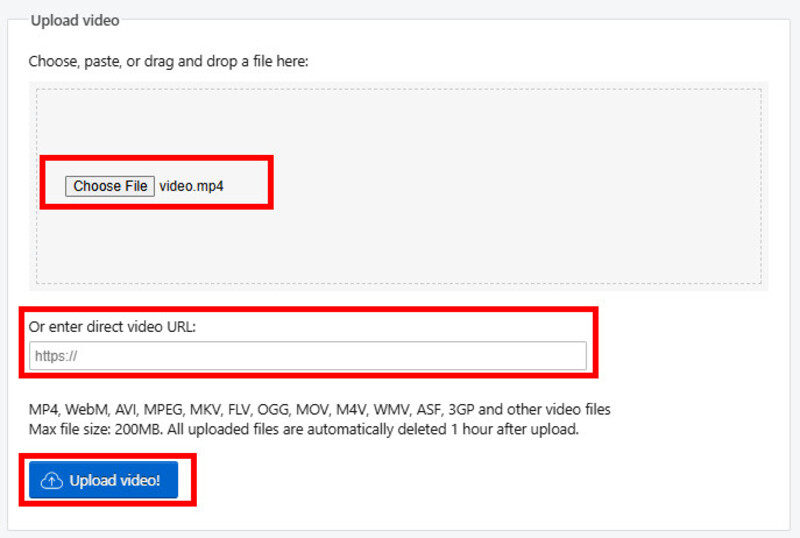
Choose, paste, or drag-and-drop an MP4 to the workboard. Or you can also paste the video URL into the input box to upload it. After that, click Upload Video.
Step 3Reverse Video
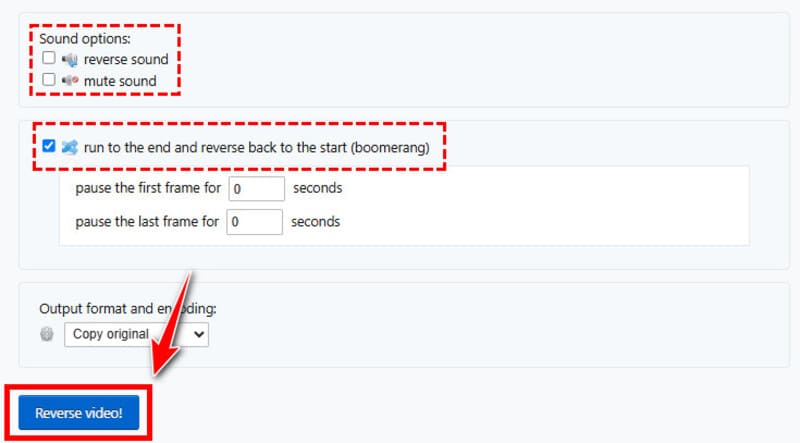
Tick the Reverse Sound option if needed. You can also create a boomerang by selecting Run to the end and reverse back to the start. Then click Reverse Video.
Reverse MP4 on Kapwing – Clean and Ads-Free
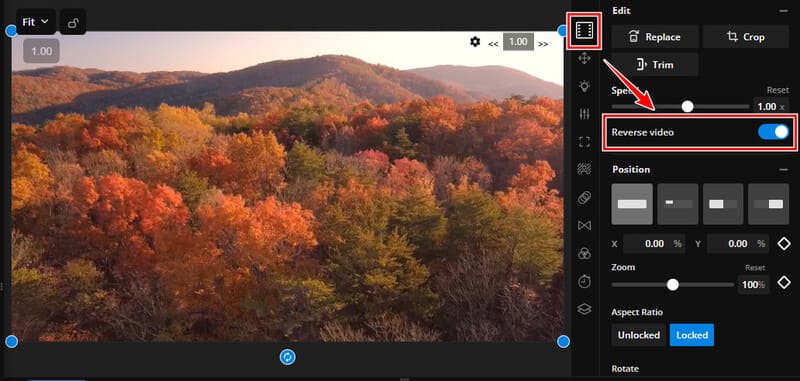
Kapwing outshines Ezgif in that it has a cleaner interface. The webpage looks very modern and displays no ads. You can reverse your video easily online by turning on the Reverse Video option. But Kapwing has a drawback – it adds a watermark to the output in the free version.
Step 1Enter Kapwing
Open kapwing.com and click Choose a Video to enter its workboard.
Step 2Upload MP4
To upload your MP4, click or drag-and-drop it to the workboard, or enter a URL.
Step 3Reverse MP4
In the right-side Edit panel, toggle on the Reverse Video option. It's located under the Speed slider.
Step 4Save the Result
Click Export Project at the top-right corner.
Part 2. How to Reverse MP4 Video on Windows/Mac
AVAide Video Converter is an all-in-one video editor that can do almost anything: trim, crop, upscale, convert, flip videos, create visual effects, and of course, reverse videos. With hardware acceleration optimized for NVIDIA, Intel, and AMD GPUs, it can process your MP4 files 30 times faster than regular tools while using fewer CPU resources.
- Reverse MP4 with a click and save to your local storage.
- Accelerate the conversion process by 30 times.
- Use the built-in video editor and video collage maker to create eye-catching content.
- Converts quickly with unlimited file size.
- Equipped with a feature-rich Toolbox.

 Secure Download
Step 1Install AVAide Video Converter
Download and Install AVAide Video Converter on your PC or Mac.
Step 2Import MP4
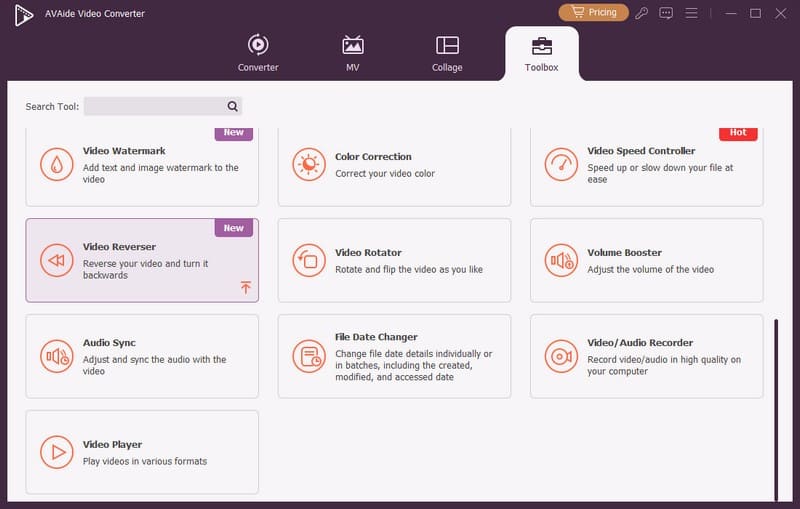
Run the software, go to the Toolbox tab to find Video Reverser. Click the plus button to import a clip.
Step 3Reverse MP4
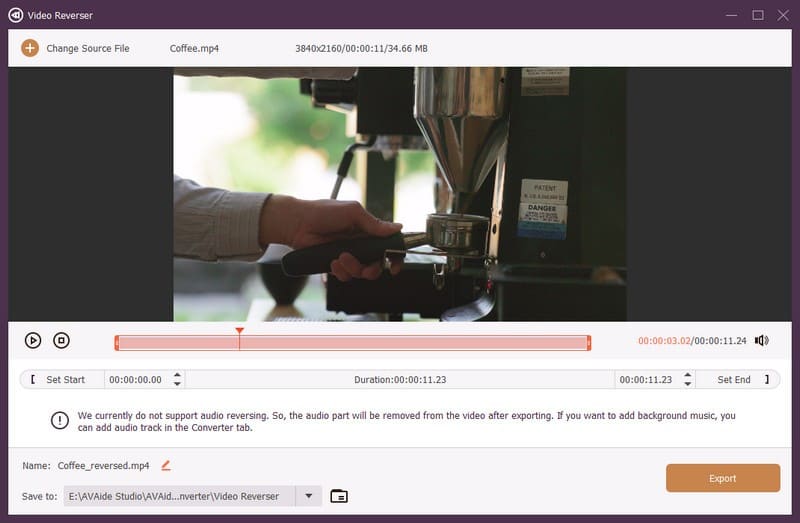
Clip the reversed video if needed: you can set an exact start/end time or drag the red handles on the timeline. Select a save location, then click Export.
Part 3. How to Reverse MP4 Video on iPhone/Android
CapCut mobile is free for video reversing. You don't need a Pro to reverse an MP4 using this professional-level video editor. What's better, CapCut is a powerful editor with a beginner-friendly workflow: You only need to find and tap the Reverse button, and the MP4 will play in reverse.
Step 1Create a Project
Install and open CapCut on your iPhone or Android. Tap New Project, select the MP4 from your Photos/Gallery, then add it to the timeline.
Step 2Apply Reverse
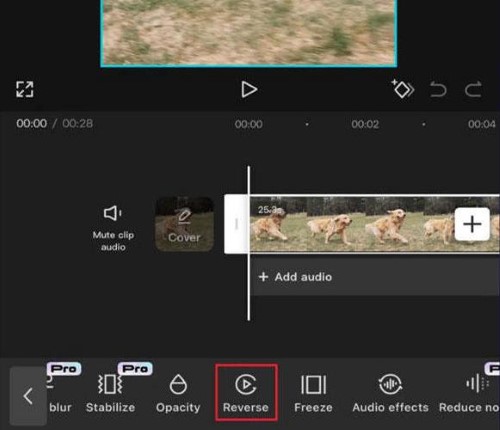
Swipe the editing toolbar at the bottom to find the Reverse effect. Tap and wait for it to finish.
Step 3Save Reversed MP4
Tap Export in the upper-right corner, set your preferred resolution and frame rate, and tap Export again.
Part 4. How to Reverse MP4 Audio
FFmpeg is a powerful open-source multimedia editor that uses command lines. Since it has no graphical UI, Beginners might feel hesitant to try it, but it's not as complicated as it looks. Just follow the guide below to reverse your MP4 easily.
Step 1Install FFmpeg
- Windows: Download from ffmpeg.org.
- Mac: type "brew install ffmpeg" in Terminal.
- Linux: type "sudo apt install ffmpeg" in Terminal.
Step 2Navigate to the Folder
- Windows: Open File Explorer and go to the folder where your MP4 is stored. Click in the address bar at the top, type cmd, and press Enter.
- Mac: Open Finder and go to the folder. Right-click the folder and select New Terminal at Folder.
- Linux: Open File Manager, go to the folder, and right-click empty space. Then select Open in Terminal.
Step 3Enter Command
- To reverse both audio and video: ffmpeg -i [input file name].mp4 -vf reverse -af areverse -c:v libx264 -crf 23 -preset medium -c:a aac [reversed file name].mp4
- To reverse only the audio: ffmpeg -i [input file name].mp4 -af areverse -c:v copy -c:a aac [reversed audio file name].mp4
After you type the command, press Enter.
Part 5. FAQs About Reversing MP4
Can I reverse only part of the video?
Yes. You can use AVAide Video Converter to trim the part out of the video, reverse it, then merge it back with the rest.
The MP4 reverse fails halfway. How can I fix it?
One smart solution is to trim the long video into short clips, and reverse them one by one. This reduces the risk of reaching the memory limit.
When a program reverses your MP4, it breaks the file into individual frames and stores them all in RAM before re-encoding them in reversed order. If the MP4 is extremely long, the whole lot of frames can eat up your RAM, forcing the reverse to stop.
Why is my reversed MP4 fuzzier than the original?
Most video codecs are predictive: frames are not stored as complete pictures; they store only the differences from previous/future frames. When you reverse the order of frames, their relationship structure breaks. So frames have to be fully decoded to raw pixels, which inevitably loses quality.
To preserve quality as much as possible, you can raise your export bitrate or CRF, but that might increase the file size.
Why does my reversed MP4 file become bigger than the original?
Again, the re-encoding. The new encoding, new keyframe structure, and higher output quality settings all lead to larger files. It's normal behavior, not a bug. You can reduce your output quality settings if you want smaller files.
It's easy to reverse MP4 video and audio. You can do it online, on a computer, or using your smartphone. While online MP4 video reversers are simple to use, they might struggle with large MP4 files. If you want to reverse large MP4 files, it's best to use desktop video reverse software like AVAide Video Converter.
ABOUT THE AUTHOR

Your complete video toolbox that supports 350+ formats for conversion in lossless quality.