Unlike most social apps, Instagram accepts different types of videos. You can post square clips, tall vertical shots, and even wide landscape scenes.
If you are one of the users who gets confused about these requirements, our write-up will help you understand them. If you also need to resize videos for Instagram, we are also here to show you how.
Part 1: Why Need to Resize Video for Instagram
Sharing a funny dance clip or a quick travel moment on Instagram is fun, but sometimes your video does not match Instagram's required aspect ratios. Once this happens, Instagram may crop important parts or add awkward borders, making your video look off.
You do not want those to happen to your videos, right? That is why resizing your video is needed before posting it on your Instagram account. When you resize your video, it ensures your content fits perfectly, looks professional, and uploads smoothly.
Part 2: Instagram Video Aspect Ratio
Instagram lets you share videos in four main ways: Feed, Story, IGTV, and Reels. Each posting style uses its own set of video dimensions. To help you understand it better, there is a simple table below that shows the exact aspect ratios for each type.
| Video Type | Aspect Ratio | Maximum Dimension | Tip |
| Instagram Feed Video | 1:1, 16:9, 4:5 1.91:1 | 1080×1080px, 1080×1350px, 1080×608px | Square (1:1) works for the main feed; 4:5 is taller and grabs attention. |
| Instagram Story | 9:16, 1.91:1 | 1080×1920px, 1080×608px | 9:16 fills the whole screen for mobile viewers. |
| IGTV Video | 16:9, 9:16 | 1080×1920px, 1920×1080px | Vertical (9:16) is better for phones; horizontal (16:9) works for widescreen. |
| Instagram Reels | 9:16 | 1080×1920px | Reels are full-screen vertical clips, perfect for short, engaging videos. |
Part 3: How to Resize Videos for Instagram on the Desktop
AVAide Video Converter is available on Windows and Mac, making it easy for anyone to edit videos on their computer. This program lets you resize videos for Instagram quickly, and the best part is its built-in Instagram aspect ratio presets; just choose one, and in one click, your video is ready. It also comes with extra editing tools to rotate, add effects and filters, insert audio or text, and trim. All these features are simple to use and make editing fun!
Step 1Obtain and install AVAide Video Converter on your computer using the Download buttons below. Once set up, launch the program, and you will see a clean, beginner-friendly interface that makes navigation simple.

FREE DOWNLOAD For Windows 7 or later
 Secure Download
FREE DOWNLOAD For Mac OS X 10.13 or later
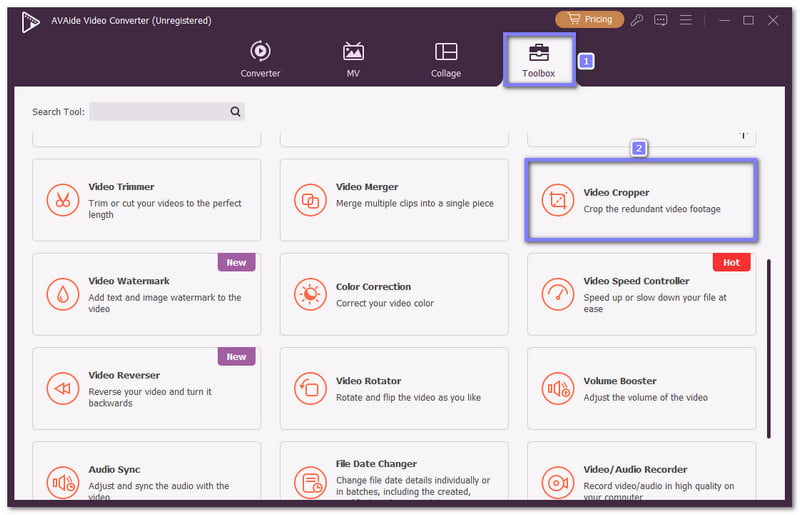
Secure DownloadStep 2At the top of the interface, click the Toolbox tab and look for and select the Video Cropper feature.
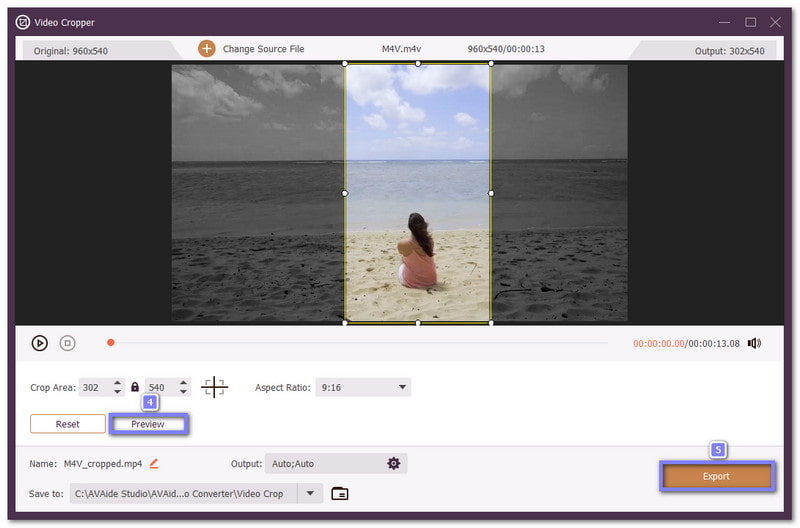
Step 3Press the Plus button to import the video you want to resize for Instagram. Once added, the video preview appears, and below it, you will see the Aspect Ratio option.
Now, choose the size that fits your Instagram post: 9:16 for Stories or Reels, 16:9 for IGTV video, or 1:1 for square Feed posts. You can also manually crop on the preview screen to remove unwanted frames or focus on important parts of your video.
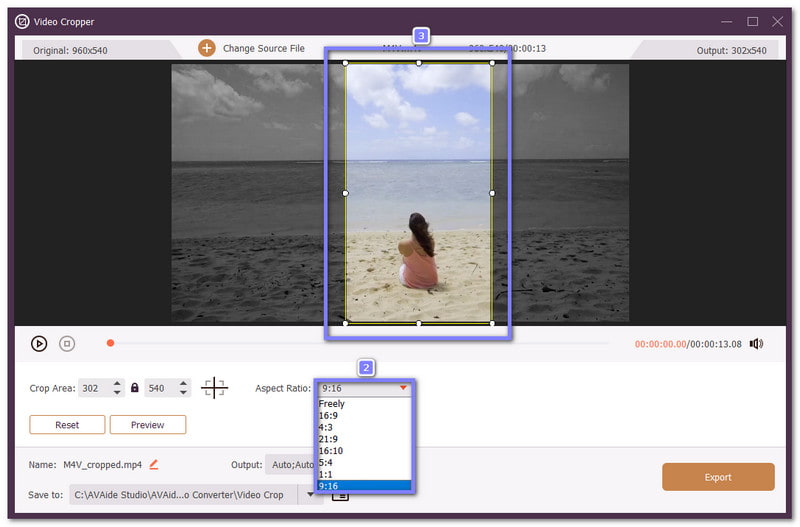
Step 4After setting the aspect ratio, you can preview your video to make sure it looks right. Once satisfied, save your video by clicking the Export button in the lower right corner. Once finished, your output will be automatically saved in your computer's file folder.
- If you plan to try a new creative content idea, like making a slideshow for Instagram, you can rely on AVAide Video Converter for that, too. With that, your followers will surely see something new in your feed.
Part 4: How to Resize Video for Instagram Online
A video resizer for Instagram that you can use online is Kapwing. You can turn any video into an Instagram Feed, Story, or Reels in just a couple of clicks. It offers preset dimensions like 1:1, 4:5, and 9:16, and even protects Reels content from being cut off with safe zones.
Step 1Visit the official Kapwing - Resize Your Videos for Instagram website and click the Resize video button.
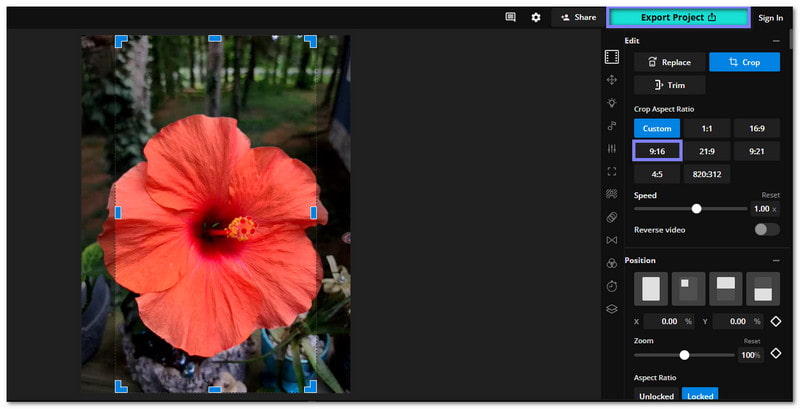
Step 2Import your video from your computer or paste a video link. Once loaded, click the video and proceed to select an output size. For example, pick 9:16 for Instagram Story.
Step 3Once done, click the Export Project button in the upper right corner to process your video and download it.
- Unfortunately, all free exports from Kapwing contain a watermark. If you want to remove it, you must subscribe to the premium version or use a Kapwing watermark remover.
Part 5: How to Resize a Video for Instagram on iPhone/Android
If there are ways to resize videos on desktop and online, there are also easy methods for iPhone and Android. So, please check the tutorial below to learn how to resize your Instagram videos directly on your phone.
1. iPhone
For iPhone users running iOS 13 or later, you can resize videos for Instagram for free in the Photos app. The built-in editor lets you crop freely or pick preset aspect ratios like square, 16:9, or 4:5, which works perfectly for Instagram Feed, Story, or IGTV.
Step 1Run the Photos app and select the video you want to resize. Tap Edit in the upper right corner.
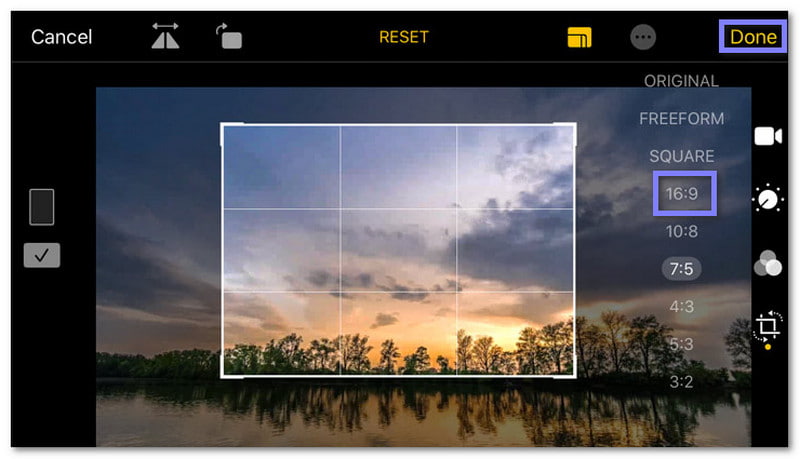
Step 2Tap the Crop button and choose an Instagram aspect ratio, such as square, 16:9, or 4:5. Move the frame to select which parts of the video to keep.
Step 3Press the Done button to save your video as a new clip or overwrite the original.
2. Android
For Android users, Crop and Trim Video is one of the best apps to resize videos for Instagram. It allows you to change the aspect ratio of your video to match Instagram Feed, Story, or IGTV. It also provides other helpful tools like trimming, adding blur borders, and basic filters.
Step 1Launch the Crop and Trim Video on your Android device. Then, press the Crop button. A small box panel will appear. Tap the Videos button and choose the video you want to resize from your gallery.
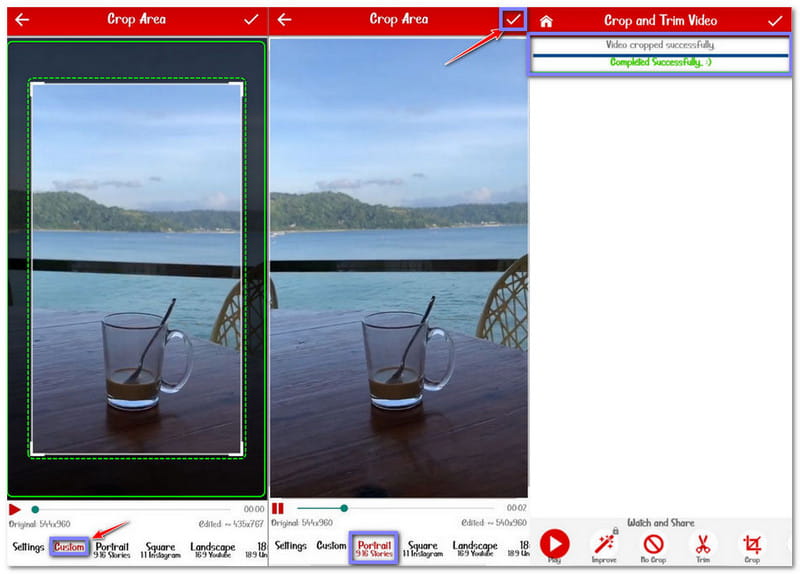
Step 2Once your video is selected, a new panel will appear. You can either resize manually using the rectangular white border in Custom mode or select a preset size.
Step 3To resize for Instagram Stories in Portrait Mode, tap the Portrait 9:16 Stories button at the bottom.
Step 4Once done, press the Check button to start resizing, and please wait for it to process your video. After processing, you can now check your resized video in your gallery.
Resizing your video for Instagram is now easy to do, and the video resizer for Instagram options above make the job super easy.
But your work does not end with resizing. You still want your video to look clean and stand out on the feed. This is why AVAide Video Converter is a great choice. It lets you apply filters, add audio, and enhance your clip.
ABOUT THE AUTHOR

Your complete video toolbox that supports 350+ formats for conversion in lossless quality.