Captions on your TikTok video posts can help explain your content, guide viewers, and increase engagement. Many creators add photos or clips, but forget that short text can make a post clearer and easier to follow. If you are learning how to add text to a TikTok slideshow, the process is simple once you know where the tools are. This guide explains the steps clearly and also covers how text works on TikTok videos, live sessions, and edits before posting.
Part 1. How to Add Text to TikTok Slideshow
Text can help explain the photos in your slideshow and make your content easier to understand. Short captions can guide viewers, highlight key details, or add context to each slide. If you want to improve your posts, learning how to add text to a slideshow on TikTok is a helpful skill. TikTok includes simple editing tools that let you add, move, and adjust text before you publish your slideshow.
Step 1Create a TikTok Slideshow
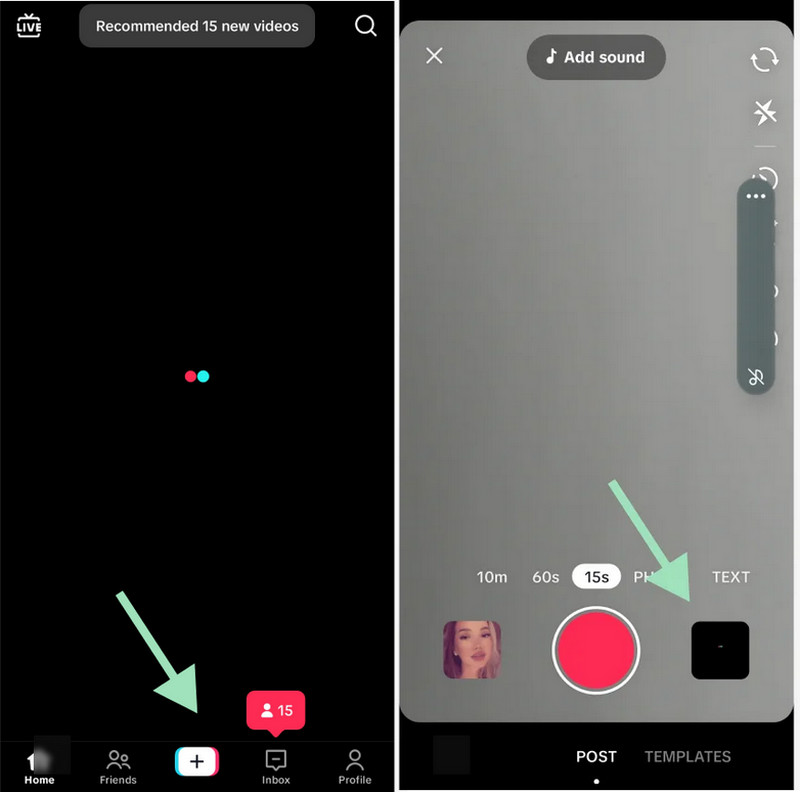
Open TikTok and hit the + button at the lower part of the screen. Tap Upload to open your gallery. Select several photos you want to use in your slideshow.
Step 2Add Text to Your Slides
When the slideshow appears on the editing screen, tap the Text button. A text box will show where you can type your caption. You can choose the font, color, size, and position of the text so it fits your slide.
Step 3Set the Text Timing
Tap the text box and choose Set Duration. This option lets you decide when the text appears and how long it stays on the slide. Use the timeline slider to adjust the timing.
Step 4Review and Post
Preview your slideshow to make sure the text appears correctly. If everything looks good, tap Next. Add your caption, hashtags, or other settings, then tap Post to share your slideshow.
Part 2. How to Add Text to TikTok Video
Adding captions to a video can help viewers understand your content quickly. Text may emphasize major scenes, provide background, or show the audience the plot of your video. Many producers would wonder how to add text to TikTok videos, particularly when editing using other gadgets. It is just very easy when you are familiar with the location of the editing tools. The following are the usual methods of attaching captions to mobile and PC procedures.
Mobile Method: How to Add Text to a TikTok Video
The TikTok mobile app includes built-in editing tools that allow you to place text directly on your video before posting. So, if you want to improve your TikTok duet, then try to add text to it.
Step 1Record or Upload Your Video
Launch TikTok and hit the + button. You can record a new video or tap Upload to choose one from your phone's gallery.
Step 2AAdd Text to the Video
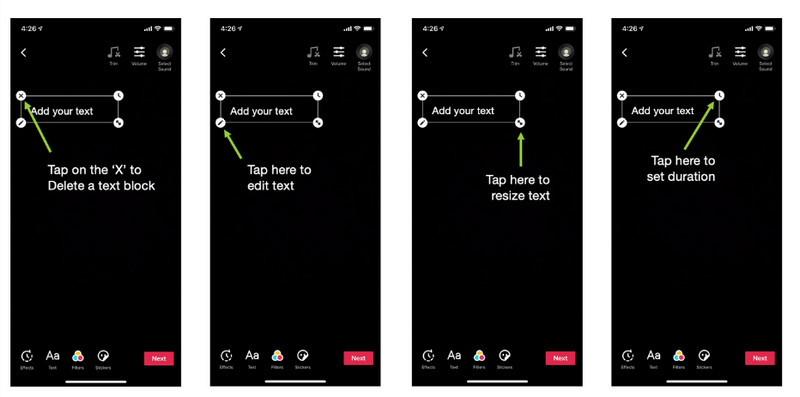
After the video appears in the editing screen, tap the Text button. A text box will show where you can type the words you want to display on your video.
Step 3Customize the Text
TikTok allows you to adjust the style of your caption. You can customize the font, color, alignment, and size. You can also drag the text to a different position on the screen so it does not cover important parts of the video.
Step 4Adjust the Text Duration
Tap the text box and pick Set Duration. This feature allows you to decide when the text appears and disappears during the video. Move the slider on the timeline to match the timing of your content.
Step 5Post the Video
Preview the video to make sure the text appears correctly. Tap Next, add your caption and hashtags, then tap Post to publish your video.
PC Method: Adding Text Before Uploading to TikTok
If you are editing on a computer, you can add captions to your video before uploading it to TikTok. This method is helpful for creators who prefer editing with desktop tools.
Step 1Edit the Video Using a PC Editor
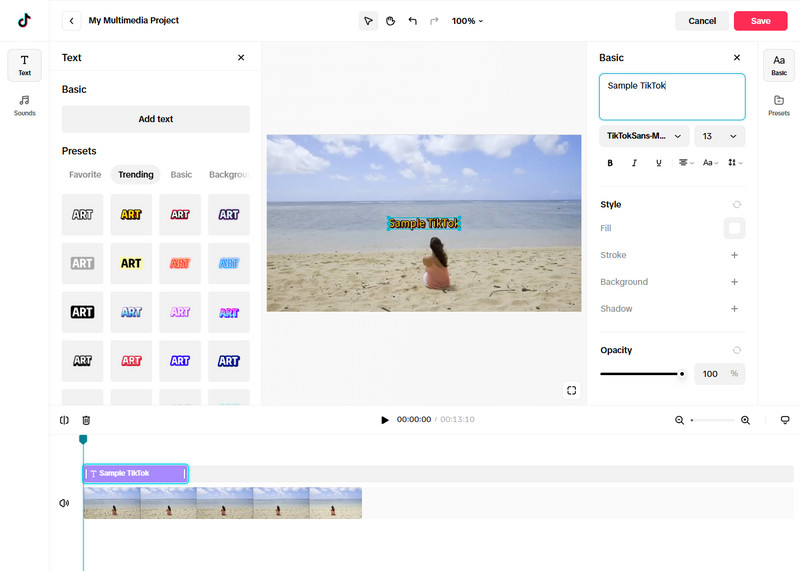
Open your video in a video editing program on your computer. Use the text or caption tool in the editor to place captions on your video.
Step 2Export the Video
After adding the text, export or save the finished video file to your computer.
How to Add Text to a TikTok Video After Posting
TikTok does not authorize users to edit text overlays after a video has been published. If you need to change or add text, there are a few simple options.
Option 1: Download and Reupload the Video
Download your posted video from your profile. Then upload it again and add the new text using the TikTok editor before posting.
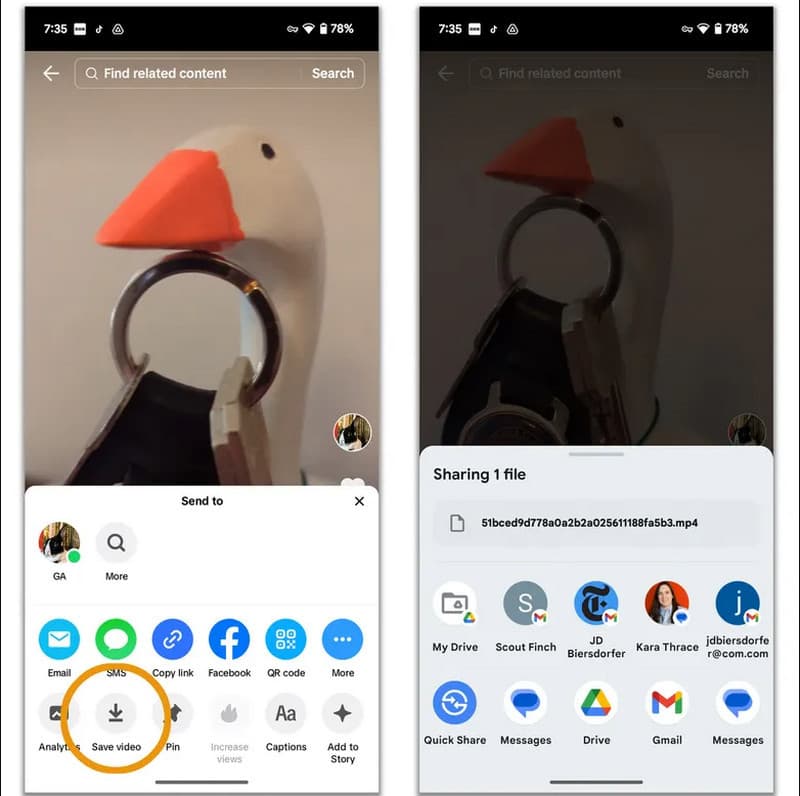
Option 2: Update the Caption
You can edit or update the caption of your post to add more information for viewers. While this does not place text on the video itself, it can still provide useful context.
Learning how to add text to a TikTok video helps make your content clearer and easier to follow. Simple captions can guide viewers, highlight key details, and make your TikTok videos more engaging.
Part 3. How to Add Text to TikTok Live Using Sticker Text
Adding text during a live stream can help viewers understand your message quickly. Many creators use text stickers to highlight important notes, questions, or reminders while streaming. If you are wondering how to add text to TikTok during a live broadcast, TikTok allows you to do this using the Sticker feature.
Step 1Start a TikTok Live
Open TikTok and hit the + button. Select LIVE, add a title for your stream, then tap Go LIVE to begin.
Step 2Open the Sticker Option
Once your live stream starts, tap the Stickers option from the live tools on your screen. Choose the Text sticker from the available options. This lets you display a short message on your live screen. Type the message you want viewers to see during the live stream.
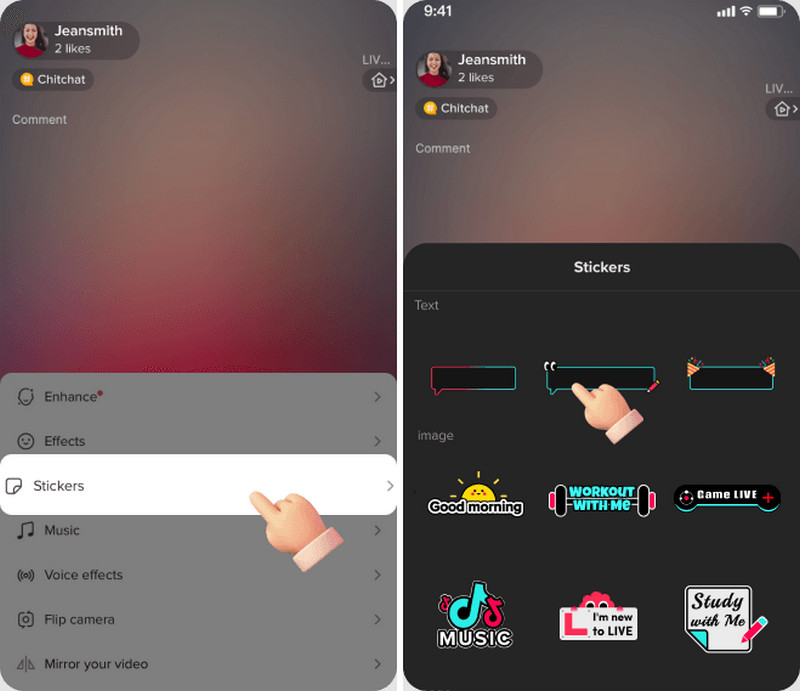
Step 3Place Your Text on Live
Drag the text sticker to the position you want on the screen. Make sure it does not cover important parts of the video. Confirm the sticker so it appears on your live stream. Your viewers will now see the text while watching your broadcast.
Part 4. How to Add Text to Video Before Posting
Want your TikTok videos to look polished and stand out? All it takes is knowing how to add text to TikTok videos before posting them. AVAide Video Converter has a free MV feature and free templates to transform your clips into cool TikTok content that catches your eye within a few seconds. You are able to include trendy captions or can even produce lyrics and music videos that perfectly match your sound. Having a wide range of output options, your videos are bound to shine on TikTok and other social media websites.
Step 1Get the AVAide Software
Tick the download button that we have in here to get the latest version of the AVAide Video Converter on your Windows or Mac, then install it.

FREE DOWNLOAD For Windows 7 or later
 Secure Download
FREE DOWNLOAD For Mac OS X 10.13 or later
Secure DownloadStep 2Open MV Feature
Now, open the software you have installed earlier and click the MV feature. Here, click the + button to upload the video you want to edit and add text to it.
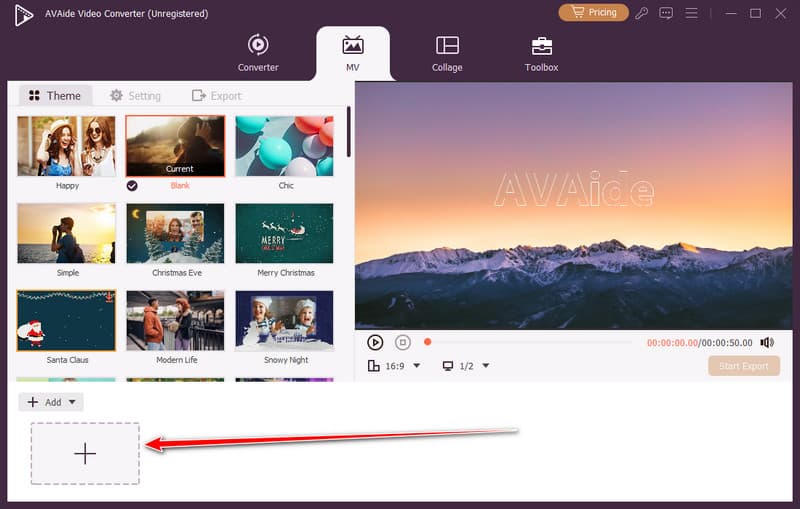
Step 3Add Text to Video
Go to the Edit > Watermark > Text. In the text space, you can type in the text you want to appear on the video you are currently editing, and edit it with the features available here. After that, click the OK button to proceed.
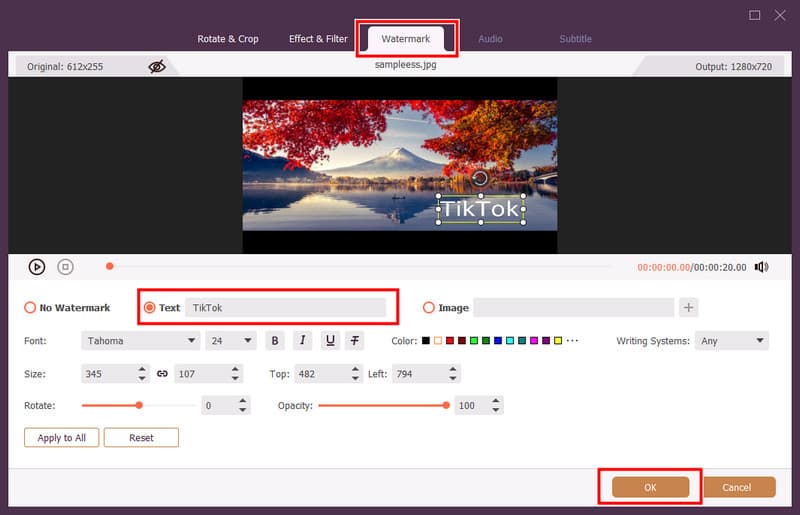
Step 4Export Edited TikTok Video
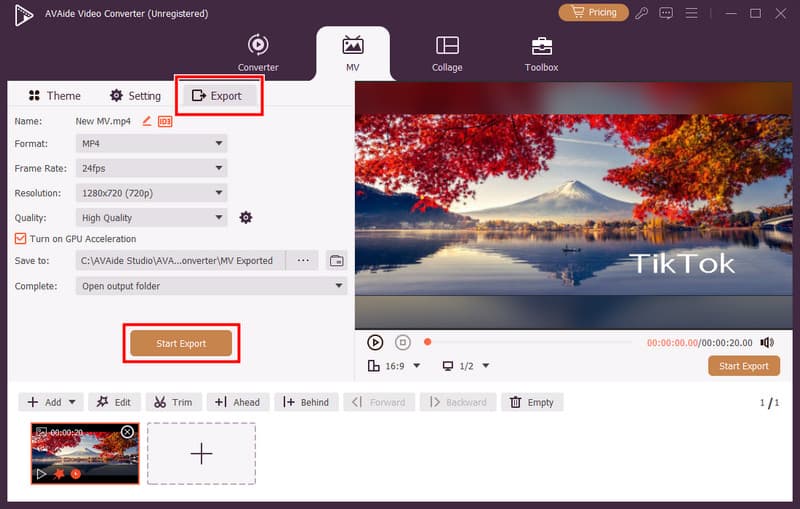
Finally, go to the Export and click the Start Export button to get the edited video with text on your computer. With that, you can see the real reason why many consider it the best free video maker on Windows and Mac.
Part 5. FAQs on How to Add Text to TikTok
How do I add typed text in a video?
Open TikTok and post or record any video. Tap the Text or Aa button and write your message, and put it where you need it. You are also able to set the time so that the text is visible and invisible at the appropriate time.
What is the 3-second rule on TikTok?
The 3-second rule implies retaining a text on the screen for at least 3 seconds in order to allow the audience to read it. Shorter text can be missed, particularly on videos that run at a high rate.
How do I pin a caption on TikTok Live?
When you are on live stream, find the comment you want to highlight, tap and hold it, and then select Pin Comment. The pinned comment will remain at the top of the chat for the viewer.
Adding text can make your TikTok videos clearer and more engaging. Learning how to put a text on TikTok helps you highlight key points and guide your viewers. Whether you use TikTok’s built-in tools or edit your video beforehand, adding text ensures your content looks polished and ready to share.
ABOUT THE AUTHOR

Your complete video toolbox that supports 350+ formats for conversion in lossless quality.