Whether you're a content creator, a popular influencer, or someone who loves sharing moments, you may have these problems when you upload your videos on Instagram: why does the video look blurry? Why does it say "unsupported format"? Why do uploads keep failing?
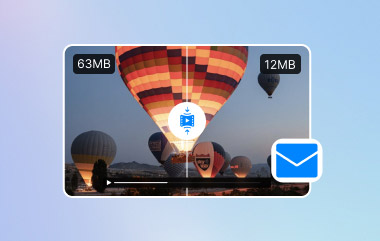
Well, if your video file is too large, Instagram will limit your uploads. What's more, the platform automatically squeezes large video files to reduce bandwidth and ensure fast loading time, often sacrificing sharpness, color accuracy, and details in the process. But we can take a wiser solution: compress your Instagram videos before uploading them.
Part 1: Why Need to Compress a Video for Instagram
If your video is too big, too long, or in the wrong format, Instagram won't just resize it. It will automatically re-encode your video, removing data that keeps your video looking sharp and professional. As a result, your Instagram video will look blurry and seem to be of poor quality.
That's why it's important to prepare your video correctly before uploading. If your video isn’t already in a recommended format, you'd better first convert your Instagram video to MP4. Next, check the file size and resize the video if too large, so Instagram won't reduce its quality during upload.
According to Instagram's Official Publishing Specifications, the recommended settings are:
| Feed | Stories | Reels | |
| Recommended resolution | 1080×1080 (1:1) 1080×608 (16:9) 1080×1350 (4:5) | 1080×1920 | 1080×1920 |
| Recommended ratio | 1.91:1-4:5 | 9:16 | 9:16 |
| Maximum file size | 4GB | 4GB | 4GB |
| Recommended video formats | MP4, MOV | MP4, MOV | MP4, MOV |
| Maximum Video length | 60 minutes | 60 seconds | Either 90 seconds or 15 minutes |
| Video Codec | H.264 | H.264 | H.264 |
| Audio Codec | AAC | AAC | AAC |
| Recommended Bitrate | 3500-4500kbps | 4500-6000kbps | 4500-6000kbps |
Instagram favors content that fits its native format. Following these guidelines, your videos will look crisp, play smoothly, and even perform better in the algorithm. Don't forget to check it for every upload!
Part 2: How to Compress Videos for Instagram Without Losing Quality
Wondering how to compress your Instagram video file size without losing the quality? You need a tool that nails both, and AVAide Video Converter is exactly it. Those basic compressors just reduce your video resolution, making it blurry, but AVAide Video Converter works smarter. It preserves your original video quality without blurring the images or distorting details. Whether compressing a 3-minute 4K video for Instagram, AVAide reduced the file size from 2.25GB to 890MB while the output video maintaining crisp, colorful and totally true to the original, based on our tests.
The Features of AVAide Video Converter:
- Handle 1080p/4K/5K/8K large-resolution videos without crashes or slowdowns.
- Faster video compression speed compared to other tools.
- Allow customizable compression levels to meet your specific needs.
- No watermark on your videos.
Here's a step-by-step guide to using it:
Step 1Click the button here to download AVAide Video Converter for free - available for both Windows and Mac. Follow the installation prompts, complete the setup, then hit Start Now to launch the software.

FREE DOWNLOAD For Windows 7 or later
 Secure Download
FREE DOWNLOAD For Mac OS X 10.13 or later
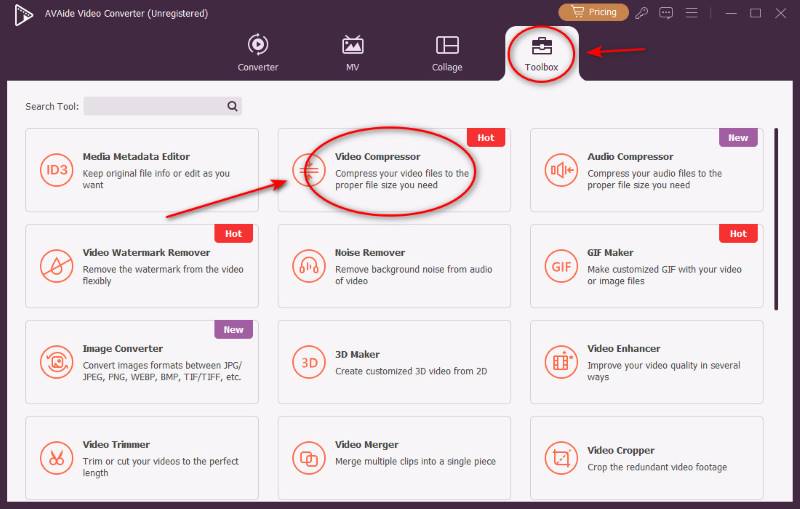
Secure DownloadStep 2On the main interface of the converter, click the Toolbox button first and then select the Video Compressor option.
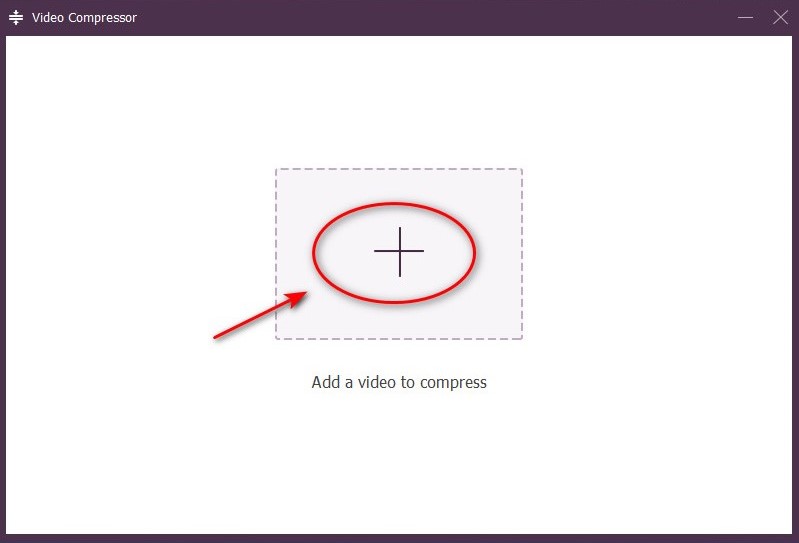
Step 3Click the big add button and pick the file you want to compress.
Step 4Fix the name, size, format and resolution according to the Instagram Video Requirements, then tap the Compress to proceed. Now your Instagram video is compressed successfully, and you can upload it!
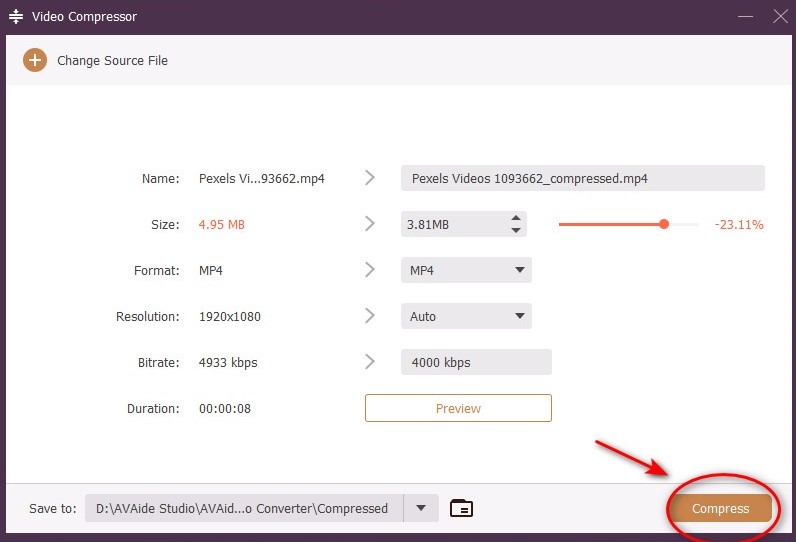
Once your Instagram video is compressed and ready to upload, you can also add some background music to make it more engaging and keep viewers from scrolling past.
Part 3: How to Compress Videos for Instagram Online
If you don't want to install software to squeeze videos for Instagram, online tools are a quick and easy backup option, though they're not powerful, and most of them have limitations. These tools work best for short, small videos where quality is less critical. If you just want to share a fun moment or a casual Reel, and you don't have time or access to download software. These online video tools will help you complete the best compression for Instagram video.
Clideo Online Video Tools
An easy-to-use tool that helps you compress video for Instagram online in no time. The interface is simple to navigate which makes it ideal for both beginners and those who need quick results. In addition to compression, Clideo also lets you edit your videos by cutting, merging, adding text and more.
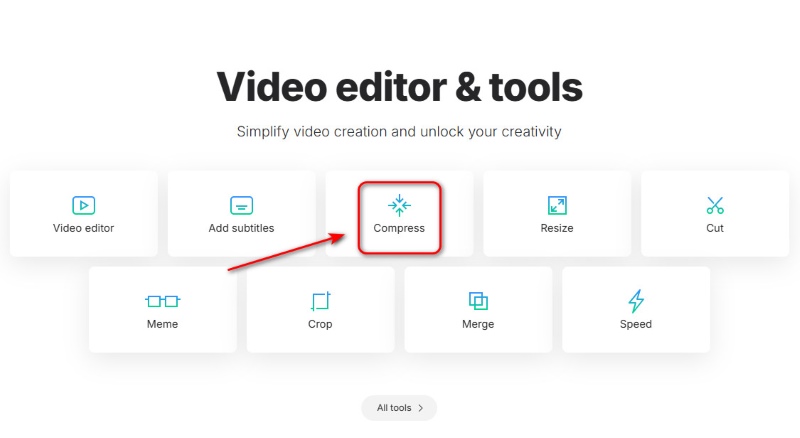
Step 1Go to Clideo Online Video Tools and click the Compress button.
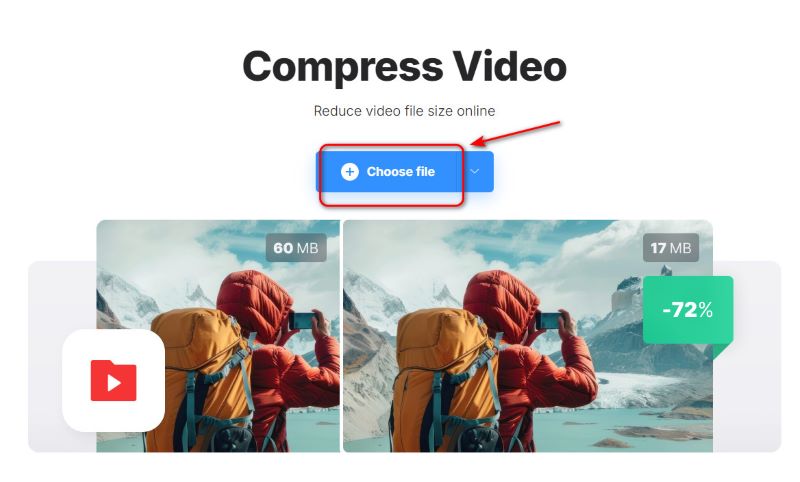
Step 2Hit the Choose File to add your video.
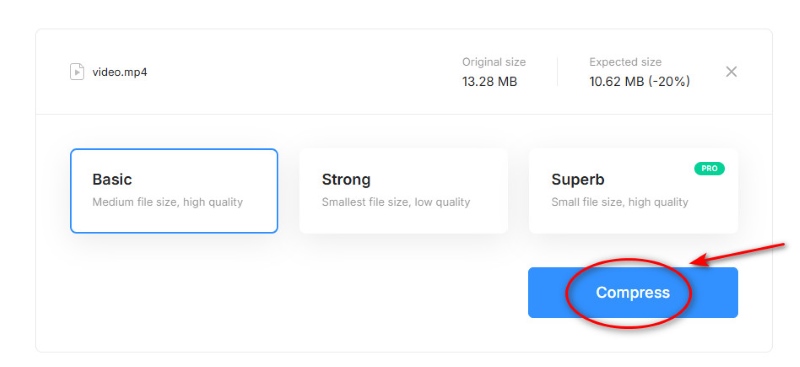
Step 3After uploading, select one of the three modes - Basic, Strong or Superb, then press the Compress button, then your video is ready!
VEED.io
An all-in-one online video editing platform that allows users to create, edit, and share high-quality videos directly through their browser. Users can trim, cut, merge, add subtitles, insert transitions, and adjust video speeds - all within a few clicks.
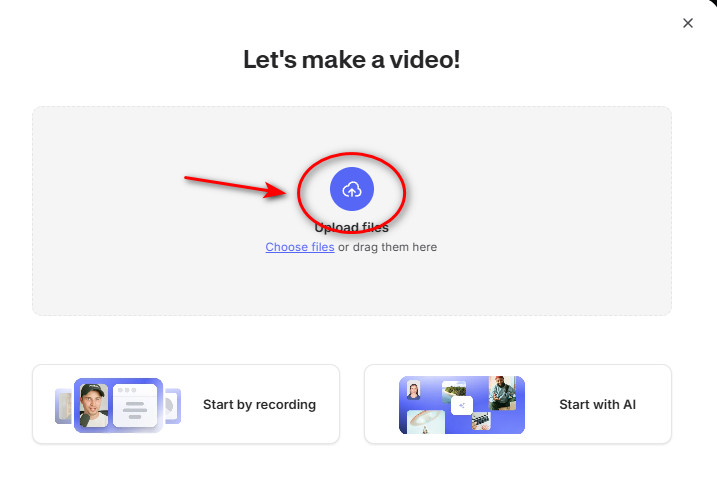
Step 1Go to the page and drag your video to Upload Files.
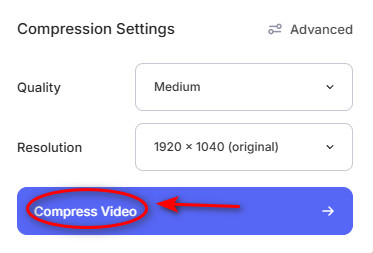
Step 2Select a compression setting and tap the Compress Video button!
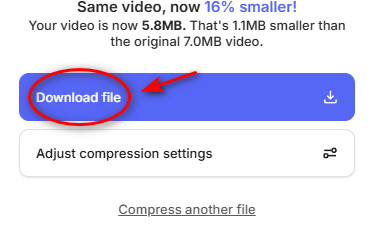
Step 3Wait and then download
FreeConvert
A tool allows you to set personalized level for video size reduction and with 1GB max free size. FreeConvert provides adjustable settings, you can set your desired level of compression to tailor the output file size. You can easily compress video for Instagram free by using it.
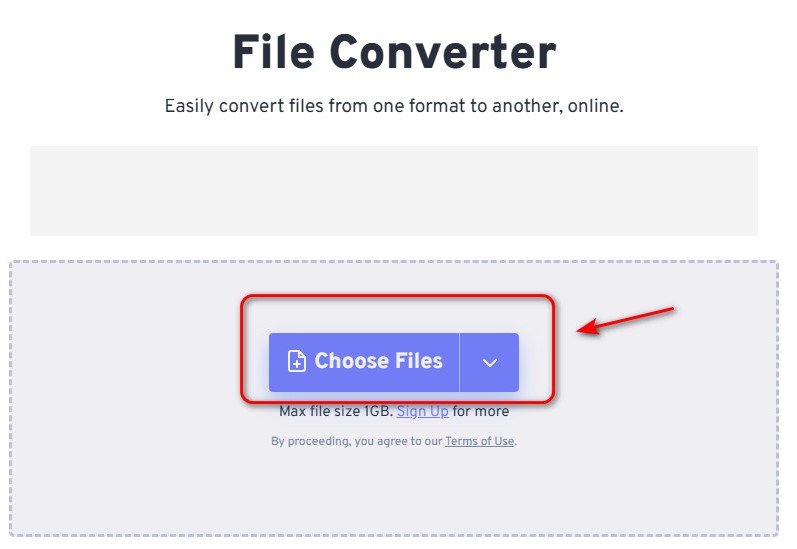
Step 1Click the Choose Video button to upload your file.
Step 2Hit the Advanced Setting to customize your options!
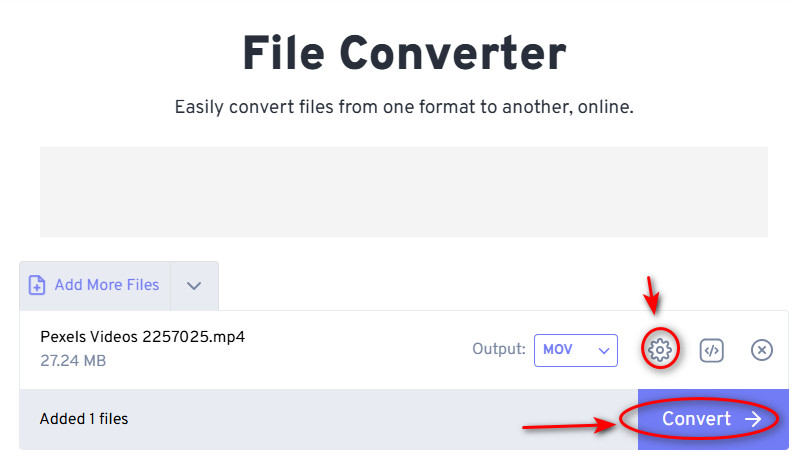
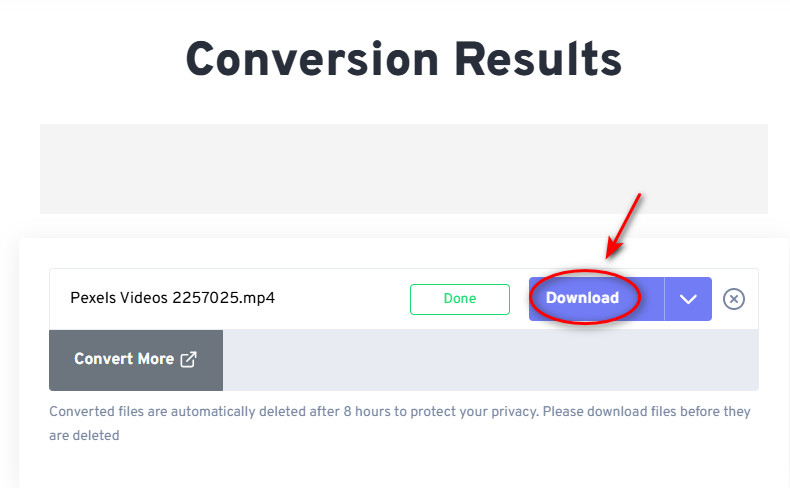
Step 3Select the Convert button and then download. Your video is ready!
Instagram's automatic compression doesn't have to ruin your videos. The key is to pre-compress your Instagram video according to the platform's exact requirements. AVAide Video Converter is the ultimate solution for creators. Whether you're uploading Reels, stories, or feed videos, AVAide ensures your videos stay crisp, colorful, and true. If you don't want to install software, online video compressors are also reliable options! So don't let your videos hurt anymore!
Your complete video toolbox that supports 350+ formats for conversion in lossless quality.