Export problems can break your pace when you try to finish a video, and they often happen without warning. If you have asked why I can't export on CapCut, this guide gives you clear reasons backed by real use and common error patterns. You will see how storage limits, app glitches, device heat, and broken project files can all block a render.
Each fix is simple, direct, and tested on both phone and desktop. This review also points you to better tools if the app keeps failing. Now, let us look at the main causes and the steps that solve them fast.
Part 1: Why CapCut Fails to Export
The CapCut can't export issue happens when the app or your device cannot handle the project. Low storage is the most common cause because large videos need a lot of free space. An outdated app can also fail to save your work.
Some projects do not export when they use broken clips or formats that the app does not support, such as HEVC video extension. Cache build-up, device heat, and long timelines also slow the render process. These problems often lead to exports stuck at zero or a save that fails right before it finishes.
Part 2: Fix the CapCut Not Exporting Error on Phone
Exporting videos on your phone can fail for many reasons, from low storage to app glitches. This section shows simple ways to fix errors and get your videos saved. You will learn how to free space, clear the cache, and update CapCut so exports finish without problems.
1. Free Up Storage Space
Many export errors start when your phone runs out of space. This problem can also cause issues like CapCut can't export compound clips because the app needs extra room to render each layer. Check your storage in your phone settings and remove files you no longer need. You can also move photos and videos to cloud storage. Free space gives the app enough room to save the finished video without failing.
2. Clear CapCut Cache
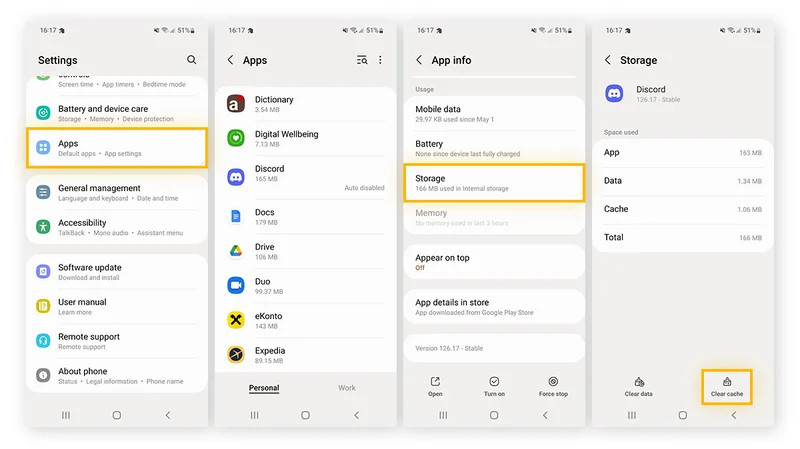
Cache buildup can slow the app and cause errors like CapCut won't let me export. On Android, go to Settings, open Apps, select CapCut, and clear the cache. On iPhone, remove and reinstall the app to refresh stored data. This step clears small glitches and helps the app run clean again.
3. Update the App
An older version of the app can stop new features from working. This is common for users trying to learn how to export CapCut Pro for free because export tools change with updates. Open the Google Play or App Store and download the latest CapCut. Bugs, stability, and other things are fixed to make the app compatible with your device without bugs.
Part 3: Fix CapCut Not Exporting on Windows and Mac
Exporting videos on PC or Mac can be tricky when your system or app runs into limits. This section explains how to check resources, optimize settings, and handle advanced problems. Following these steps helps you prevent errors and ensures your CapCut projects save correctly every time.
1. Check System Resources
The problem of exportation breakdown on PC or Mac is common when the computer lacks sufficient memory, processing and storage capacity. Having excess applications operating in the background may lead to the failure of how to export CapCut videos without Pro.
Shut down programs that are not essential and ensure that the drive in which you store the videos has sufficient free memory. The relevance of system resources assists the CapCut process and store video in a more dependable way.
2. Optimize Export Settings
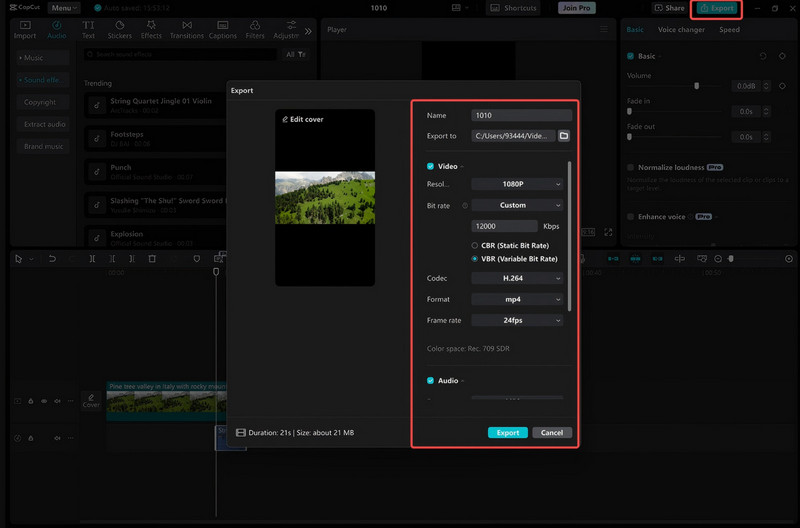
High resolution or frame rates can overload some computers, causing the app to stop exporting. Adjusting settings to lower resolutions or frame rates can improve performance. Using the best CapCut export settings for Instagram, like 1080p resolution at 30fps, can prevent errors while keeping quality high for social media.
3. Advanced Fixes
Corrupted project problems or deep-seated app problems sometimes lead to long-term problems. Recreate sections of your project if exports fail, or reinstall CapCut to ensure a fresh setup. If these steps do not work, export a lower-quality draft and use third-party tools for final adjustments. These methods help avoid CapCut not exporting errors and ensure your video can be completed without losing work.
Part 4: Tips for Seamless CapCut Exporting
Exporting videos in CapCut can be frustrating when projects fail or freeze. This section shares simple tips to make exports smoother. You will learn how to adjust settings, split large projects, rebuild corrupted files, and use safe tools. These steps help you avoid errors and show how to export a CapCut video easily.
1. Adjust Resolution and Frame Rate
Select 1080p or below in case your gadget is having issues with 4K. Export 30fps on low-end devices to be smoother. These environments minimize crashing and accelerate the rendering.
2. Enable Compression
Compression should be turned on to reduce files with no loss of quality. This avoids storage malpractices and eases the process of export.
3. Split Large Projects
Split long videos and make parts of them be used separately. At a later stage, assemble them at CapCut or any other editing software. This prevents frozen and frozen exports.
4. Keep Software Updated
Update graphics drivers, CapCut and graphics. Bugs are fixed, and the exports are maintained.
5. Rebuild Corrupted Projects
If a project keeps failing, recreate it. Corrupted clips or effects can block the export process.
6. Use Third-Party Tools
Export a lower-quality draft and refine it with other apps. This method also helps users who want to know how to bypass CapCut Pro export limits safely.
Once the video is exported to CapCut, you might notice that there is a watermark added at the end of it. To remove the watermark on CapCut, you will need to purchase the pro version of it or use a third-party tool to solve the problem and make your exported video look professional.
Part 5: The Best CapCut Alternative to Edit and Convert a Video
If CapCut keeps giving export problems, AVAide Video Converter is a reliable alternative. It lets you export any high-quality video seamlessly and upscale your projects to 4K, 5K, or even 8K. The software offers many customizable features and AI-driven tools for editing and enhancing videos. With AVAide, you can finish and convert videos quickly without running into export errors.

FREE DOWNLOAD For Windows 7 or later
 Secure Download
FREE DOWNLOAD For Mac OS X 10.13 or later
Secure Download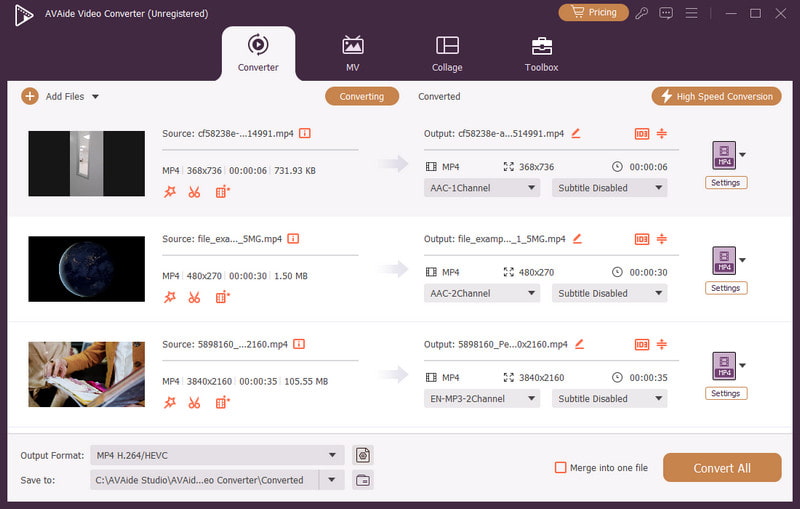
Exporting videos in CapCut can be frustrating, but most problems can be fixed. Clearing storage, updating the app, and adjusting settings on the phone or PC usually works. If not, split the project, rebuild it, or use a tool like AVAide Video Converter. These tips help you avoid errors and explain why CapCut can't export, keeping your videos safe and your workflow smooth.
Your complete video toolbox that supports 350+ formats for conversion in lossless quality.