If you have ever tried editing clips on your phone or laptop, you probably know how tiring and confusing it can feel. This is where an auto video editor app becomes a lifesaver. It takes care of things like syncing your audio, cutting scenes, and fixing your lighting without making you click around for hours. And the best part is that most people can use these tools without any editing skills. If you want something that helps you auto-edit video without the stress, this guide walks you through everything.
Part 1. What Can an Auto Video Editor Do
Editing videos always sounds easy until you actually sit down and do it. You drop your clips on the timeline and expect everything to line up on its own. But then the audio jumps ahead. The lighting looks off. The transitions do not match. And suddenly, you are wondering why a simple edit feels like solving a puzzle you never signed up for. This is where an auto video editor becomes useful. It helps you handle the boring parts so you can focus on the actual message you want to share.
Here are five auto features that make the whole process easier:
1. Auto-split video into parts
Long recordings look fine at first, but when you try to edit them, you end up scrubbing back and forth searching for mistakes or pauses. An auto split feature breaks your clip into smaller chunks based on silence or changes in sound. It saves you from the pain of dragging through a ten-minute video just to find the part where you cleared your throat or forgot your line. By the time you start editing, everything is already sectioned and ready.
2. Auto-sync video and audio
Anyone who has tried syncing external audio knows how annoying it can be. You clap at the start of your video just to create a reference point. You zoom into your timeline. You try to match the waveform. It drains your energy before you even begin. Auto syncing fixes that. You drop your video. You drop your audio. The software lines them up for you. It feels like a small thing, but it saves more time than you expect.
3. Auto-merge selected parts
If you record in segments, your files can pile up fast. One clip in the airport. One clip while walking. One clip at your destination. Putting them together manually is tiring because you need to match pacing and keep your story flowing. Auto-merging helps by connecting chosen parts smoothly. Instead of spending an hour arranging clips, you just select what you want, and the tool turns them into a single clean sequence.
4. Auto-brightness and color fixes
Lighting problems happen to everyone. Sometimes the room is too yellow. Sometimes the sun is too harsh. Sometimes the camera just misbehaves for no reason. Auto video editors can correct these issues with one click. They adjust brightness, contrast, shadows, and color balance in a natural way. You do not need to understand color grading. You just get a cleaner and more stable look without touching complicated settings.
5. Auto-create short video clips
Short-form content moves fast. If you post on TikTok, Facebook Reels, or YouTube Shorts, you know how constant that pressure feels. Auto editors can scan a long video and pull out the most usable moments. They give you ready-made short clips that fit the format you want to post. You can edit them more if you need to, but the hard part is already done.
Part 2. 5 Auto Video Editors [Super User Friendly]
Choosing the right app matters because some tools look simple but make everything harder. You want something that feels natural. Something that does not make you read a thick manual before you can edit a five-second clip. Here are five options that real users find easy to work with.
AVAide Video Converter
AVAide Video Converter is worth mentioning because it works for people who want quick edits without the heavy learning curve. It has an auto video editor app that helps with splitting clips, syncing audio, compressing videos, cleaning noise, and adjusting brightness. What people like about it is how straightforward it feels. You open it, and everything is ready. If you want to trim, you trim. If you want to merge, you merge. It is simple enough for beginners but strong enough for everyday editing.
How to use AVAide Video Converter:
Step 1To acquire the software, simply click the Free Download button below. Install it on your device by clicking it twice. Run the program afterward.

FREE DOWNLOAD For Windows 7 or later
 Secure Download
FREE DOWNLOAD For Mac OS X 10.13 or later
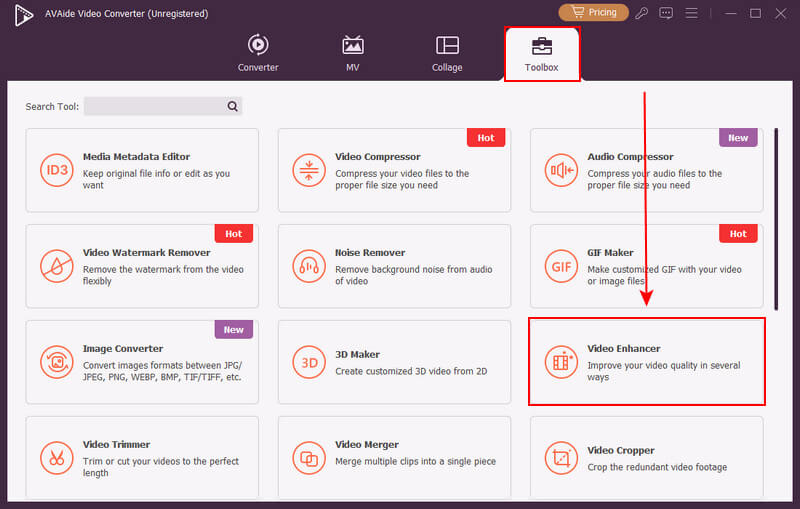
Secure DownloadStep 2On the main interface, go to the Toolbox tab and find the Video Enhancer option. Click the Plus (+) button to upload your video, or simply drag and drop the file into the program.
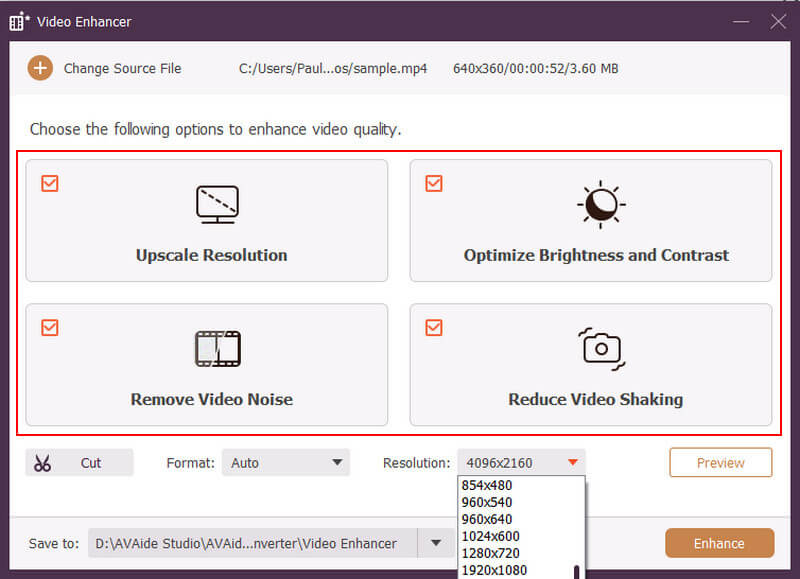
Step 3From here, you can auto upscale your video, optimize brightness and contrast, remove noise, and reduce shaking. You can also trim the video or change the format if needed. The resolution can be boosted up to 4K. When you're ready, click Enhance to continue.
- Pros
- Very easy to understand, even if you are not techy
- Clean interface with flexible, all-around editing tools
- Smart auto features for compression, enhancement, and quick fixes
- Runs smoothly without slowing your device
- Cons
- Doesn't have a mobile version
- Fewer advanced effects compared to bigger editing apps
CapCut
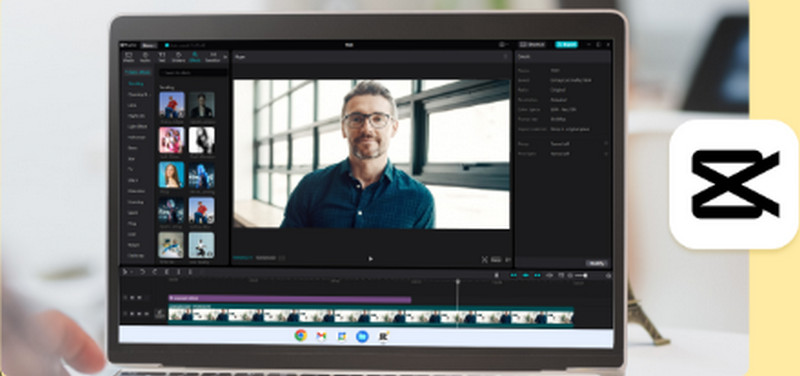
CapCut can auto-create short video edits from longer recordings. It also understands social media formats. Most users love the auto beatsync feature because it lets your clips match the rhythm of your music. The best part is that you can export without thinking too much. It is friendly for mobile creators who want fast results.
- Pros
- Perfect for short-form videos
- Auto beatsync saves a lot of editing effort
- Has templates that beginners can apply instantly
- Works on both mobile and desktop
- Cons
- Can feel cluttered when too many effects appear
- Some features require an internet connection
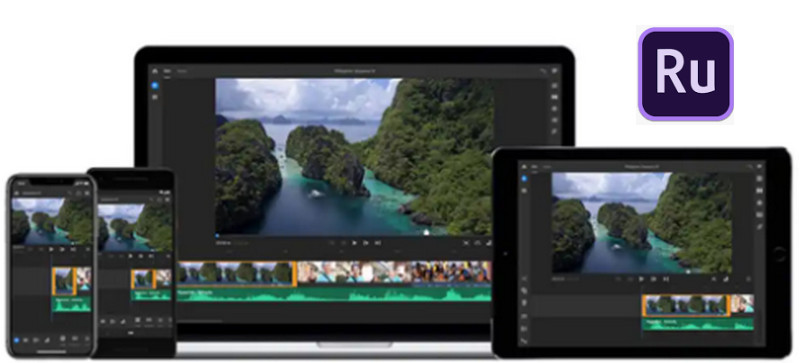
Adobe Premiere Rush
This is the lighter version of Adobe Premiere Pro. If you feel overwhelmed by professional software, this one feels more relaxed. It can automatically adjust colors, stabilize shaky scenes, and sync your audio. It works across devices, so you can start on your phone and continue on your laptop. Many people like it because it has fewer buttons to worry about while still giving clean results.
- Pros
- Works on both phone and laptop with synced projects
- Auto color adjustment looks clean and natural
- Good stabilization for shaky videos
- Simple interface compared to full Adobe Premiere
- Cons
- Some features are locked behind a subscription
- Can feel heavy for older devices
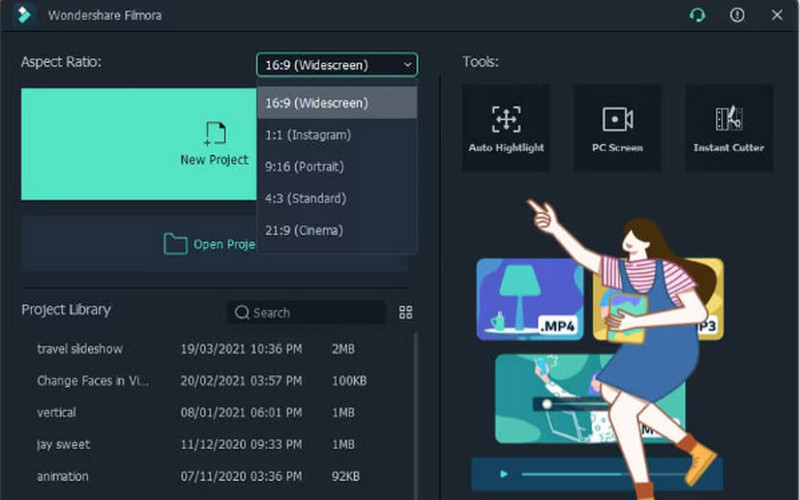
Filmora
Filmora works for beginners who want more control. It can auto-edit my video whenever I need fast cuts, clean transitions, and automatic color balance. It also includes templates that you can apply with one click. Most users enjoy the interface because it looks less crowded. You can drag your clips and make simple edits without the fear of breaking something.
- Pros
- Balanced mix of simple and advanced tools
- Auto color balance gives consistent results
- Templates help with fast editing
- Interface feels modern and clean
- Cons
- Watermark applies to the free version
- Some effects take longer to render
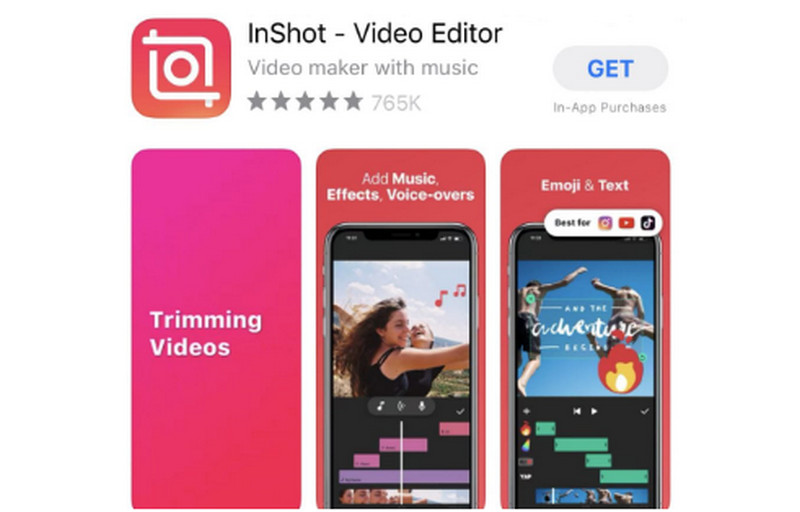
InShot
This app is common among vloggers. It can auto-split parts of your clip. It can adjust brightness automatically. It can sync your audio. It can give you quick cropping options for social media. What makes it stand out is how fast you can produce something presentable. Many users who film on their phones rely on it because it simplifies everything.
- Pros
- Extremely simple for mobile editing
- Auto brightness helps fix bad lighting fast
- Easy cropping for any social media format
- Lightweight and does not use too much storage
- Cons
- Watermark appears on some exports unless removed
- Limited advanced editing tools
Part 3. Comparison of the 5 Auto Video Editors
Here is a simple comparison of five auto video editors. You can see each tool’s auto feature, key feature, and what it is best for, so you can quickly understand what each editor offers.
| Tool | Automated Feature | Key Feature | Best For |
| AVAide Video Converter | Automatic video optimization | Improves video quality with auto brightness, noise cleanup, and stabilization. | Best for long videos and smooth, clean edits |
| CapCut | Create short video clips | One tap short-form templates | Social media posts |
| Adobe Premiere Rush | Sync video and audio | Aligns external audio with your video instantly | Vlogs, talking videos, tutorials |
| Filmora | Color balance and presets | One-click color correction | Creative edits with simple controls |
| InShot | Brightness and quick cropping | Fast mobile edits with simple tools | Fast mobile video editing |
Tips. Some Easy But Useful Video Editing Skills
Even if your auto editor does most of the heavy lifting, a few small habits can instantly make your videos look cleaner. Keep your clips short so the pacing feels tight. Long, dragging shots are usually the first reason viewers skip. And always give your audio a quick check; even with auto-sync or noise reduction, consistent volume and a quiet recording place make a huge difference.
Lighting and stability also go a long way. Natural light almost always looks better than anything the software tries to "fix," and you don't even need a tripod; just holding your phone with both hands already keeps your framing steadier. Watch your raw video once before making any edits, too. It helps you quickly spot slow, confusing, or unnecessary parts. Following these steps is a simple way to learn how to improve Instagram video quality.
Finally, keep things simple. Add text only when it actually helps, and add music to video that matches the mood. Follow this easy rule: if a clip feels too long, cut it; if it feels confusing, remove it; if it feels repetitive, shorten it. These little habits make your final video feel cleaner even before the auto editor starts working.
Using an auto editing video tool makes editing easier. You don't worry about syncing audio, fixing brightness, or cleaning shaky clips. The software handles the hard parts so you can focus on your story. And if you want a tool that keeps everything simple while giving you automatic enhancements, AVAide Video Converter is a solid place to start. It handles the basics smoothly, cleans up your footage, and helps you get a polished result without feeling overwhelmed.
Your complete video toolbox that supports 350+ formats for conversion in lossless quality.