Many users record videos on iOS phones because they keep the pristine quality of recording, but struggle when files fail to work on computers due to incompatibility. This often requires converting MOV to WMV for smoother playback in Windows programs. By reading this guide, you can get all the practical steps used in real support situations. We start by comparing formats and then explore simple desktop and online tools for reliable conversion.
Part 1: MOV vs WMV
1. Developer and Ecosystem:
Apple came up with MOV under QuickTime, which is most effective in Apple gadgets and editing systems devoted to media creation. The WMV, which is developed by Microsoft, is specifically designed to be played on Windows operating systems; hence, it is simpler to play in offices and homes that already use Microsoft software. Because of this difference, many users convert MOV to WMV when moving videos from Apple devices to Windows computers.
2. Compatibility:
MOV files are compatible with the macOS and iOS operating systems, but they might require extra codecs in certain Windows-based computers. WMV files can be used on Windows without the use of additional players, and that makes it easier to share them in most workplaces and even in schools. For this reason, users often change MOV to WMV to avoid playback problems when sending videos to Windows users.
3. File Size:
The MOV files normally maintain a greater quality of the video, which in most cases means that they have great file sizes that are difficult to upload or transfer on the internet. WMV files use stronger compression to reduce file size while keeping acceptable quality, so many people convert QuickTime MOV to WMV when they need faster uploads or easier file transfers.
4. Video Quality:
MOV can be extensively utilized in video recording and editing due to its ability to preserve high-quality images and sound with the help of versatile codecs. WMV is aimed at the balance between quality and smaller files to stream or play, which is why a lot of creators use the software to convert MOV to WMV once editing is complete and the video is ready for distribution.
5. Typical Use Cases:
MOV is widely applicable in professional editing, camera recording, and creative production processes, with quality being the most important factor. WMV is often used for presentations, training materials, and shared videos in Windows environments, so teams frequently use a video file converter, such as MOV to WMV, when preparing videos for easier internal sharing.
6. Compression and Performance:
MOV gives options of various compressions that offer flexibility but occasionally lead to compatibility problems involving different systems. WMV compression is optimized for smooth performance on Windows devices, which explains why many users change MOV to WMV for free when they want consistent playback on office or home Windows computers.
7. Editing Support:
MOV files are also favored when editing since they do not lose quality in both production and post-editing stages. Usually, WMV files are used to play and distribute after editing, thus creators sometimes convert a MOV file to WMV in the latter part to simplify the delivery and consumption of videos on Windows machines.
Part 2: Best Way to Convert MOV to WMV on Windows/Mac
When talking about the easiest way to convert a MOV file to WMV for free with speed and reliability, the name AVAide Video Converter cannot be overlooked. The tool is compatible with Windows and Mac, and it can play, edit, or share a wide variety of video and audio files. With a clean beginner-friendly interface, even the first-time user is able to complete conversions in a couple of clicks, and you can customise the resolution, quality, and other configuration options. AVAide Video Converter will convert videos into an easy and stress-free process with rapid processing and consistent output.
Step 1You can download the converter on your computer for free by clicking the download button that we have here, then following the installation process before you use it to convert the MOV files you have.

FREE DOWNLOAD For Windows 7 or later
 Secure Download
FREE DOWNLOAD For Mac OS X 10.13 or later
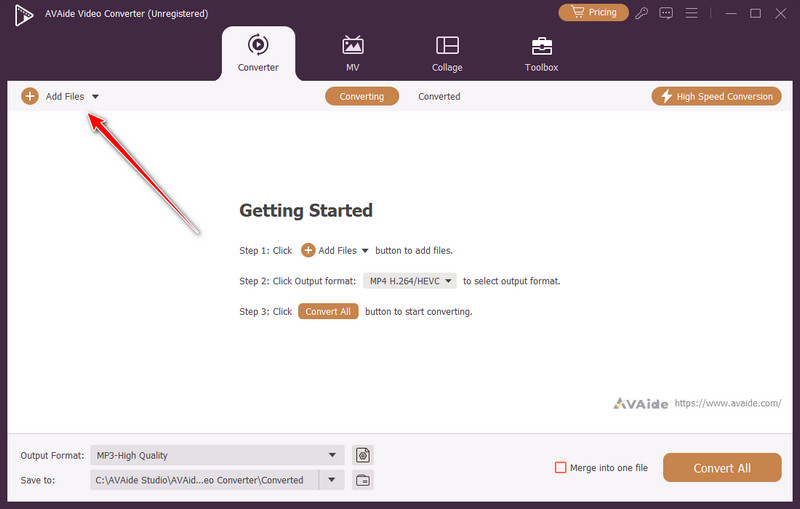
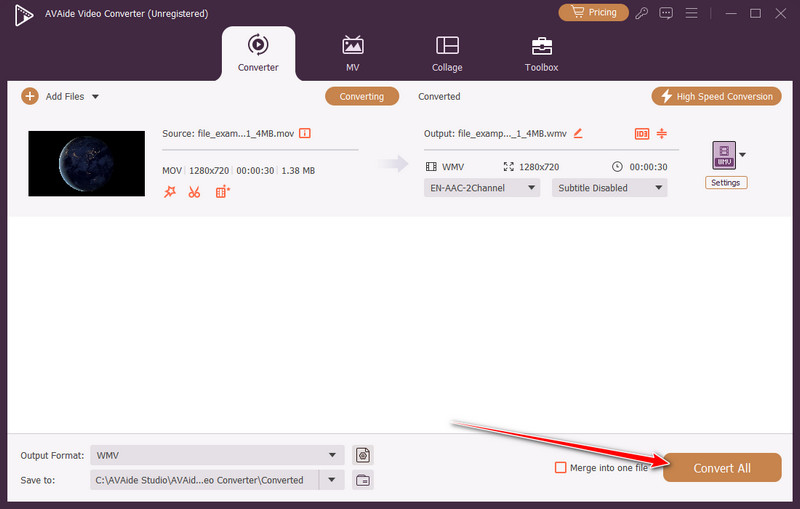
Secure DownloadStep 2To upload the MOV files in here, you need to tick the Add Files button, and a file folder will appear on your screen. Find the MOV file you want to convert that is saved on your computer and click Open.
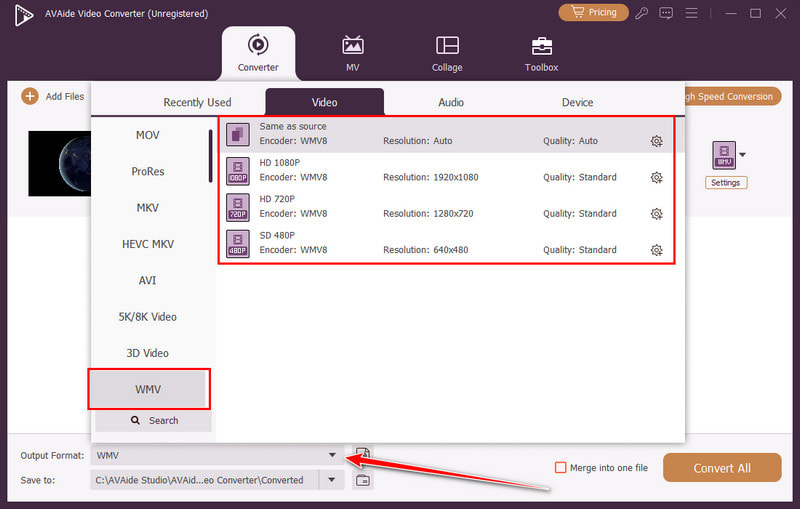
Step 3Once uploaded, click the dropdown button on the Output Format to select the file format you want to turn the MOV into. Go to the Videos, find the WMV, and select the WMV settings you want to achieve.
Step 4Finally, you can now click the Convert All button to start the transformation of MOV into WMV format. Easy right? Well, that is what the AVAide promises to everyone who uses it.
Part 3: How to Convert a MOV File to WMV Online Free
1. CloudConvert
CloudConvert is a reliable online tool that makes it simple to convert a MOV file to WMV online for free. It accepts various video and audio formats, keeps the quality of video, and enables bulk upload of videos. Its user-friendly interface is clean and allows even novices to make conversions very fast without software.
Step 1Open a new tab, find CloudConvert, and click the Select File to import the MOV here.
Step 2Tick the dropdown button in here and choose the WMV as an output.
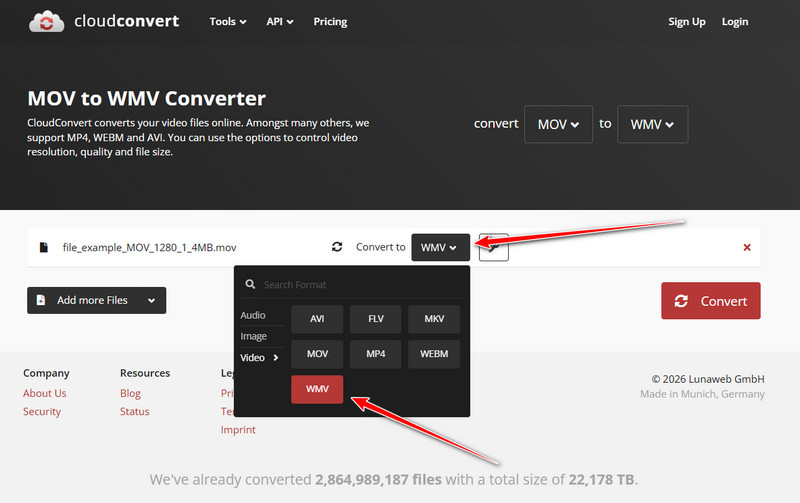
Step 3After that, click the Convert button and download it.
2. Convertio
Convertio is a secure, web-based tool that is effective in fast online conversions. Users are able to change MOV to WMV for free with a few clicks and preserve video quality, and it can handle various formats to allow a degree of file management.
Step 1Now that the Convertio is open, click the Choose Files to upload the MOV.
Step 2Same as CloudConvert, click the dropdown button to set the output format you want to achieve, which is WMV.
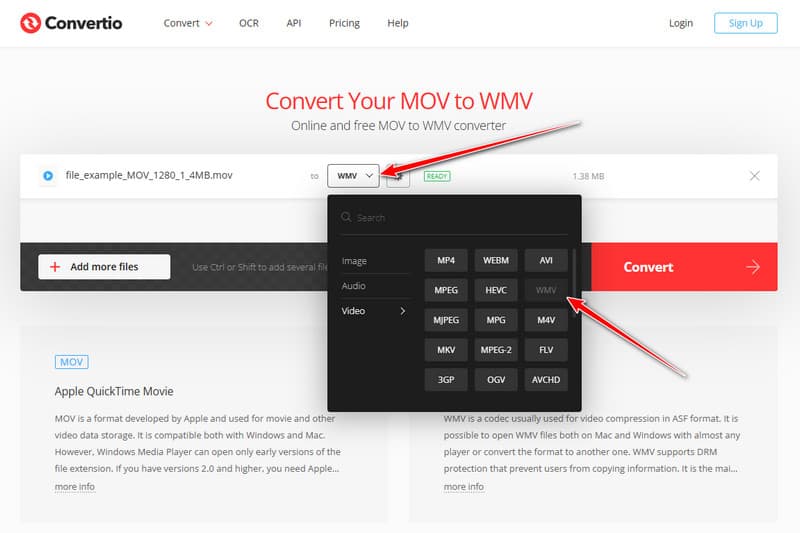
Step 3To proceed, click the Convert button.
Part 4: How to Change MOV to WMV on the Desktop Free
1. VLC Media Player
VLC Media Player is a trusted desktop solution that can convert MOV to WMV for free. In addition to playback, it offers user-customizable export options in terms of resolution, codecs, and frame rates, which makes it a stable choice among Windows and Mac users.
Step 1Go to the Media menu, then select Convert/Save.
Step 2Click Add to select the MOV file you want to convert, then press Convert/Save at the bottom.
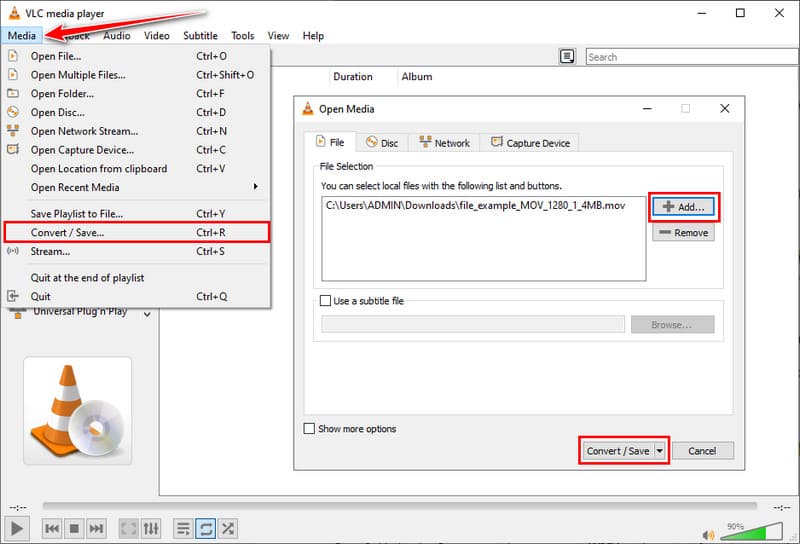
Step 3Choose WMV as the output format, select the destination folder, and click Start to begin the conversion.
2. HandBrake
HandBrake is a free desktop tool that allows users to convert video files converter MOV to WMV easily. It also gives control of output settings and preservation of video quality, and is a quick and efficient solution to offline conversions.
Step 1Click Open Source and load the MOV file that you wish to convert.
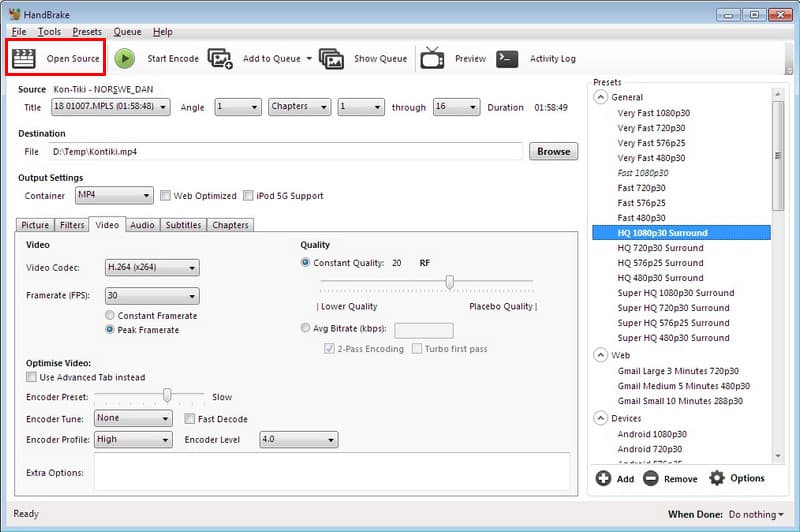
Step 2Under the Summary tab, you can set WMV as the output format or an optionally compatible preset in the event that WMV does not appear directly.
Step 3Alter the video and audio settings if needed, choose the destination folder, and click Start Encode to convert the MOV file to WMV.
You can choose an online solution like CloudConvert or Convertio for quick, browser-based conversions, or desktop options like VLC Media Player and HandBrake for offline conversions. Each method ensures your videos remain high quality and ready to play on Windows devices. By following the steps outlined above, anyone can confidently change MOV to WMV without technical frustration, making video sharing, editing, and playback simple and reliable.
ABOUT THE AUTHOR

Your complete video toolbox that supports 350+ formats for conversion in lossless quality.