To save the MOV audio into an MP3, the best option is to alter the MOV to MP3 using a dedicated converter that supports both formats. A careful mov conversion keeps clear sound, lowers file size, and works on phones, computers, and media players. This guide describes desktop, free online, and mobile processes so that readers are able to select the most appropriate step within a short period of time.
Part 1: How to Convert MOV to MP3 on Windows/Mac
AVAide Video Converter is an ideal solution for those willing to convert MOV into MP3 fast on Windows or Mac. The program works with a wide range of audio and video files, is fast and does not degrade sound quality. It has a simple interface, which is user-friendly and enables a beginner to complete conversions within minutes without technical skills. Simple format selection, batch converting and the stability of its performance make it appropriate for both casual users and routine media editing processes. When it is installed, users will need to go through the following steps to convert with ease.
Step 1Download the video converter on your computer for free by clicking the button that we have here. It is one of the official ways to download the app without visiting its main website, then follow the installation process as you move forward.

FREE DOWNLOAD For Windows 7 or later
 Secure Download
FREE DOWNLOAD For Mac OS X 10.13 or later
Secure DownloadStep 2On the main interface, tick the + button to import the video that you want here. If you have multiple MOV files you want to be converted, then upload them all here since the app supports batch conversion.
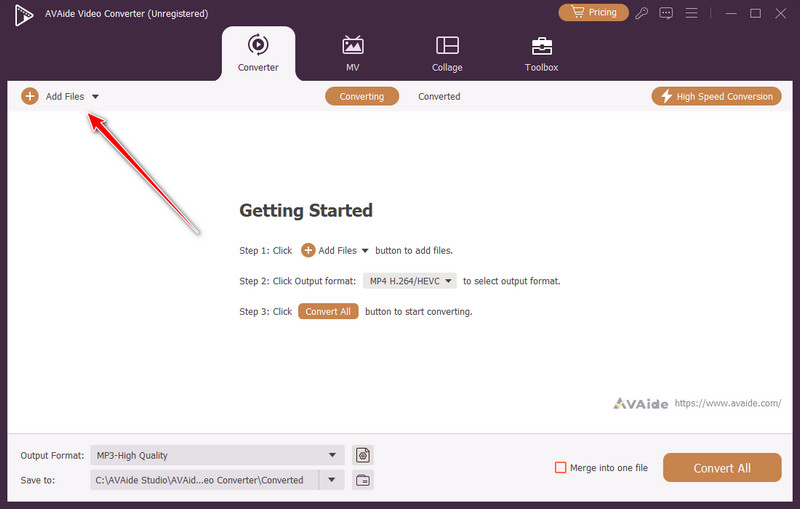
Step 3Next, click the dropdown button, go to the Audio, select MP3, and choose the MP3 settings you want to achieve. Here you can choose the High, Medium, or Low Quality as your MP3 settings.
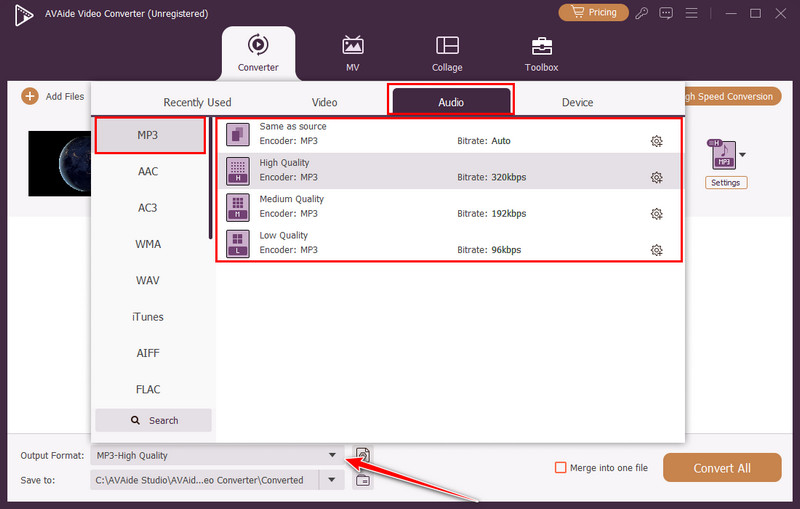
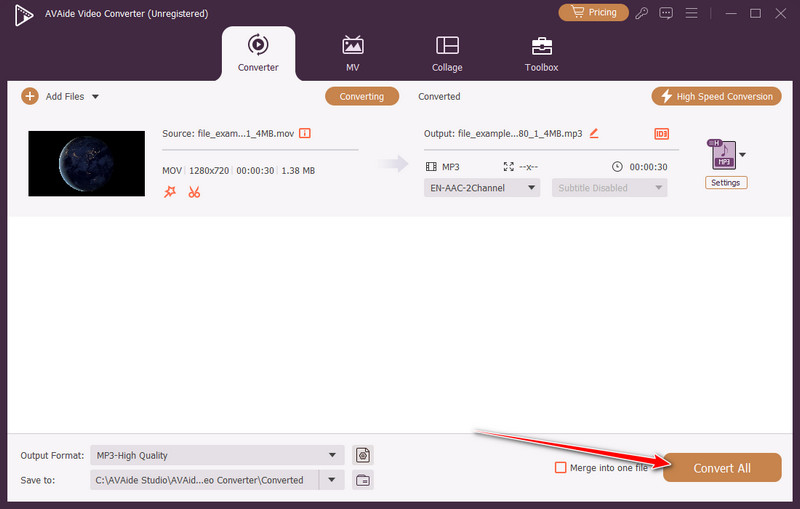
Step 4At this point, just select the final format settings in here and then press the Convert All button, whereby the conversion process will automatically start, and the audio file will automatically be downloaded to your computer.
Part 2: How to Turn MOV to MP3 Free Online
1. Online Video Converter
Online Video Converter has a simple web-based interface that can be used without any installation, and it is also convenient when a user needs to perform a quick task on any device. The users are able to upload files effortlessly and get converted audio even without registering for an account. Processing speed is suitable for small and medium files, and the workflow remains beginner-friendly. Many users rely on online video converter MOV to MP3 when they need a quick and simple audio extraction without installing software.
Step 1Use your browser and search its official page, then click the Choose File to upload the MOV video that you have.
Step 2Tick the Audio, and choose the MP3 format, then set the Quality based on your needs by clicking the dropdown button.
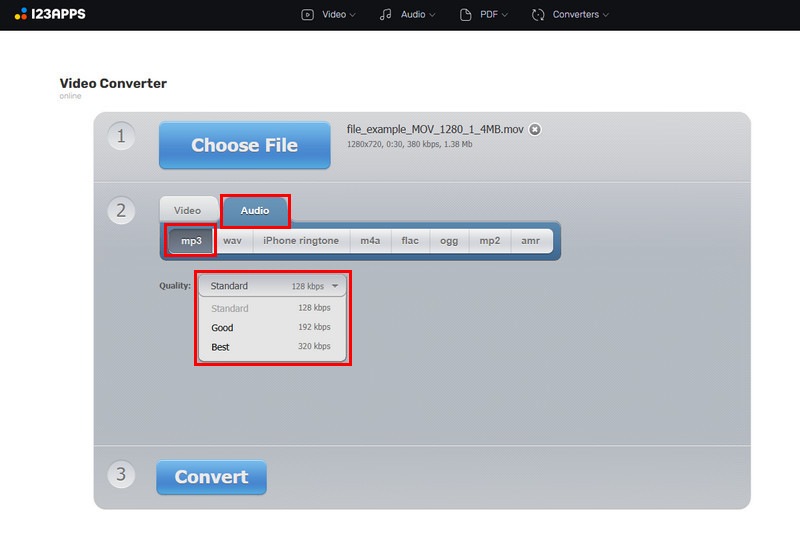
Step 3Now that you have set the format and are ready to convert then click the Convert button.
2. Convertio
Convertio is known for strong format compatibility and smooth cloud integration, allowing uploads from Google Drive, Dropbox, or local storage. The tool maintains good output quality while keeping the conversion process simple for beginners. Convertio online converter performs well across devices and supports quick downloads after processing. Users often choose this service when converting MOV to MP3 for music clips, lectures, or voice recordings.
Step 1Open the Convertio on your browser and click the Choose File to import the video that you have here.
Step 2After importing the video, click the dropdown button and choose the MP3 format from the list.
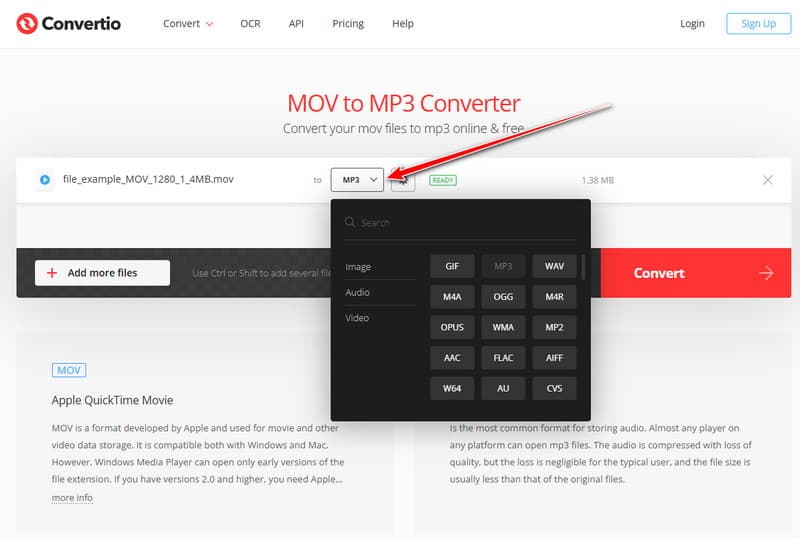
Step 3To begin the conversion process, tick the Convert button and download the converted MOV file.
3. FreeConvert
FreeConvert provides useful control over audio quality, bitrate, and trimming options while keeping the process easy to follow. The site also enables bigger uploads than most of the online competition and secures file transfers. Its minimal design allows users to change the output settings without any confusion. Most individuals like this tool in those cases where they require flexibility and, at the same time, can convert .mov to .mp3 online with no software requirement.
Step 1Open the FreeConvert website using your browser and click the Choose Files button that appears on your screen to import the MOV file you want to convert successfully.
Step 2Then, click the dropdown button, choose the Audio format, and pick the MP3 from the list that appears.
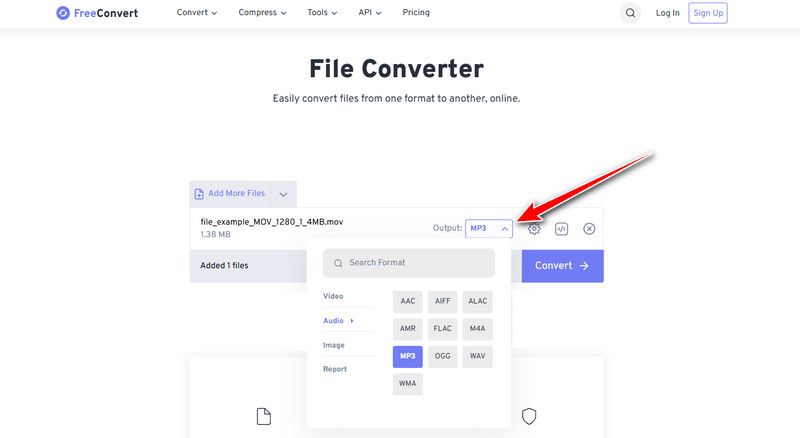
Step 3To get the MP3, click the Convert button and wait until the process is done. Once it says Done, click the Download button to have it on your device.
4. CloudConvert
CloudConvert is a trusted platform that offers good performance and a high level of customization for audio conversion. Users will be able to import files from various cloud services and still handle files in a secure manner. The platform can easily work with bigger files and maintain a steady audio quality. Professionals and frequent users often depend on CloudConvert MOV to MP3 conversions for stable results.
Step 1Open a new tab on your browser and search the official webpage of CloudConvert. Then, click the Select File to upload the MOV here.
Step 2After uploading the MOV, click the dropdown button to select the format you want to achieve. Since you want to get the MP3, go to the Audio section and select it from here.
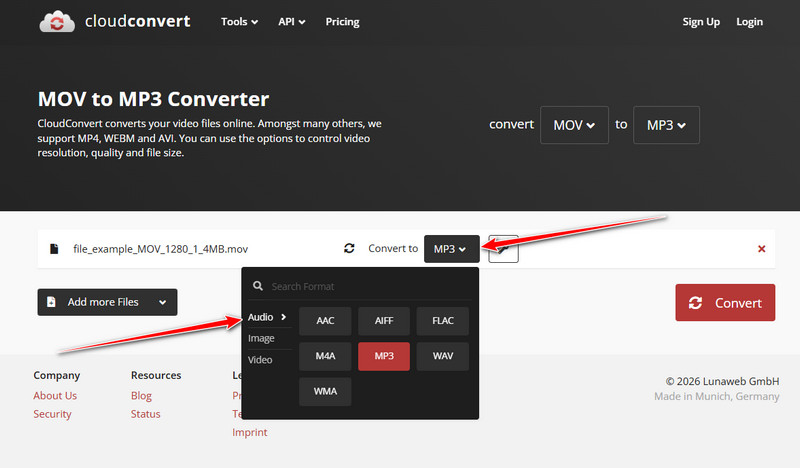
Step 3Tick the Convert button to engage the conversion process, then download it afterwards.
5. Zamzar
Zamzar remains one of the most recognized online conversion platforms thanks to its long history and easy workflow. Users simply upload a file, choose the desired format, and download the converted result with minimal steps involved. It works well for straightforward conversions of M4A to MP4 and others without technical settings. Many users pick Zamzar when they only need to convert a MOV file to MP3 quickly and without extra setup.
Step 1Go to your browser and type in Search Zamzar, and access the official page, which comes out in the search results. After that, select the Choose Files to add the video; it is also possible to drag it here.
Step 2Click the Convert to, and choose the MP3 from the Audio Formats that appear on the list.
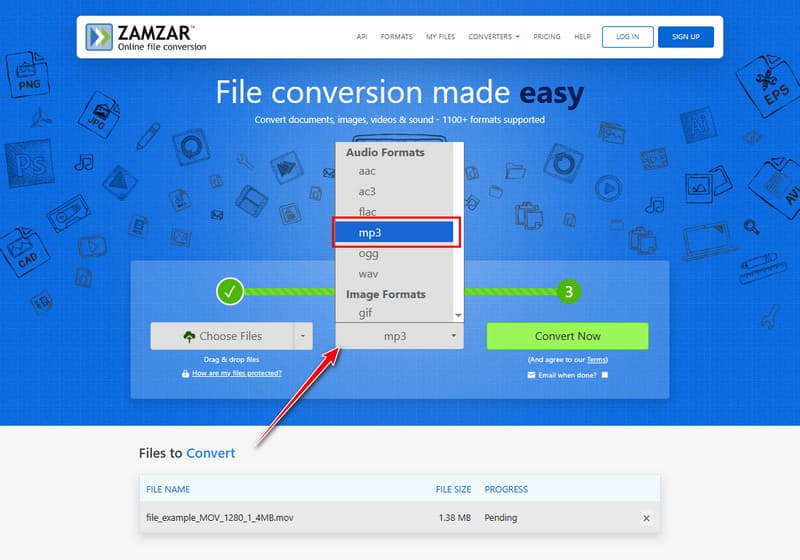
Step 3To begin the conversion process, say the Convert Now button.
Part 3: How to Change MOV to MP3 on Mobile
1. Video to MP3 - Video to Audio (Android)
Video to MP3 - Video to Audio is a useful Android application that is intended to extract audio at a high rate from video files, including MOV. It can be used to trim, control bitrate, as well as to process many conversions, hence it fits both quick and frequent ones. Many users choose this MOV to MP3 converter free solution when they want simple controls and fast results directly on their phones.
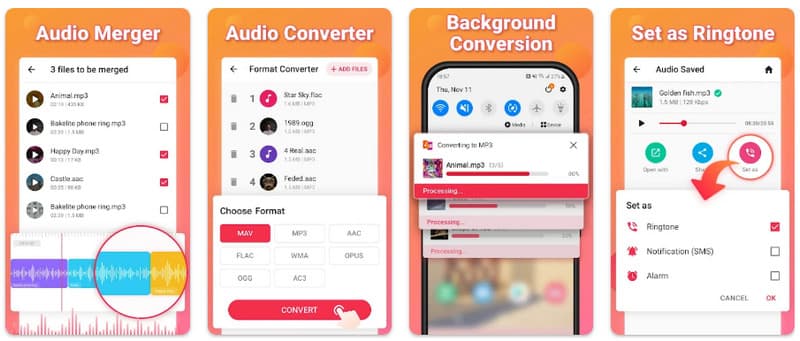
Step 1Install the app from the Google Play Store and open it, then tap Select Video to import the MOV file from your device.
Step 2Choose the output and adjust bitrate or trimming settings if needed.
Step 3Tap Convert and allow the app to convert the file, after which you can access the MP3 file in your saved audio folder.
2. Audio Extractor: Video to MP3 (Android)
Audio Extractor: Video to MP3 focuses on extracting clean soundtracks from videos with minimal setup. It supports editing tools such as trimming and splitting, making it useful when users need to change MOV to MP3 while managing audio length. It is easy to use due to its bare and straightforward design, which can be easily converted even by a beginner.
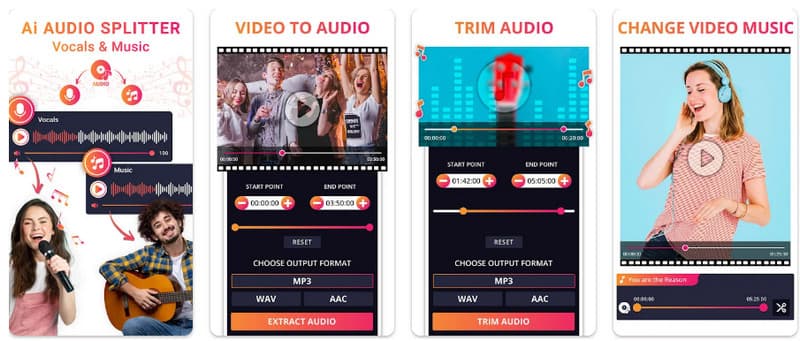
Step 1Install and open Audio Extractor, then tap Select Video to load your MOV file.
Step 2Pick MP3 as the output format and alter audio quality if available.
Step 3Tap Extract Audio and save the generated MP3 file once processing completes.
3. MOV to MP3 (iOS)
MOV to MP3 is an iPhone-specific software that performs file conversion offline, preserving privacy without compromising the audio quality. The interface is simple, enabling users to learn quickly how to convert MOV to MP3 without relying on online services. It is best suited to those users who often extract audio on mobile devices.
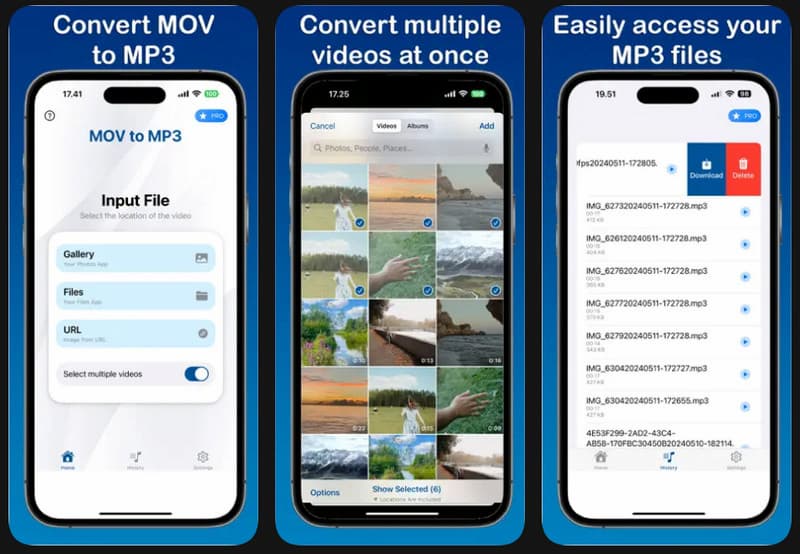
Step 1Install the app from the App Store and open it, then tap Gallery and import your MOV file from Photos or Files.
Step 2Pick MP3 as the export format and alter the quality if options appear.
Step 3Tap Convert and save or share the resulting MP3 file after processing.
4. Video to MP3 Converter (iOS)
Video to MP3 Converter for iOS supports multiple video formats and provides quick audio extraction with beginner-friendly controls. It works smoothly for users who want a dependable MOV to MP3 converter for creating audio files for playback or sharing.
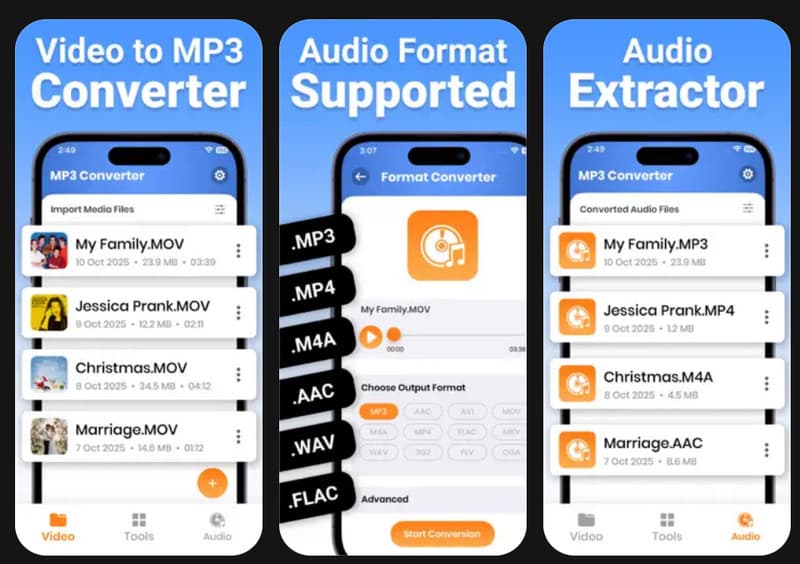
Step 1Install Video to MP3 Converter and open it, then tap Select Video to import your MOV file.
Step 2Pick MP3 as the output format and confirm conversion settings if shown.
Step 3Tap Start Conversion and download or save the finished MP3 file to your device.
5. Video to Audio Converter & MP3 Cutter (Android)
Video to Audio Converter & MP3 Cutter can remove sound from video and cut audio f,iles and manage them after conversion. It can be used by those users who constantly turn MOV to MP3 and enable them to have more control over audio output before saving. The workflow is easy to use, even for novices.
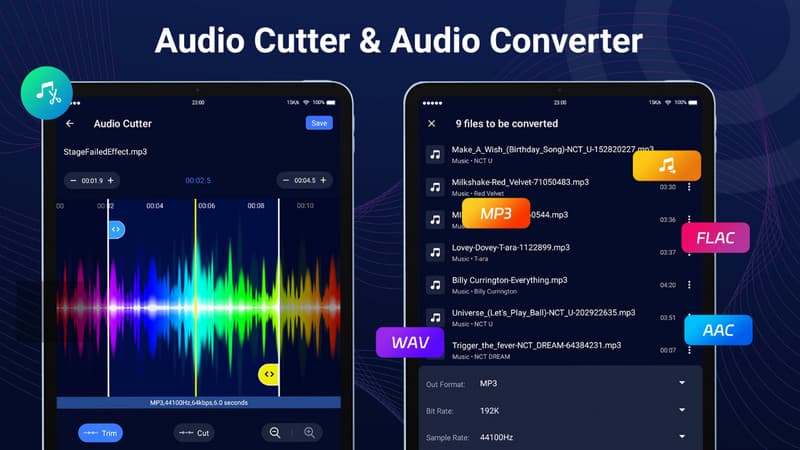
Step 1Install the app from the Google Play Store and open it, then import the MOV video from your gallery.
Step 2Choose MP3 as the output format and trim or adjust quality settings if needed.
Step 3Tap Convert and access the saved MP3 file once the conversion finishes.
Video and audio conversion is not a difficult task when one has the appropriate tools, whether desktop, online, or a mobile device. You can use this guide to choose what works best with you because it displays easy options. You now understand how to convert from MOV to MP3 and how easy it is to extract audio to listen to, share or edit any audio file when the need arises.
Your complete video toolbox that supports 350+ formats for conversion in lossless quality.