Have you ever downloaded an FLV video, maybe a live concert clip or your favorite artist's MV, and thought, "I really just want the audio so I can listen anytime and anywhere"? Well, that's why many people choose to convert FLV to MP3. FLV is mainly used for video, while MP3 is designed for audio playback. In this guide, you'll learn the basics of both formats and discover simple ways to convert FLV files into MP3 audio. Then your music can be along with you wherever you are commuting, working out or relaxing!
Part 1: FLV vs. MP3
FLV and MP3 are two common media formats, but for very different purposes. Knowing how they differ makes it clear why many users choose to turn FLV into MP3.
FLV, short for Flash Video, is a file format used to store both video and audio. Adobe developed it, and it usually worked with Adobe Flash Player. However, FLV has become obsolete since Adobe ended Flash Player support in 2020, and many modern browsers, media players, and video tools no longer support FLV files.
FLV was once popular for online video playback and live streaming, like YouTube. Its small file size allowed videos to load quickly, making it useful when internet connections were slow. The video quality was acceptable, but it was not very clear. However, if you only want the sound, extracting audio from video is more practical, since the visuals only increase file size.
MP3, short for MPEG-1 Audio Layer III, is an audio-only format. It focuses entirely on sound and removes everything else. This makes MP3 files much smaller and easier to store. Most importantly, MP3 is supported by almost all devices, from smartphones and computers to car audio systems. You usually don't need extra software to play MP3 files. That's why MP3 has remained one of the most widely used audio formats for years.
| Feature | FLV | MP3 |
| Full Name | Flash Video | MPEG-1 Audio Layer III |
| Media Type | Video + Audio | Audio only |
| Main Purpose | Online video playback and live streaming | Music and audio playback |
| File Size | Relatively small for video files | Very small |
| Device Compatibility | Limited support today | Supported by almost all devices |
| Extra Software Needed | Often requires a specific Flash Player | No extra software needed |
Part 2: Why Need to Convert FLV to MP3
Now think about how you actually use media every day. Do you always watch the screen? Or just listen? Many FLV videos are saved from websites for background listening, the audio is more important than the video, such as live concerts, interviews, lectures, music videos and more. When the visuals are less important, keeping the video only occupies extra space. Converting FLV to MP3 helps you focus on what you really need - the audio.
The reason why we need to convert FLV to MP3:
- Save storage with a smaller file size.
- Transfer easier to your phone or other devices.
- Bring more convenience to daily use.
- Make your media lighter and more flexible.
Part 3: Best Way to Convert FLV to MP3 on Mac/Windows
Now that you know why we need to convert FLV to MP3, the next question is: what's the best free FLV to MP3 converter? AVAide Video Converter is your reliable option. It is designed for both Windows and Mac users. With stable performance and flexible settings, AVAide makes FLV to MP3 conversion simple and efficient.
What's more, AVAide allows you to choose different audio quality settings that you need. It also supports batch conversion, so you can convert multiple FLV files at once. The interface is also clean and easy to understand. You can finish the conversion in just a few steps:
Step 1Download AVAide Video Converter free here. Follow the install steps, finish setting it up, then click Start Now to launch the software.

FREE DOWNLOAD For Windows 7 or later
 Secure Download
FREE DOWNLOAD For Mac OS X 10.13 or later
Secure DownloadStep 2Hit Add Files on the main interface, then choose your FLV file.
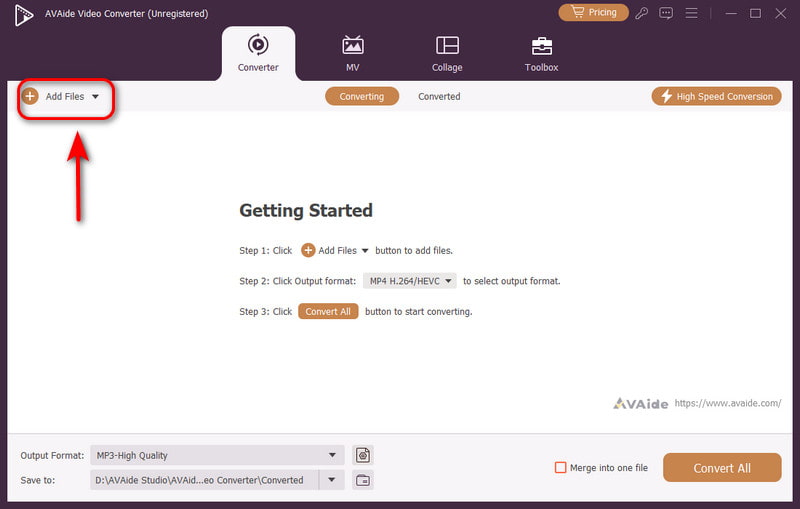
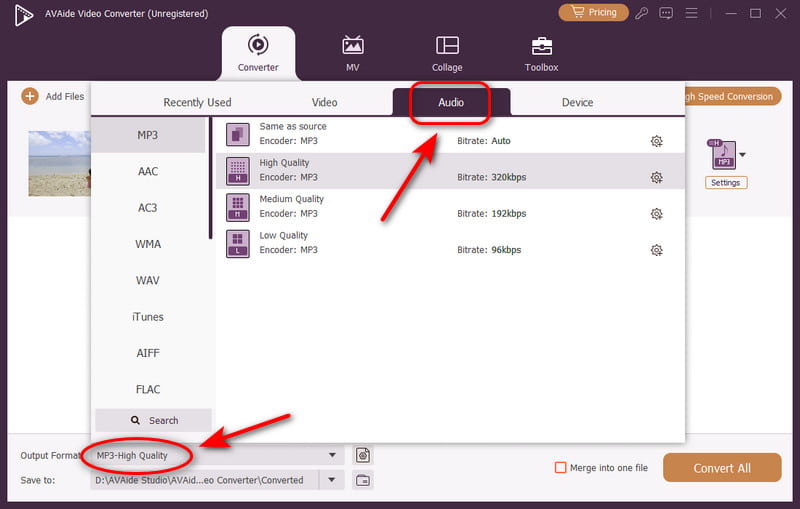
Step 3Tap the Output Format button in the bottom, select Audio and choose MP3. You can also choose a quality level here.
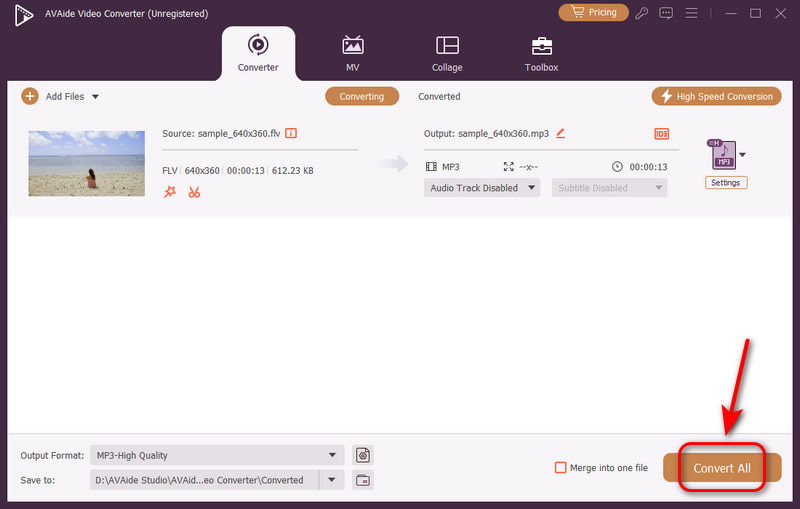
Step 4Click on the Convert All button, your video gets converted already!
Part 4: Best FLV to MP3 Converters Online You Cannot Miss
Not everyone wants to download software. Sometimes, you just want a quick solution that works immediately within your browser. So here I have some useful online FLV to MP3 converters for you. They are easy to access and perfect for occasional use. Below are 3 online tools worth trying.
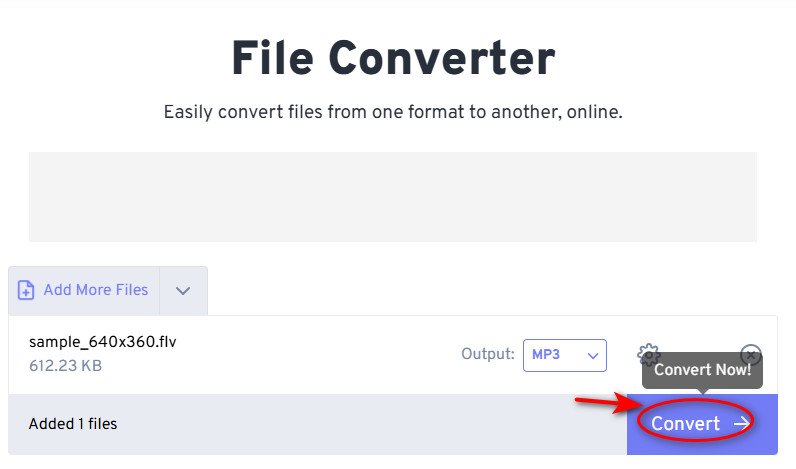
FreeConvert
FreeConvert is an ultimate choice for beginners. The website is simple and user-friendly. It also allows you to adjust your basic audio settings before converting. You can adjust the volume or trim the file. And FreeConvert allows free conversions for files up to 1GB, so if your file is too large, use a video compressor to reduce the file size first.
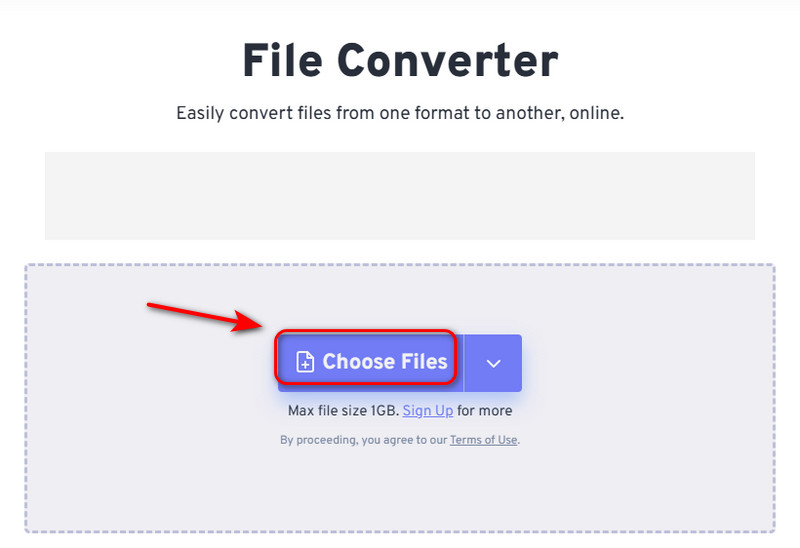
Step 1Tap Choose Files to select your file.
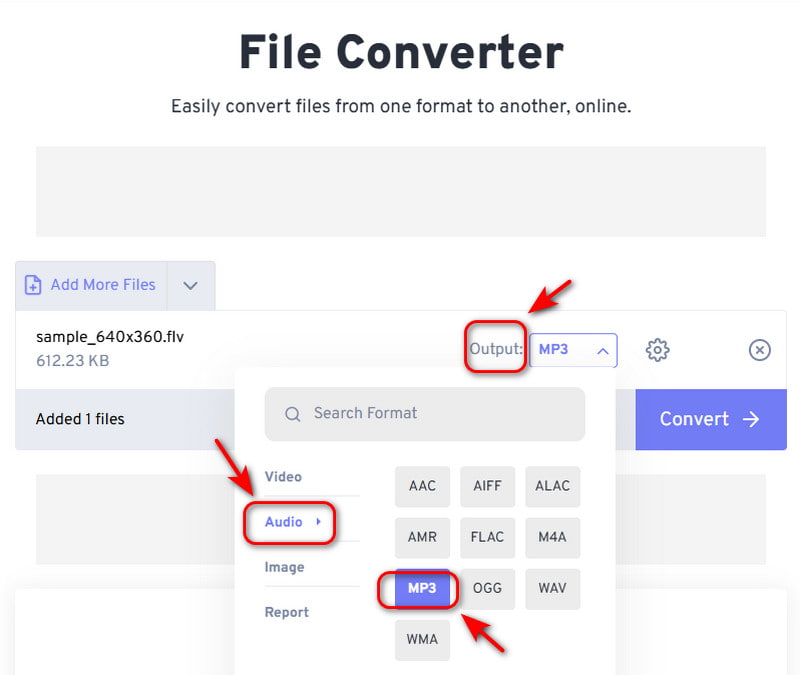
Step 2Click on the Output button, hit Audio, then select MP3.
Step 3Press the Convert button and download your MP3 file.
Restream
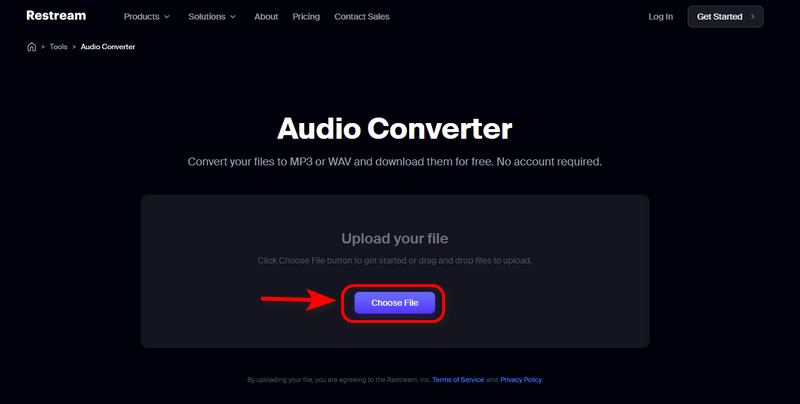
Restream is best known for live streaming. You can stream to different platforms at once and even go live directly in your browser. No software needed. Restream also allows cross-platform chats, schedules pre-recorded videos as streams, and offers many file conversion tools. It’s a practical choice if you want a powerful tool to extract audio from FLV.
Step 1Go to Tools and find Audio Converter, tap Choose File to upload.
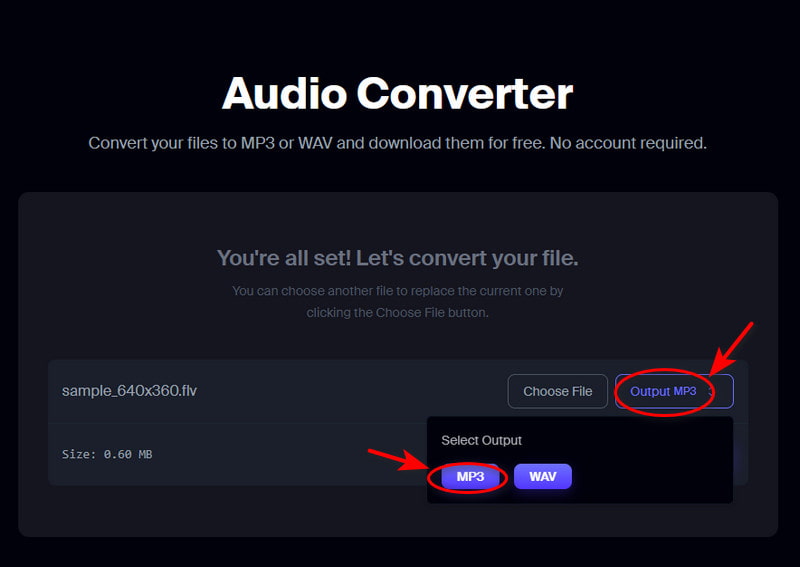
Step 2Click the Output MP3 button.
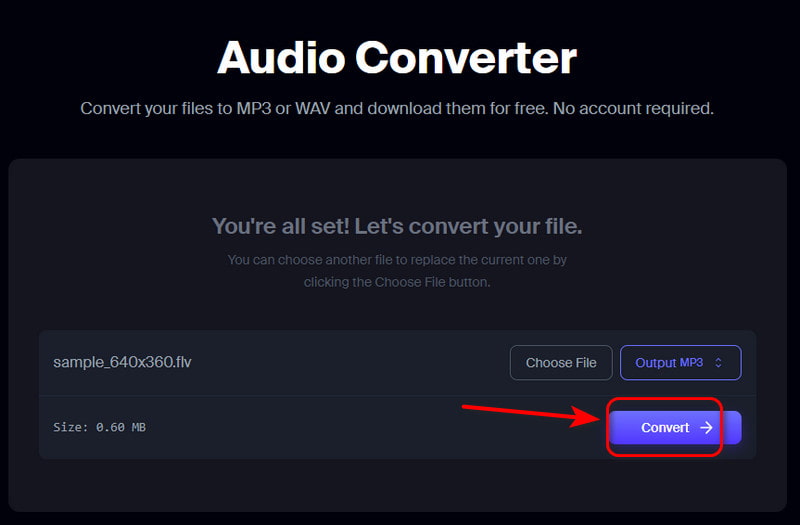
Step 3Tap the Convert button and download!
Happyscribe
Happyscribe offers various tools in audio and video processing in more than 120 languages. You can utilize it to convert audio to text, create subtitles for your videos, translate your audio file or transcribe your videos effortlessly. It also supports instant voice recording and translating online. So you can use it to convert FLV to MP3 easily!
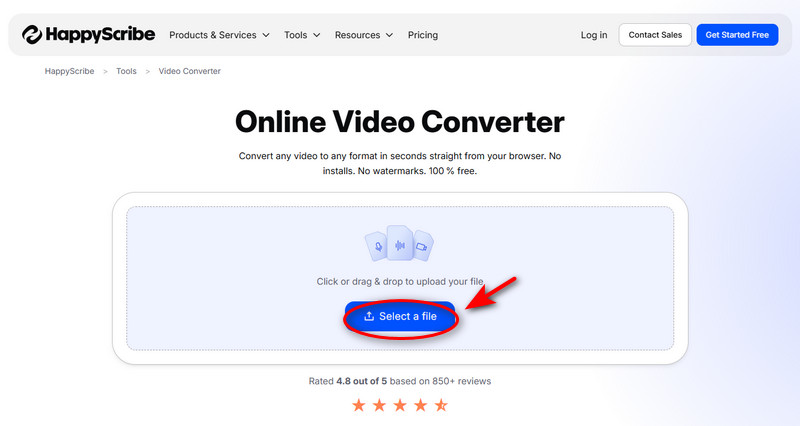
Step 1Go to Tool and find Video Converter, click Select a File or drag & drop to upload.
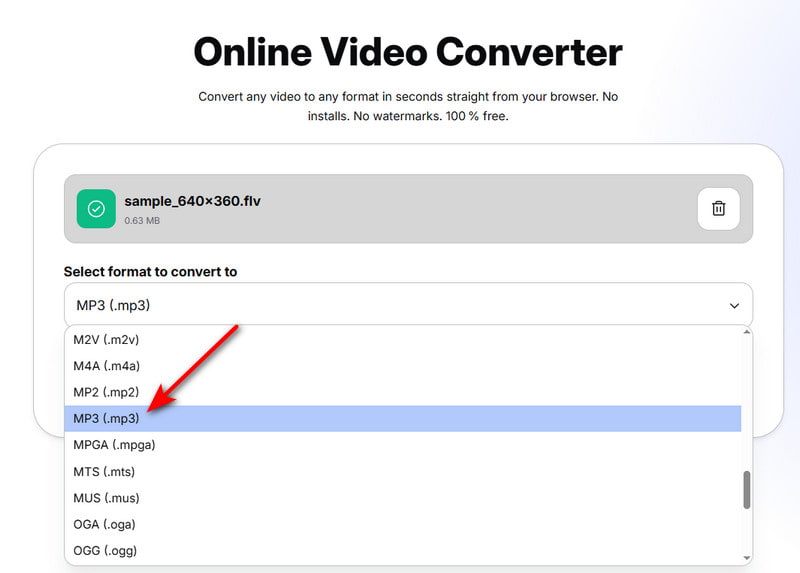
Step 2Select the format MP3.
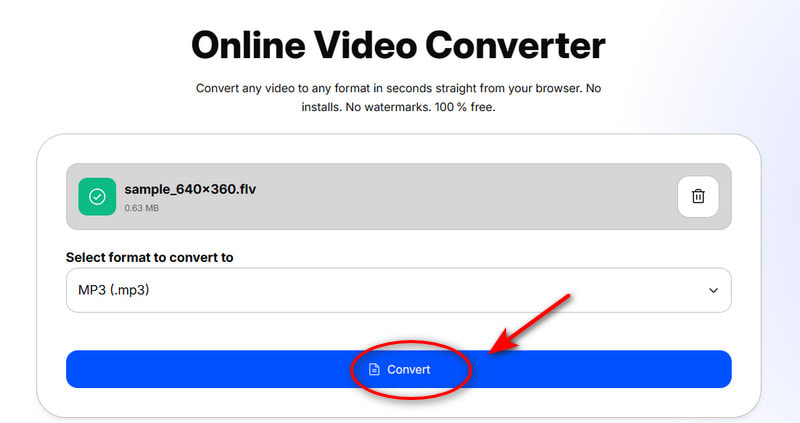
Step 3Press Convert, and your MP3 file is done.
Not every video is meant to be watched; some are meant to be heard. FLV to MP3 conversion removes the screen and lets you hear the video freely. No matter you prefer a full-featured desktop tool like AVAide Video Converter or a convenient online converter, the goal is the same: simple files and effortless listening. You don't need to consider the storage space, long download time and video quality anymore. Just let your favorite sounds follow you wherever life leads!
Your complete video toolbox that supports 350+ formats for conversion in lossless quality.