3GP is a video format that was made for older mobile phones. It stores both video and audio, but sometimes you may only need the sound. That is where 3GP to MP3 comes in. In this post, you will learn why people convert 3GP to MP3 and how to do it both offline and online. If you want to do it now, keep reading!
Part 1. Why Convert 3GP to MP3
Many people still have 3GP files from old phones or recordings. If you want to use them more easily or on different devices, converting 3GP to MP3 can make managing these files simpler and more convenient.
Below are the reasons to convert 3GP to MP3:
- 3GP is made for old mobile phones and may not play on modern laptops, speakers, or media players. MP3 works almost everywhere.
- Get just the sound from videos like lectures, podcasts, or music.
- MP3 files take less space than 3GP videos, making storage easier.
- Smaller size and universal support make MP3s simple to share via email, chat apps, or social media.
Part 2. Convert 3GP to MP3 in Batch with High Quality
If you have many 3GP files and do not want to convert them one by one, AVAide Video Converter can make the job much easier. It supports bulk conversion so that you can turn several 3GP to MP3 at the same time.
Its level-3 hardware acceleration helps the process run faster and keeps clarity stable. It also offers AI enhancement and simple editing tools, which help improve audio clarity and clean up your final MP3 output.
- Converts video and audio to 300+ formats.
- Delivers up to 120× faster conversion speed.
- Includes ready-made output presets for many devices.
- Fine-tune bitrate, sample rate, encoder, and other settings.
- Offer editing tools for trimming, cutting, merging, and enhancing files.

 Secure Download
Step 1Download & Install AVAide Video Converter
Click the Download button above for AVAide Video Converter and install it by following the setup guide shown on your screen.
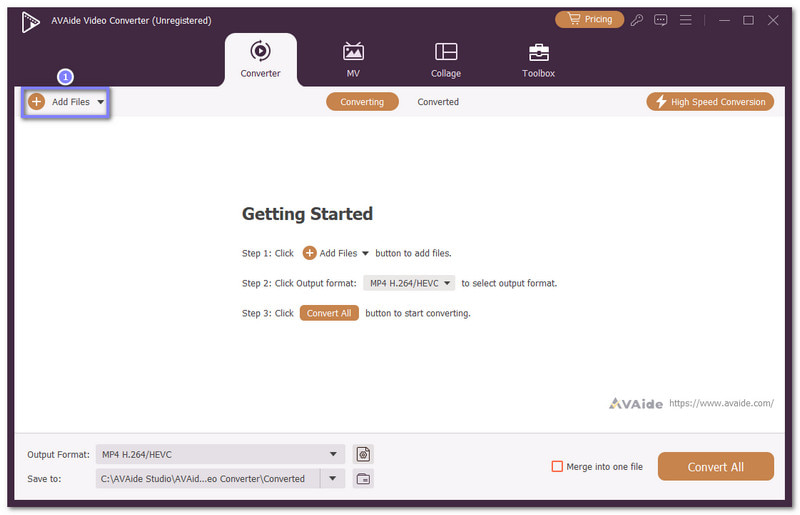
Step 2Add Your 3GP Files
Launch the offline converter and click the Add Files button to import your 3GP files. You can add many files at once because batch conversion is supported.
Step 3Choose MP3 & Adjust Audio Settings
It is time to open the Format menu and pick MP3 as the output format under the Audio section. If you want better sound, open the Cogwheel button and fine-tune bitrate, sample rate, or other audio settings. Do not forget to click the Create New button to save your changes.
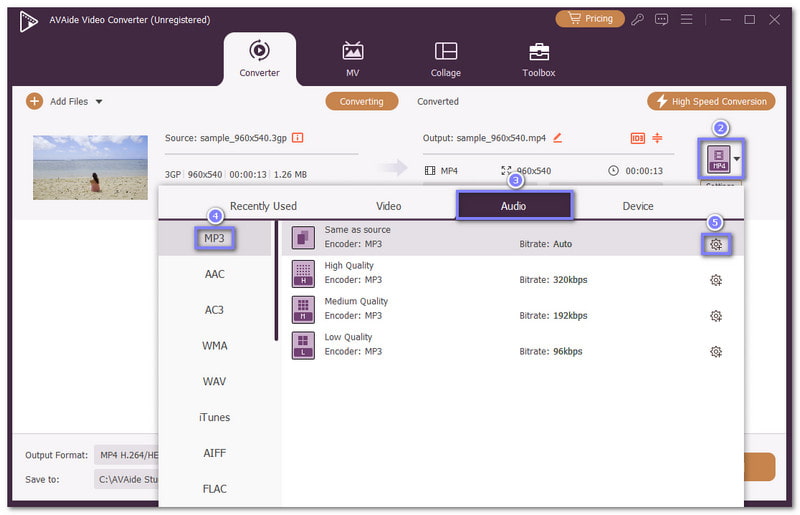
Step 4Start the 3GP to MP3 Conversion
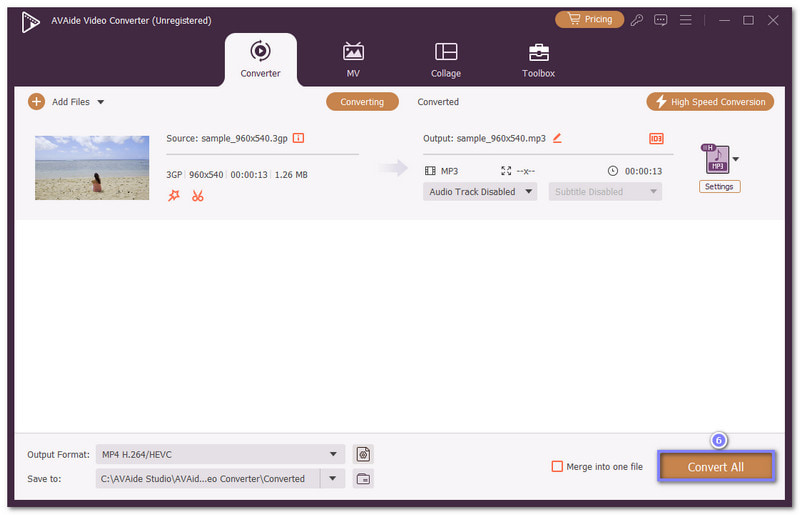
You are settled, so press the Convert All button to start the 3GP to MP3 conversion process. Once it finishes, the MP3 files will be placed in the output folder created by the program.
Part 3. Convert 3GP to MP3 with CloudConvert
CloudConvert is a web-based platform that lets you convert 3GP to MP3 online for free in just a few clicks. It supports numerous file types and gives you audio controls before conversion. You can adjust bitrate, codec, channels, sample rate, volume, or trim parts of the file for better output.
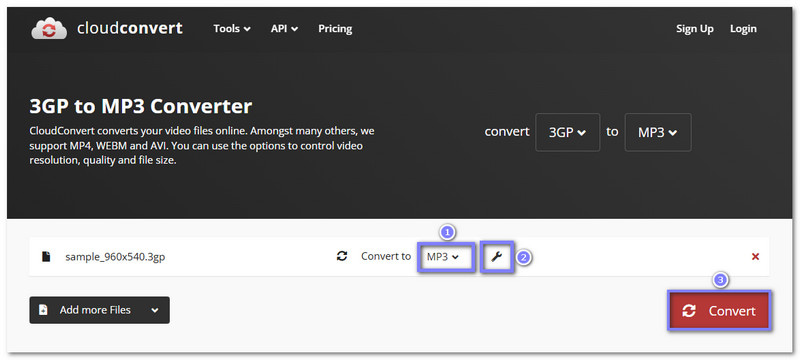
Step 1Open the official 3GP to MP3 page of CloudConvert in your browser. You will see the Select File button in the center of the page.
Step 2Click the Select File button and upload your 3GP file from your device. The output format is already set to MP3, so you do not need to change it.
Step 3If you want more control, open the Wrench button. You can adjust audio settings there and trim the start or end part of the file before conversion.
Step 4Click the Convert button, and please wait for the process to finish. After that, download the MP3 file to save it on your device.
Part 4. Convert 3GP to MP3 with Zamzar
Another reliable 3GP to MP3 converter free that works directly in your browser is Zamzar. You can import a file by dragging it in or selecting it from your device. It also supports many formats, including 3GP to AVI, MP4, FLV, MKV, etc., and lets you receive the finished file by email.
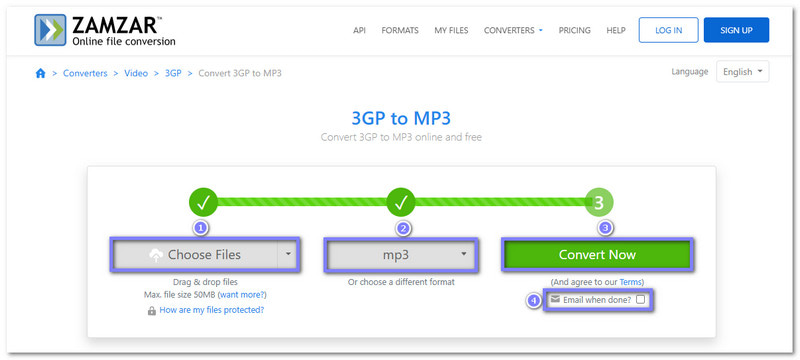
Step 1Visit the Zamzar - 3GP to MP3 official website. Then, click the Choose Files button or drag your 3GP file into the upload area.
Step 2MP3 is already selected as the output format, so you can move to the next step right away.
Step 3Click the Convert Now button to start the conversion. You may also turn on the Email when done? option if you want the download link sent to your inbox.
Step 4When the process ends, download your MP3 file and keep it on your computer or phone
Part 5. AVAide Video Converter vs. Online 3GP to MP3 Converter
Online converters are convenient because you do not need to install anything. You can upload a file and get an MP3 immediately. But they have limits. Many online tools restrict file size and maximum bitrate. In addition, your files are uploaded to their servers, which can affect your privacy.
AVAide Video Converter, on the other hand, works offline on your computer. You can bulk convert many files at once, keep full control over bitrate, and avoid sharing your private files online. It also supports high-clarity audio output and faster conversion thanks to hardware acceleration.
Pro Tips: Manage Your Converted MP3 Library
Managing a large number of 3GP files after conversion can be challenging. AVAide Video Converter makes it easy because it supports batch conversion. You can convert all your 3GP files at once, and the program automatically creates a folder to store your MP3s. It keeps your music organized and ready to play anytime.
You have learned how 3GP to MP3 conversion works. You can do it using online tools like CloudConvert and Zamzar, or use an offline program like AVAide Video Converter. But as mentioned above, an online 3GP to MP3 converter may affect privacy and limit audio quality due to low bitrate.
If you want faster conversions, batch support, and full control over your files, AVAide Video Converter is the best choice. Undoubtedly, it makes converting 3GP videos into MP3 simple, safe, and high-quality!
ABOUT THE AUTHOR

Your complete video toolbox that supports 350+ formats for conversion in lossless quality.