One of the most inevitable aspects of video editing is merging clips. That's why many of us rely on video editing tools not just to do trimming or enhancing, but also to help us with smaller tasks such as video merging. But sometimes, you would want to use a transcoding application like HandBrake to combine videos, so as to convert and edit without installing another video editor. The question is, is it possible? Well, you are in the right place to learn more about it, and this article will guide you on other ways to combine videos on Windows or macOS.
Part 1. Can I Merge Videos on HandBrake?
The short answer is no. HandBrake is designed to support converting videos to a wide selection of formats and codecs. It also has various features like deinterlacing, chapter markers, and low-quality restoration, offered to users for free. The problem is among its many usages, the transcoding tool has yet to offer an option to combine videos into one file. The official website is still currently working on the new function that will allow users to do this in the future, but it will take some time for HandBrake to actually combine videos. Still, you can enjoy this free tool to its fullest, whether you use Windows, Mac, or Linux.
Part 2. HandBrake Supported/Not Supported Features List
HandBrake is a great video transcoder for any video file. But like other tools, it has supported and not supported features, including being unable to combine videos. So the following list will guide you on which HandBrake can and cannot support for video editing:
Supported Features:
- Convert video and audio to a wide supported output formats and codecs.
- Option to transcode video files to low, standard, and high-quality conversions.
- Able to process files without copy protection, like DVD and Blu-ray videos.
- Insert subtitles and chapter markers.
- Video editing opinions like deinterlacing, deblocking, colourspace, and scaling.
- Advanced hardware-accelerated video encoding.
- Able to export individual titles or chapters from CDs.
Unsupported Features:
- Removal of copy protection is not supported.
- Merging multiple video files into one.
- Not supporting modern container options like muxed-in subtitles and framerate video.
- Cannot handle analog media files like VHS, LaserDisc, etc.
- It can only convert Dolby Vision profiles to standard HDR10 rather than preserving their dynamic metadata.
Part 3. Other Options to Combine Videos
1. AVAide Video Converter
Looking for an alternative to Handbrake to combine video files? Use the all-inclusive AVAide Video Converter for all video types. Its main job is to convert, but you can anticipate its all-around video editing tools for merging videos. With its Toolbox, you can find all helpful features, such as the video stabilizer, video merger, enhancer, metadata editor, compressor, and more. The video converter is also equipped with high-end elements like filters, frames, and sounds to add to your video. Other than that, it supports more than 300 formats and presets, so it is easy to combine videos in formats like MP4, VOB, MKV, and so on. It is powered with a 30x processing speed, allowing you to export videos in the blink of an eye.
AVAide Video Converter is also designed to handle professional-grade films with 4K resolution to convert without losing quality. It is truly the best alternative for HandBrake as it provides all the important editing features you could ask for. With AVAide Video Converter, you can create the best video to download on any platform, like YouTube and Vimeo! Try the free version by downloading the best converter on Windows or macOS.
Step 1To combine MKV files like with HandBrake, download and install AVAide Video Converter on your device. Open the application and go to the Toolbox menu at the top part of the interface.

FREE DOWNLOAD For Windows 7 or later
 Secure Download
FREE DOWNLOAD For Mac OS X 10.13 or later
Secure DownloadStep 2Select the Video Merger option and add the first video in the application. Then, click the Add button to import one or more videos to combine.
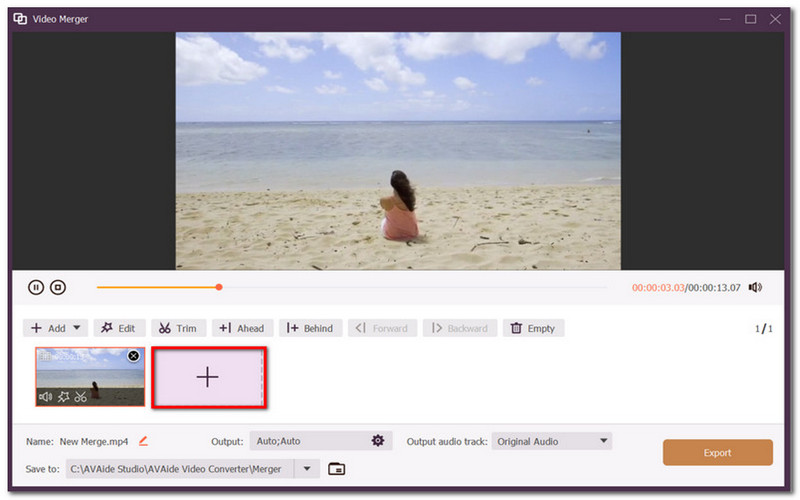
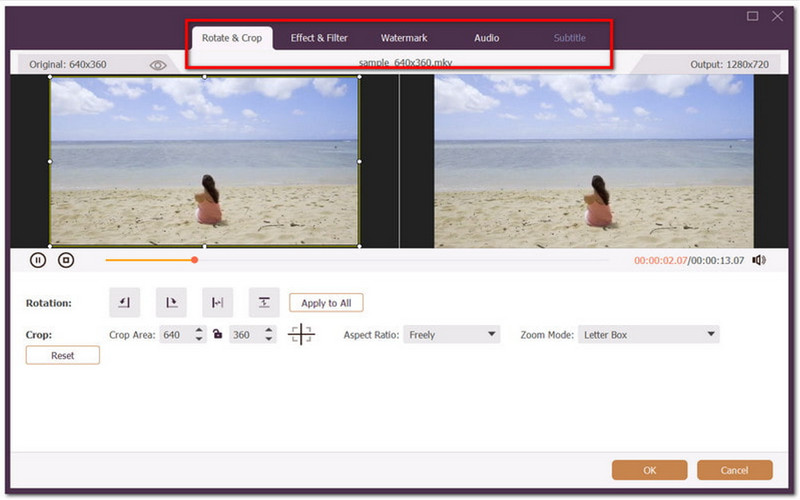
Step 3You can also crop, trim, and add elements like text and music. Furthermore, you can change the output settings, such as the resolution, format, and others.
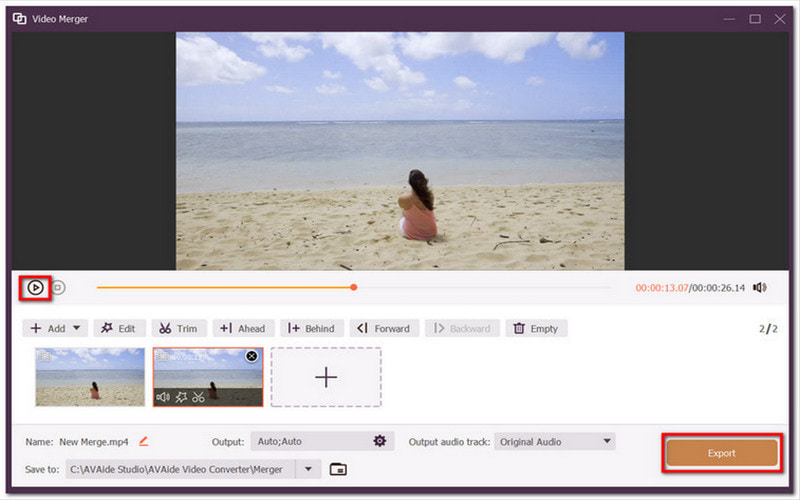
Step 4Click the Play button to watch the finished videos. Click Export to save the combined videos.
2. CapCut
CapCut is a handy editing alternative for combining MP4 files with HandBrake. It boasts its user-friendly interface that is also equipped with robust effects and editing options. Of course, merging videos with this video editor has never been easier, allowing you to add multiple files at once, and even better, to rearrange, trim, and add cinematic transitions. CapCut offers most of its features for free, but its ads and pop-ups are disruptive. Users need the pro version to remove the CapCut watermark.
Step 1Download the application to your device. Open CapCut and import the first video from your local drive.
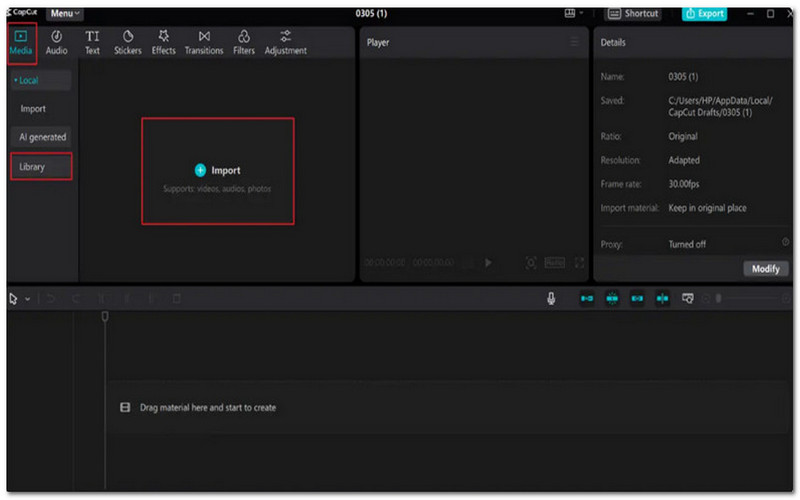
Step 2Once the first video is successfully in the editing interface, you may drag and drop the other videos you want to combine.
Step 3Continue editing your video by adding filters, transitions, and text. You can also use its Audio settings, where you can apply noise reduction or audio enhancement.
Step 4Click the Play button to preview the combined videos. Then, click the Export button to save.
3. Online Video Cutter
Another alternative to combine video files, like HandBrake, is Online Video Cutter. It is an online-based tool that is focused on providing a simple video merger on Google Chrome, Microsoft Edge, and other search engines. It is also designed with a good amount of features, which you can use to crop, trim, and perform other advanced options like vocal removal, noise reduction, and more. Online Video Cutter is a great alternative to HandBrake, especially if you don't want to install software on your device and only want a quick video merging. But keep in mind that it still has limitations, including only offering a 50MB video file size.
Step 1Go to a web browser and search for Online Video Cutter by 123Apps. Click the Choose Files button to import the first video.
Step 2Once you enter the editing window, go to the Files menu in the left menu panel, and then you can import and add the desired videos.
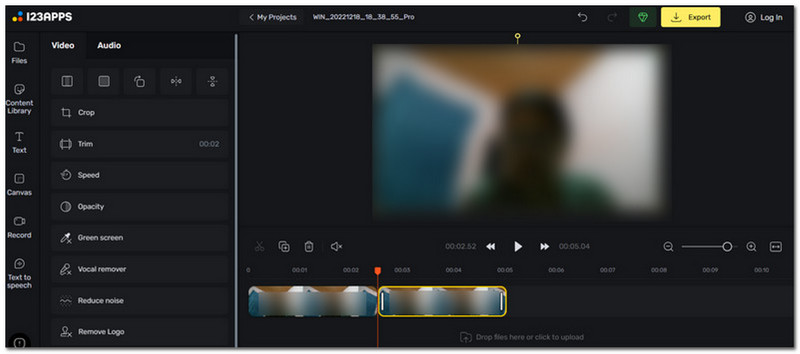
Step 3Use the tool's other editing options, such as cropping, speed adjusting, and so on. Be mindful of the file size of the video, as you can't download it without a subscription.
Step 4Preview your work, then click the Export button at the top right of the interface.
It is unfortunate to know that HandBrake can't combine videos. Although it is designed with many advantages, the transcoder is not yet capable of video merging. The good thing is that there are alternatives for a simple video combining like CapCut and Online Video Cutter. But if you need a comparable converter like HandBrake, then it is best to choose AVAide Video Converter. With its sleek interface and abundant editing options, you can start converting, merging, and editing videos in just a few clicks. It is even regarded as the best video stabilizer for shaky videos! You are encouraged to get the free version to try the top-notch converter on Windows and macOS.
Your complete video toolbox that supports 350+ formats for conversion in lossless quality.