Short and long videos are everywhere now. Applications, like TikTok and Instagram, made it easy for anyone to make and edit videos on their phone. YouTube joined in, too, with its own application called YouTube Create.
In this write-up, you will learn everything about YouTube Create. We will cover an unbiased review, show you how to download and use it, and share the best alternative. So, please keep reading to get all the details.
Part 1: What Is YouTube Create
Let us start with a simple question: What is YouTube Create?
YouTube Create is a free video editing application made by YouTube. It is made for creators who want to make videos for YouTube using just a phone. The thing about it is that it works well for both long videos and Shorts.
After editing your video, it provides an option to upload it straight to your YouTube channel. Since it comes from YouTube, the features are designed to match YouTube rules and formats. It makes content creation less confusing and more friendly for new users.
Part 2: Unbiased Review of YouTube Create
Let us look at how YouTube Create performs in real use. This part breaks down what it does well and where it falls short.
Key Features
- 1.Essential Editing Tools: YouTube Create Video Editor covers basic editing needs. You can trim video with care. You can split videos into parts. You can crop a video to fit the screen. There are over 40 transitions.
- 2.Automatic Captioning: YouTube Create can add subtitles with one tap. It supports select languages. You can edit the text by hand to fix errors. It helps viewers who watch without sound.
- 3.Royalty Free Music & Sound Effects: The application includes YouTube’s safe music library. All tracks are free to use. They are safe for monetization. A beat match tool helps sync clips to music.
- 4.Audio Cleanup: The audio cleanup feature removes background noise. It works well for talking videos. It helps when recording in noisy places.
- 5.Filters, Effects & Stickers: YouTube Create video editing app offers many filters and visual effects. You can also add animated images, stickers and emojis.
- 6.Direct YouTube Upload: Videos can be uploaded directly to your channel. There is no need for additional applications. It speeds up posting.
- 7.Voiceover Recording: You can record narration inside the application. It helps for guides and story videos.
Supported Regions
You must know that YouTube Create is not available everywhere yet. Access depends on your location. These include the United States, Canada, the United Kingdom, Australia, the Philippines, India, Germany, France, Spain, Singapore, and South Korea. But more regions may be added over time.
Advantages
YouTube Create shines in a few key areas. These points matter most to new creators.
Completely Free & Ad Free
The application is 100 percent free. There are no ads. There are no locked features. It is rare for mobile editors.
Compatibility
YouTube Create app for Android and YouTube Create app for iOS are available on the Google Play Store and App Store.
Easy to Use
The layout is simple. Buttons are clear. Tools are easy to find. Beginners can learn fast. Experienced creators can edit on the go.
Built for YouTube
Music and sounds are safe for YouTube. It lowers copyright risk. It helps creators who want to earn money.
Supports Shorts & Long Videos
You can edit vertical and horizontal videos. It makes the application flexible.
Limitations
YouTube Create still has limits. These matter if you need more control.
Still in Beta
YouTube Create for iOS and Android is still in beta. Bugs can happen. Some users report crashes. Long exports may fail at times.
Basic Editing Level
Advanced tools are missing. There are no deep color controls. There are no complex timelines. Pro editors may feel limited.
Export Cap
Videos export up to 1080p only. There is no 4K option yet.
Part 3: How to Download and Use YouTube Create
You have learned the key details about YouTube Create. So, it is time to try it yourself. Feeling unsure where to begin? Do not worry. We will guide you through each step. You will discover how to download the application. You will know how to use the editing features. You will also see how to export your video to your device. Are you ready to begin? Let us start.
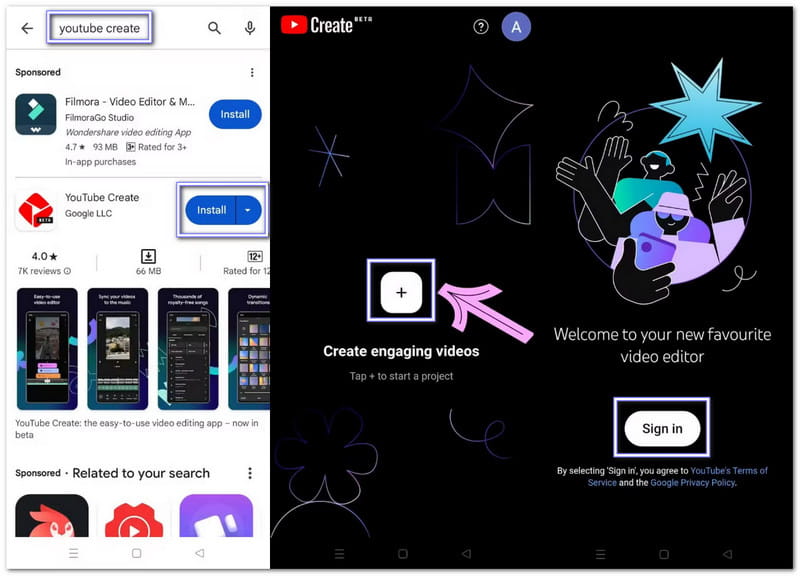
Step 1What you need to do first is to get YouTube Create installed on your device. Once installed, open it.
Step 2Press Sign in and log in using your Google account. It is required to use the application. Once asked, please allow access to your photos and videos so you can edit files from your phone.
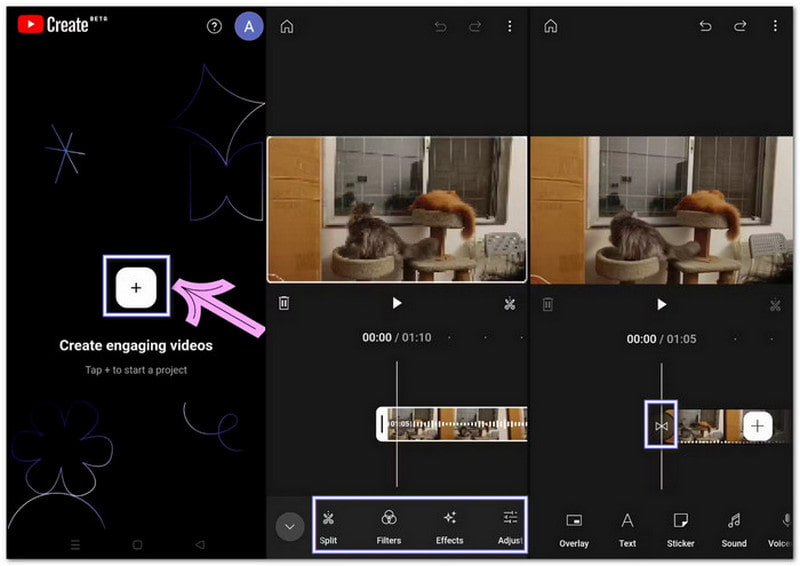
Step 3Tap the Add button on the screen and choose a video from your device. Tap Import and the video will appear in the center. The timeline will show below it. It is where editing begins.
Step 4Press the clip in the timeline to open the editing panel. You can trim, cut and split clips, add filters and effects, and stickers. Use Audio Cleanup to remove noise. Add music from YouTube's royalty-free library. Record a voiceover if needed. Turn on Captions to add subtitles. Pick the right Aspect ratio for Shorts or regular videos. Everything is easy to tap and fine-tune.
Step 5Once you are done, press the Three-dot menu at the top. Then, choose Export and select the video clarity. After that, YouTube Create saves the video to your phone. You can also upload it to YouTube right away or share it on social media. If export fails, try fewer effects or lower the resolution to 720p.
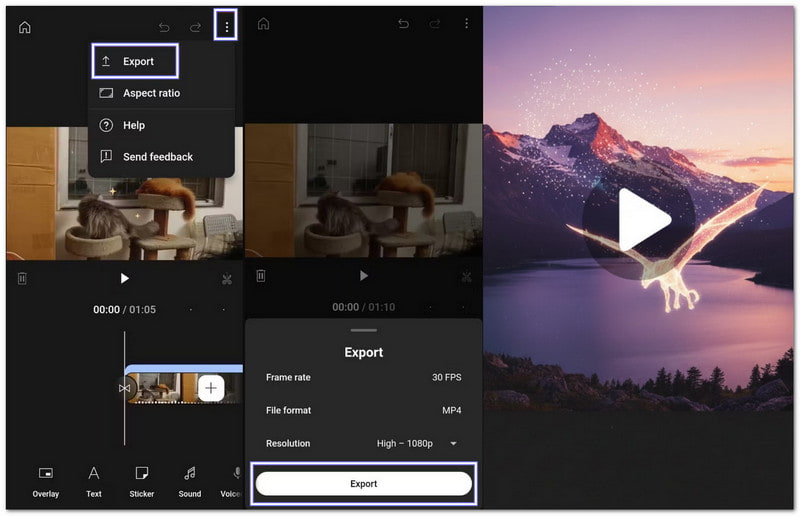
Helpful Note: Do not delete the YouTube Create before exporting your videos. All projects will be lost if the application is removed or if you switch phones.
Part 4: Best Alternative to YouTube Create for PC
If you want the best alternative to YouTube Create for PC, look no further than AVAide Video Converter. It is a professional desktop video editing program made for creators who want more control and features. It comes with features to rotate and crop, add effects and filters, include watermarks, incorporate audio, trim clips, and apply ready-made themes.
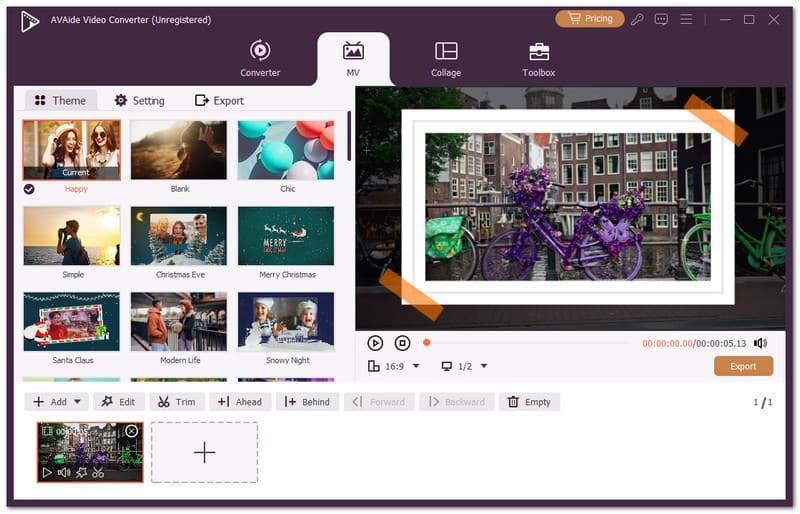
- Combine many clips or videos into one project.
- Style your videos with professional-looking templates.
- Add opening and closing text to make the videos complete.
- Works with popular video types like MP4, MOV, AVI, and MKV.
- Change video format, resolution, and framerate before exporting.

 Secure Download
It also supports many video formats like MP4, MOV, AVI, MKV, and WMV, which makes it easy to edit almost any video without worrying about compatibility. Using it is simple and smooth. Whether you are making short clips or long videos, AVAide Video Converter helps you get the results you want with ease.
YouTube Create is really beneficial for YouTube content creators. It offers basic editing features to edit your videos and upload them straight to YouTube, following the platform's requirements. Yes, YouTube Create is free to download, but it is not available in every country.
If you want a more accessible tool with more editing options, try AVAide Video Converter. It runs on Windows and Mac and lets you do precise editing. With this tool, you can produce videos easily and enjoy editing without limits.
Your complete video toolbox that supports 350+ formats for conversion in lossless quality.