Physical DVDs are still supported, but support with laptops is no longer that straightforward. Even operating systems no longer consider disc playback as being normal. Windows does not allow native DVD playback, whereas Mac laptops are dependent on additional hardware. The change is the reason why most individuals wonder how to play DVDs on laptops nowadays. As discussed below, there are internal drives, external drives, and digital conversion options.
Part 1: How to Play a DVD on a Laptop with a DVD Drive
Assuming you have an optical drive on your laptop or your laptop has the component to support an optical drive on an external device, then the best method is to use a dedicated DVD player on a laptop solution. Contemporary systems usually have no support for DVDs, and this makes the disk crash on launch. AVAide Blu-ray Player fills this gap by providing stable playback, disc detection, and clear controls without complex setup.
Step 1Download and install AVAide Blu-ray Player by clicking the download button that you will add below this step. Once installed, launch the program to prepare it for disc playback.

FREE DOWNLOAD For Windows 7 or later
 Secure Download
FREE DOWNLOAD For Mac OS X 10.13 or later
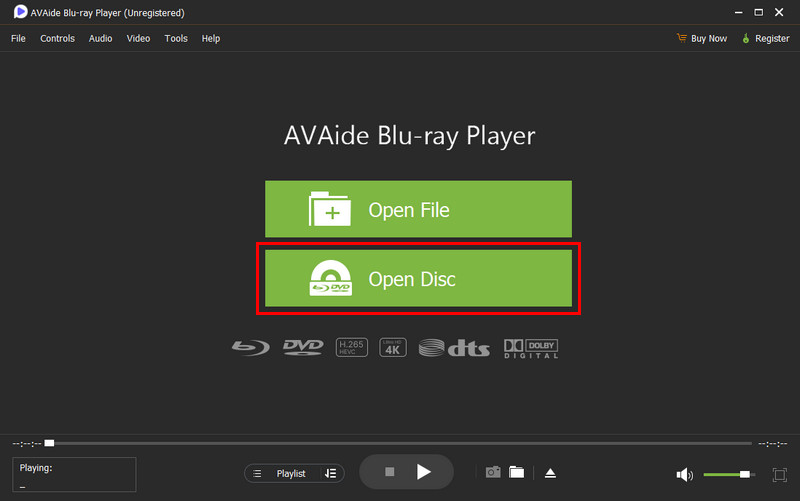
Secure DownloadStep 2Insert the DVD you want to watch into the optical disc drive of your laptop or an external drive. When the disc is detected, click Open Disc in the main interface and select the disc location to load the content.
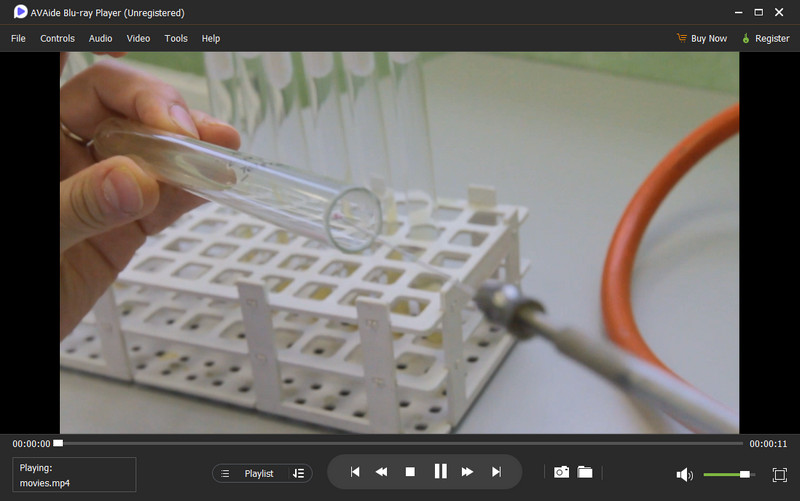
Step 3After loading, the movie begins playing on its own. Use the playback controls on screen to pause, stop, adjust volume, or manage other viewing options.
Following these steps answers a common question many users still ask: how do I play a DVD on my laptop when playback does not work by default? If your device does not include a built-in drive, continue to Part 2 for the external drive method.
Part 2: How to Play DVD on a Laptop with an External Drive
Even if your laptop does not have a built-in DVD drive, you can still enjoy your favorite discs with an external drive. Many people wonder how to play a DVD on this laptop when there is no slot for a disc. If your usual player cannot recognize the disc, the AVAide Blu-ray Player we introduced earlier works reliably and handles any compatibility issues.
Step 1Plug the external DVD drive into your laptop using a USB port. Make sure the drive powers on and is recognized by your system before opening your media player.
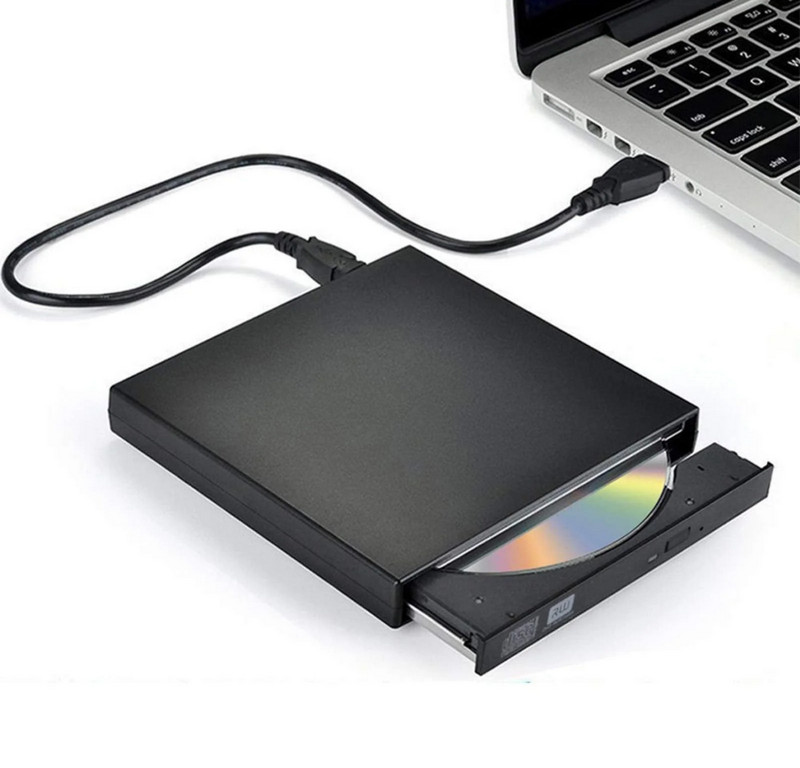
Step 2Insert the DVD you want to watch into the external drive. Open your media player, click Load DVD or Open Disc, and select the disc location. The program will read the disc and prepare it for playback.
Step 3As soon as the DVD loads, the movie or show starts playing. Enjoy full control with the playback buttons - pause, stop, adjust volume, or jump between chapters whenever you like.
With this approach, you now know how I can play a DVD on my laptop without an internal drive. Even on laptops built for streaming, external DVD drives make it easy to keep enjoying physical DVDs. In Part 3, we will show how to skip the discs entirely by converting them to digital files for instant access.
Part 3: How to Rip a DVD to Digital to Play on a Laptop
Many users wonder how do you play a DVD on a laptop computer when they prefer not to rely on a physical disc every time. Ripping DVDs to digital files is the simplest solution. With AVAide DVD Ripper, you can preserve high quality, control output settings, support multiple formats, and even handle encrypted DVDs. This makes your DVD library accessible anytime on your laptop.
Step 1Click the Free Download button below to get AVAide DVD Ripper for your Windows or Mac laptop. Install it by following what is written on the screen, and open the program. The first step is to prepare the software so that the conversion process becomes smooth.
FREE DOWNLOAD For Windows 7 or later
Secure DownloadFREE DOWNLOAD For Mac OS X 10.13 or later
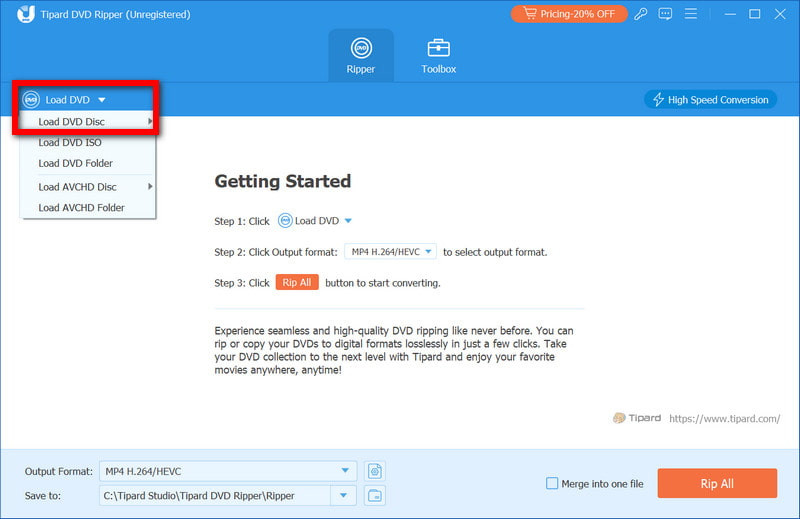
Secure DownloadStep 2Insert the disc into your laptop’s built-in drive or an external DVD drive. In the program, click the Load DVD button at the top left corner. You can also load a DVD ISO file or a DVD folder if you have a digital copy instead of a physical disc.
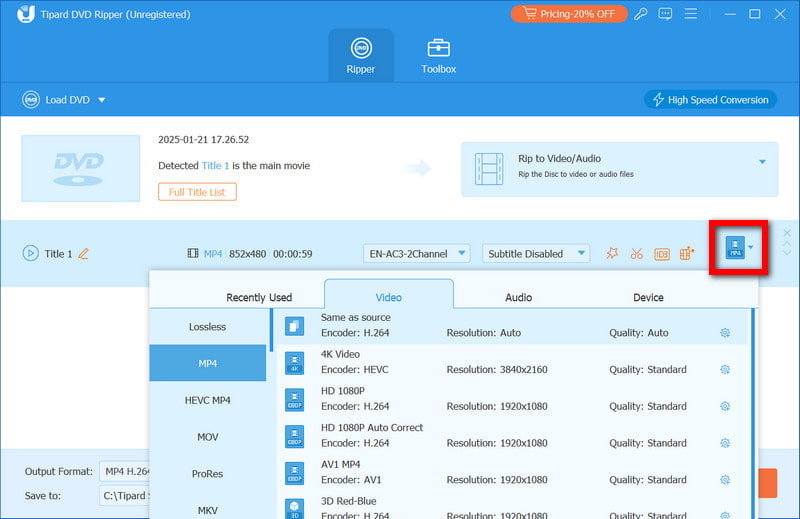
Step 3Once your DVD is loaded, you will see all titles, subtitles, and durations. Click the Rip All to drop-down menu and select your preferred format, such as MP4.
Step 4Select a folder in the Save to field for the converted files. Then click Rip All to begin the process. Once it finishes, your digital files are ready to access immediately. You can now easily play a DVD on a laptop without needing the physical disc.
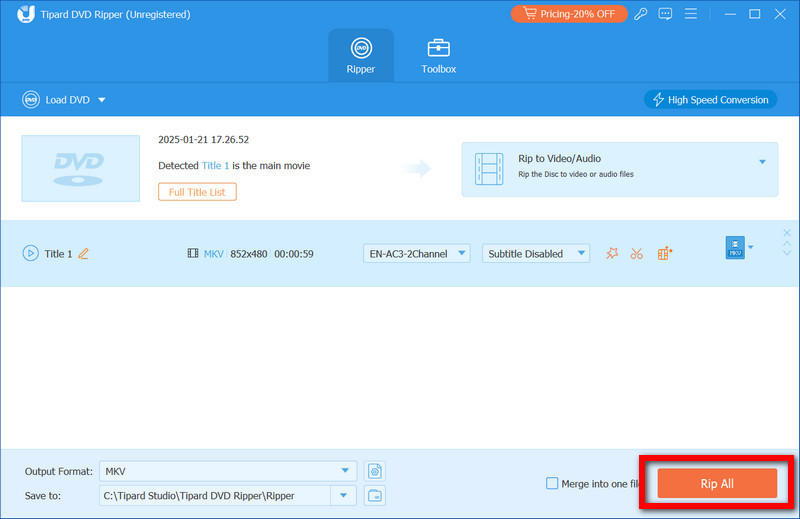
Ripping a DVDs chapter with it ensures high-quality playback, flexible output options, and instant access to your favorite movies or shows anytime on your laptop.
Part 4: What If the DVD Is Not Recognized on Windows or Mac
Sometimes, even after following the steps above, your laptop may fail to detect a DVD. Many users ask how to play a DVD on a laptop computer when nothing happens after inserting the disc. This issue is often caused by hardware, software, or region restrictions, and it can usually be fixed with a few simple checks.
1. Check Your DVD and Drive
Make sure that the disc is clean and not scratched or has prints on it. In case you are using a drive that is external, then ensure that it is well attached. On Windows, ensure that the drive is visible in File Explorer; on Mac, review either Finder or Disk Utility. These checks answer the common question of how to play my DVD on my laptop when the disc is not recognized.
2. Update or Reinstall Drivers (Windows)
Old or damaged drivers may not show up your DVD. Open Device Manager, find your DVD/CD-ROM drive and update the driver. When that does not work, run the drive in Device Manager and uninstall it, and then reboot your laptop to install it automatically. This step is necessary for anyone wondering how to play a DVD on a laptop when the system seems unresponsive.
3. Verify Region Settings
Some DVDs are region-locked. If the DVD’s region does not match your drive settings, it may not play. Check the drive properties to confirm the correct region. Keep in mind that most drives only allow a limited number of region changes. This helps users who are asking how to play a DVD on their laptop with region-protected discs.
4. Try a Different Media Player
In case the DVD can be read but not played, then it is possible that your default media player is unable to read the disc format. Play on a media player capable of playing DVDs on both Windows and Mac. This addresses another common question: how to play a DVD on a laptop computer when the built-in software fails.
Playing DVDs on a laptop can be simple with the right approach. You can be able to watch your movies at any time, whether you are using a built-in drive, an external drive, or you can convert DVDs to a digital file. This tutorial demonstrates simple procedures of each process and will assist you in knowing how to use a DVD player in a laptop without any trouble.
Play Blu-ray and DVD discs, folders, and ISO files smoothly on your laptop.