AVCHD tape recordings can be saved as MTS files, which can be difficult to play in many programs or even on phones. Turning MTS to MOV can resolve the conflicts on format without losing resolution to edit and share. The actions here are based on actual workflow testing in Windows, macOS and browser applications. You will see good conversion options and understandable setup guidance. These subsequent sections describe desktop, online, VLC, and HandBrake solutions one after the other.
Part 1: How to Convert MTS to MOV on Windows/Mac
AVAide Video Converter offers a practical and engaging experience for users working with video across smart and connected devices. It is a stable, free MTS to MOV converter on Mac systems, and the user can easily download the software. Batch processing also helps when handling large video collections, and the converted files play smoothly across modern media platforms and editing tools without complicated setup. Let us now move to the simple steps to start the conversion.
Step 1Tick the download button to have the app on your computer, then install it and follow the on-screen setup instructions to complete installation.

FREE DOWNLOAD For Windows 7 or later
 Secure Download
FREE DOWNLOAD For Mac OS X 10.13 or later
Secure DownloadStep 2Open the software and tick the Add Files button on the interface to upload your MTS video. You can also upload multiple files for batch conversion.
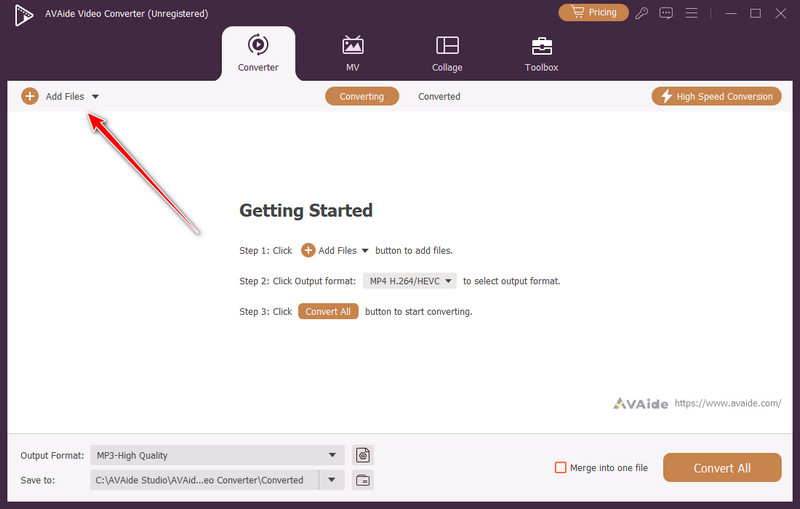
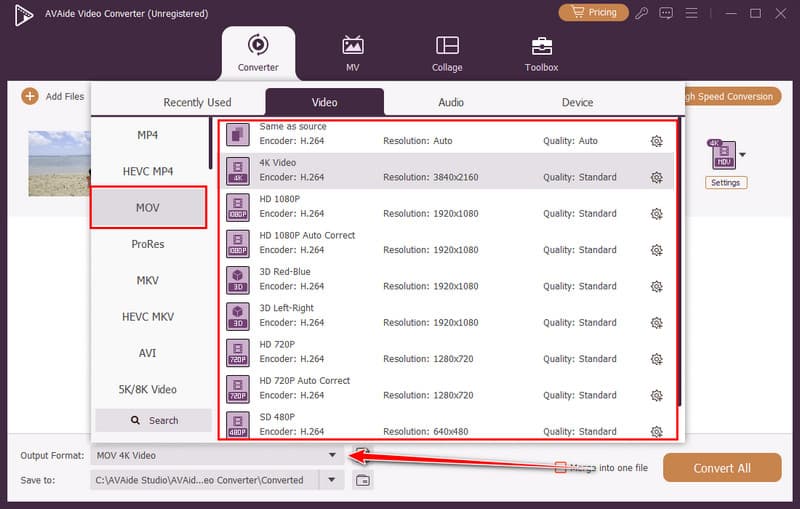
Step 3Next, click the Output Format menu, go to the Video section, and choose MOV as the format you want to export.
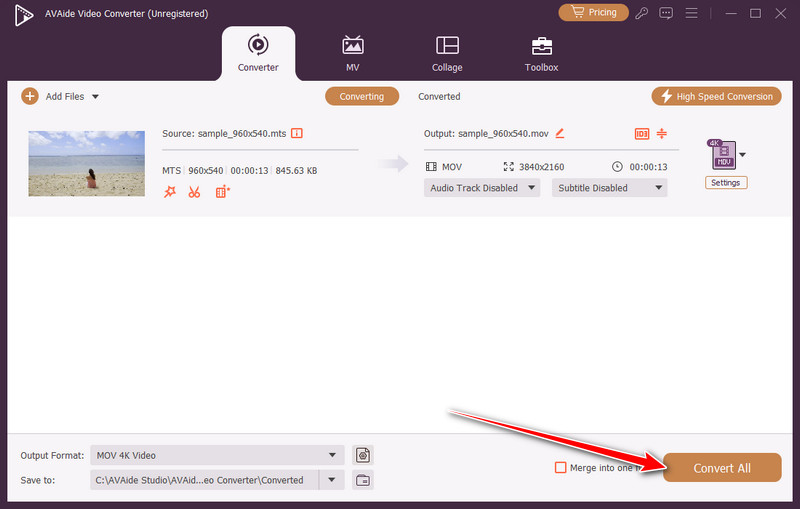
Step 4Finally, click Convert All to begin conversion, and the new MOV files will automatically save to your selected folder on the computer.
Part 2: How to Convert MTS to MOV Online Free
For users who want a fast and flexible option without installing software, CloudConvert stands out as a versatile online tool that offers free convert MTS to MOV in just a few clicks. It supports uploads from your computer, cloud storage, or even a URL, making it easy to handle files wherever they are. The UI is simple and user-friendly, and allows you to change output options such as resolution or quality when necessary. CloudConvert is also fast with files and does not affect video quality, thus even large MTS files can be converted without complex installation or additional software.
Step 1Open CloudConvert in your web browser. Click Select File and upload the MTS video from your computer, cloud drive, or URL.
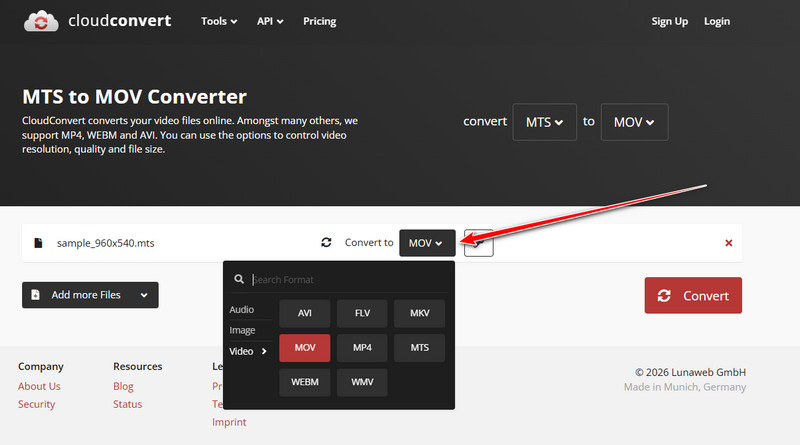
Step 2After the file uploads, set MOV as the output format in the conversion settings.
Step 3Click Convert to start processing and wait until the conversion completes. Once finished, tick Download to save the converted MOV file to your device.
Part 3: How to Convert MTS File to MOV Using VLC
VLC Media Player is a potent and free software that does not focus on the playback functionality of the media, making it a viable solution for users who are inclined to understand how to change an MTS file to MOV without having to install some other software. Both Windows and Mac-compatible, VLC maintains the original video quality and provides a range of options to convert it, including a codec and a resolution change. With its simple interface and advanced settings that can provide a user with a greater degree of control to edit or playback, it is a reliable, flexible and free solution to both amateur and professional users.
Step 1Launch VLC Media Player, then go to Media > Convert/Save and click Add to select the MTS file you want to convert.
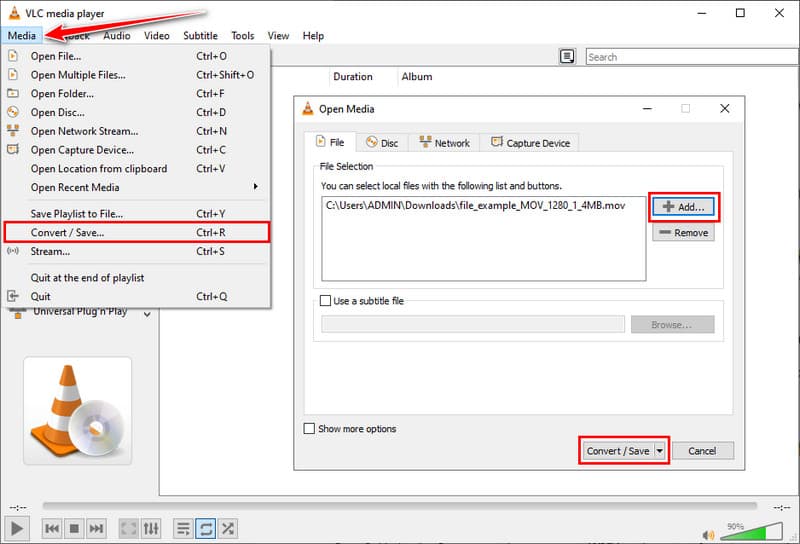
Step 2After adding the file, click Convert/Save to open the conversion settings where you can select the output format and adjust basic options.
Step 3From the Profile drop-down menu, choose a MOV-compatible profile, then set the destination folder and file name for the converted video before starting the process.
Part 4: How to Change an MTS File to MOV via Handbrake
HandBrake is a free and reliable tool that works on Windows and Mac, offering a practical way to learn how to change MTS to MOV while keeping video quality. It includes presets for easy conversion and advanced settings for users who want control over codec, resolution, and audio.
Step 1Download and install HandBrake, then launch it and click Open Source to select your MTS file.
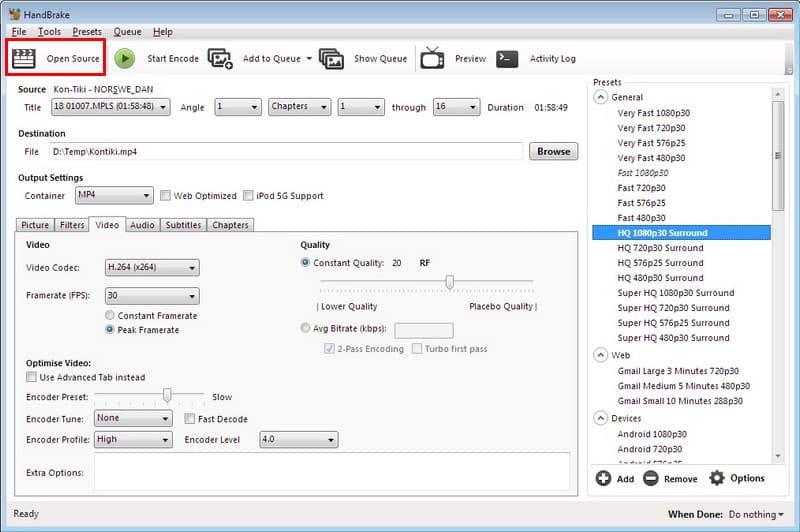
Step 2In the Summary tab, set the output format to MOV and choose a destination folder with a file name for the converted video.
Step 3Optionally, use the presets or adjust video and audio settings such as codec, resolution, and bitrate, then click Start Encode to convert the file to MOV while preserving quality.
Part 5: Why You Need to Convert MTS to MOV
The conversion of MTS files to MOV is necessary for all individuals who want to enhance the playback, editing, and sharing of their videos. MOV files are compatible, can be edited and shared with ease, unlike the original MTS format. These are the major reasons why you should consider converting your videos, which are as follows:
1. Wider Device Compatibility
MTS files often cause playback issues on Macs, iPhones, iPads, and many media players. By learning how to convert MTS files to MOV, you can ensure your videos play smoothly on almost any device without extra plugins or software.
2. Simplified Editing
Most professional and consumer video editors do not natively support MTS. Knowing how to transfer MTS to MOV makes your files compatible with programs like Final Cut Pro, iMovie, and Adobe Premiere, allowing seamless trimming, color correction, changing aspect ratio on Final Cut Pro, and effects.
3. Reliable Conversion Tools
An MTS to MOV converter that is reliable also means that your videos retain the original quality, and corruption or loss of frame is reduced with a smooth and professional workflow.
4. Cost-Effective Options
Many software and online platforms let you perform MTS to MOV free, providing high-quality conversions without needing to invest in expensive tools. It suits casual users or the ones with huge video collections.
5. Seamless Sharing
MOV files are widely supported for uploading, streaming, and sharing across devices. The ability to transfer MTS to MOV ensures your videos can be shared easily with friends, colleagues, or on social media without compatibility problems.
To make the work with AVCHD camera records easier, converting MTS to MOV is a sensible measure that enhances access and ease of editing and transferring footage and does not affect the quality of your recording, which is why every person who handles this camera will need it.
Conclusion
Converting MTS files to MOV makes videos easier to play, edit, and share on any device. Using the right method preserves quality while simplifying the workflow. For a fast, reliable, and no-cost solution, a free MTS to MOV converter provides everything you need to convert your videos safely and efficiently, producing ready-to-use MOV files without extra software or complicated steps.
Your complete video toolbox that supports 350+ formats for conversion in lossless quality.