This article identifies the top 6 best free Blu-ray players on Windows 11/10/8/7 and earlier. Windows can't play Blu-ray files directly because it doesn't have built-in support for the formats and encryption used on Blu-ray discs. To play Blu-ray discs, an additional decoder is necessary to bypass these protections.
In other words, you need a third-party media player to enjoy your favorite Ultra HD movies. There are lots of Blu-ray players on the market, but only some of them deliver the best viewing experience. That is why you should read our list.
Part 1: A Comparison Table of Popular Blu-ray Players
To help you choose the best player for your needs, let's take a look at a comparison of these popular players across several key features.
| Blu-ray Player | Free? | Supports 4K? | Needs Extra Codec/Keys? | Has Ads? | Supports ISO/Folder? |
| AVAide | Free Version | Yes | No | Yes | Yes |
| VLC | 100% Free | Yes | Yes | No | Yes |
| PlayerFab | Free Version | Yes | No | Yes | Yes |
| Blu-ray Master | Free Version | Yes | No | Yes | Yes |
| KM Player | Free Version | Yes | No | Yes | Yes |
| Leawo | Free Version | Yes | No | Yes | Yes |
Part 2: Top 6 Free Blu-ray Players on Windows
Top 1: AVAide Blu-ray Player
A great Blu-ray player should be easy to use and beginners can learn it quickly. Moreover, it should come with custom options to fully control the playback and bonus tools. That is why AVAide Blu-ray Player appears at the top of the list. It works on both Windows 11/10/8/7 and macOS.
- Play Blu-ray discs/ISO files/folders with the original resolution up to 4K.
- Support DVDs and all the media formats you need.
- Apply Dolby Digital and DTS audio technology for superior sound quality.
- Offer flexible playback control options during playback.

 Secure Download
- Pros
- Provide a clean and intuitive interface for easy navigation.
- Preserve the original image resolution.
- Offer a wide range of video effects to customize.
- Work on Windows 11/10/8/7 and macOS.
- Cons
- It may take some time to load the Blu-ray if the file size is large.
Top 2: VLC
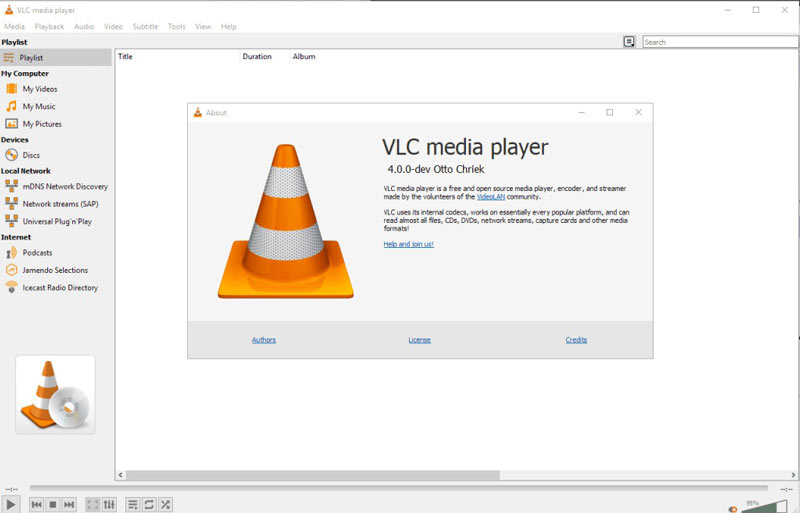
VLC is a free, open-source media player available on multiple platforms, including Windows. It can play almost all video and audio formats, such as MP4, MKV, AVI, FLV, MP3, WAV, and more. As one of the most popular players, many users ask "Can VLC play Blu-ray on Windows". The answer is yes - but with limitations. VLC cannot play commercial/encrypted Blu-rays by fault, you must download and install AACS keys to play Blu-ray movies.
- Pros
- Completely free and open source.
- Fast performance with zero-copy decoding.
- No ads, user tracking or spyware.
- Boast rich features such as subtitle synchronization.
- Cons
- Require extra setup to play encrypted Blu-ray discs.
- Lack advanced visual customization options.
Top 3: PlayerFab
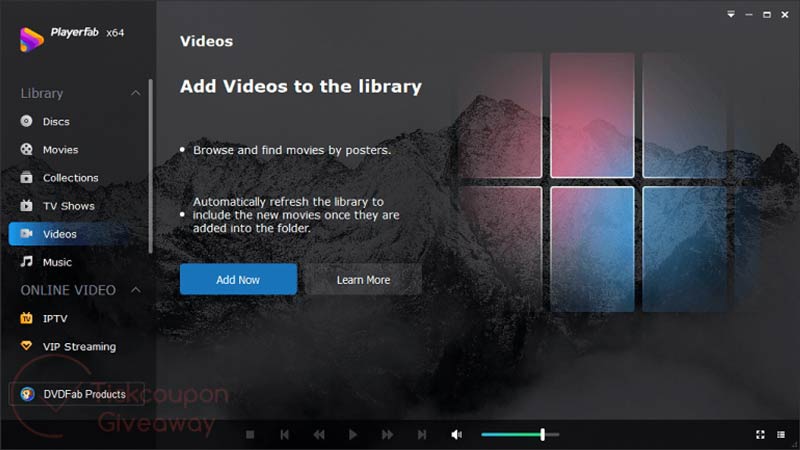
PlayerFab is a comprehensive Blu-ray player for Windows. It can play digital videos, Blu-ray, DVDs, and streaming videos up to FHD 1080p and EAC3 Audio. It supports various 3D output modes and provides excellent 3D effects, so you can enjoy a cinema-level 3D playback at home with this player.
- Pros
- Play 2D and 3D Blu-rays with theater-like effects.
- Save Blu-ray discs as ISO files for easy storage and backup.
- Generate real-time subtitles accurately.
- Integrate GPU hardware decoding for smoother playback.
- Cons
- Available only for Windows, no macOS version.
- Advanced features require an upgrade to the pro version.
Top 4: Blu-ray Master Free Blu-ray Player
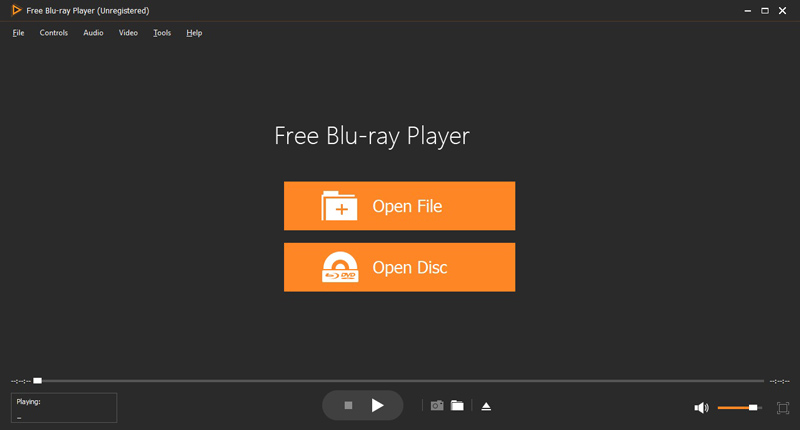
This free Blu-ray player for Windows was released by Blu-ray Master. It is a great choice to get an excellent viewing experience on PCs without paying a penny. Moreover, it is available for Mac OS X. In addition to Blu-ray discs, it can decode ISO images and Blu-ray folders.
- Pros
- Keep the original quality of Blu-rays.
- Support Blu-rays, DVDs, and local videos.
- Deliver viewing experiences with hardware acceleration.
- Control the video playback easily.
- Cons
- It requires you to install it on your desktop.
- The free version only includes basic features.
Top 5: KM Player

KM Player is another free Blu-ray player for Windows. It can play all forms of high-resolution audio and video formats, including 4K, 8K, and UHD content. It also allows users to stream their PC's media library to other devices over the internet.
- Pros
- Play videos on Blu-ray, hard disk, and Google Drive.
- Play Blu-ray movies with no separate codecs.
- Directly stream and play online videos from platforms.
- Offer advanced playback controls to adjust speed, sync subtitles, or apply filters.
- Cons
- It displays ads in the interface.
- It does not support 360-degree videos.
Top 6: Leawo Blu-ray Player
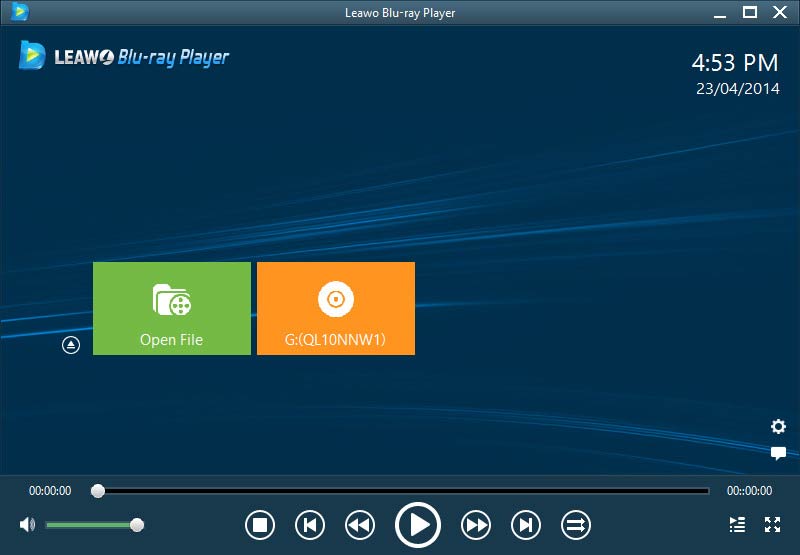
Leawo Blu-ray Player is a free Blu-ray player on Windows for both optical discs and digital videos. It provides a decent playback experience and is compatible with Windows 8 touch screen. It has lots of unique features, such as changing viewing angles to get a more immersive watching experience.
- Pros
- Offer a user-friendly interface that is easy to navigate.
- Support various audio decoding technologies.
- Remove Blu-ray region code restrictions.
- Offer multiple subtitle settings to let you customize subtitle display.
- Cons
- The free version supports resolutions up to 1080p.
- It lacks standard disc playback features.
Part 3: How to Play Blu-ray Disc on Windows
Playing Blu-ray discs requires higher hardware specifications than regular video. Blu-ray quality can reach 1080p or 4K, which requires more processing power and data transfer capability. Use the table below to check whether your computer meets the requirements:
| Component | Minimum Requirement | Recommended Requirement |
| Blu-ray Drive | Internal or External Blu-ray drive | External Blu-ray drive (USB 3.0) |
| CPU | Dual-core (Intel i3/AMD) | Quad-core (Intel i5/Ryzen 5+) |
| RAM | 4 GB | 8 GB+ |
| GPU | Integrated graphics (HD 4000+) | Dedicated NVIDIA/AMD GPU |
| Display | 1920×1080 (Full HD) | 3840×2160 (4K UHD) |
| Storage | Enough for temp files (≥50 GB) | SSD preferred for smooth playback |
| OS | Windows 10/11 | Latest version with updates |
What to Do Before Playing Blu-ray Discs?
Before inserting the disc into your computer, you need to finish these steps below:
Step 1Check if your drive supports Blu-ray
A standard DVD drive cannot read Blu-ray discs. You need a Blu-ray optical drive.
How to check:
Right-click the Start Menu > Device Manager > expand DVD/CD-ROM drives.
Check the model's name. If it includes Blu-ray, your drive supports Blu-ray playback.
If you don't have a Blu-ray drive, consider purchasing an external Blu-ray drive and connect it to your PC via USB.
Step 2Install a Blu-ray player
Choose one from our top 6 list above. Different player requires different setup:
AVAide, PlayerFab, Leawo, Blu-ray Master: Work with commercial Blu-rays directly.
VLC: Needs extra AACS/BD+ keys to play protected Blu-rays.
KM Player: Supports unprotected Blu-ray folders and ISO files.
How to Play Blu-ray on Windows?
To help you understand how to play a Blu-ray disc on your Windows for free, we set AVAide Blu-ray Player as an example to show you the workflow.
Step 1Open Blu-ray.
Run the best free Blu-ray player on your Windows. It is available on Windows 11/10/8/7, and there is another version for Mac OS X.
Insert the Blu-ray disc into the same machine. Next, click the Open Disc button, select your disc, and click OK.

Step 2Control playback.
Once the disc loads, the movie will begin playing automatically. The control bar at the bottom enables you to play, pause, stop, fast forward, and rewind the movie easily. The Camera icon is used to make a screenshot of an important frame.
If the sound is too high or low, you can adjust the volume. To get advanced controls, such as video effects, go to the top Menu bar.

Optional: Install Decryption Files & Codecs (Critical for VLC)
VLC cannot play commercial/encrypted Blu-rays out of the box. You must manually install decryption files/codecs.
Step 1Download two key files.
Save both files to your Desktop for easy access:
libaacs.dll (AACS decryption library)
KEYDB.cfg (Blu-ray decryption key database)
Step 2Install the key database (KEYDB.cfg).
Open File Explorer, paste C:\ProgramData\ into the address bar, create a new folder named aacs, then move the downloaded KEYDB.cfg file into this aacs folder, so the final path becomes C:\ProgramData\aacs\KEYDB.cfg.
Step 3Install the AACS library (libaacs.dll).
Navigate to your VLC installation folder. Then place the downloaded libaacs.dll file directly into this main VLC folder, not into a subfolder.
Step 4Restart VLC.
Close and reopen VLC to load the new decryption files.
Part 4: FAQs About Free Blu-ray Player on Windows
Does Windows 10 have a Blu-ray player?
No. Windows Media Player, which is the built-in media player and manager on Windows 10, does not support Blu-ray discs. If you would like to watch a Blu-ray movie on your PC, you need to download a third-party player.
Why cannot Windows play Blu-ray?
A Blu-ray disc is encrypted by copyright protection. You need a powerful media player to decrypt it. Moreover, you must use a Blu-ray driver to play Blu-rays. DVD drivers cannot decode Blu-ray discs.
Do I need any special software to play Blu-ray on Windows?
Yes, Windows Media Player does not support Blu-ray playback natively, so you need third-party software to play Blu-ray discs on a PC. Popular options include AVAide Blu-ray Player, VLC Media Player, PlayerFab, and others.
This article reviews the top 6 best free Blu-ray players for Windows 11/10/8/7/XP/Vista and earlier. Each one has its own pros and cons, so you can pick the one that fits your viewing needs. Want to take your movie nights to the next level? Explore the options above and find the player that delivers the smoothest, most immersive experience for you. And if you've discovered a great tool we didn't mention, share it in the comments - we're always excited to discover something new!
Full-featured multimedia player to play Blu-rays, DVDs, 4K UHDs, and other video/audio files.