Plex Media Server is great for streaming movies and TV shows to any device. Unfortunately, it cannot play DVD files like Video_TS folders or ISO images directly.
To enjoy your DVDs on Plex, you need to rip DVDs to Plex, which means converting them into formats the server can read. In this guide, we will show the best formats, tools, and steps to rip DVDs to Plex quickly and smoothly.
Part 1: Recommend Formats to Rip DVD to Plex
When you rip a DVD to Plex, choosing the best format to rip a DVD for Plex ensures smooth playback, good quality, and proper compatibility.
| Container | MP4 or MKV |
| Video Codec | H.264 or H.265 (HEVC) |
| Audio Codec | AAC (2.0 stereo), AC3, or DTS (5.1 surround) |
| Resolution | 720×480 (NTSC) or 720×576 (PAL) |
| Frame Rate | Same as source (23.976, 25, or 29.97 fps) |
| Bitrate | Around 1500-2500 kbps |
These formats are ideal for Plex and help avoid unnecessary transcoding while keeping files manageable.
Part 2: How to Rip DVD to Plex - Tools & Guide
1. AVAide DVD Ripper
Turning DVDs into digital files is the first step to smooth Plex streaming. Using the best software to rip DVD to Plex, like AVAide DVD Ripper, makes this task simple and clear. It supports many video formats that Plex plays well, such as MP4 and MKV.
In addition, it keeps the original clarity or improves it with clean output settings. Ripping is fast and smooth, often taking only minutes for a full movie. Even copy-protected DVDs are handled with no trouble.
Step 1Click the Free Download button and install AVAide DVD Ripper on your Windows or Mac. Once the setup ends, open the program.

FREE DOWNLOAD For Windows 7 or later
 Secure Download
FREE DOWNLOAD For Mac OS X 10.13 or later
Secure DownloadStep 2Insert the DVD into your DVD drive. Then, click the Load DVD button and choose how you want to load the disc.
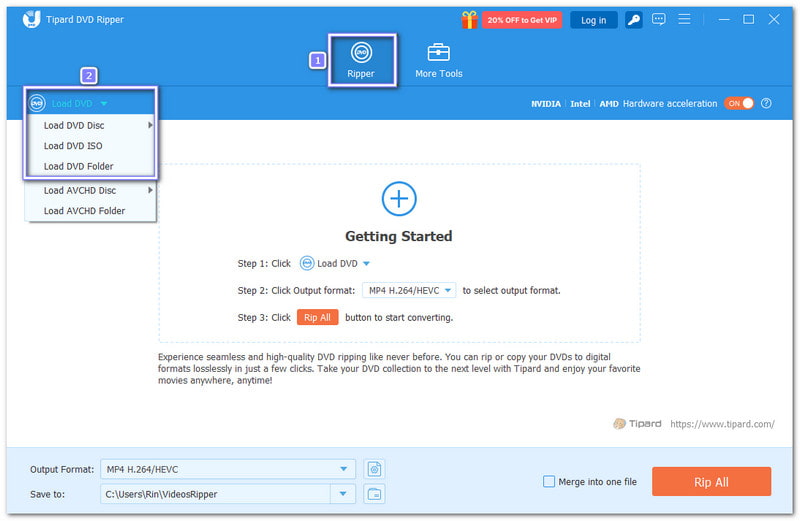
Step 3AVAide DVD Ripper will auto-load the main movie title. Click Full Title List if you want to pick specific titles.
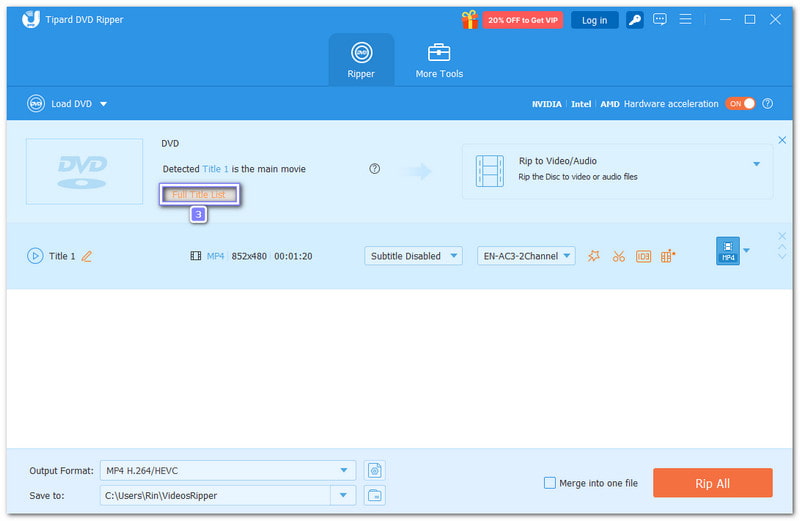
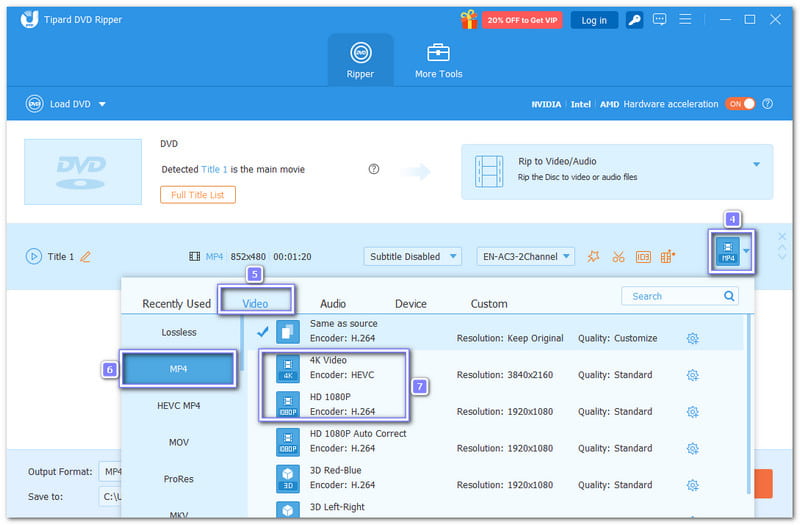
Step 4You can now change the output format by opening the Profile menu. Head to the Video section and choose MP4. It is the best format for Plex. It plays smoothly and keeps the file size small. You may also pick the video clarity here, like 4K Video, HD 1080P, or HD 720P.
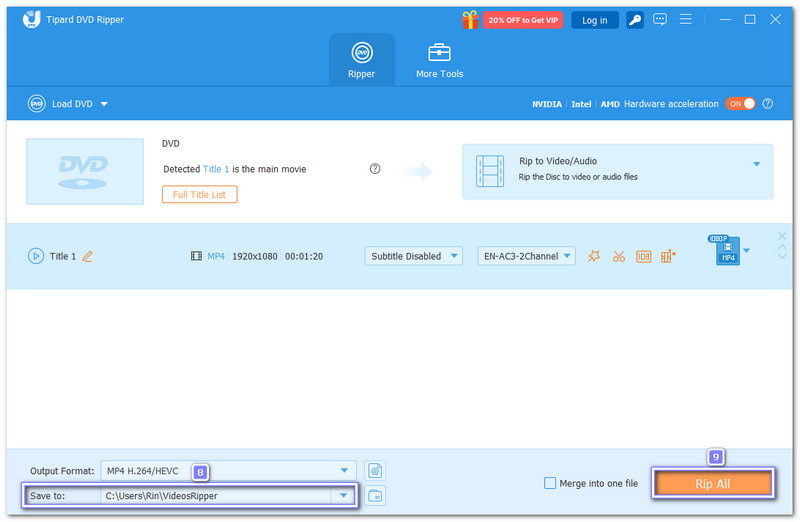
Step 5Now, choose a destination folder, then click Rip All at the bottom right. Once the process ends, the DVD will be saved in a digital format at the selected location.
2. MakeMKV
If your main goal is perfect clarity on Plex, a reliable DVD to Plex converter like MakeMKV shines. It keeps every detail from your DVD, from video to sound, with no loss at all. It works well for users who want clean backups and smooth Plex playback. Many Plex users trust it for large movie rips.
Step 1Open MakeMKV on your computer and put the DVD you want to rip for Plex into the DVD drive. The program will scan the disc on its own.
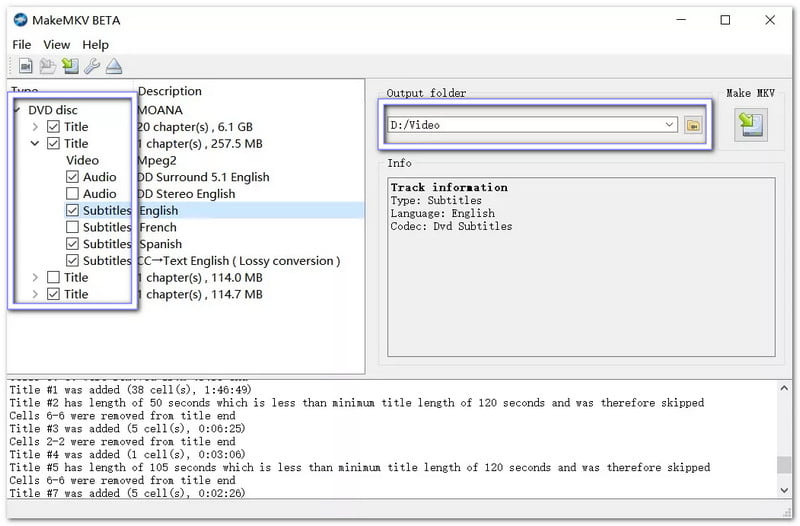
Step 2Once the DVD loads, click the main Disc button. On the left panel, choose the title you want to rip. You may rip the full DVD or only selected chapters.
Step 3Check the audio and subtitle tracks you want to keep. It helps reduce file size and keeps only what you need for Plex.
Step 4Choose a save folder on your computer. Make sure the drive has enough space because MKV files can be large.
Step 5Click the MakeMKV button to start ripping. After the process finishes, the video will be saved as an MKV file in your chosen folder.
Note: Some users may face issues like MakeMKV cannot find the optical drive on Windows 10/11, which can be solved by checking your drive connection or updating drivers.
3. HandBrake
When file size control matters, HandBrake stands out. It helps convert DVDs to Plex by turning DVDs into smaller files that still play great on Plex. It gives you control over format, clarity, and resolution. It is helpful if you want faster streaming and less storage use. However, you need one extra step to handle protected DVDs.
Step 1Insert the DVD into your drive and open HandBrake. Click Source, then select your DVD drive so HandBrake can read the disc.
Step 2After HandBrake scans the DVD, choose the title or chapters you want to rip. It helps avoid unwanted clips.
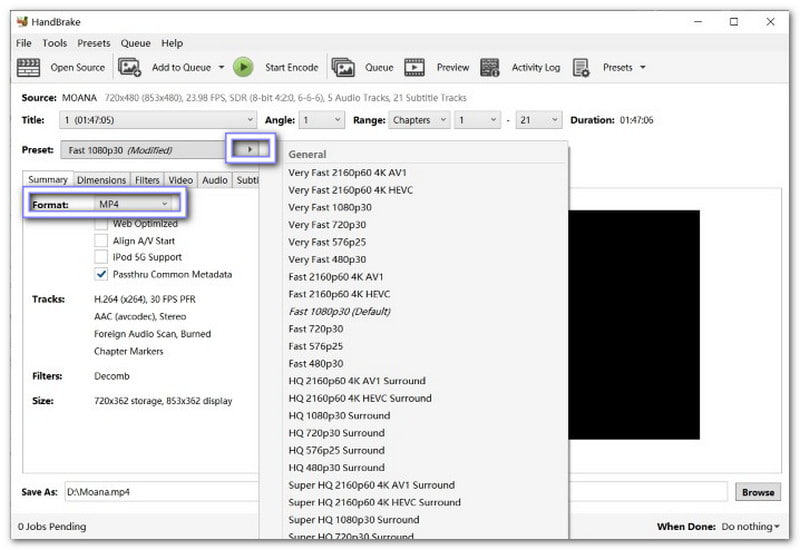
Step 3In the Preset panel, pick a Plex-friendly preset like Fast 1080p30 or Fast 720p30. Then, set the format to MP4, which works best with Plex.
Step 4Click Browse under Destination and choose where you want to save the ripped file. You may fine-tune video quality or audio if needed.
Step 5Hit Start Encode to begin ripping. Once the task is done, the DVD will be converted into a digital video file.
DVD to Plex Ripper Comparison Table
Please check out the comparison table, highlighting the key differences of the three popular DVD to Plex rippers, to make it easier for you to see which program suits your needs best.
| Feature | AVAide DVD Ripper | MakeMKV | HandBrake |
| Ease of Use | It offers a beginner-friendly workflow. | It offers a simple ripping process. | It needs setup and learning. |
| Output | MP4, MKV, AVI, MOV, etc. | MKV only. | MP4, MKV, and WebM. |
| Encryption Support | It supports copy-protected DVDs. | It can remove DVD copy protection effortlessly | It requires an extra library. |
| Lossless Ripping | It offers optional lossless or enhanced quality. | It offers full lossless remux. | No true lossless mode. |
| Speed | It is fast with GPU boost. | It boasts a fast disc extraction. | It is slower due to encoding. |
| Batch Conversion | Yes, multiple DVDs at once. | No batch support. | Queue-based batches. |
| Well-suited for | Fast and high-quality Plex-ready conversions. | Fast creation of lossless MKV backups. | Free choice for users comfortable with the technical setup. |
Part 3: How to Add DVD Movies to Plex
Once your DVDs are ripped into digital files, adding them to Plex is easy. Follow the basic steps below to add a DVD to Plex so that you can organize and stream your movies smoothly.
Step 1Suppose you do not have a Plex account, head to Plex.tv and create one. Then, download and install Plex Media Server on your computer or NAS device. This server will store your movies and connect with the Plex apps for streaming.
Step 2Sort your ripped videos into folders like "Movies" or "TV Shows." Give each file a clear and proper name. Plex uses these names to match metadata like posters, cast, and descriptions.
Step 3Open the server on your computer. If it is your first time, register it through a browser. The server will connect to your Plex account and prepare to scan your media folders.
Step 4Click the Add button next to Libraries on the main screen. Select the type of library, for example, Movies or TV Shows, give it a name, pick a language, and click Next to continue.
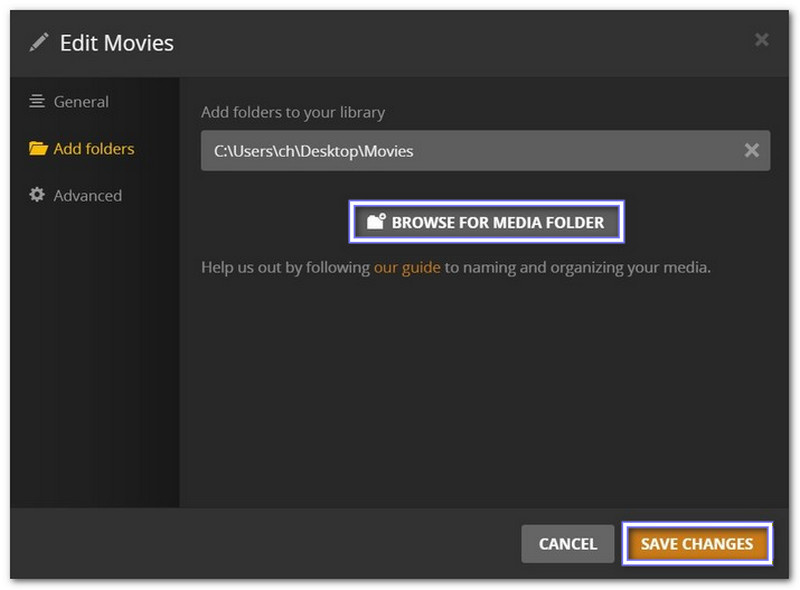
Step 5Click Browse for Media Folder and select where your ripped DVD files are stored. After clicking Add Library, Plex will scan the folder and fetch metadata. Your movies will now be ready to browse and stream.
We know you are now excited to watch your DVD movies on Plex, especially now that you know the best way to rip DVD for Plex. Using AVAide DVD Ripper ensures your movies are ripped fast, in high quality, and fully compatible with Plex. It makes your viewing experience smooth and enjoyable every time!
Best tool for ripping and converting DVD Disc/Folder/ISO image file into over various formats.