If you've ever dropped a photo into Adobe Illustrator and gotten stuck with a stubborn background, you're not alone. Illustrator gives you effective ways to clean things up. Here are 3 practical approaches to remove image backgrounds in Illustrator that cover most situations.
- A Quick Glance at the 3 Solutions to Delete Background in Illustrator
- Method 1. Remove Background with AI (Only Works with Raster)
- Method 2. Show Transparency Grid (Raster and Vector)
- Method 3. Image Trace with Ignore White (Converts Raster to Vector)
- Bonus: Quick Online AI Background Removers for Rasters & Vectors
- FAQs About Background Removal in Illustrator
A Quick Glance at the 3 Solutions to Delete Background in Illustrator
| Method | Vector/Raster Support | Illustrator Versions | Best For |
| Remove Background with AI | Raster only | Illustrator version 30.4 and newer | Quick cutouts of photos, product shots, or complex real-life subjects when you want to stay inside Illustrator |
| Show Transparency Grid | Both raster and vector | Pretty much all modern versions | Checking and exporting designs that already have transparency |
| Image Trace with Ignore White | Converts raster to vector | Long-standing feature since CS6 | Logos, icons, simple graphics, or anything you want as clean editable vectors without the white areas |
These aren't the only options, but they're the fastest for most everyday needs.
Method 1. Remove Background with AI (Only Works with Raster)
Adobe added a dedicated Remove Background feature powered by its AI tools. It analyzes the subject and turns everything else transparent. It only works on raster images you place or embed, not pure vectors.
Step 1Import a Raster Image
Go to File > Place to open your raster image in Illustrator. You can also drag it in.
Step 2Select the Image
Select the image with the Selection tool, the black arrow button at the top-left.
Step 3Click Remove Background
Look for the floating Contextual Task Bar that usually appears near the bottom of the screen. Click Remove Background.
You can also find it in:
- The Quick Actions section of the Windows > Properties panel
- The Control Panel at the top
- Right-click menu
- Object menu > Remove Background

It works best on clear subjects with decent contrast. Hair, fur, or very busy backgrounds can still need a little cleanup afterward. Note that this feature is available in Illustrator 30.4 and newer releases that include the generative AI tools; older versions won't have the button.
Method 2. Show Transparency Grid (Raster and Vector)
This one removes the white background in Illustrator, and you'll get an image with a transparent background. It is more about visualization and export than actually deleting pixels or paths. The default artboard looks white, but it is actually transparent. Showing the grid just lets you see that.
Step 1Open Vector or Raster
Open your vector artwork or placed raster.
Step 2Turn the White Artboard Transparent
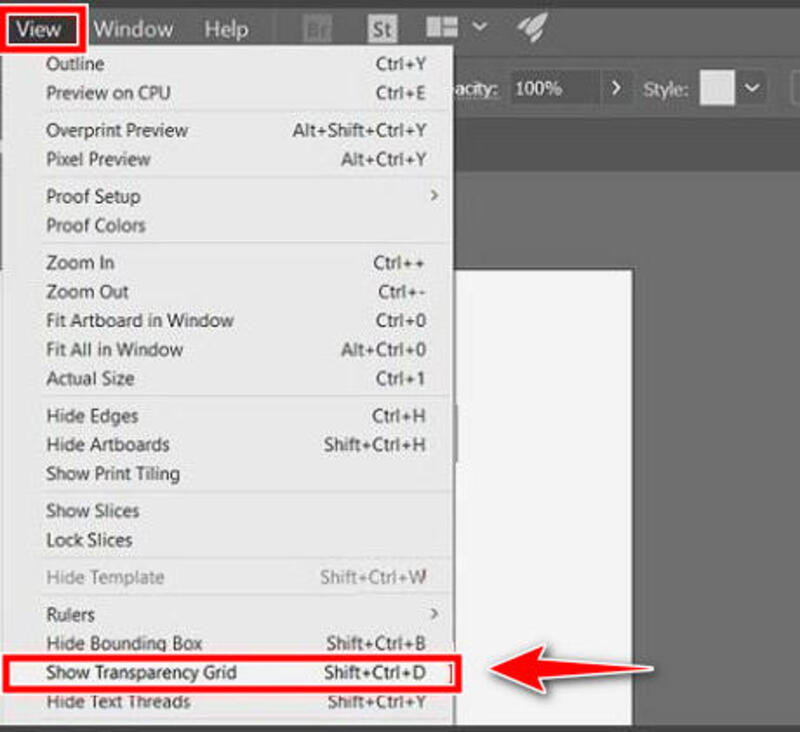
Go to the top menu and click View > Show Transparency Grid. The white artboard turns into the checkerboard pattern, and any areas that were truly empty now look transparent. This works for both vector objects and raster images that already have transparency.
Step 3Export the Transparent Image
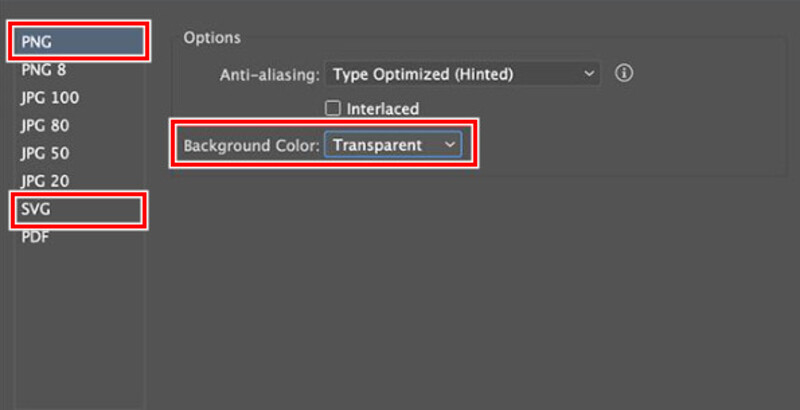
When you're ready to export, go to File > Export. Click Export As or Save for Web/Export for Screens, depending on your needs. Then choose PNG for a raster output, or SVG for a vector. They preserve transparency by nature. Make sure Background Color: Transparent is selected in the options dialog, and export.
If the area still shows white under your content, that white is likely part of your artwork rather than color of the artboard, and you'll need Method 1 or 3 if you want to remove it.
Method 3. Image Trace with Ignore White (Converts Raster to Vector)
This is the classic route for turning a logo or simple graphic into clean vectors while getting rid of the white background in Illustrator at the same time. This method works well for making background-transparent logos and icons.
Step 1Select the Raster Image
Place your raster image and select it with the Selection tool.
Step 2Select Image Trace
Open the Image Trace panel: Window > Image Trace.
Step 3Choose a Preset
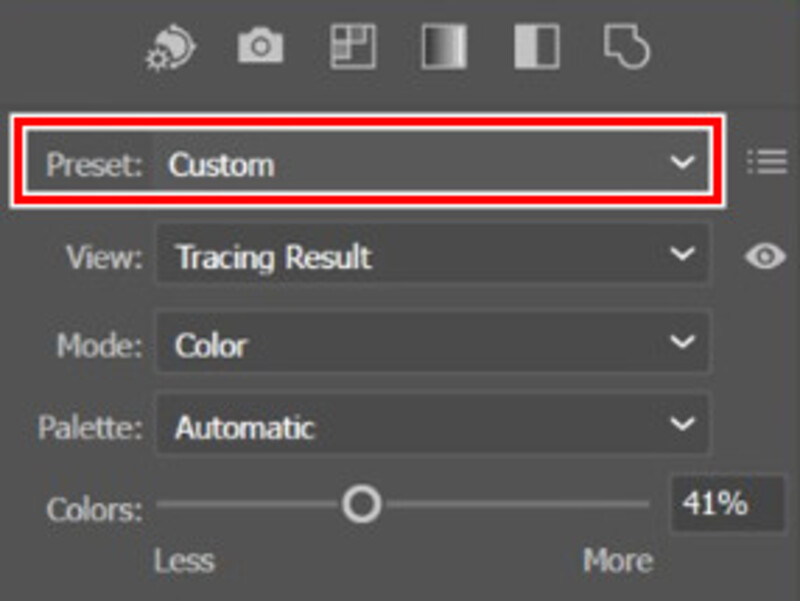
In the panel, pick a preset that fits. Black and White is good for simple graphics; a color preset is recommended for more detailed work. Change Mode to Color if needed.
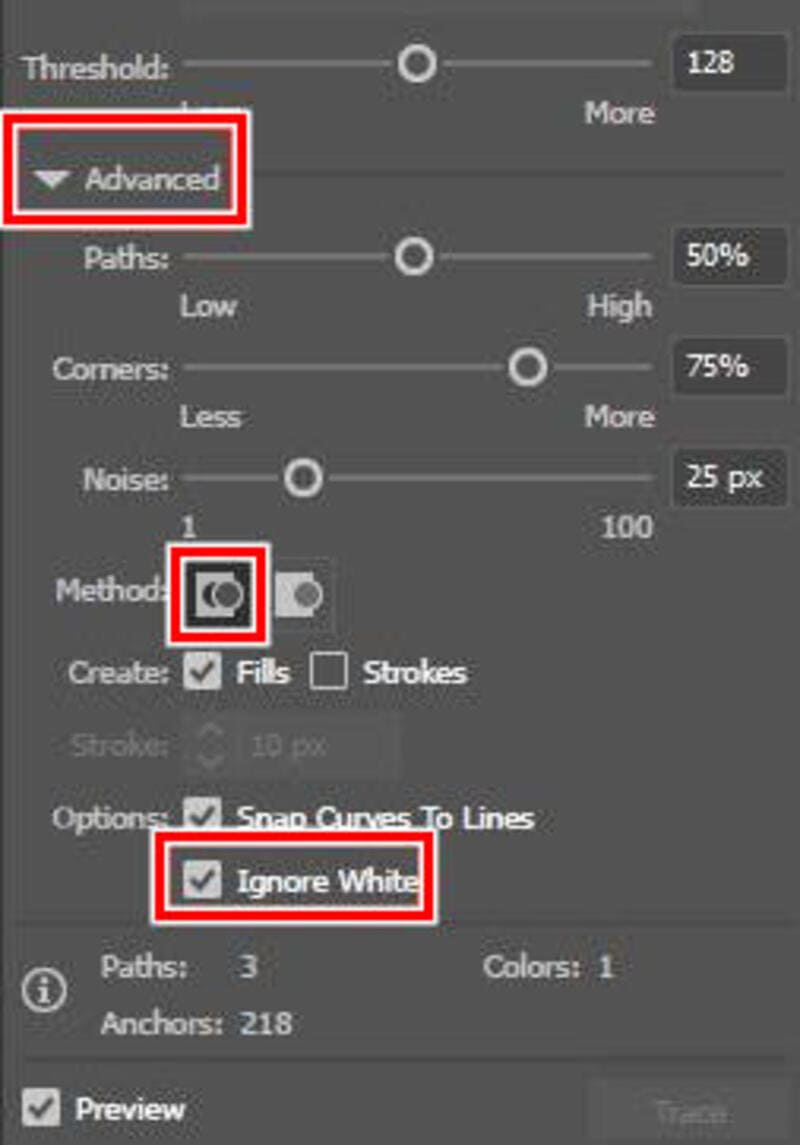
Step 4Ignore White
Expand the Advanced options by clicking the little triangle. Check Ignore White to remove white areas from the trace. If you need to remove a specific color instead, select Ignore Color and use the color picker to sample it. Make sure the Method is set to Abutting (the left button) if the ignore option is grayed out.
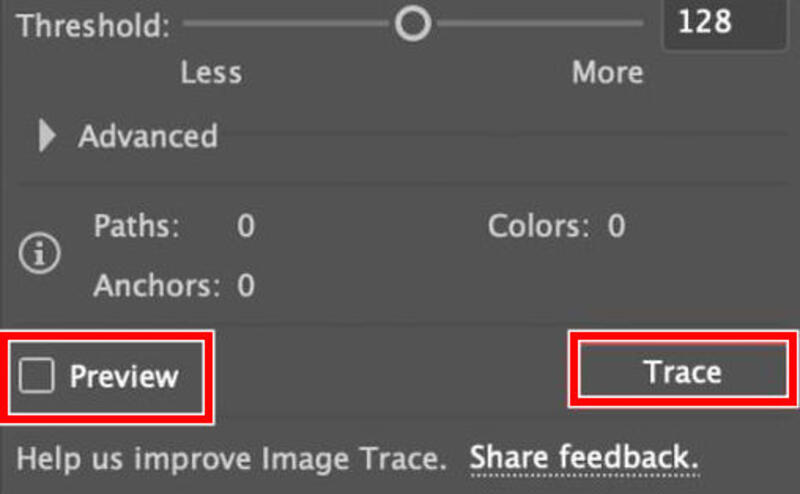
Step 5Preview the Result
Click Trace at the bottom of the panel. Preview your updates.
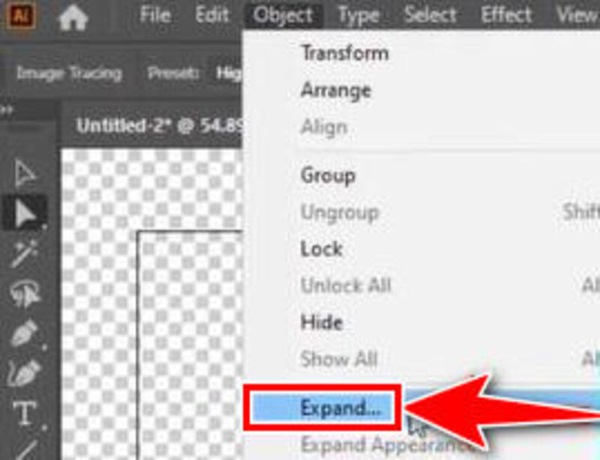
Step 6Manual Refinements (Optional)
Once it looks good, click Expand in the top Control bar or go to Object > Image Trace > Expand. Use the Direct Selection tool (the white arrow button in the top-left corner) to click any leftover background shapes and hit the Delete key.
You'll end up with editable vector paths and no white background, perfect for logos that need to scale cleanly.
Bonus: Quick Online AI Background Removers for Rasters & Vectors
When you don't want to open Illustrator for a simple removal, or you need something super fast, try these quick AI solutions. Both are browser-based, so they're good side options if you're away from your design computer or just need a one-off transparent asset.
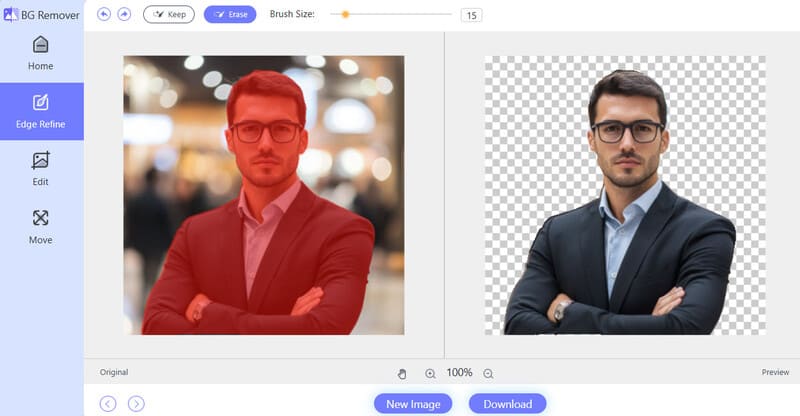
AVAide Background Eraser – Remove BG from JPG, PNG, and GIF
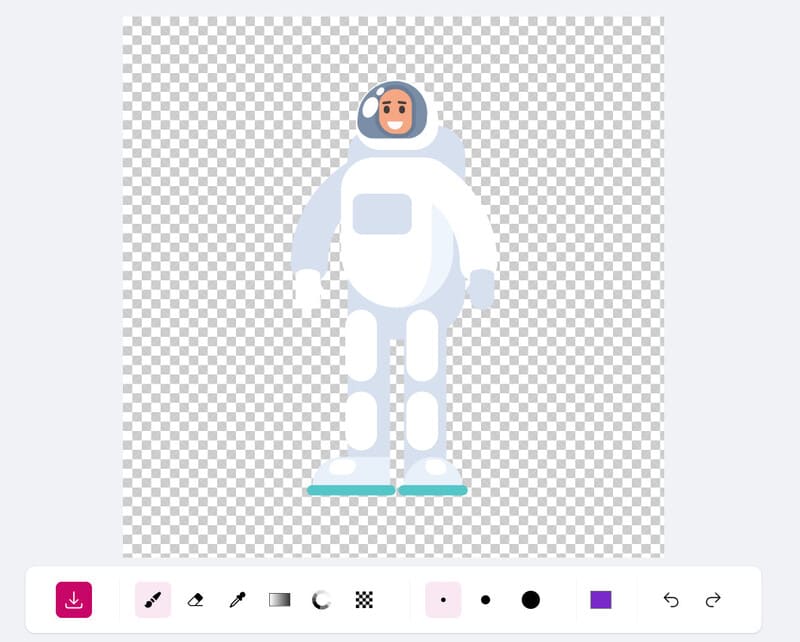
Upload a JPG, PNG, etc., and AVAide Background Eraser removes the background with AI in seconds. It supports common raster formats, provides manual refinement tools, and lets you download a transparent PNG. In the Edit panel, you can also change the background to a solid color or another uploaded image right on the page. Handy for quick photo cutouts before bringing them into Illustrator.
VectorArt.ai Background Remover
In VectorArt, you can upload or generate SVGs and use its AI background removal to strip unwanted background shapes while keeping the file as editable vectors. Just drag the image in, and it will start removing automatically. It's helpful when your background is actually another vector rectangle or shape rather than pixels.
FAQs About Background Removal in Illustrator
Why is Remove Background not an option in Illustrator?
If you don't see the Remove Background button, a few things are probably going on:
- You're on an older Illustrator version that predates the AI feature. Try updating Illustrator via Creative Cloud.
- The selected object is already a pure vector, but the tool only works on rasters. Choose another tool that accepts raster images.
- The Contextual Task Bar/Properties panel is hidden. Check Object > Remove Background or the Properties panel Quick Actions.
What are the differences between vector and raster?
Raster images are made of pixels. Common raster formats include JPG, PNG, GIF, WebP, PSD, etc. They lose quality when scaled up, but are good for rich detail.
Vectors are mathematical paths and shapes, usually in SVG, AI (Adobe Illustrator Artwork), PDF, CDR, and others. They stay sharp at any size, but they are not suitable for complex real-life photos.
Background removal on rasters usually means creating transparency or converting to vectors; on vectors, it often means deleting specific shapes or using masks.
Which image formats allow for a transparent background?
PNG, WebP, AVIF, SVG, and GIF (limited 1-bit transparency) all support transparency. For web and design work, transparent PNG or SVG are the most common choices. TIFF can also carry transparency but is mainly for print or archival.
What is the difference between Adobe Illustrator and Adobe Photoshop?
Adobe Illustrator is a vector graphics program. Photoshop is built for raster images. That's the biggest difference between them.
What is the cheapest way to get Adobe Illustrator?
Illustrator is subscription-only now, with no perpetual license. In the US, the standalone Illustrator plan currently costs $22.99 per month billed annually. The cheapest legitimate route for most people is the Creative Cloud plan for students and teachers, around $20–25/month for the first year. The exact pricing varies by region and promotions.
Conclusion
That's all for the 3 practical solutions on how to erase backgrounds in Illustrator. Start with the easiest AI Remove Background if your version supports it. If you prefer faster solutions, try online AI tools like AVAide Background Eraser or VectorArt.ai. Happy designing.
ABOUT THE AUTHOR

Photo Editing Solutions

Uses AI and automated background removal technology to capture complex backgrounds from JPG, JPEG, PNG, and GIF.
PROCESS NOW