Making a logo with a transparent background is actually pretty straightforward if you pick the right format and an editing workflow. In this piece, you will get the transparent logo basics, a quick comparison of PNG versus SVG, plus a look at a few handy background removal tools. After that, there is a step-by-step way to build a clean and reusable logo that does not look stuck inside a box.
Part 1. What Is a Transparent Background Logo Maker?
1. Definition
A transparent background logo maker is kinda like a tool that lets you build or fix logos without that solid backdrop, you know, like no hard box behind it. It usually ends up giving you the finished file as a PNG, so the logo can blend in smoothly with websites, product packaging, videos, slides, and well, a bunch of other places you might show it.
2. How It Works
Most of these tools let you start from text, templates, simple shapes, or even an uploaded photo or graphic. After that, the background can be removed or swapped out, so what is left is basically the logo design only, transparent, and visible. In the end, people commonly export it as PNG because that format keeps the transparency steady and reliable, even when you move it around.
3. Key Benefits
- Flexible placement: You can drop the logo onto a bunch of different backgrounds, and it usually would not look like there is a very noticeable square or edge, which is nice.
- Cleaner look: the result often feels more professional and kinda more polished, as well.
- Simple reuse: you can reuse the same mark on websites, social feeds, in video edits, and even on print materials, without too much hassle.
- Stronger branding: it keeps things consistent across platforms, too, and across different layouts.
Part 2. PNG vs SVG
PNG and SVG are two pretty common formats for logos with transparent backgrounds, honestly. It mostly depends on where you want to place the logo and how you plan to use it. PNG is a good match for photos and whatever you upload online, while SVG is usually the better option when the artwork needs to be resized a lot, without losing quality.
- Feature
- File Type
- Transparency
- Scalability
- Best For
- File Size
- Editing
- Image Detail
| PNG | SVG |
| Raster image | Vector image |
| ✓ Yes | ✓ Yes |
| May lose quality when enlarged | ✓ Can be resized without quality loss |
| Websites, social media, and digital images | Websites, printing, and scalable designs |
| Can be larger for high-resolution images | Usually smaller for simple designs |
| Requires image-editing software | Can be edited with vector-based tools |
| Better for detailed or complex images | Best for logos, shapes, and simple graphics |
Part 3. Best Background Removal Tools for Logos
1. AVAide Background Eraser
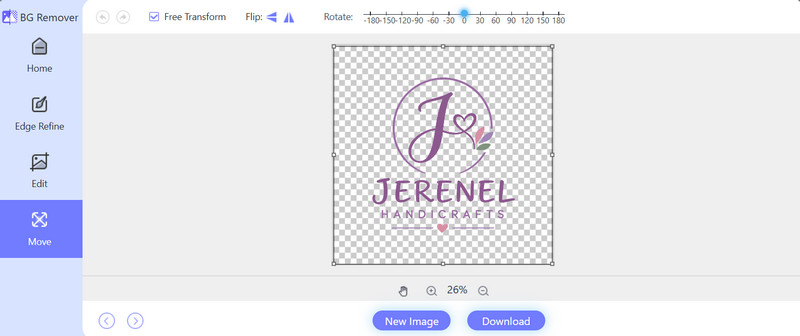
AVAide Background Eraser is probably the best route if you want a transparent logo without paying for background removal. The AI kinda does the hard work, it spots the main subject automatically, then wipes out the area around it so you do not have to trace the logo by hand, which is a lot less annoying. It also works with JPG, JPEG, PNG, and GIF files, and it lets you swap in the removed background with a color or even another image.
Key Features:
- AI automatically detects and removes backgrounds.
- Supports JPG, JPEG, PNG, and GIF files.
- Handles edges and small, fine details automatically.
- It allows users to replace the background with a color or an image.
Pricing:
- Free: $0.
- Pros
- Completely free to use.
- No advanced editing know-how needed.
- Simple and fast AI background erasing.
- Includes background replacement.
- No software install required.
- Cons
- You need an internet connection.
2. Remove.bg
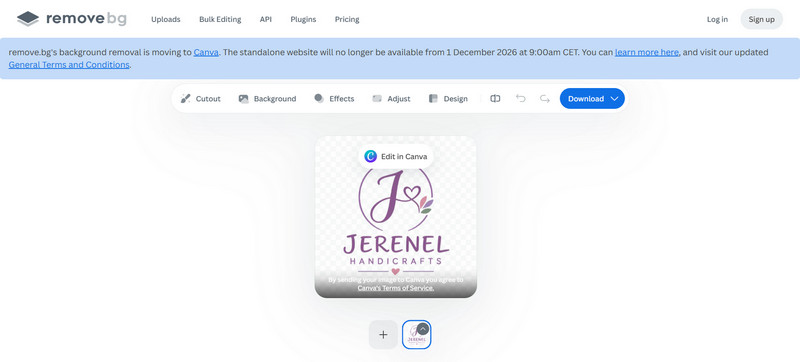
Remove.bg is kinda a solid alternative for folks who mostly need automatic background removal. The AI basically does the cutout process with very little effort or input, so it is pretty convenient for quickly isolating a logo from its original background. Still, the free version has some resolution constraints, so if someone is dealing with high-resolution logos, they may end up needing to buy credits anyway.
Pricing:
- Free: Low-resolution images up to 0.25 megapixels.
- Pay-as-you-go: Starts at $3 for 3 credits.
- Subscription: Starts at $9/month for 40 credits.
- Pros
- Fast AI-driven background removal.
- Workflow is super simple, almost too simple.
- With paid credits, you can get higher-resolution outcomes.
- Cons
- Free output is limited in resolution.
- Higher-resolution downloads cost money.
3. Adobe Express
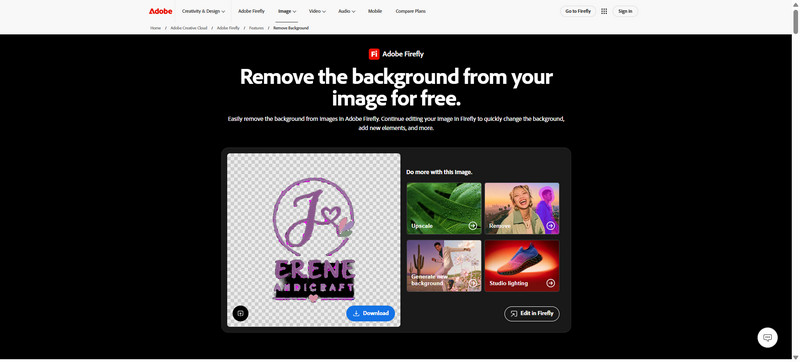
Adobe Express goes a bit further than just background removal, because it mixes image editing with graphic design. It works well for users who want to remove a logo background and then use the transparent result right away in social media posts, promotional materials, or other brand-style layouts. But honestly, the extra feature depth can feel like overkill if the only goal is a transparent logo.
Pricing:
- Free: $0.
- Premium: $9.99 /month.
- Premium annual plan: $99.99 /year.
- Pros
- It basically blends background removal with design tools so that you can do more in one place.
- You get templates and creative assets, not just the cutout.
- Kinda good for broader branding tasks, like campaigns or bigger visual sets.
- Cons
- Some of the more advanced stuff is kinda locked behind Premium.
- It can feel like there are more features than you truly need.
4. Canva
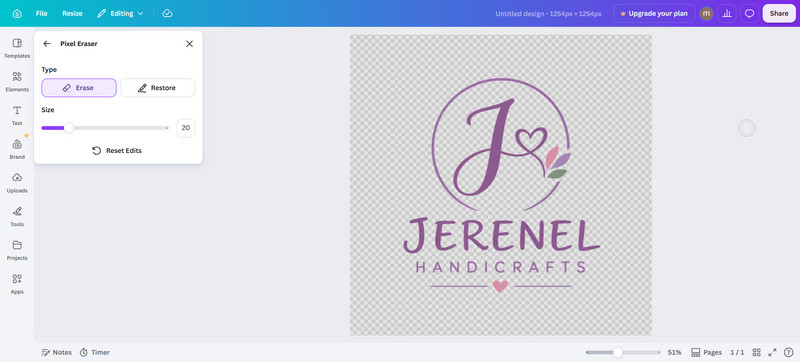
Canva is a convenient pick if you want to create or edit a logo while also working on a bigger design project. Its drag and drop editor has templates, graphics, text tools, and branding features, all together with background removal, which is nice. It is especially handy for turning a transparent logo into social posts, presentations, marketing stuff, and other branded materials.
Pricing:
- Canva Free: $0.
- Canva Pro: $180 /year for one person.
- Canva Business: $250 /year per person.
- Pros
- Mixes logo editing with graphic design in a smooth-ish way.
- Offers a lot of templates, plus design elements like icons, frames, and a popular photo enlarger.
- Cons
- Background removal usually needs a paid plan.
- A bunch of the more premium design elements ask for a subscription.
5. Photoroom
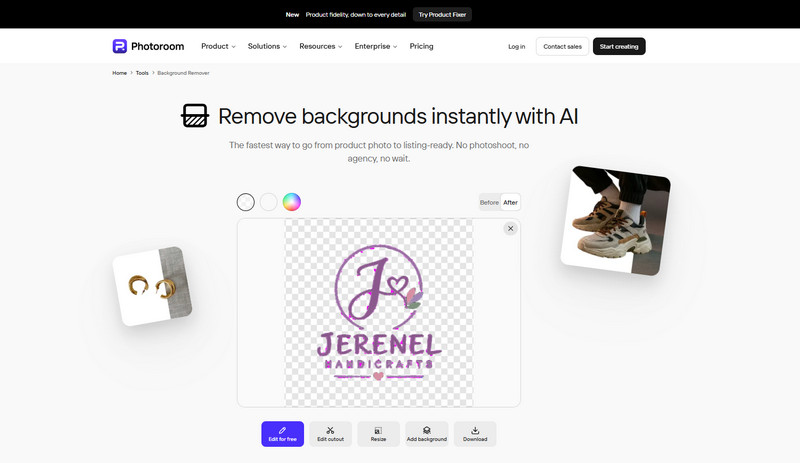
Photoroom uses AI for background removal, and then it basically gives you more things to do with it, like swapping the backdrop or doing extra edits. It helps people who want a transparent logo vibe, but they may also need to prep other brand images. The flow is automated, so it stays easy, yet you still get more options than those super basic background removal tools, which is kinda the point.
Pricing:
- Free: $0.
- Pro: Paid subscription with more AI credits and higher export limits.
- Max: Paid subscription with increased usage limits.
- Ultra: Paid subscription with the highest usage limits.
- Pros
- Fast AI background removal.
- Comes with added AI editing features.
- Allows replacing the background.
- Works on web and mobile.
- Cons
- The paid pricing can vary by location.
- The advanced stuff mostly needs a paid plan.
6. Fotor
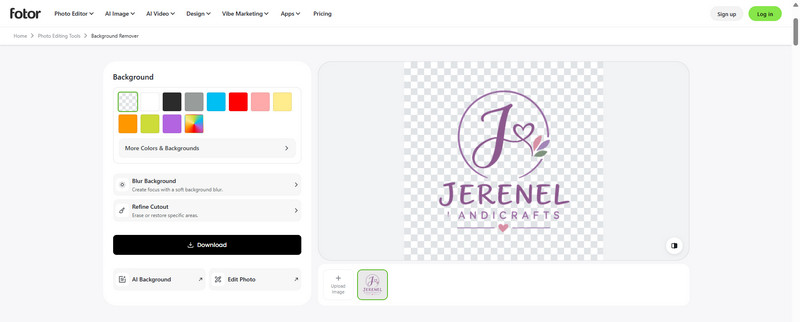
Fotor kind of combines AI-powered background removal with a broader set of photo editing and enhancement features. It tends to work well for people who want to tweak a logo after they have already removed the background, you know, clean edges and all. And since it is a browser-based editor, you do not really need to install extra software on your device, which is nice.
Pricing:
- Fotor Basic: $0, free forever.
- Fotor Pro: subscription, paid.
- Fotor Pro+: subscription, paid.
- Pros
- It has AI tools that help with editing.
- You get some extra image enhancement features and can fix picture quality.
- Everything runs right in the browser.
- Paid plans let you export transparent PNGs, which helps a lot.
- Cons
- The free stuff is pretty limited.
- For the advanced tools, you will need a paid plan.
- The paid pricing can change depending on the region.
Part 4. Comparison Table
- Tool
- AVAide Background Eraser
- Remove.bg
- Adobe Express
- Canva
- Photoroom
- Fotor
| Best For | Format | Watermark | Signup Required | Platform |
| Best overall | JPG, JPEG, PNG, GIF, and others | No | No | No |
| Fast AI background removal | JPG, PNG, and others | Free low-resolution results | Free account for some features | Web, Windows, Mac, Mobile |
| Logo design and branding | JPG, PNG, HEIC, HEIF | Depends on the plan | Yes | Web, Windows, Mac, Mobile |
| Logo and graphic design | JPG, PNG, HEIC, HEIF | No for supported exports | Yes | Web, Windows, Mac, Mobile |
| AI image editing | JPG, PNG, WEBP | Depends on the plan | Yes | Web, Windows, Mac, Mobile |
| Online background removal | JPG, JPEG, PNG, HEIF, HEIC, WEBP | No | No for its online background remover | Web, Windows, Mac, Mobile |
Part 5. How to Make a Logo Background Transparent
AVAide Background Eraser makes it pretty easy to end up with a transparent logo, without having to manually remove the background, as you would do by hand. It uses AI to spot the main subject, then strips away the background so that the outcome can be downloaded pretty fast.
Step 1Open AVAide Background Eraser
Go to AVAide Background Eraser online. It runs in your browser, so you do not need to install anything.
Step 2Upload the Logo
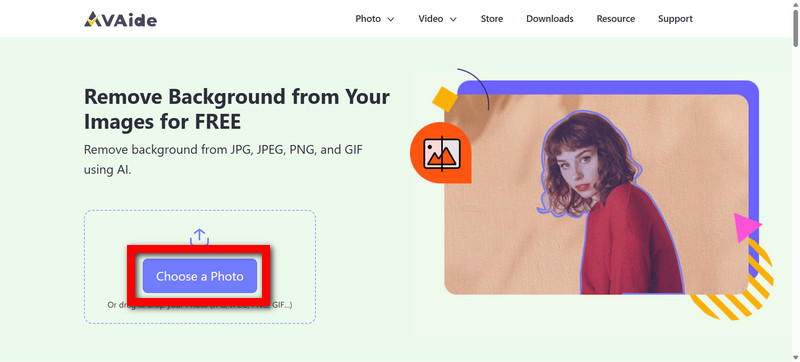
Tap Choose a Photo and pick your logo. AVAide accepts JPG, JPEG, PNG, and GIF files.
Step 3Remove the Background
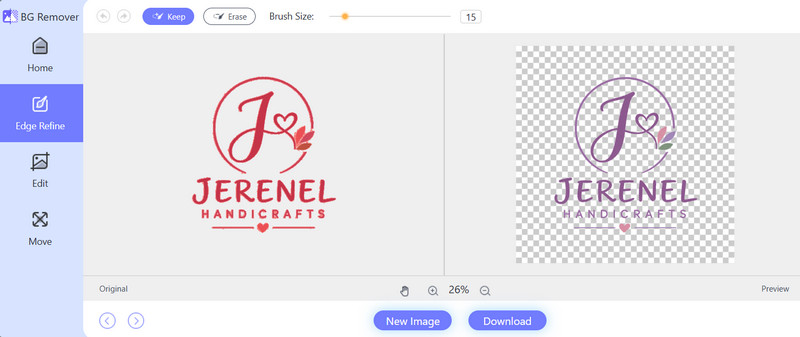
Once you upload, AVAide will detect the main subject automatically and remove the background using AI.
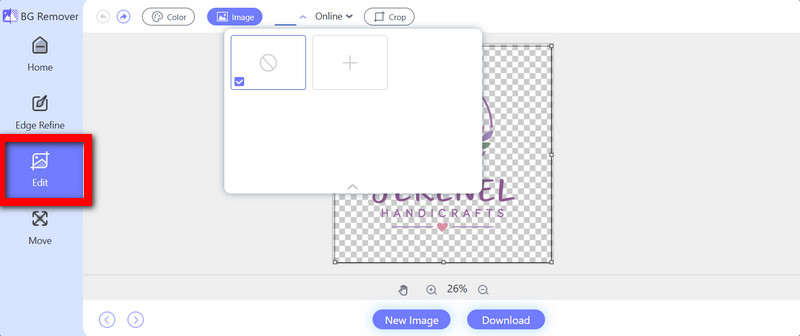
Step 4Edit the Background
Use the Edit tab if you want to keep the background transparent, or swap it with a solid Color, or even an Image. You can also crop the logo if needed.
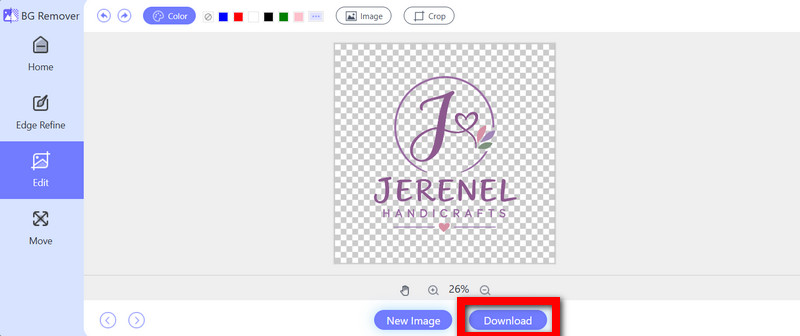
Step 5Download the Logo
Check the preview, then hit Download to save your logo with the transparent background. For the best transparency results, PNG is recommended.
A transparent background logo maker really simplifies the whole logo editing process for cleaner and more adaptable designs. If you pick the right file format and a solid background removal tool, you will get a more polished logo that fits websites, social media, and other brand needs.
ABOUT THE AUTHOR


Uses AI and automated background removal technology to capture complex backgrounds from JPG, JPEG, PNG, and GIF.
PROCESS NOW