When it comes to video making, you would want the content to be humorous and intriguing for the audience. Reversing a video is one of the techniques used by many, and this effect is everywhere, even on social media platforms like TikTok. As a user of one of the most popular social media apps today, you don't want to miss fun and a chance to get viral with your videos. Learn how to reverse a video on TikTok here with the complete steps and some ideas you would want to try while video editing.
Part 1. How to Reverse a Video on TikTok
TikTok provides built-in features so you can edit a captured video in real time. This includes a reverse effect that you can apply to a fifteen-second to a one-minute video. It also has hundreds of filters and effects, which you can apply multiple to one video or photo. However, since the social media app gains its popularity from mobile users, the built-in editing options are mostly available on mobile devices. It means if you use TikTok on a desktop for video editing, the reverse effect and other functions are not offered. Without further ado, here are the steps on how to reverse TikTok videos:
Step 1Open the app on your phone and tap the Plus button at the bottom. Set the camera and the object you want to capture, and choose the desired video length. Tap Start to record.
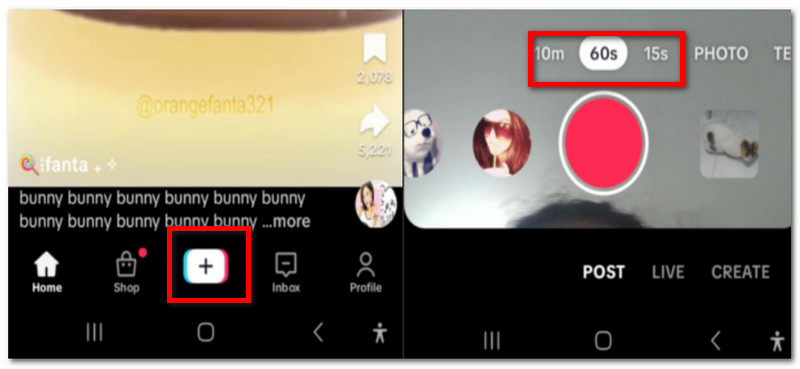
Step 2Tap the Stop button to stop the recording. Choose the Edit option from the right panel. From the editing menu, scroll to the left from the options at the bottom of your screen until you see the Reverse option.
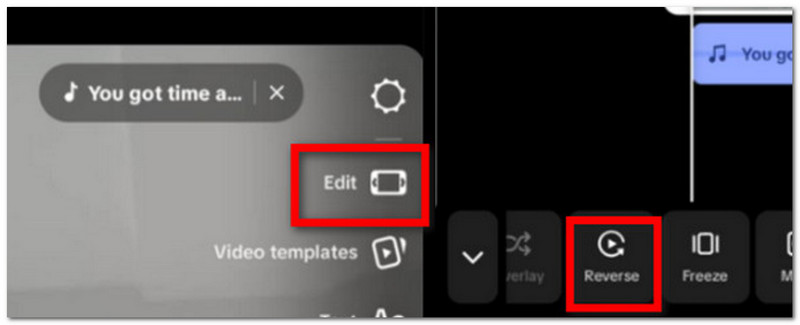
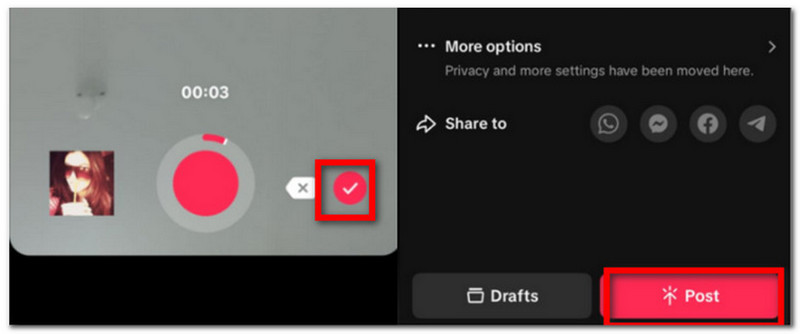
Step 3Play the video to see the effect, or use other elements to add to your video. Once done, tap Next to export or post on your TikTok account.
Part 2. Cool Ideas of Reverse Video on TikTok
It is not enough to just learn how to put a video in reverse on TikTok. Of course, you will need to be creative to get more views from around the world. If you are lost on where to start, you might want to check these 4 awesome ideas for reversing videos on TikTok.
1. After-to-Before Video
This option is best if you are promoting a product. The idea is to show the final result at the beginning of the video to get the attention of your audience. Gradually, the video will lead the viewers behind the scenes, allowing them to see the progress of your product. It is a great idea for businesses, as some people would want to see the result first rather than the process. But be reminded that this is a long process, and the need to save videos might get them watermarks. Make sure to learn how to remove TikTok watermarks.
2. Reversed Dance and Singing
If you've got moves, a reverse dance video would get you more likes and interactions from your viewers. Practice your steps and make them as smooth as you can. This idea will give jaw-dropping moves, making the audience ask for more. If you are more of a singer, you can reverse singing and let your audience guess the song. You can take Coldplay's music video for The Scientist.
3. Time-lapse Reversed
It is a classic idea to reverse the timeline of a long process. You can apply this idea with recordings of plants and flowers blooming, a volcano erupting, or even your own compiled pictures from growing up. Not only is it best for an entertaining reversed video, but you can also use this for a motivational video.
4. Tricky Video
Play tricks on the eyes of your viewers or leave them puzzled by reversing your videos. Sometimes a sneaky reverse will get the audience questioning themselves, and even a simple card game will lead to thousands of views. You can even use your profile picture on TikTok to add a little confusion to your videos.
5. Product Deconstruction
Another idea if you own a business, you can try deconstructing your product for a reverse video. To give an example, imagine a chef who cooks a certain meal, but all ingredients go back to where they belong. Think of the condiments going to bottles and jars, spices going up instead of down, or cut vegetables and fruits becoming whole again. It depends on your product, and you might need to waste some items to get the perfect shot, but this idea is worth the risk once executed properly.
Part 3. Best TikTok Video Editor: AVAide Video Converter
As mentioned, you can't reverse a video on TikTok through a computer. So the best alternative is AVAide Video Converter. It is a multifunctional tool that offers not only video conversion, but also reversing, metadata editing, splitting, compressing, and more. It has a sleek design, so you don't have to worry about learning its functions as you can navigate within minutes. Furthermore, it offers a heap of editing options, perfect to add text, music, split videos into segments, choose the suitable resolution, and adjust the visual colors. You don't even have to worry about the video type, as AVAide supports over 300 formats and presets, making sure you can post your videos on social media platforms like TikTok and Facebook. AVAide Video Converter is available to download for free on Windows and macOS. With that said, see below on how to play a TikTok video in reverse:
Step 1Download and install AVAide Video Converter on your computer. Open the software and go to the Toolbox menu. Choose the Video Reverser option, then click Add to upload the video.

FREE DOWNLOAD For Windows 7 or later
 Secure Download
FREE DOWNLOAD For Mac OS X 10.13 or later
Secure DownloadStep 2Your video will play automatically. There is an option to trim the video to remove unwanted parts. Once everything is good, click the Export button. Remember that the original audio will be removed as the reversing effect is not applicable to audio.
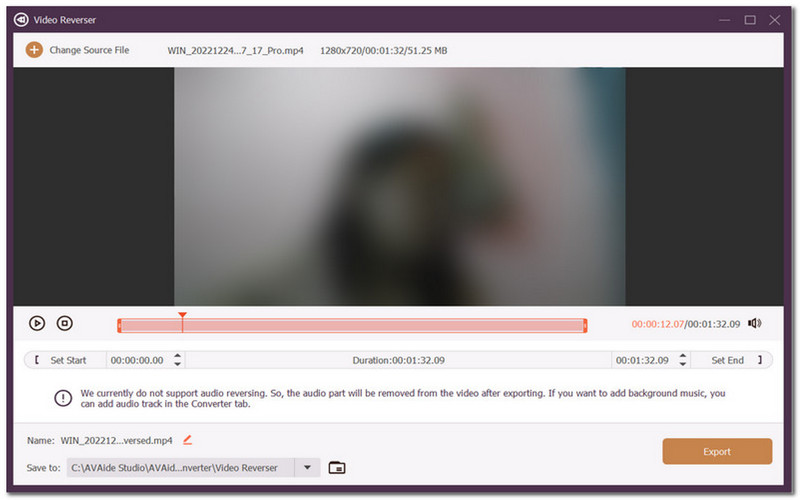
Step 3After a few seconds, your reversed video is ready. You can use other editing functions to enhance your work, such as the enhancer, stabiliser, etc. Moreover, use the advanced settings to get the desired presets for TikTok, Vimeo, and others.
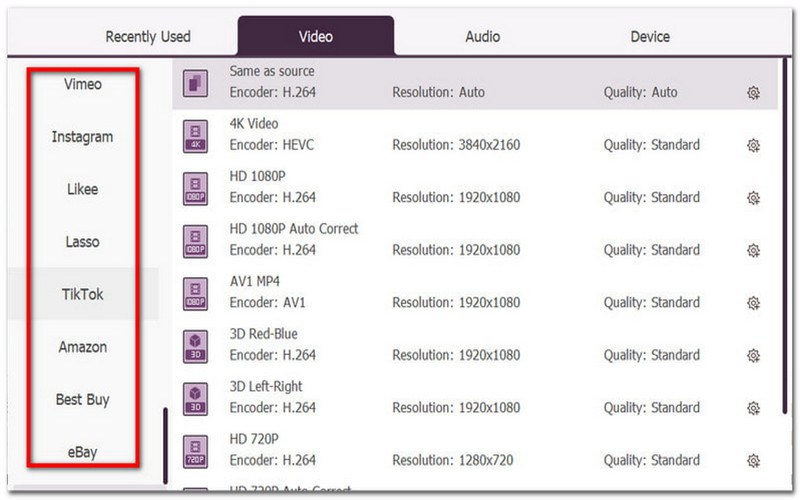
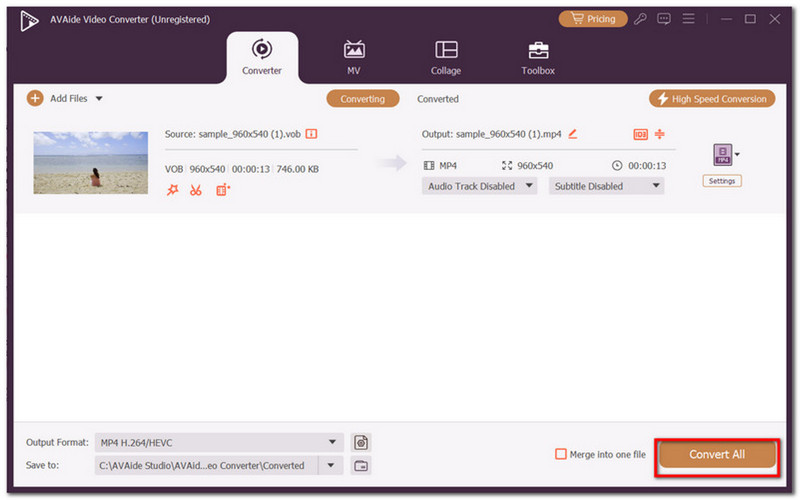
Step 4Once done, click the Convert All button to export the video. Share your video on TikTok, Facebook, or Instagram.
At last, you have learned how to reverse video on TikTok with its built-in features. It is truly the best social media platform not only for reversing but with its heaps of effects, filters, and elements to offer for free. TikTok's only flaw is its limitation of these outstanding features to the desktop version; thus, some users who would like to edit their videos on their computer do not have this option. Regardless, AVAide Video Converter is the best alternative for video reversing and other editing functions, including compressing, stabilizing, and converting. Click the Free Download button to start editing your videos without limitations.
Your complete video toolbox that supports 350+ formats for conversion in lossless quality.