Have you ever questioned yourself on why certain videos do not play or edit easily? The file format usually causes it. When one learns to encode MPEG to MOV, it becomes easier to edit and is compatible. Here, you will learn all the benefits of MOV files, the step-by-step processes of converting the files in Windows and Mac, tips of the QuickTime Player, the best and most effective 10 free online converters, as well as practical thinking that will save your video files, and convert them so that they will be compatible with whatever device you want to use.
Part 1: What Are and Why Do We Need to Convert MPEG to MOV
MPEG and MOV are common video formats, but they work differently. MPEG files are small and easy to store, yet they may not play on every device or editing program. MOV files maintain high video and audio quality and work on more platforms.
Converting MPEG to MOV helps your videos play smoothly, edit easily, and share without problems. It is a simple step that gives you more control and makes sure your videos look and sound their best.
Part 2: Best Way to Convert MPEG to MOV on Windows/Mac
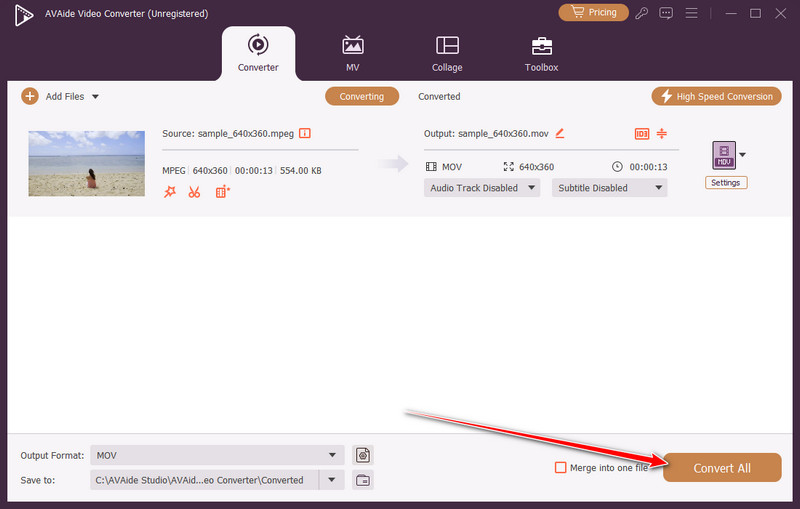
For fast and hassle-free MPEG to MOV conversion, AVAide Video Converter is the ideal choice. It is compatible with Windows and Mac, displays a variety of video formats and allows you to convert your files in just one click. No complicated settings, just add your MPEG video, choose MOV as the output and start without complications. The tool is user-friendly and gives good quality output in a short time, and, therefore, is ideal to use by both beginners and experts who want quality, reliable, and efficient video conversion each time.
Step 1AVAide Video Converter can be downloaded for free on your Windows or Mac-based computer by clicking the download button below. It only takes a few steps to install the software.

FREE DOWNLOAD For Windows 7 or later
 Secure Download
FREE DOWNLOAD For Mac OS X 10.13 or later
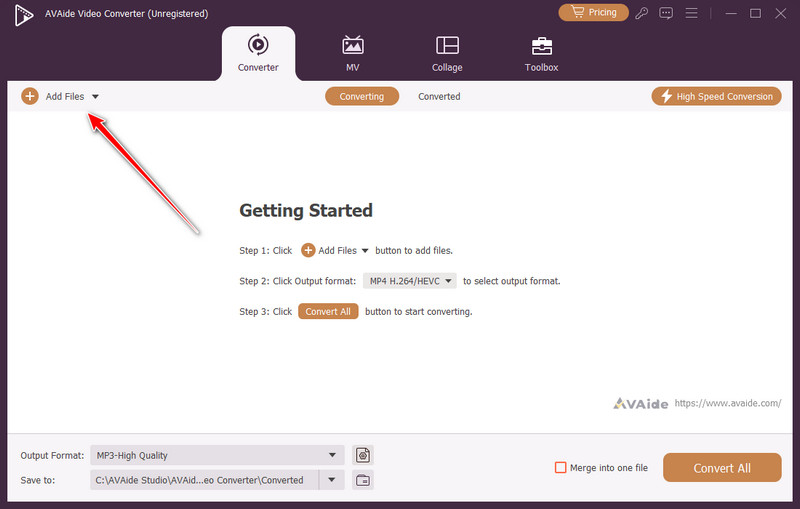
Secure DownloadStep 2Select the videos you wish to convert, and then clicking on the Add Files button will upload them. A file browser will come out - locate the MPEG file stored in your computer and open it by clicking Open.
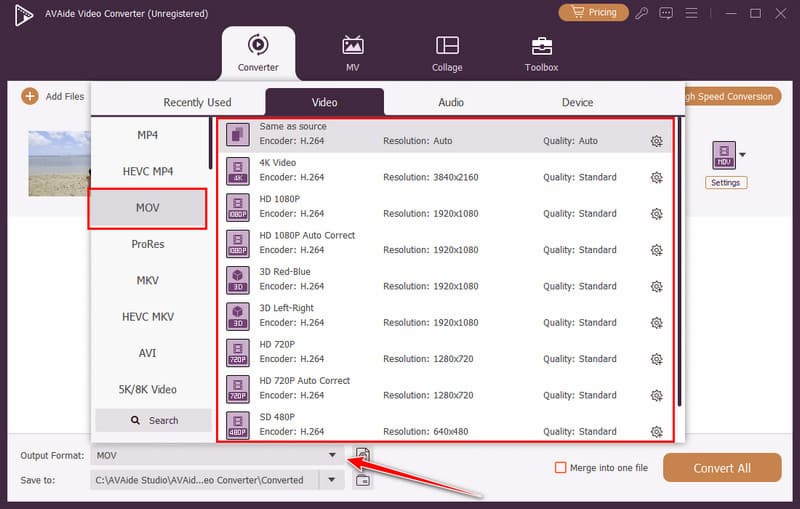
Step 3After uploading, click the Output Format. Go to the Videos section, select MOV, and pick the video quality or resolution you prefer.
Step 4Click the Convert All button to begin converting your MPEG file to MOV. The process is fast, easy, and preserves the original video quality, so your file is ready to use on any device.
Part 3: Convert MPEG to MOV on Mac Using Quicktime Player
QuickTime Player provides an easy and free method that Mac users can use to change MPEG to MOV without any additional software. Being included in macOS, you can easily open, export and save videos in MOV format with several clicks. While it does not include advanced features or batch conversion, it works well for users who need a quick and reliable solution for converting single files while keeping good video quality.
Step 1Open QuickTime Player on your Mac by going to the Applications folder or using Spotlight search. Once opened, click File on the menu bar and choose Open File to select the MPEG video saved on your computer.
Step 2After the video loads in QuickTime Player, go back to the File menu and pick Export As. You will see different resolution options available for your video.
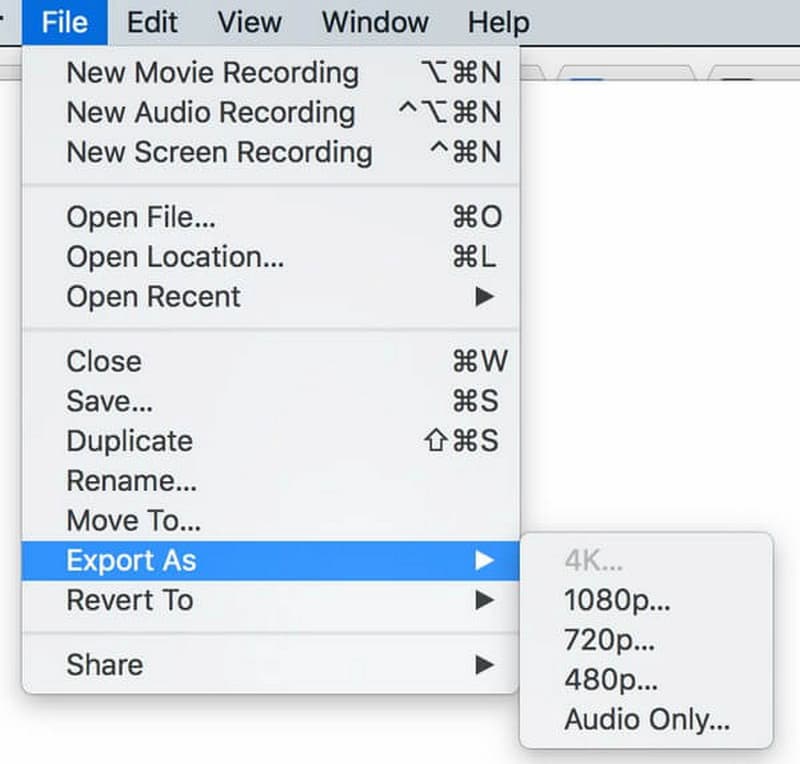
Step 3Select the resolution you prefer, then choose the folder where you want to export the converted video file on your Mac. QuickTime automatically saves the video in MOV format.
Step 4Click Save to start the export process. After a short wait, your video will be ready in MOV format, making it easier to play, edit, or share across different devices and platforms.
Part 4: Top 3 MPEG to MOV Converter Free Online
1. FreeConvert
FreeConvert is a lightweight online tool that supports MPEG-4 to MOV conversion. It works without installing software and handles most video formats quickly.
Step 1Open the FreeFileConvert video converter page in your browser.
Step 2Click Choose File and upload your MPEG video.
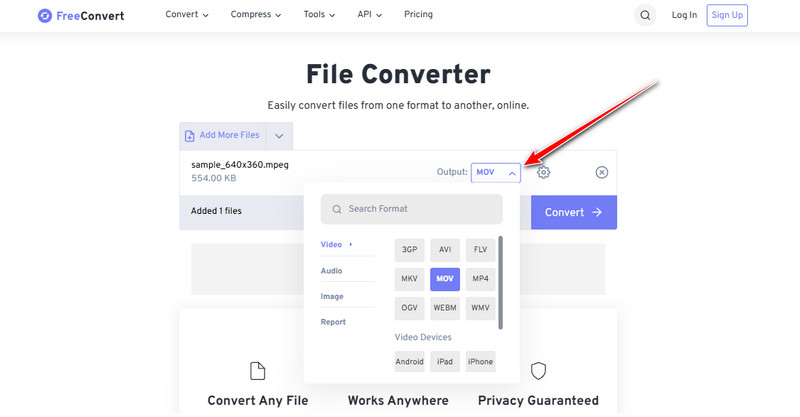
Step 3Select MOV as the output format. Click Convert and download your converted video once the process finishes.
2. Convertio
Convertio offers a simple online interface for MPEG to MOV conversion with drag-and-drop support. This frame rate converter works on any modern browser and supports cloud uploads from services like Google Drive or Dropbox.
Step 1Open Convertio in your browser and drag your MPEG file into the upload box.
Step 2Pick MOV as the output format from the dropdown menu.
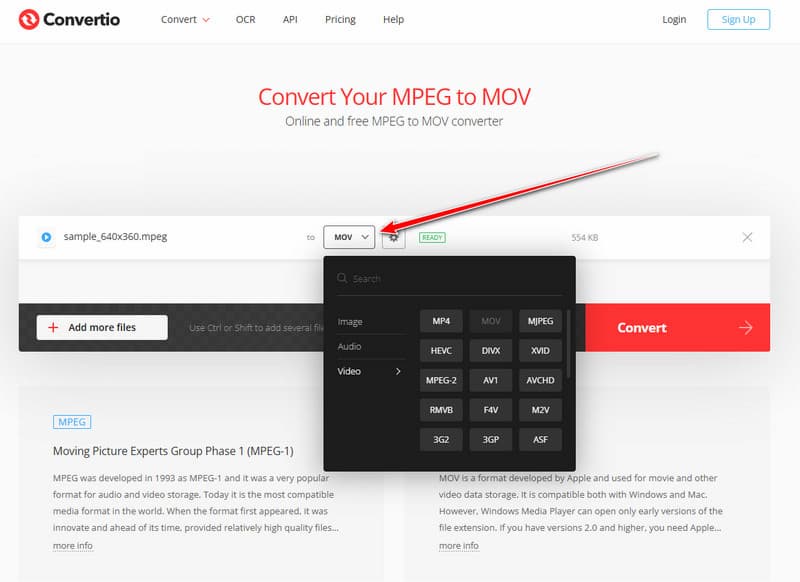
Step 3Tick Convert and wait for the tool to process your video. Once done, click Download to save your converted MOV file.
3. CloudConvert
CloudConvert is a reliable online tool for mpeg 4 to mov tasks with no software installation. It supports many formats, and settings like resolution or quality are easy to adjust before conversion.
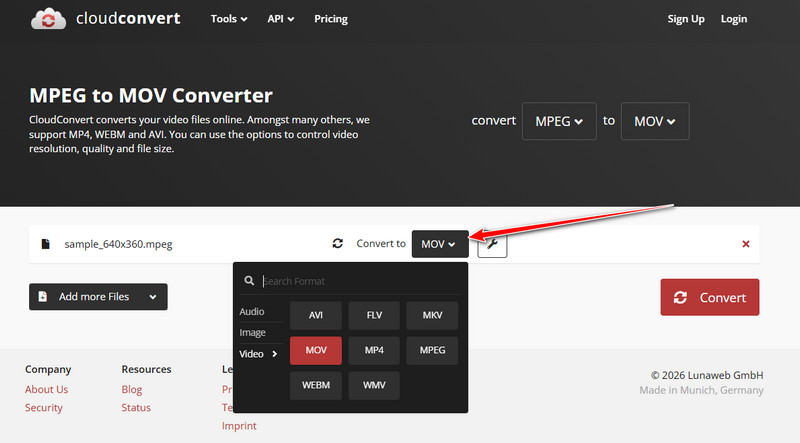
Step 1Visit the CloudConvert website and choose the video converter.
Step 2Click Select File and upload your MPEG video.
Step 3Set the output format to MOV and adjust optional settings if needed. Click Convert and wait for the process to finish, then download your MOV file.
Part 5: Tips to Consider When Converting MPEG to MOV
Before converting your videos, it helps to keep a few simple points in mind. These tips will help you avoid common problems and get better results when working with MPEG and MOV files.
1. Choose the Right Tool for the Job
The quality of your video often depends on the tool you use to convert MPEG to MOV. Good converters keep video quality clear and finish the job faster. Desktop software usually works better for large files, while online tools are fine for small videos.
2. Check Device and Software Compatibility
Some devices or editing apps do not play MPEG files properly, which is why many people switch to using MPEG to MOV. Check what format your device or editor supports so your video works smoothly after conversion.
3. Adjust Output Settings Carefully
A good MPEG to MOV conversion also depends on the settings you choose. Keeping the same resolution and frame rate as the original video usually keeps the quality good while avoiding very large files.
4. Use Batch Conversion for Multiple Files
If you have many videos to convert, choose an MPEG to MOV converter that can process several files at once. This saves time because you do not need to convert each video one by one.
5. Watch File Size and Compression Settings
In the conversion of files of other formats like MPEG-4 to MOV, the file size may increase. To store or share smaller files, you can use compression to compromise quality and file size or a video size reducer.
6. Keep Original Files as Backup
Before you change MPEG to MOV, always keep the original video saved somewhere safe. If something goes wrong or you want different settings later, you can easily convert again.
The way that the MPEG to MOV conversion is calculated will save you some problems with the playback and editing. It is easy, no matter what professional software you use or which tools are offered on the internet at no cost, as long as you know how to do it. Videos are always on point, compatible and shareable or editable at any time with the right converter.
Your complete video toolbox that supports 350+ formats for conversion in lossless quality.