Video files tend to break down because of the variation in the codecs and containers across gadgets and video editors. A large number of users require a sure method of converting AVI to MOV in order to have ease of playback and editing. This manual explains formats, tools, and safe conversion measures as per the workflow experience. You will familiarize yourself with desktop software, web-based services, and built-in media players. And we are going to read through the piece of the article.
Part 1: AVI vs MOV
To convert AVI to MOV effectively, it helps to see how the two formats differ. This chart compares AVI and MOV in file size, quality, compatibility, and editing support. It makes choosing the right format easier before you start converting.
| Features | AVI | MOV |
| Developer of the Format | Microsoft | Apple |
| Also Known as | Audio Video Interleave | QuickTime Movie |
| Usual Usage of the Format | Older Windows systems and legacy devices | Apple ecosystem and modern editing workflows |
| Compatibility | Works well on Windows but is less optimized on mobile devices | Optimized for macOS, iOS, and professional editing software |
| File Size | Often larger due to less efficient compression | Usually smaller with better compression options |
| Video Quality | Can store high-quality but with larger files | Supports high quality with efficient compression |
| Codec Flexibility | Supports many codecs, but varies by file | Supports modern codecs commonly used today |
| Streaming Suitability | Not ideal for streaming | Better suited for streaming and sharing |
Part 2: Best Tool to Convert AVI to MOV
A reliable AVI to MOV converter makes video conversion quick and hassle-free. AVAide Video Converter works on both Windows and Mac, offering fast performance and an intuitive interface. It supports AVI, MOV, MP4, MKV, and many other popular formats, making it a versatile choice for editing, sharing, or playback. With smooth operation and high-quality output, it simplifies every conversion task.
Step 1Now, you can download the video converter that AVAide created by clicking the free download button that we have here. Follow the installation process and launch it after you do that.

FREE DOWNLOAD For Windows 7 or later
 Secure Download
FREE DOWNLOAD For Mac OS X 10.13 or later
Secure DownloadStep 2To use the converter, click the Add Files button to upload the AVI file that you have on your computer. Here, you can import multiple AVI files and convert them all to MOV simultaneously.
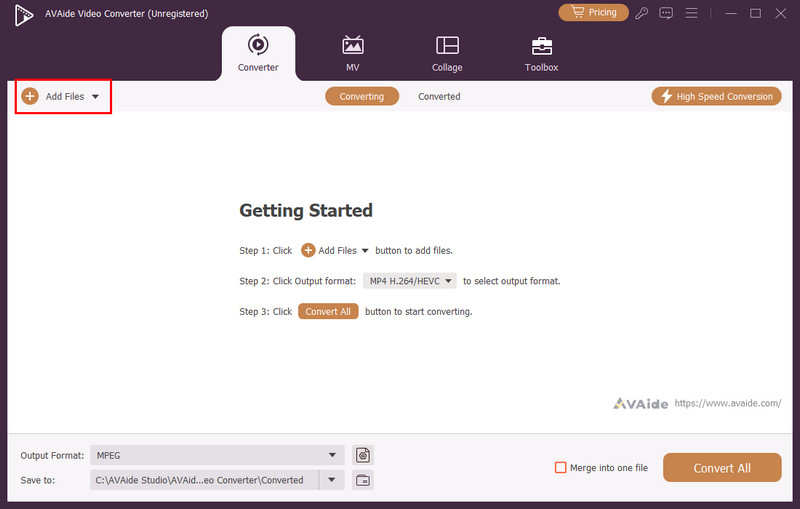
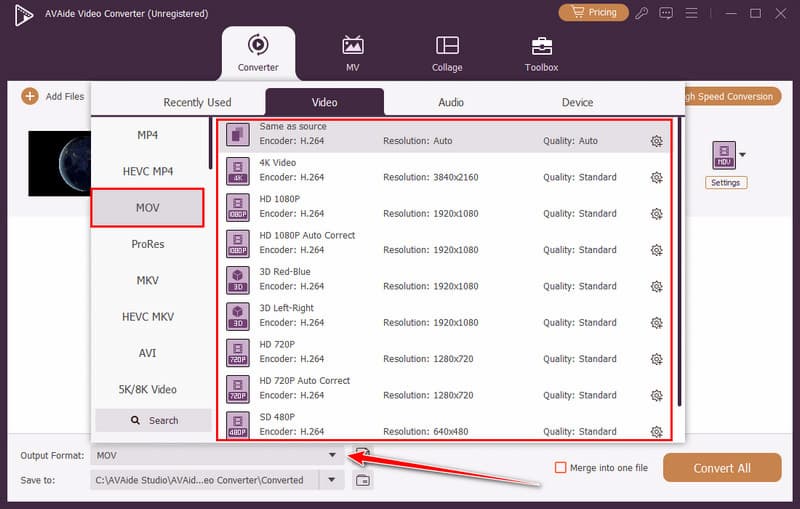
Step 3Tick the dropdown button on the Output Format and go to the MOV, then choose the settings you want to have from the list that appears.
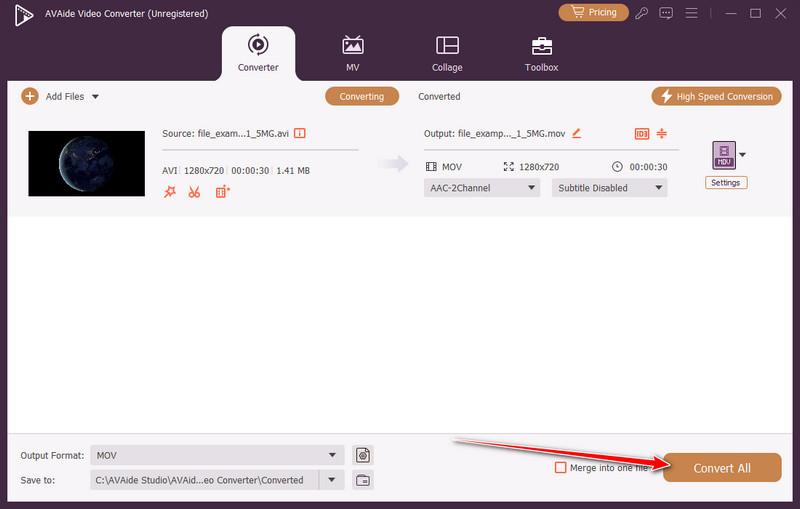
Step 4After that, click the Convert All to start the conversion process and wait for several seconds to get the final output.
Part 3: How to Convert AVI to MOV with VLC
VLC Media Player is an unrestricted and widely trusted tool for video playback and conversion. It enables users to convert AVI to MOV and do it fast without having to install other software. VLC is compatible with Windows, Mac, and Linux, and most of the common codecs, and one can still use it and enjoy a high video quality. Its simple user interface and portability are suitable for a user who requires an offline and reliable solution.
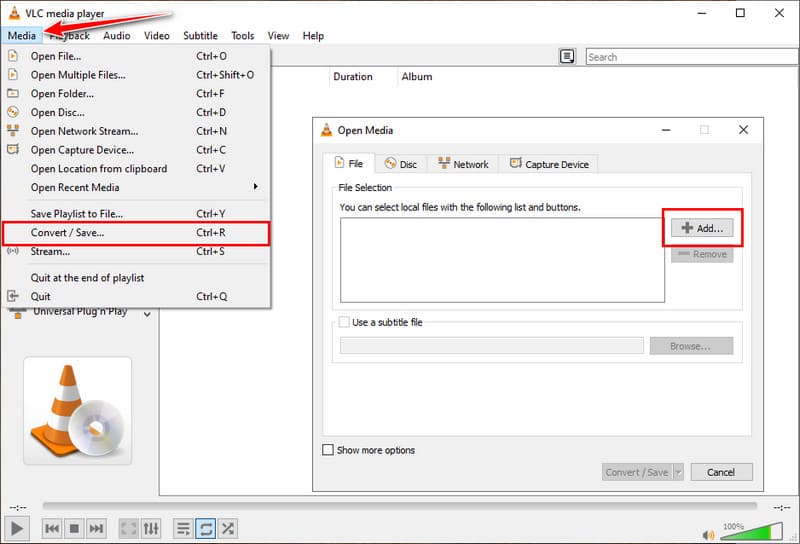
Step 1Open the VLC Media Player on your computer and go to Media > Convert/Save. Tick Add to import the AVI file you want to convert.
Step 2Click Convert/Save to open the conversion settings. In the Profile dropdown, select MOV as the output format. Adjust codec or quality settings if needed.
Step 3Set a destination folder and filename for your converted file. Click Start to begin converting your AVI file to MOV format. Wait for the process to complete.
Part 4: How to Change an AVI File to a MOV Using CloudConvert
CloudConvert is a browser-based tool that makes it easy to change an AVI file to MOV without downloading software. It works on Windows, Mac, and even mobile devices. The web tool supports a wide range of formats, including AVI, MOV, MP4, and MKV, giving users flexibility for any project. You can also adjust or increase video resolution, codec, and frame rate to maintain quality or reduce file size.
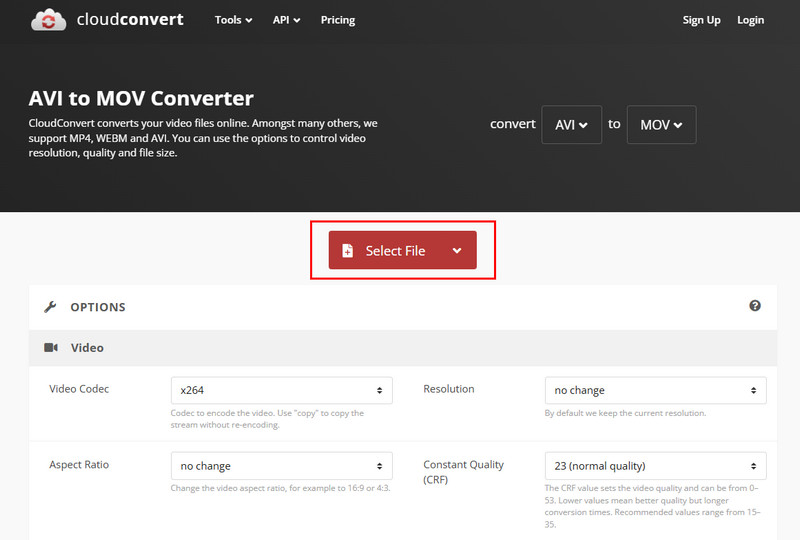
Step 1Go to the CloudConvert website and click Select File to upload your AVI file.
Step 2Pick MOV as the output format from the list. Adjust optional settings like resolution, codec, or quality if desired.
Step 3Click Convert to start converting AVI format. Wait a few moments for the process to finish. Download your converted MOV file to your device once the process is complete.
Part 5: How to Convert AVI File to MOV via Windows Media Player
Windows Media Player is a native utility of Windows machines that enables users to convert AVI files to MOV with the appropriate codec pack. It is easy to use, and it smoothly integrates with the operating system and does not distort the quality of the video in the process of conversion. Although it may not have advanced editing options such as separate converters, it is an effective solution for those who wish to edit an AVI file and do not have to install third-party software.
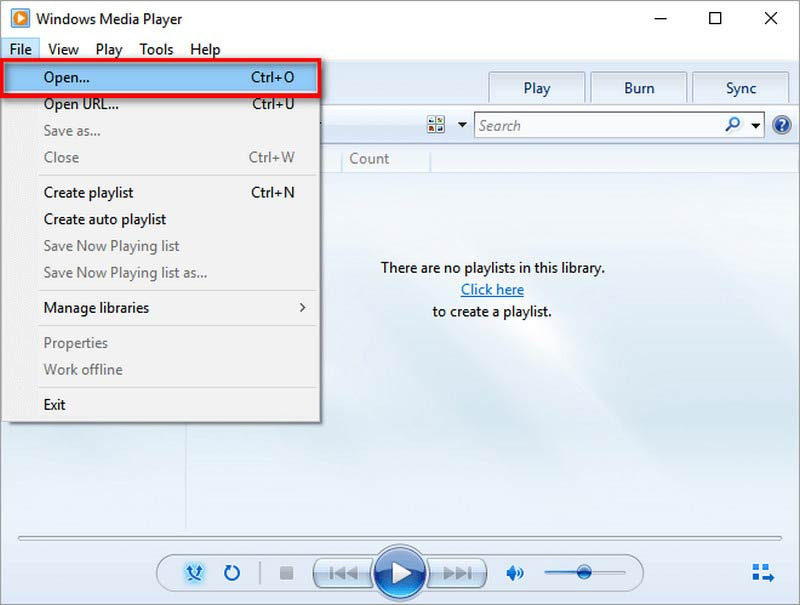
Step 1Launch Windows Media Player, click File in the top menu, then select Open to import the AVI file you want to convert.
Step 2Click Organize under the Library section and choose Options from the menu.
Step 3In the Options window, go to the Rip Music tab and click Change to select a destination folder. Then choose MOV as the output format if it is available.
Part 6: Comparison Among All the AVI to MOV Converters
Choosing the right tool to convert AVI to MOV QuickTime makes video conversion easier and faster. This chart compares AVAide Video Converter, VLC, CloudConvert, and Windows Media Player. It highlights key features like speed, formats, and ease of use to help you pick the best tool before you start converting.
| Features | AVAide Video Converter | VLC Media Player | CloudConvert | Windows Media Player |
| Platform Supported | Windows and Mac | Windows and Mac | Browser-based | Windows only |
| Ease of Use | Easiest with an intuitive interface | Simple, but the operation needs to be mastered | Simple browser version | Easy with a basic interface and needs a codec |
| Batch Conversion Supported | Yes | Limited | Limited | No |
| Output Quality | Highest | High | High | Good |
| Best For | Users who need fast, pro conversion with options | Quick offline conversion with common formats | Quick online conversion without installing software | Basic conversion for Windows users |
Videos do not necessarily need to be complex to convert. You may like a desktop application, a web-based solution, or an in-built media player, but with the knowledge of what you can, changing AVI to MOV without a loss in quality becomes very easy. With the knowledge of format differences and the selection of a converter, you will be able to make sure that you have easy playing, editing, and sharing on all devices.
ABOUT THE AUTHOR

Convert AVI, MOV, MP4, MKV, and 350+ formats in high quality on Windows and Mac.