How to record a voice message on an iPhone? Well, recording a voice message is a quick way to share your thoughts or send personalized audio without typing. With iPhone's built-in voice messaging feature, you can instantly record, save, and share your audio clips in just a few taps. So, if you are looking for a comprehensive way to record and send a voice message on your mobile, see this tutorial to achieve your desired result.
Part 1. How to Record and Send a Voice Message in iMessage
iMessage is not just a simple communication tool. It can also offer its voice message feature. With this feature, you can send or share your message and thoughts through your voice. This is an ideal function if you want to send your messages without typing any text from your keyboard. The best part here is that sending a voice message is simple, making it perfect for all users. So, if you want to start recording and sending messages, you can use the instructions below.
How to Record an iPhone Voice Message
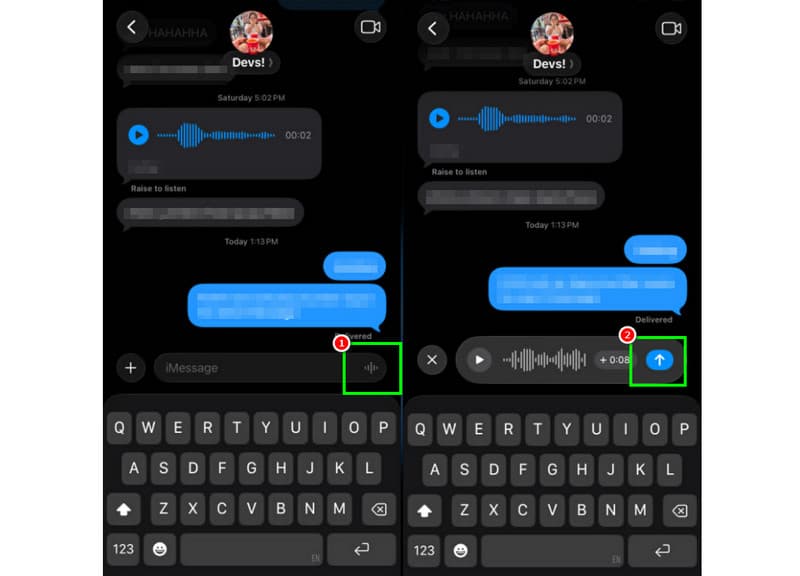
Step 1On your iPhone, launch the iMessage app. Then, proceed to the person you want to communicate with.
Step 2From your screen, press and hold the Microphone option. While holding, you can start recording and speaking your message.
Step 3To stop the recording, release your finger from the button. Then, tap the Send Arrow button to send the message.
Listen to Incoming Voice Messages
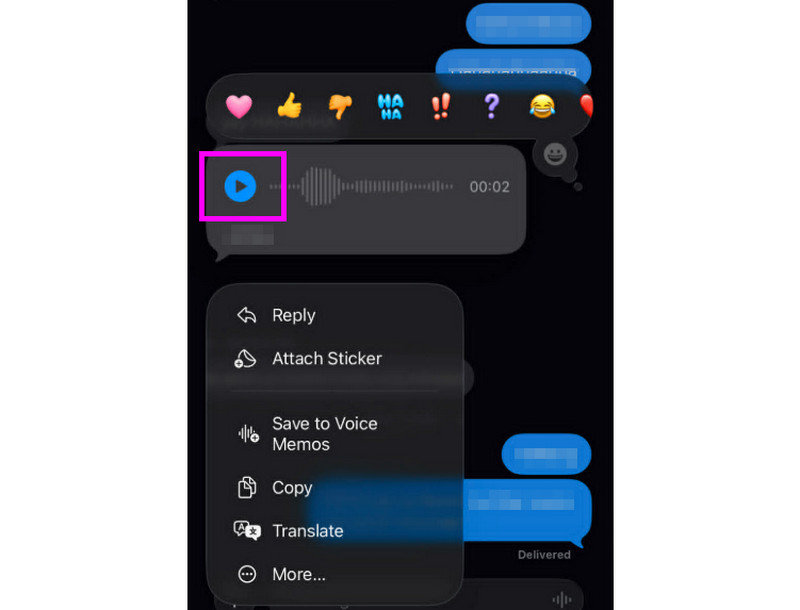
Step 1After you receive the voice message, you can tap Play button.
Step 2You can also adjust the volume from your iPhone's side button to hear the message properly.
Step 3After two minutes, the voice message will expire. To keep the message, just hit the Keep option below.
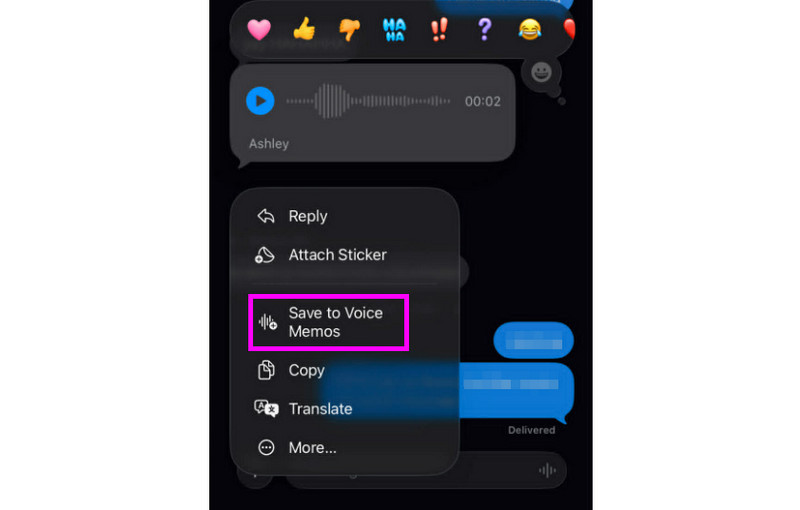
Step 4If you want to save the voice message, just long-press it and tap the Save to Voice Memos app. With this voice recorder app, you can replay the message anytime and anywhere.
Adjust Voice Message Settings
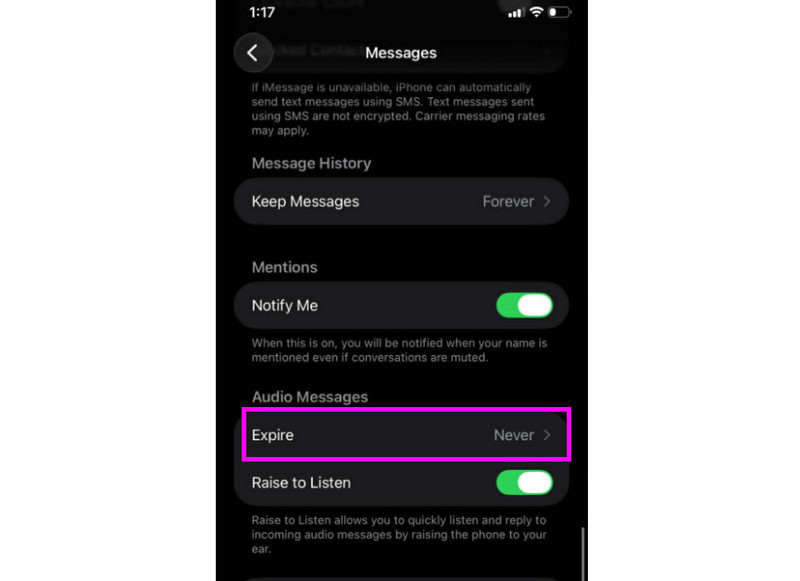
Step 1Go to your Settings app. Then, proceed to the Messages app.
Step 2Navigate to the Audio Messages > Expire section and tap the Never option. This way, any voice messages from your iMessage won't expire.
Part 2. Method to Record a Voicemail Greeting on iPhone
When you're not accessible, callers will receive a customized message if you record a voicemail greeting on your iPhone. It is simple to create a new greeting, modify or remove an old one, and even utilize a temporary greeting for special events. You can completely modify how your voicemail sounds to other people with only a few touches in the Phone app. See the methods elbow and learn how to record a voicemail message on an iPhone.
Setting Up Your Voicemail Greeting
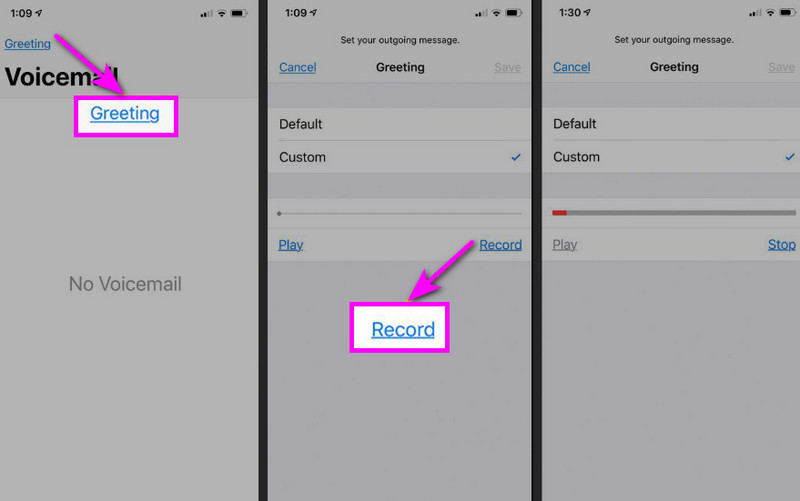
Step 1Proceed to the Phone app and tap the Voicemail option.
Step 2After that, press the Greeting function from the top-left corner of your screen. Press Custom > Record to start recording audio on your iPhone as your greeting.
Step 3Tap Stop to finish and play it to review. Once done, hit Save to set it as your active greeting.
Changing or Deleting Your Greeting
Step 1You can go back to the Voicemail > Greeting section.
Step 2Hit Custom and record a new greeting to replace the old one.
Step 3Then, to revert to the default, you can select Default instead of Custom.
Pro Tip: Temporary Greeting
If you are unavailable for a short period, record a temporary greeting by using the same steps under Custom. Once you are back, you can simply switch back to your regular greeting or default option.
Part 3. Troubleshooting - Can't Record Voice Message
Come to this section and see the troubleshooting guide that covers some of the issues when recording or sending a voicemail message on an iPhone.
The Microphone Button is Grayed Out in Messages
Solution: Ensure that the microphone access is enabled. To do that, proceed to the Settings > Privacy & Security > Microphone and allow access for Messages.
Voice Won't Send
Solution: Always check your internet connection. Plus, make sure that iMessage is activated under Settings > Messages > iMessage.
Can't Record Voicemail Greeting
Solution: The Greeting option will only show up if the carrier supports the visual voicemail. If missing, you can press and hold 1 on the phone app to dial the voicemail directly. Then, you can start following the carrier prompts to record a greeting.
Recipients Say They Can't Hear You
Solution: You can test your microphone using the Voice Memos application. You can also remove any case or accessory that might block the mic. Another method you can use is to clean the microphone opening using a cloth or a mini brush.
Quick Reference: Voice Message vs. Voicemail
Want to know more about Voice Message and Voicemail? Then, you can check the simple table below.
| Feature | Voice Message (iMessage) | Voicemail (Carrier) |
| How it is sent | • Recorded in the Messages app • Sent via iMessage | • Recorded greeting • Audio stored by the carrier |
| Internet needed | Yes (Wi‑Fi or cellular data) | No, works over a cellular network |
| Storage | Saved in iMessage thread | Stored in the carrier’s voicemail system |
| Control | The user can resend, delete, or save | Carrier controls access and storage |
Bonus: Best Tool to Help You Edit Voice Recordings
After saving the voice recording or voice message, there are times when you want to edit it to get a better audio output. With that, when it comes to editing your audio, it would be better to access an excellent editing tool, like AVAide Video Converter. This program can offer its audio editing feature, allowing you to edit your audio file. You can trim the audio track, split, and merge. You can even adjust the volume and delay based on your preferences. The best part here is that you can save the audio to any format by using the program's converter feature. You can save your voice recording as MP3, WAV, M4A, FLAC, and more, with the best quality for up to 320 kbps. With that, if you are looking for an ideal software that can help you edit your voice recordings, look no further than AVAide Video Converter.

FREE DOWNLOAD For Windows 7 or later
 Secure Download
FREE DOWNLOAD For Mac OS X 10.13 or later
Secure DownloadMore Features:
- It can offer a smooth audio editing procedure.
- The program can merge multiple audio files to create a single file.
- It can convert audio and video formats at 120× faster conversion speed.
- The program can also offer built-in video editors, such as merger, splitter, trimmer, cropper, etc.
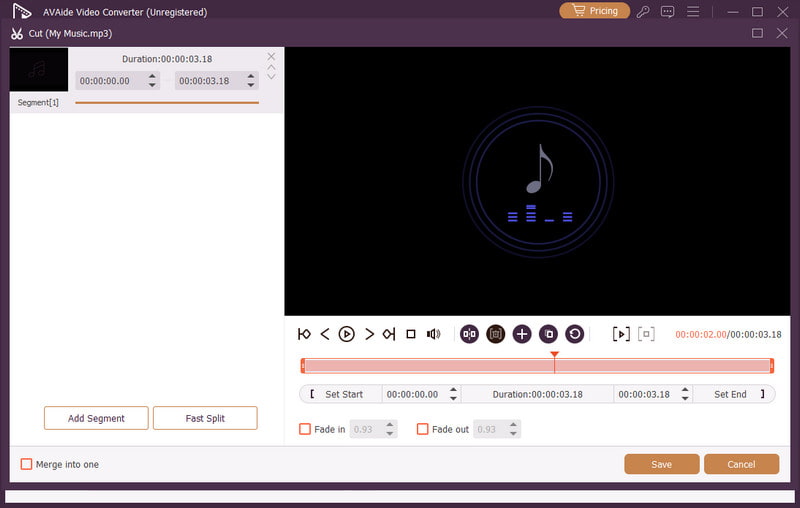
Sending a voice message on an iPhone is an ideal way if you want to send your message faster. Thanks to this tutorial, you have learned how to record and send a voice message effectively. You even get enough insights on how to save the voice message to play it without any limitations. Plus, if you want to edit your voice recordings, it would be better to access AVAide Video Converter. With this program's audio editing feature, you can improve your audio, resulting in a better and more satisfying audio playback.
ABOUT THE AUTHOR

Capture screen activities with audio, online meetings, gameplay videos, music, webcam, etc.