A video alone does not offer too much impact to the viewers, especially if the raw sounds captured are not appealing. What makes it more feasible is adding an audio track of your choice, depending on the theme you are going for. Voiceovers, song covers, or even a pure instrumental can change the whole video, and even then, you will need a guide on how to start. Well, you are in the right place, as this article will serve as your guide to being experimental in audio editing with free music. Moreover, you will find here the ultimate way, better than DaVinci Resolve to add audio tracks.
Part 1. Using Professional Video Editors
1. AVAide Video Converter
After learning what's best for audio adding to your videos, you might wonder what tool you should be using. AVAide Video Converter will be the recommended software because of its clean-designed interface and best performance. This software is incomparable with its uncluttered interface, where you can easily learn its navigation in an instant. The Video Converter is also designed to support hundreds of audio formats, so it is never a bother for your videos to have AAC, WAV, or MP3 as your main soundtrack. Of course, it offers the essential features to edit audio that help maintain the volume, delay, and overall quality. AVAide Video Converter is a great deal for easy-going editing, while providing professional-grade editing effortlessly. Give this software a try by learning how to add an audio track to an MP4 in the following steps:
Step 1Download AVAide Video Converter on your device. Make sure to follow the instructions on how to install the software. Download button

FREE DOWNLOAD For Windows 7 or later
 Secure Download
FREE DOWNLOAD For Mac OS X 10.13 or later
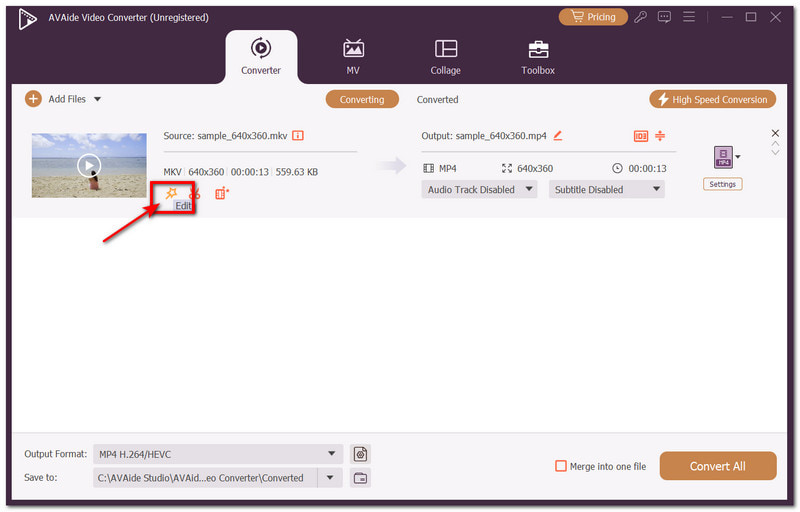
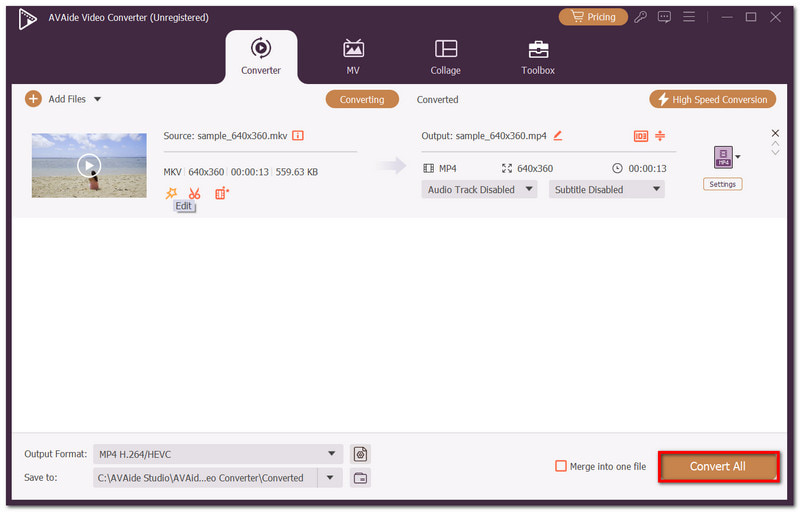
Secure DownloadStep 2Upload the video from the main interface, then click the Edit button.
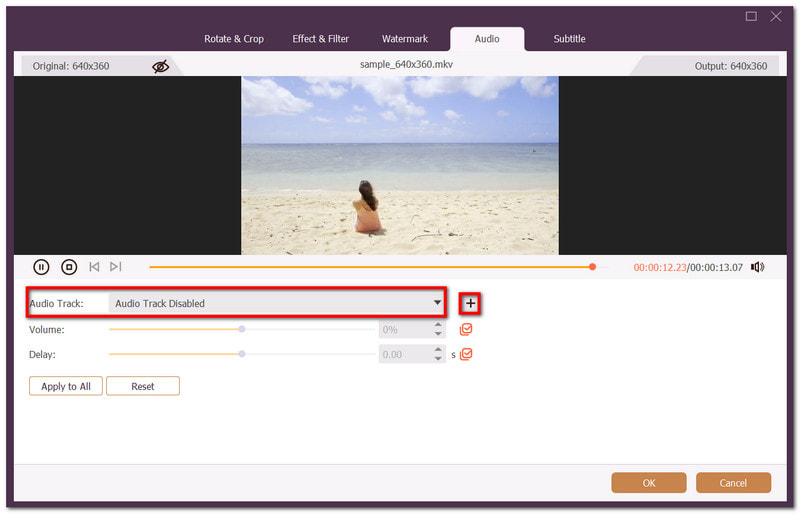
Step 3Go to the Audio tab, where you can add audio of your choosing. Optionally, you can boost the audio volume or delay to your desire. Preview the result, OK button.
Step 4You can also have another option to change the output settings, like the video quality and audio settings. Click Convert All to export the video with the audio track.
2. Premiere Pro
Premiere Pro is a professional video editing tool that is part of Adobe's suite. The application consists of tools that allow you to edit graphics and audio. It supports a wide range of formats, so it helps to compile or integrate different audio files into your video. Not only that, it guarantees professional results, which is best if you are creating films and movies. See how to add an audio track in Premiere Pro below:
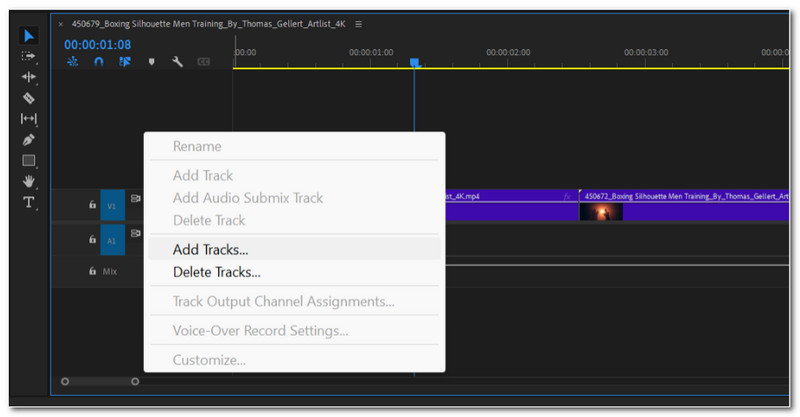
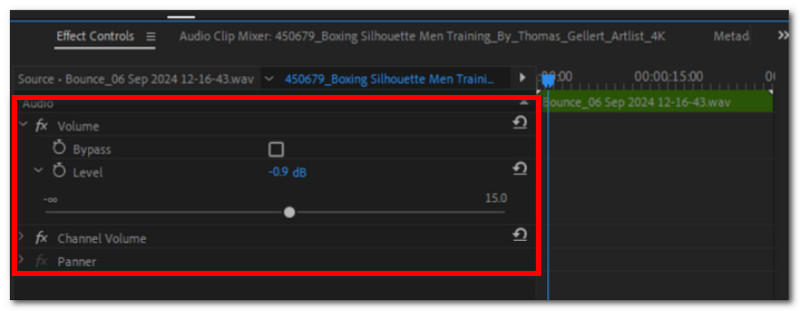
Step 1Upload the video to the Import Media on Premiere Pro. Then, right-click on the video and choose the Add Track option.
Step 2If you are adding soundtracks like ambient sounds or sound effects, use the 5.1 surround track. Adjust or modify the audio as desired, then export the video file.
3. DaVinci Resolve
Just like the first two alternatives, DaVinci Resolve is developed to provide high-grade editing tools for your video and audio. Its editing options combine color correction, motion graphics, audio enhancement, and more. Moreover, DaVinci has a full digital audio workstation, providing advanced audio editing, sound design, and mixing. Check out how to add audio tracks to an MP4 with this alternative:
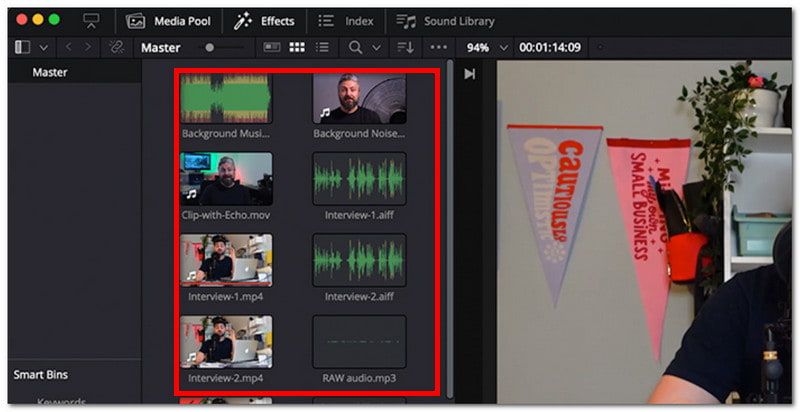
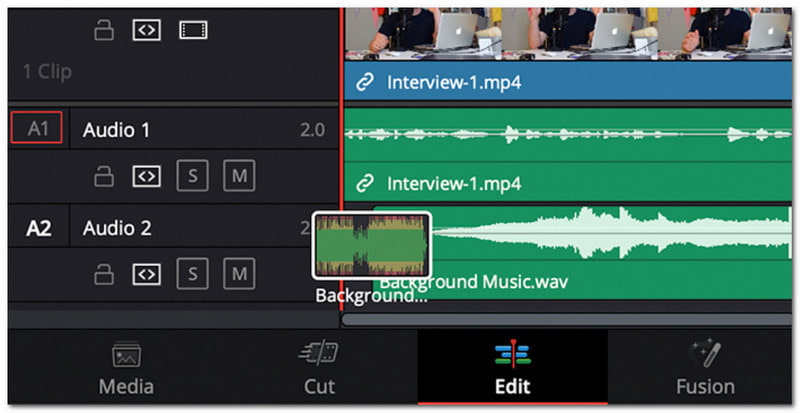
Step 1Create a new project in DaVinci Resolve and import video and audio files. Simply drag and drop the video and audio of your choice in the timeline below.
Step 2Select the audio in the timeline to edit it by adjusting the volume, delay, etc. Export the final project and share on social media.
Part 2. Using Free Tools - No Installation Required
1. VLC
VLC is a well-known multimedia player that has the ability to play almost all kinds of video and audio formats. However, it is also popular because of its extensive editing options that allow you to add audio tracks to videos without needing extra codecs. It can be a good alternative for fast audio editing, but be reminded that it is not on par with what a video editor can do. If you are still on this, here's how to use VLC to add an audio track:
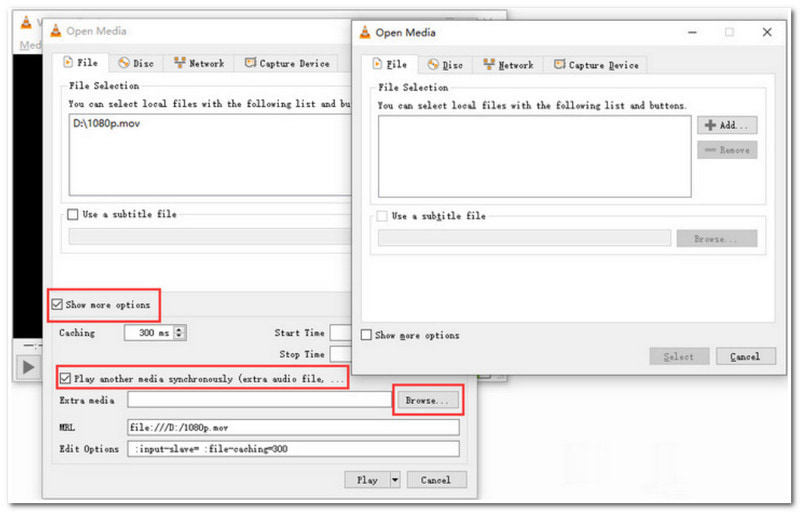
Step 1Import the video file into VLC by clicking the Add button. Select Show more options from the bottom and check the box Play another media synchronously.
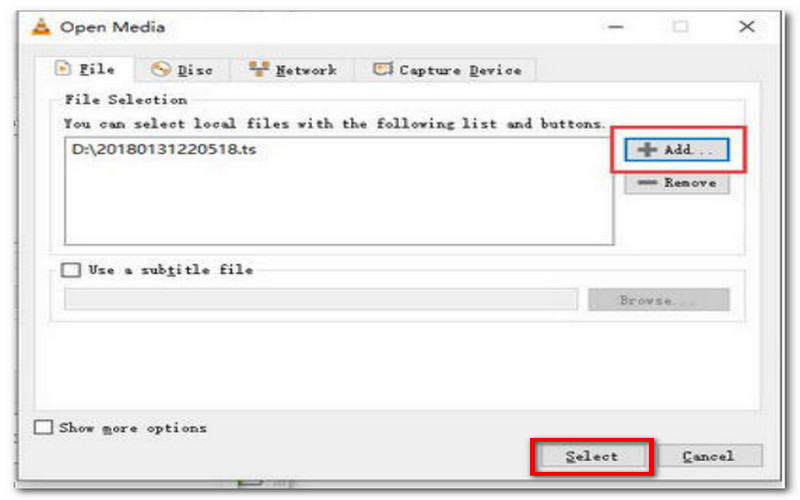
Step 2When another window appears, click Add and upload the video file. Click Select to apply the changes.
2. HandBrake
Although this is a video transcoder rather than a video editor, HandBrake can add audio tracks to your videos. This free and open-source alternative offers a good set of tools for various solutions, especially for video compressing, converting, and modifying. It may not have a straightforward solution for audio tracks, but it can still help you add tracks to any video.
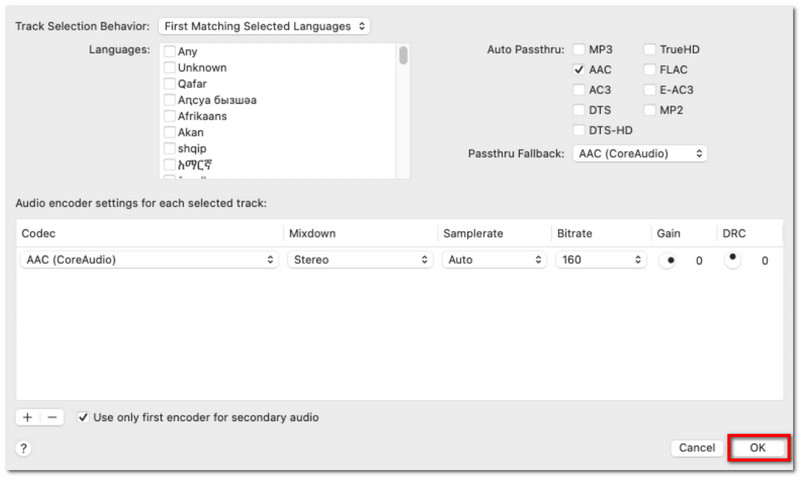
Step 1Open the video file first in HandBrake and navigate to the Automatic Audio Selections.
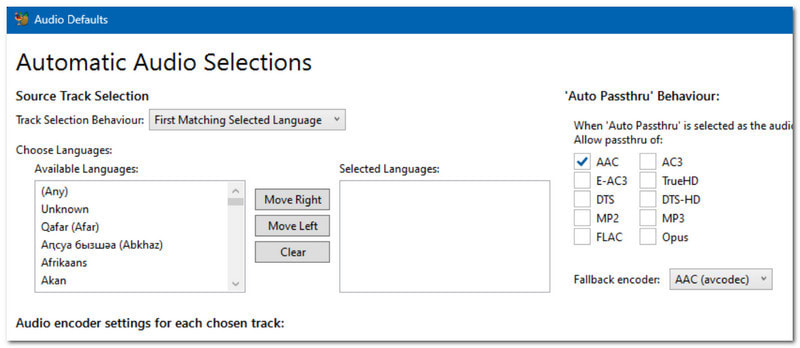
Step 2Click the Add Track button and import the soundtrack you want to add. You can remove the original sound from the video and further edit the main audio. Click OK to apply.
Part 3. Add Audio Online
Did you know that you can also add audio tracks to videos online? Yes, with Clideo, adding the sound of your choice is easy. The online tool is completely free, without requiring users to install software to get started. It also supports a wide range of audio formats, so it is easier to pick any kind of file to add to the video. Moreover, the process does not take too long, as long as you have a stable internet connection. You can start with Clideo by following the steps below:
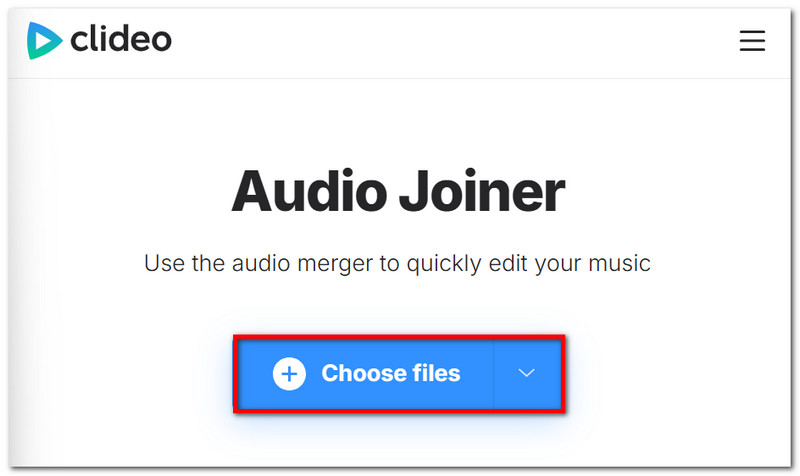
Step 1Click Choose Files from the website to upload a video. Then, import the audio track next.
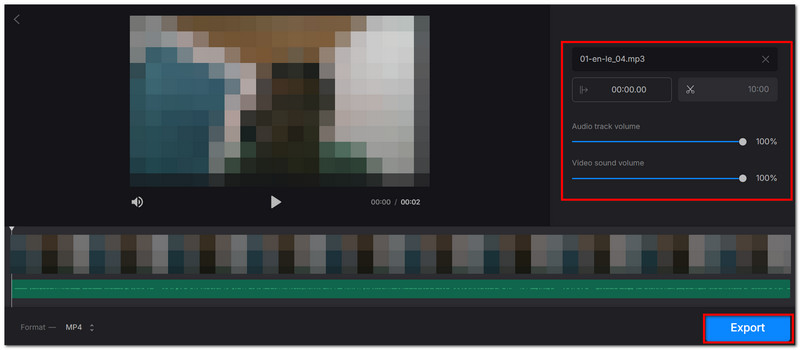
Step 2Click Add Audio and choose the file from your folder. Optionally, you can disable the video's volume and adjust the audio files. Click Export to save.
Part 4. Quick Comparison: Which Tool Should You Use
If you are unsure which tool to use, you can check the comparison table to see which one is the best for your needs.
| Tools | Free | Features | Availability |
| AVAide Video Converter | Yes | • Support all popular audio formats • Option to keep or disable the original audio from the video • Adjust volume and delay | Windows, Mac |
| Premiere Pro | No | • Support synchronization of external audio to the video • Offer preset controls for various audio types • Provide keyframe audio adjustments | Windows, Mac |
| DaVinci Resolve | No | • Allow adding multiple audio tracks to one video • It has a Fairlight Audio Page for advanced audio mixing • In-built audio effects to add to videos | Windows, Mac |
| VLC | Yes | • Basic combining of audio tracks with videos • Support a wide range of audio formats • Simple audio synchronization | Windows, Mac, Linux |
| HandBrake | Yes | • Able to add more audio tracks before video encoding • Useful for ripping DVDs and Blu-rays • Adjust bitrate, mixdown, and overall audio quality | Windows, Mac, Linux |
| Clideo | Yes | • Support uploads from cloud storage • Basic cutting of audio start and end points • Suitable for editing short clips | Online |
Bonus: Where to Find Free Music (Royalty-Free Sources)
With the booming popularity of mainstream platforms like Spotify and Apple Music, you might think that it is impossible to find royalty-free music to add to your video. But this is now the case as the internet is broad and offers so much more. Some websites offer no copyright soundtrack and samples that you can freely use, and you don't even have to worry about paying to get them. In this case, try the following websites for free music:
- Free to Use
- Royalty Free Music Library
- Epidemic Sound
- Bensound
- Jcazmusic
- Pixabay
- TuneReel
You can go beyond with the solutions provided in this article to add audio to video. From professional tools like DaVinci Resolve to online tools like Clideo, you have options for your needs. More than that, you can rely on AVAide Video Converter for easier and professional-grade results to your edits. Get the free version on Windows or Mac to start with this amazing editor.
Your complete video toolbox that supports 350+ formats for conversion in lossless quality.