Imagine this: You've just filmed a sweet birthday video for a friend. You draft an email, attach the video, hit send - and boom! A "file too large" error pops up and crushes your plan to share this special moment. Sound familiar? You're not alone. Because many Email services have limits on the file size of attachments, sending videos via email becomes a common struggle. But the solution is easier than you think. In this guide, we'll share 5 effective methods to compress your videos for email!
Part 1: Why Need to Compress Video for Email
Why do we need to compress a video file for email?
- Email attachment size limits.
Most Email services have limits on the file size of attachments. Gmail, Yahoo Mail and AOL cap attachments at a maximum of 25 MB, while Outlook and iCloud Mail set their limit at 20 MB. Without compression, your email will bounce back immediately or fail to reach the recipient. - Faster transfer speed.
Quicker uploads and downloads mean less frustration. Large videos take a long time to upload, especially if you're on a mobile data or slow Wi-Fi connection. Compressing your video for email minimizes the file size. You can hit send in seconds instead of minutes, and your recipient also doesn't need to wait for a huge file to download. - Save storage space.
Bulky video files clog up your storage space easily. A compressed file takes up minimal room, so you don't have to delete old emails just to make space for new ones.
Part 2: 5 Useful Ways to Compress a Video for Email
Now that you know why compression matters, let's explore the 5 most effective ways to resize your video files for email. These methods are so easy for everyone - no tech skills needed at all!
Way 1: AVAide Video Converter - For the Best Compression Ratio
If you want a tool that's powerful and simple enough for anyone to use, AVAide Video Converter is the perfect choice. It works on both Windows and Mac. AVAide Video Converter supports plenty of video formats and allows you to customize resolution, bitrate, and frame rate as you like. While compressing MP4 video files for email or other formats, AVAide can reduce the file size effortlessly without noticeable loss of quality. Your video still remains clear and crispy after compression.
Here is a guide for you:
Step 1Download AVAide Video Converter free here - it works on Windows and Mac. Follow the install steps, finish setting it up, then click Start Now to launch the software.

FREE DOWNLOAD For Windows 7 or later
 Secure Download
FREE DOWNLOAD For Mac OS X 10.13 or later
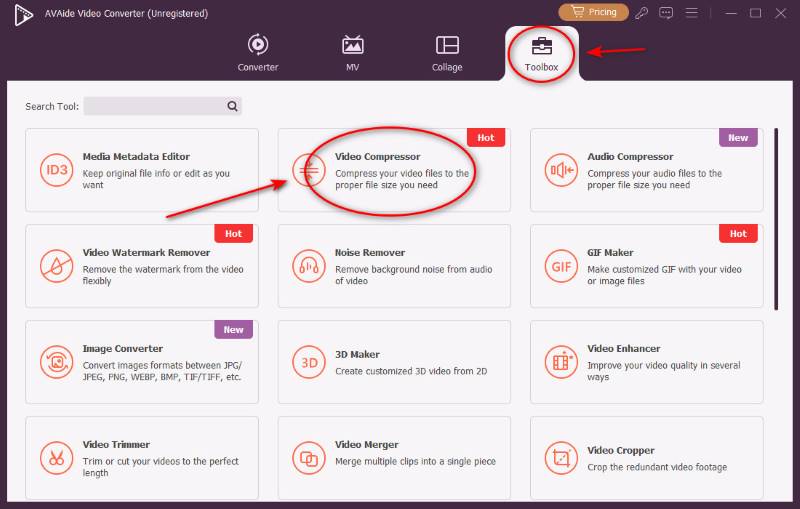
Secure DownloadStep 2Hit Toolbox on the main interface, then click the Video Compressor tool button.
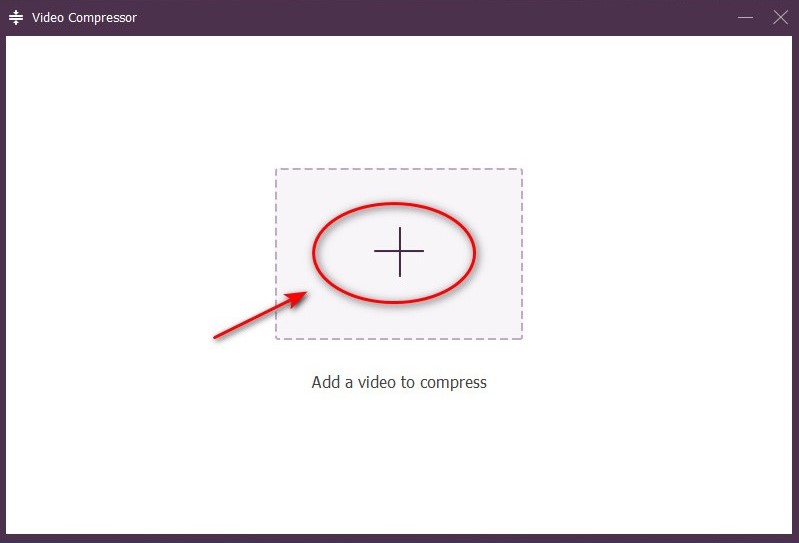
Step 3Tap that big Add File and pick the video you want to shrink.
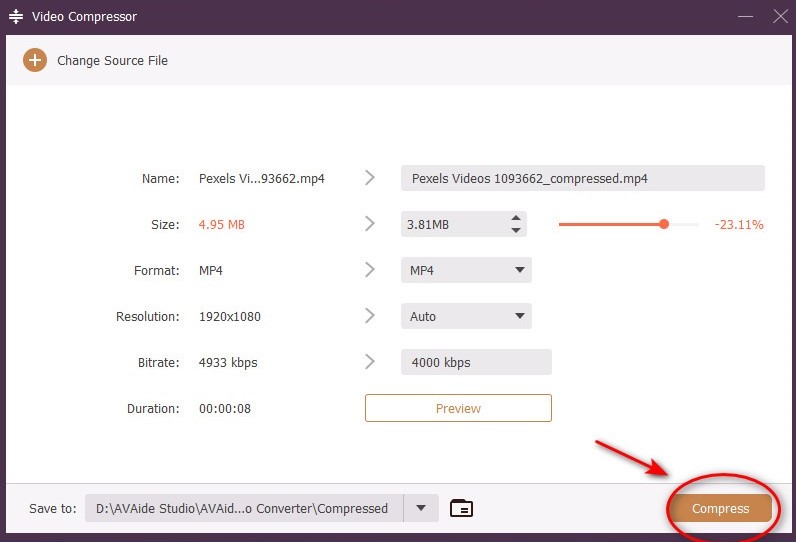
Step 4Adjust the name, size, format and resolution to fit Email's video rules, then choose Compress. That's it! Your video gets squashed for a smaller edition. You can email it right away!
Way 2: Online Video Compressors – For Occasional Use Without Installation
If you don't want to install software on your computer, online video compressor can be a convenient alternative such as Clideo Online Video Tools.
Clideo is a user-friendly online tool that can help you quickly compress videos for email without installation. Its simple interface makes it suitable for beginners. Besides compression, Clideo also offers basic editing features such as trimming, merging, and adding text to videos. But its uploading file size is limited, and network instability may cause lags and slow performance.
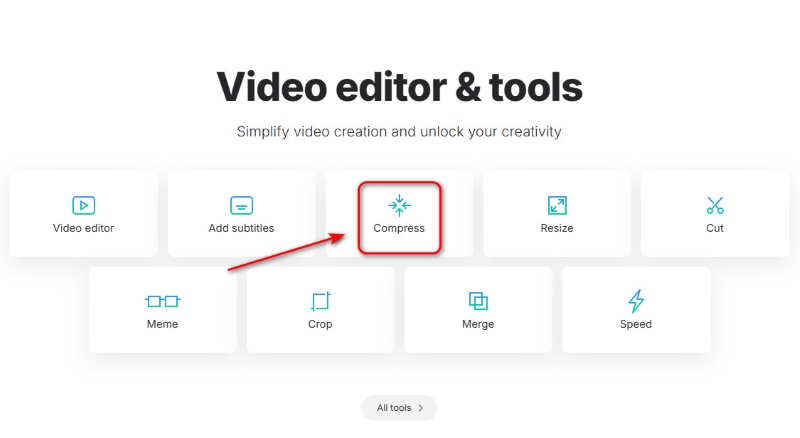
Step 1Go to Clideo Online Video Tools and click the Compress button.
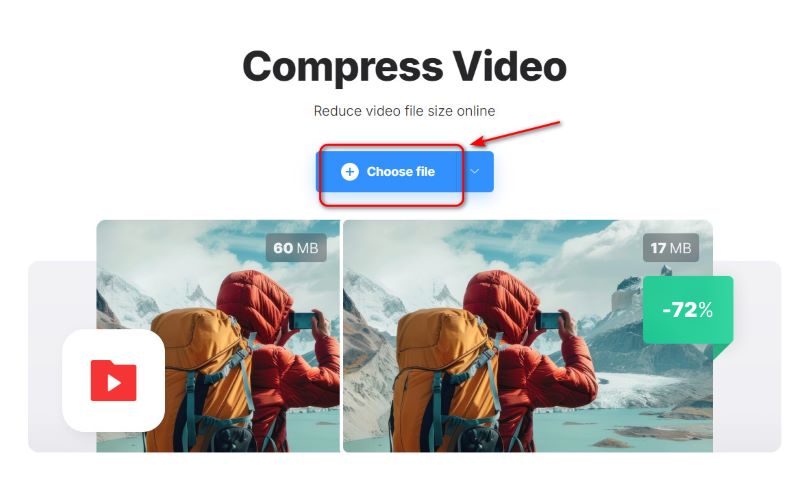
Step 2Hit the Choose File to add your video.
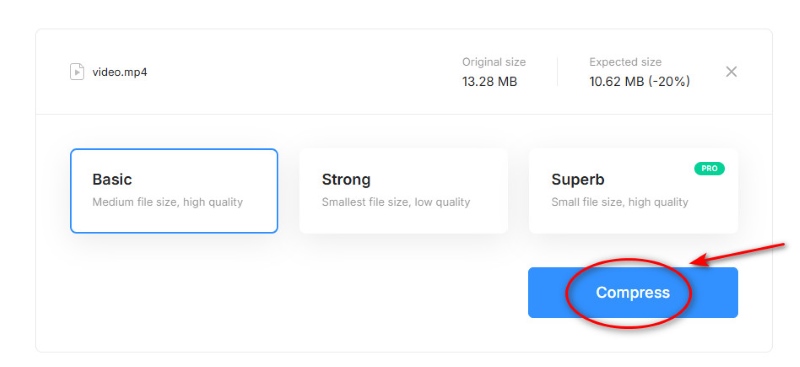
Step 3After uploading, select one of the three modes - Basic, Strong or Superb, then press the Compress button, then your video is ready!
Way 3: Built-in Tools – For Fast and Simple Compression
If you're on a Mac or Windows computer, you already have built-in tools that can compress videos for email.
For Mac Users: QuickTime Player
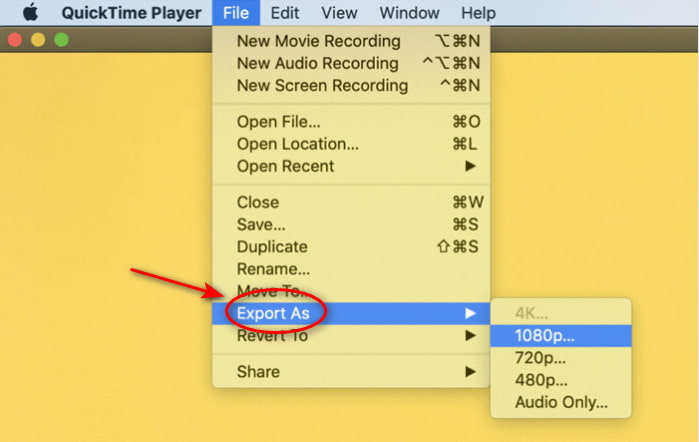
- Click on File in the top menu and select Export As.
- Choose the export resolution for your desired compression level.
- Tap Save to compress and save the file.
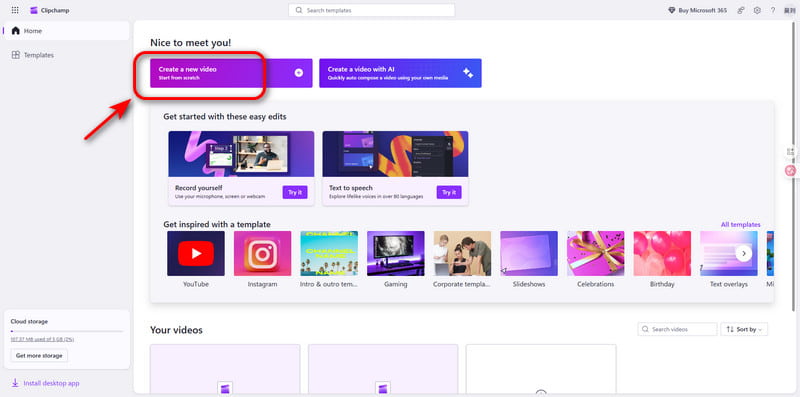
For Windows Users: Clipchamp
- Upload your video into the platform.
- Click on Create a Video and drag your video to the timeline.
- Select Export and choose your wanted resolution or settings.
- Download the compressed file.
If you want to compress a video for email on iPhone, there's a handy built-in tool that can help.
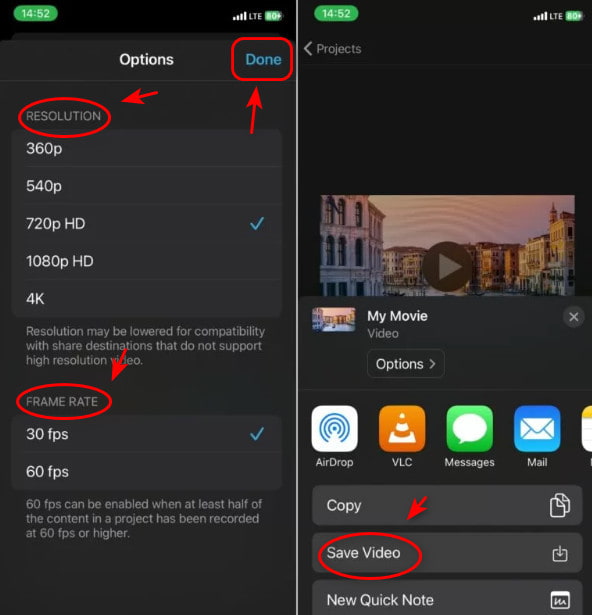
For iPhone Users: iMovie
- Open iMovie and create a new movie project.
- Select your video and add it to the timeline.
- Tap the Done and the Share button.
- Choose Save Video.
- Select a lower resolution to compress the video.
- Save or share the compressed video.
If you are finding how to compress a video for email on Android, this tool is convenient and available.
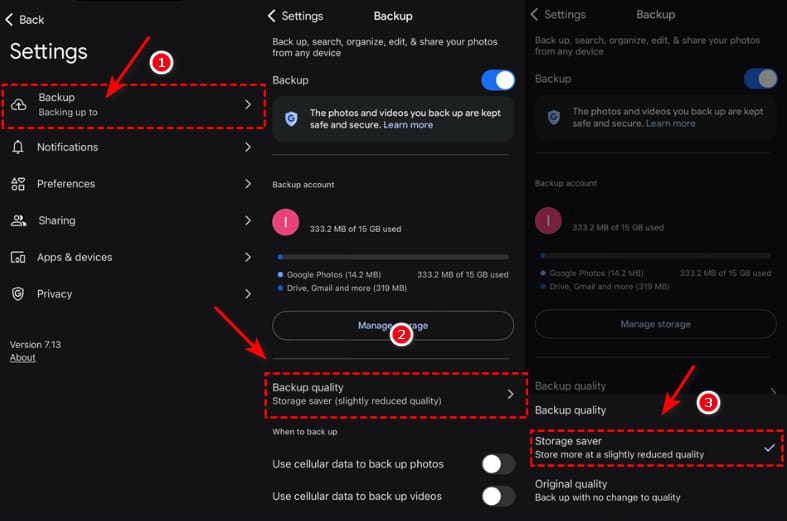
For Android Users: Google Photos
- Open Google Photos and select the video you want to compress.
- Tap the three dots to choose Back up in High Quality or Save storage.
- Confirm and then get the compressed video.
Way 4: Cloud Storage Links - For Extremely Large Files
If your video is too big to compress to under 25MB, cloud storage is the best way to go. Instead of attaching the video directly to your email, upload it to a cloud service and share the link.
Popular options include:
- Google Drive: 15GB of free storage.
- Dropbox: 2GB of free storage.
- OneDrive for Outlook: 5GB of free storage.
Way 5: Zip Folders - For Bundling Multiple Small Files
Zipping a video file for email is a handy way when you need a quick fix. Zip compression has limitations because formats such as MP4 and MOV are already highly compressed. So, this method is suitable for packaging multiple small files into a single archive to make them easier to send. Zipping can reduce the size slightly while it's not as effective as those video compression tools.
Part 3: FAQs about Compressing Videos for Email
What if my video is still too large after compression?
Use a cloud storage link instead. Upload the video to Google Drive, Dropbox, OneDrive or other cloud services, share the link in your email, and the recipient can download it directly.
How Can I compress MP4 videos for free?
You can try these free video editors to compress MP4 videos: AVAide Video Converter; Clipchamp on Windows or QuickTime Player on Mac; online video compressors like FreeConvert.
How small should I compress my video for email?
Aim for under 20-25MB to fit most email services' limits.
While all 5 ways we shared, AVAide Video Converter stands out as the best choice. It's fast, user-friendly and with customizable settings. You can get the smallest file size without losing quality. Hope this article gives you help on how to compress a video for email. With the right compression method, you can easily shrink your video files to fit email limits. Don't let those annoying "file too large" errors stop from sharing anymore!
Your complete video toolbox that supports 350+ formats for conversion in lossless quality.