Converting a DVD to a 1080p HD video can be a great way to enjoy your favorite movies and TV shows with higher quality and clarity. You can create digital copies of your DVD collections for watching on a bigger screen like your smart TV. However, the DVD-to-HD converting process can be a bit tricky. It's important to follow certain steps and use the right tools to get the best possible quality. This post will review the basics of DVD-to-HD video conversion and provide some tips to get started.
Part 1. What's the Resolution of the DVD
DVD resolution refers to the level of detail visible on the screen when playing a DVD. It is measured in pixels—the tiny dots that form an image. The actual resolution depends on the disc standard and the video encoding used.
The most common DVD resolutions are 720 × 480 pixels (NTSC) and 720 × 576 pixels (PAL), both of which fall under standard definition. These resolutions offer a practical balance between image quality and file size, allowing DVDs to be easily stored, distributed, and played on a wide range of devices.
With the rise of high-definition formats, DVD resolution is now considered outdated. Blu-ray discs, which support up to 1080p resolution, have largely replaced DVDs as the preferred medium for high-quality video.
Despite this, DVDs remain widely used due to their low cost, portability, and broad compatibility. It is especially in regions with slow or unreliable internet access. For many users, DVD resolution is still sufficient for watching movies and other video content in everyday scenarios.
Part 2. Easy Way to Convert DVDs to 1080p HD Videos
Before using these tools to rip DVDs to HD videos, you can learn their features first.
| Software | DVD Ripping Speed* | AI Enhancement | Ease of Use |
| AVAide | Fast (GPU acceleration supported) | Yes (AI upscaling, denoise) | High (guided workflow) |
| HandBrake | Medium (CPU-based encoding) | No | Medium (many parameters) |
| VLC | Slow (no optimization for ripping) | No | Low (non-intuitive process) |
It's not difficult DVD to HD video. However, HD is outdated; you should enhance the DVD resolution and definition. AVAide DVD Ripper can effectively rip DVD to HD, 1080P, and even 4K resolution with the latest video and audio encoders.
AVAide DVD Ripper can easily rip all types of DVD discs, ISO images, and folders to many popular and rare formats like MP4, MKV, AVI, MOV, MTS, etc. You can choose 1080P and 4K resolution easily. It also offers many basic video editing features and AI-powered video enhancement techniques.
- Rip DVD to HD and 1080P resolution with the best video quality.
- Support any DVD types, ISO images, and DVD folders for ripping.
- Allow you to select a desired video resolution, frame rate, bitrate, and more.
- Offer popular and new encoders like HEVC, AV1, ProRes, and more.

 Secure Download
Step 1Download and install AVAide DVD Ripper on your computer and launch it. Click the Load DVD button on the top left side to load your DVD disc, ISO image, or DVD folder to this program.

Step 2When your DVD is loaded, you can click the Output Format dropdown button to select a video output format, like MP4, MKV, or AVI. You can select HD 1080P or 4K resolution. If you still want to convert DVD to HD, you can choose HD 720P.

Step 3Finally, click the Save to dropdown button to select an output folder for your HD video and click the Rip All button to rip DVD to HD, 1080P, or 4K resolution.

Part 3. How to Convert a DVD to 1080p HD Video Free Using HandBrake
When you want to convert your DVD to HD quality for free, you can also rely on the open-source DVD ripper, HandBrake. This free DVD-to-HD video converter is compatible with Windows, macOS, and Linux devices. It gives you a convenient way to convert DVDs to 1080p HD videos. It also can help you flip videos. You can download HandBrake from its official website and follow the steps below to turn low-resolution DVDs into high-quality.
Step 1Insert your DVD into the computer’s drive and open HandBrake. Load your DVD under the Source Selection tab. Note that HandBrake can’t convert commercially copy-protected DVDs.
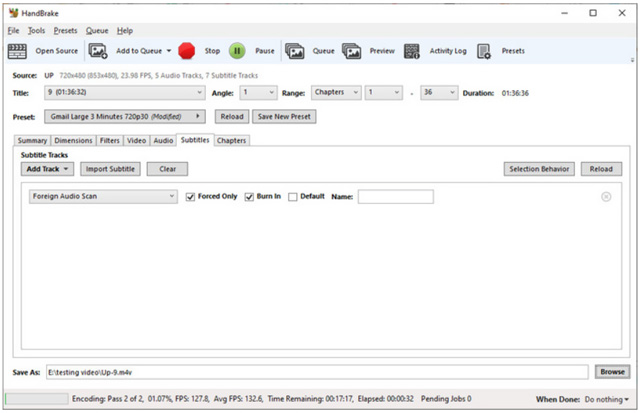
Step 21080p is the standard for modern HD video. However, if your DVD is in a lower resolution, like 480p or 720p, you may not be able to achieve true 1080p quality using HandBrake, no matter how much you upscale the video. Choose the DVD titles and chapters you want to convert, then click Start Encode to turn your DVD into higher quality.
Part 4. Rip DVD to HD Video with VLC Quickly
VLC can rip DVDs and convert them to HD video. It supports basic codec selection (e.g., H.264) and resolution scaling, allowing users to upscale DVD content during conversion. However, VLC relies on traditional scaling algorithms, does not provide AI-based enhancement, and offers limited control and stability compared to dedicated DVD ripping software.
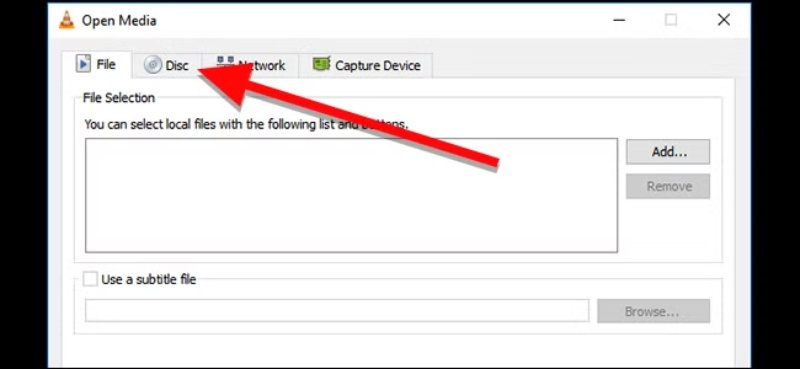
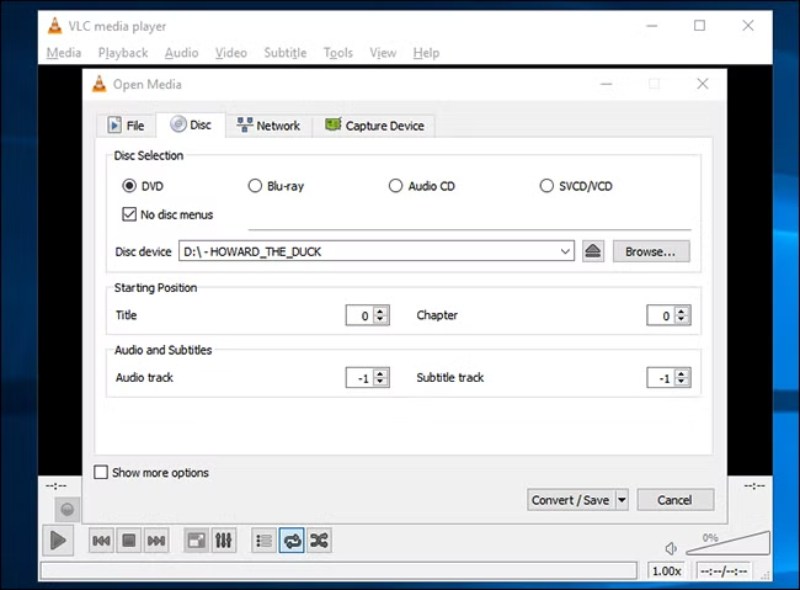
Step 1Insert the DVD, open VLC, go to Media, click Convert / Save, and select Disc and DVD.
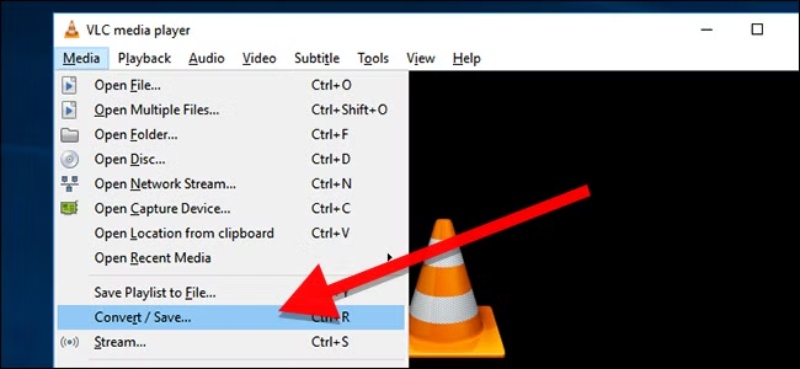
Step 2Click Convert / Save, choose an output profile, such as MP4 with H.264, then adjust the resolution to 720p or 1080p if needed.
Step 3Select the destination file and click Start to begin ripping and converting the DVD to HD video.
Part 5. FAQs of How to Convert DVD to HD Video
How long to rip a full DVD to 1080p with GPU acceleration?
Typically, 10–20 minutes for a standard 90–120 minute DVD. The ripper, like AVAide DVD Ripper, shows visible improvements ranging from 5× to 15×. When high bitrates, filters, or re-encoding to 1080p are enabled, the acceleration factor decreases accordingly.
What is the best format for converting DVDs?
When you convert DVDs, you should select a popular video format that most media players, platforms, and devices can support, such as MP4, AVI, MKV, or MOV.
How do you upscale a DVD to 4K?
You can use the recommended AVAide Video Converter above to easily convert a low-quality DVD to a 4K, 5K, or 8K video. It can upscale its resolution, add more details, sharpen the image, and do other optimizations to enhance the output quality.
This post mainly explains how to convert a DVD to an HD video efficiently. By following the three methods above, you can upgrade your DVDs to Full HD resolution while preserving high video quality. For a faster and more reliable solution, AVAide DVD Ripper is recommended, as it supports high-quality 1080p output, GPU acceleration, and a wide range of formats. Converting DVDs to 1080p not only enhances visual clarity but also improves compatibility with TVs, computers, and mobile devices.
Best tool for ripping and converting DVD Disc/Folder/ISO image file into over various formats.