Digital storytelling starts with the right tools. If you're searching for a top-rated free screen recorder, you've likely encountered dozens of bloated applications and misleading "free trials." To simplify your search, we've curated a definitive list of the best free screen recording software for Windows, macOS, and Linux.
From open-source powerhouses like OBS to lightweight browser-based recorders, we evaluated each tool based on its feature set, system impact, and output formats. Read on to discover which free screen recorder reigns supreme for gaming, streaming, and professional workflows this year.
- Part 1: Shortlist of Best Free Screen Recording Software
- Part 2: How We Tested the Free Screen Recorders
- Part 3: Side-by-Side Comparison of the Free Screen Recorders
- Part 4: Editor's Top Picks of the 3 Best Screen Recording Software
- Part 5: Other 5 Free Screen Recorders Worth Trying
- Part 6: FAQs of Free Screen Recorder
Part 1: Shortlist of Best Free Screen Recording Software
Top 1: AVAide Screen Recorder - Best Overall for High-Definition. This free screen recorder is a comprehensive tool supporting 4K/1080p output with no watermarks. Ideal for those needing scheduled recordings and real-time annotations on both Windows and Mac.
Top 2: OBS Studio - Best for Power Users & Streamers. OBS screen recorder is an open-source giant offering unlimited recording and advanced mixing. It's the go-to for professional-grade captures across Windows, Mac, and Linux.
Top 3: ShareX - Best for Productivity on Windows. ShareX is a lightweight, watermark-free tool that excels in task automation and scrolling screen captures. Perfect for Windows users who value deep customization.
Top 4: Camtasia - Best for Educational Content. This free screen recorder is the industry standard for tutorials. It combines recording with a high-end built-in video editor, though the free trial version is best for short-term projects.
Top 5: TinyTake - Best for Quick Cloud Sharing. TinyTake is a streamlined choice for short clips (under 5 minutes). It stands out by offering 2GB of free cloud storage for instant sharing.
Top 6: ScreenPal - Best for Mobile & Desktop Flexibility. ScreenPal screen recorder is a versatile recorder available on Android and iOS as well as desktop. Great for beginners who need simple callout tools and mobile-to-PC workflows.
Top 7: Panopto - Best for Online/Browser-Based Use. No download required. This online recorder is perfect for long-form educational videos and cloud-based indexing without filling up your hard drive.
Top 8: Loom - Best for Async Communication. Loom free screen recorder is a modern cloud-based recorder that allows you to instantly share screen-and-camera clips via a simple link. It's the top choice for teams needing quick, effective feedback loops without large file transfers.
Part 2: How We Tested the Free Screen Recorders
To identify the best free screen recorders, we didn't just read feature lists; we pushed each software to its limits. Our goal was to simulate the actual workflow of content creators, educators, and gamers in 2026.
1. Standardized Test Environments:
- Windows Environment: ASUS TUF Gaming FX Series, Windows 11 Pro, Intel Core i7-14700K | 32GB DDR5 RAM | NVIDIA RTX 4070 GPU.
- macOS Environment: MacBook Pro 14-inch (M3 Pro Chip), macOS Tahoe, 12-core CPU | 18-core GPU | 18GB Unified Memory.
2. The Testing Materials:
2K monitor, 4K movie videos, and Cyberpunk 2077 gameplay.
3. Key Evaluation Metrics:
- Performance Impact (CPU/GPU): We monitored Task Manager/Activity Monitor to ensure the recorder didn't hog resources needed for the main task.
- Output Integrity: We verified if "No Watermark" claims were true and checked the final file size vs. visual quality (Bitrate efficiency).
- Supported Parameters and Customization: We should figure out the real recording quality/parameters, including resolution, codec, bitrate, FPS, and more.
4. Verification & Trust:
Every free screen recording software listed has been manually verified by our senior editorial team. We cross-referenced our internal benchmarks with the latest user feedback from GitHub, Reddit, and Product Hunt to ensure long-term stability and to weed out any "freemium" tools that recently added hidden costs or watermarks.
Part 3: Side-by-Side Comparison of the Free Screen Recorders
Check this detailed comparison table of the 8 free screen recorders. You can quickly find your desired recorder based on your specific needs.
| Product | Max Resolution | Watermark | CPU/GPU Impact | Best Use Case | Key Technical Specs |
| AVAide Screen Recorder | 4K / 1080p | None | Low | High-Clarity Pro Videos | H.264/HEVC, 60 FPS, Lossless Audio |
| OBS Studio | Native / 4K | None | Moderate | Pro Streaming/Gaming | Open-source, Unlimited Bitrate, MKV/MP4 |
| ShareX | 1080p | None | Very Low | Productivity/Short Clips | GIF support, Custom Task Automation |
| Camtasia | 4K | Yes (Trial) | High | Education & Training | Built-in Editor, Multi-track Timeline |
| Loom | 1080p / 4K | None | Moderate | Team Communication | Cloud-based, Instant URL Sharing |
| ScreenPal | 1080p | Yes (Outro) | Low | Multi-device/Mobile | Cross-platform, Cloud Hosting |
| Panopto | 1080p | None | Low | Online Lectures | Web-based, Auto-indexing |
| TinyTake | 1080p | None | Very Low | Quick Screen Captures | 2GB Cloud Storage, 5-min limit |
Part 4: Editor's Top Picks of the 3 Best Screen Recording Software
While our full list covers a wide range of tools, these three represent the pinnacle of free screen recording in 2026. Whether you need professional-grade clarity, limitless open-source power, or streamlined automation, these are our top recommendations.
1. AVAide Screen Recorder - Best for Professional High-Clarity
AVAide Screen Recorder earns our top spot as the most balanced tool for everyday professionals and creators. It manages to deliver 4K and 1080p lossless output with a user interface that feels intuitive from the first click. Unlike many "free" competitors, it offers a truly clean recording experience with no branding.
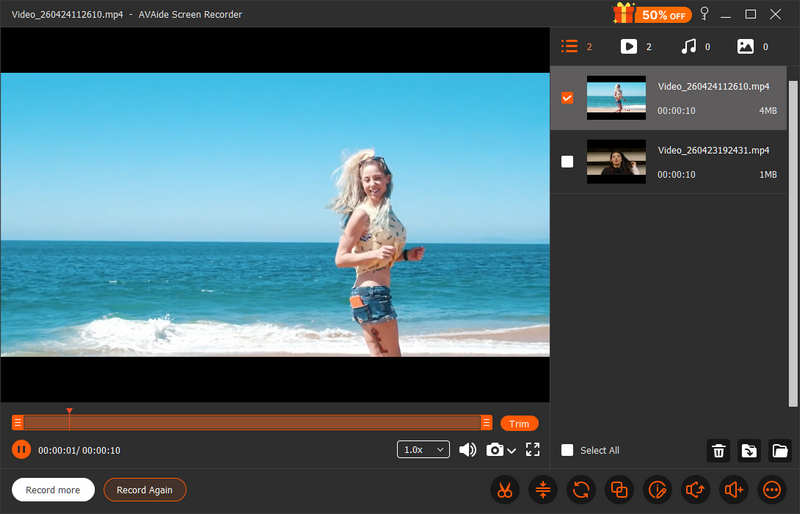
This free screen recording software can produce 4K-resolution recorded videos with HEVC and AV1 video codecs, which have high compression rate while keeping the best video quality so that you can record large videos while saving storage. What's more, it is lightweight, stable, and from our tests, it can handle a 2-hour recording without lag or stutter. In the latest version of AVAide Screen Recorder, it can highly enhance the recording frame rate to 120 FPS. You can get a smooth video with crisp sound.
- Record desktop screen, single window, gameplay, webcam, internal, and external audio.
- Offer a scheduled recording feature to set specific start and end times.
- Highly increase the recording's resolution, bitrate, and frame rate.
- Record long-duration videos with clear image quality and small file size.
- Well manage your recordings and share them on social media easily.
- Support AV1 codec, which is good for online streaming.

 Secure Download
- Pros
- Lightweight and smooth recording.
- Record and edit videos.
- Output recordings as MP4, MKV, WebM, GIF, and more formats.
- Easily manage and preview your recordings.
- Cons
- Recording has limits in the trial version.
Why We Selected It: We selected AVAide Screen Recorder as the most easy-to-use best free screen recorder because it is very lightweight while providing original and even 4K quality recording. Users can customize the video and audio configurations to capture the best video quality while reducing the output file size.
2. OBS Studio - Best for Power Users & Streamers
OBS Studio is definitely one of the most popular open-source and free screen recorders and webcam recorders on Windows, macOS, and Linux. Although it's difficult for beginners to use, many users are willing to spend time learning to use this free and powerful screen recording software.
OBS Studio remains the undisputed king of professional-grade recording and streaming. In April 2026, the release of version 32.1 marked one of the biggest UI milestones in years: a complete overhaul of the Audio Mixer. This update introduced a dynamic vertical/horizontal layout with the ability to pin essential audio sources, ensuring global sounds are always visible while clutter is minimized.
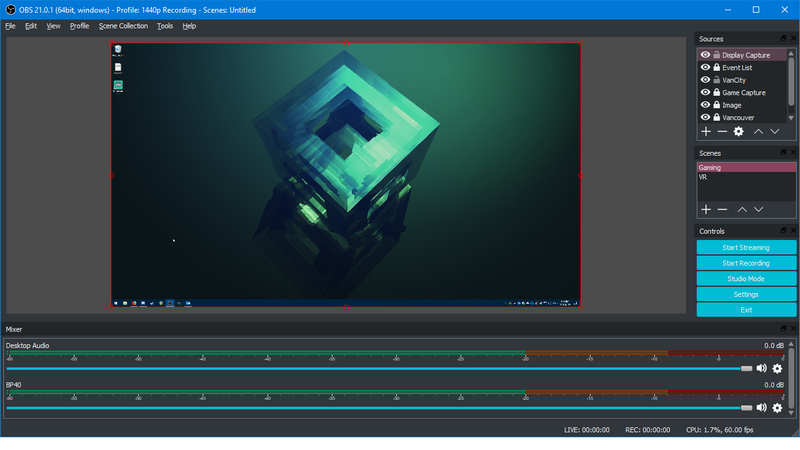
For creators concerned about reliability, OBS free screen recorder has now made Hybrid MP4/MOV the default output format. This technology is a lifesaver, if your system crashes or loses power, your recording is automatically finalized and preserved, eliminating the heartbreak of corrupted files. Furthermore, macOS users can now leverage the Metal renderer for Apple Silicon, which significantly boosts efficiency and reduces thermal throttling during high-bitrate 4K captures.
Key Features of OBS Studio:
- Rebuilt the audio mixer to ensure clear and crisp sound.
- Default Hybrid MP4 container ensures data integrity even during unexpected shutdowns.
- Allow you to send multiple quality levels on a single video or audio track.
- Deeply integrated with NVIDIA NVENC, AMD VCE, and Apple’s Metal API for near-zero CPU impact.
- Pros
- It's totally free and open-source.
- High compatibility and professional level.
- High performance for 4K and 60 FPS recording.
- Cons
- It's difficult for beginners to use.
- Configurations are complex.
- It's complicated if you only need to record your screen without live streaming.
Why We Selected It: We selected OBS Studio as the best open-source program to record screen free, for its unmatched versatility. It is a complete broadcast studio in a free, open-source package. Whether you are leveraging Apple Metal for efficient 4K capture on Mac or using GPU acceleration on Windows, OBS delivers zero-compromise performance. It remains the only tool that offers professional-grade power with absolute creative freedom.
3. ShareX - The Ultimate Productivity & Automation Suite
While OBS is a broadcast studio, ShareX is the Swiss Army knife of Windows productivity. With the launch of version 19.0 in early 2026, ShareX has officially entered the AI era. This free screen recorder now features an Analyze Image tool that supports Google Gemini and ChatGPT APIs. Users can capture any screen area and instantly summarize text, identify code blocks, or translate foreign languages—all within the application.
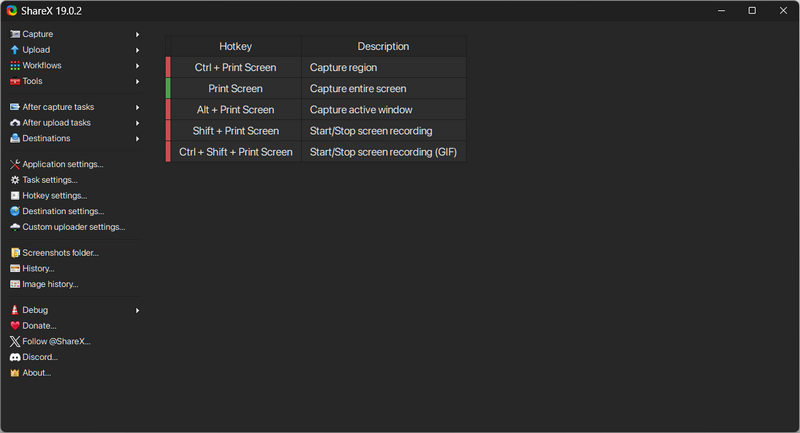
ShareX’s true power lies in its Workflow Engine. This free screen recording software allows you to automate repetitive tasks: for example, you can set a single hotkey to record a region as a GIF, apply a "Spotlight" effect to highlight your cursor, and automatically upload the result to Google Drive or an FTP server. Despite its deep feature set, it remains an incredibly lightweight tool that lives silently in your system tray until needed.
Key Features of ShareX:
- Support AI tools and APIs to summarize the recording area.
- Output high-quality and seamless video recording.
- Provide spotlight and annotation tools to focus the viewer's attention.
- Support over 80 hosting services to store your recordings.
- Pros
- ShareX is free.
- No watermarks or time limits for any recording.
- Friendly for beginners and power users.
- Cons
- This free screen recorder is only available on Windows 11 and 10.
- The AI feature requires an account login.
Why We Select It: We chose ShareX as a good program to record screen free, for its unrivaled efficiency. It turns complex tasks into single-key workflows. Whether you are generating a watermark-free GIF or using AI to identify code on your screen, ShareX screen recorder handles it with a near-zero footprint on your system. It is the definitive Swiss Army knife for Windows productivity.
Part 5: Other 5 Free Screen Recorders Worth Trying
1. Camtasia
If you’ve been searching for a free screen recorder with internal audio on Mac that also integrates a powerful editor, Camtasia is the ideal solution. It bridges the gap between capture and post-production, making complex editing feel effortless. With its intuitive timeline, you can easily drag and drop shapes, arrows, cinematic highlights, and professional voiceovers directly onto your project.
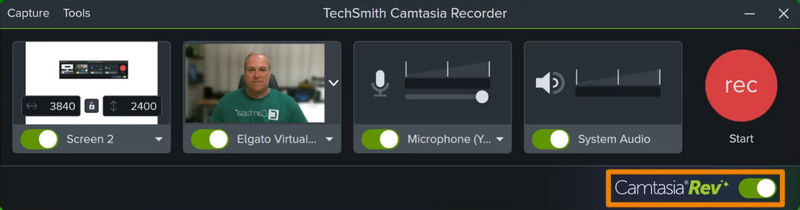
Trusted by educators and corporate professionals alike, Camtasia's free screen recorder excels at creating clean, high-impact instructional content. Whether you are producing a full-length online lesson or a quick software demo, its streamlined workflow on both Windows and macOS ensures your tutorials look polished without the need for additional third-party software.
Key Features of Camtasia:
- Integrated with a video editor to edit your recordings immediately.
- Seamless recording of system sound and microphone audio.
- Provide interactive cursor effects.
- Offer pre-built video templates for recording.
- Pros
- Easy and clean interface.
- Many effects and annotations.
- Smooth for long recording projects.
- Cons
- Exporting can be slow.
- Heavy on older computers.
2. TinyTake
TinyTake is designed for speed, offering a clutter-free experience for recording videos and short clips without the complexity of professional suites. Its standout feature is the integrated cloud-based workflow, which allows you to upload recordings instantly and share them via a unique URL. While this free screen recorder for Windows 10/11 doesn't offer the unlimited recording time found in other tools, its efficiency is unmatched for quick tasks.
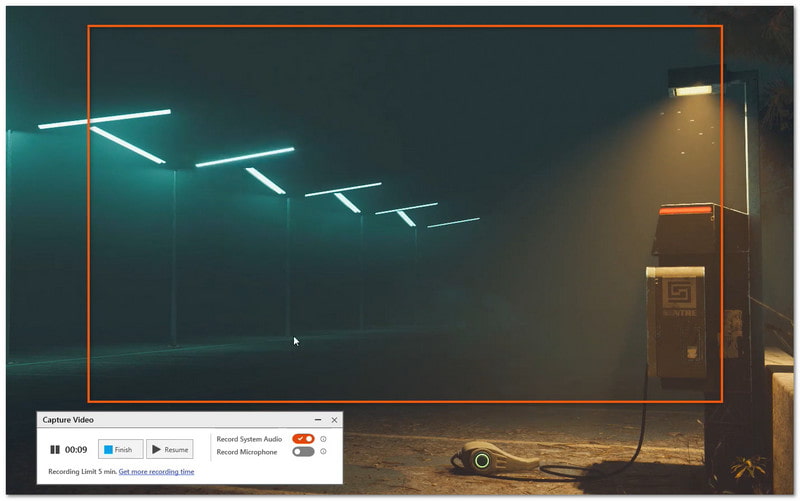
For those blink-and-you-miss-it moments or rapid feedback loops, this free screen recorder for Windows makes the process incredibly user-friendly. It’s the perfect choice for users who prioritize simplicity and immediate sharing over advanced post-production features.
Key Features of TinyTake:
- Support one-click cloud sharing.
- Quickly add text, arrows, and annotations to your recording.
- Open quickly and run in the background with low system resources.
- Pros
- Clean and simple interface.
- No watermark in the free plan.
- 2 gigabytes of cloud storage included.
- Cons
- Not good for long videos.
- Only a 5-minute limit on the free plan.
- An account is required to use features.
3. ScreenPal
ScreenPal is a versatile free screen video recording software for Windows, macOS, Android, and iOS, designed for seamless performance across computers and mobile devices. Unlike resource-heavy applications, Screenpal features a streamlined interface with intuitive controls and live callout tools, allowing you to draw shapes, add text, or use pointers in real-time during your recording.
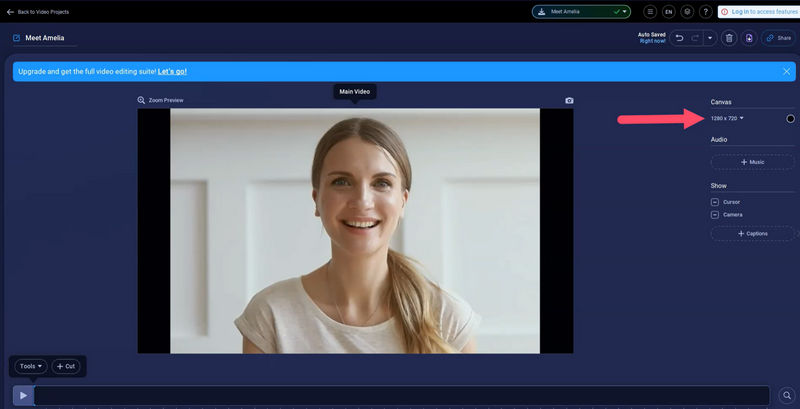
While advanced features are reserved for its premium tiers, the free program for screen recording remains a highly capable choice for short-form projects and quick demonstrations. Screenpal free screen recorder can maintain a consistent experience on Windows, Mac, iOS, and Android makes it an essential tool for creators who need flexibility across multiple platforms.
Key Features of Screenpal:
- Manage your recordings via cloud storage on all devices.
- Support real-time annotations during recording.
- Switch between screen-only, webcam-only, or picture-in-picture modes.
- Provide a built-in editor to trim videos easily.
- Pros
- Easy for beginners.
- Free and across platforms.
- Works on many platforms.
- Cons
- Branded outro added.
- Time limits for free users.
- No computer audio for free users.
4. Panopto
Panopto Express is the ideal choice for users who need a powerful free online screen recorder without the friction of a download. As a fully web-based recorder, it allows you to start capturing your screen, webcam, and audio directly from your browser with a single click. Unlike many online tools, Panopto excels at handling long-form content, leveraging secure cloud-based storage to ensure your high-definition recordings never compromise your local disk space.
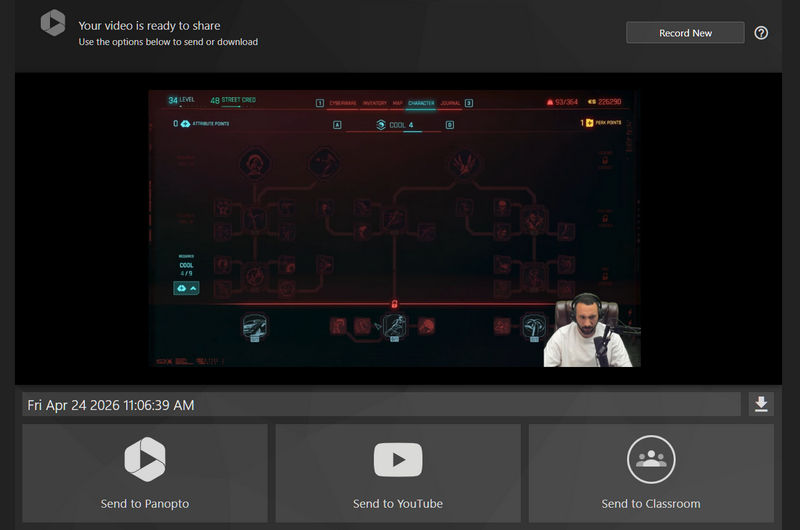
This free online screen recorder is particularly popular among educators and corporate teams for its multi-stream recording capabilities, enabling you to capture multiple cameras and screens simultaneously. If you prioritize immediate access and zero installation, Panopto offers a professional-grade experience that is as simple as opening a new tab.
Key Features of Panoptop:
- Record your screen, multiple browser tabs, and several webcams at the same time.
- Includes a Smart AI Camera feature to automatically capture the highlights.
- Easily save your recordings in MP4 format and share them to YouTube.
- Pros
- Truly free screen recorder with no watermark or time limit.
- Support long-duration recording without lag.
- No software, plugins, or local installations required.
- Cons
- Requires account sign-up.
- Not ideal for casual recording.
- Focused more on schools and businesses.
5. Loom
Loom is also a very helpful and versatile free screen recorder for PC, Mac, iOS, and Android. That means you can manage your recordings on different devices when you log into the same account. Loom doesn't have a desktop program, but you can use its free screen recording Chrome extension to record the entire desktop window, your current tab, or your camera only.
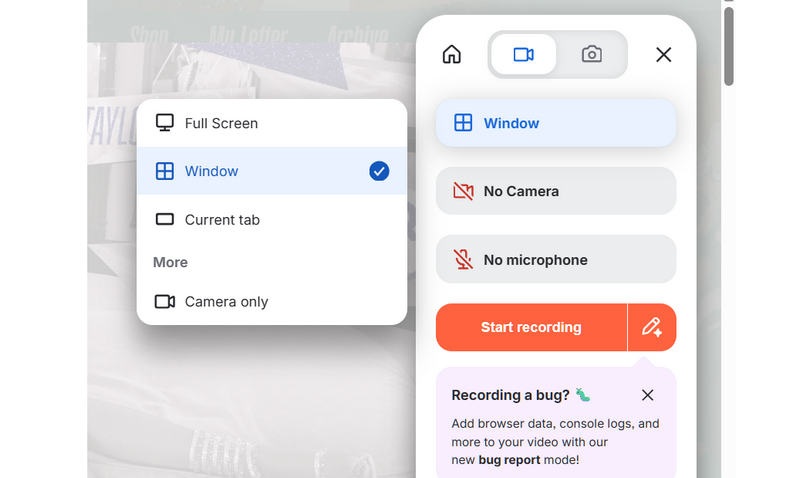
Loom has transformed the way teams collaborate by replacing long meetings with instant, expressive video messages. As a pioneer in the "record-to-share" workflow, it allows you to capture your screen and camera simultaneously and generates a shareable link the moment you hit stop. In 2026, Loom free screen recorder remains the gold standard for asynchronous communication, enabling professionals to provide feedback, explain complex ideas, or deliver updates without the friction of a live call.
Key Features of Loom:
- Provide many effects, like camera bubble overlay on your recording area.
- Offer many interactive features between you and your workmates.
- Support drawing tools to highlight specific elements on your recording.
- Provide AI features to generate titles and summaries.
- Pros
- Well compatible with different meeting services.
- Provide many easy-to-use effects and AI tools.
- Offer a lightweight and versatile browser extension.
- Cons
- It requires a login.
- You cannot customize the output configurations.
Part 6: FAQs of Free Screen Recorder
What is the best free screen recorder?
It depends on your specific needs. If you prefer high-quality output and optimized file size, AVAide Screen Reorder is your resort. If you need to screen record and broadcast, OBS is the only option. If you want a free online screen recorder extension, you can choose Loom.
Can I record my screen for free?
Yes, you can. There are many record-your-screen free software available on desktop (Windows and Mac), mobile phone (iOS and Android), and online.
Is there a free screen recording without time limit?
Panopto is a good free online screen recorder without time limit or watermark. You can also preview the video after recording. However, it cannot let you customize the recording area. You can only record the full screen or a specific window.
Conclusion
With such a diverse range of free screen recording software available in 2026, the best choice ultimately depends on your specific workflow. Whether you prioritize the open-source depth of OBS Studio or the rapid automation of ShareX, there is a tool designed to solve your unique challenges.
However, for users seeking a seamless, all-in-one experience without the learning curve, AVAide Screen Recorder remains our top recommendation. Its ability to balance professional-grade output, from high-bitrate gameplay to critical business meetings, with an intuitive, ad-free interface makes it the most versatile solution on the market. If you need a reliable, watermark-free recorder that simply works every time, AVAide is the definitive place to start.
ABOUT THE AUTHOR

Record screen, audio, webcam, gameplay, online meetings, as well as iPhone/Android screen on your computer.