Webinars are often viewed as an easy thing to record; however, in order to record clear audio, smooth visuals, and the entire presentation, it takes more than a press of the record button. Knowing how to record a webinar ensures you preserve every slide, discussion, and question for later review or distribution. In this guide, we break down practical methods, share pre-recording strategies, and compare the best tools so you can deliver professional-quality recordings every time. By the end, you will have the knowledge to choose the right approach and avoid common pitfalls, setting up your webinars for success.
Part 1. 3 Ways to Record a Webinar
1. AVAide Screen Recorder
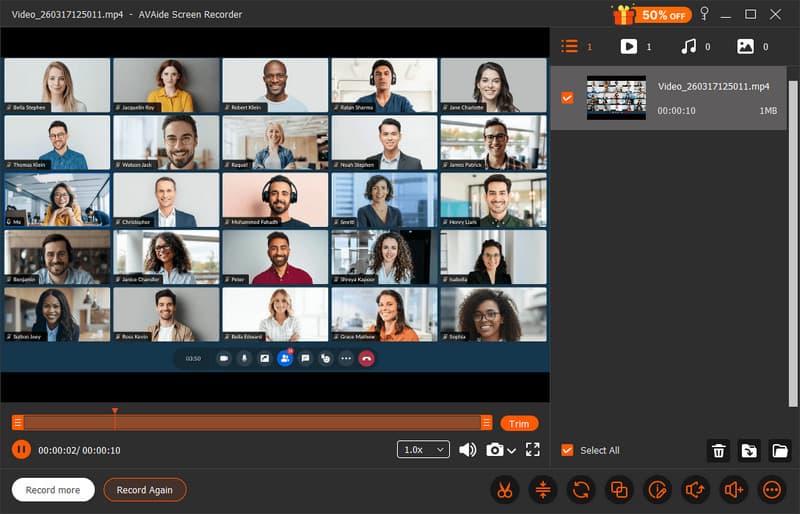
Wondering how I can record a webinar without losing quality or missing key moments? AVAide Screen Recorder delivers a seamless experience for capturing every slide, audio cue, and participant interaction. It is a good fit with the beginners and experienced presenters due to its steady operation and user-friendly interface.

FREE DOWNLOAD For Windows 7 or later
 Secure Download
FREE DOWNLOAD For Mac OS X 10.13 or later
Secure DownloadKey Features:
• Live long webinars without delay and breaks.
• Record in native quality or upscale to 4k crystal clarity.
• Encodes current codecs such as HEVC and AV1 with smaller files of high quality.
• Arrange, handle, and enjoy listening to your records without a problem.
Platforms: Windows and Mac
Steps on How to Use:
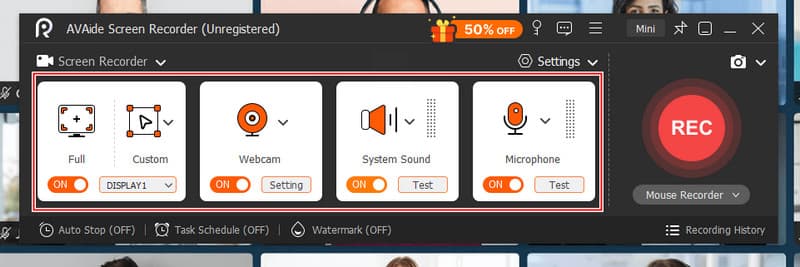
Step 1After downloading the screen recorder brought to you by AVAide, adjust the recording area where the webinar starts, and activate the Webcam, System Sound, and Microphone to record everything.
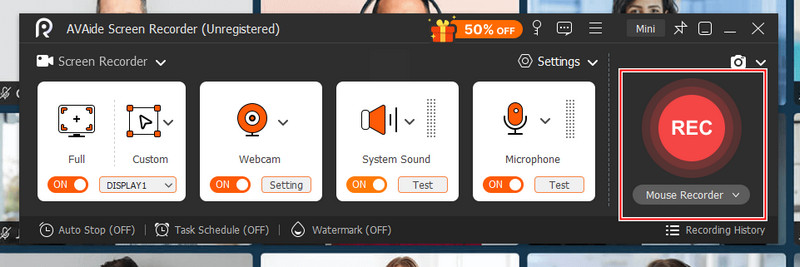
Step 2To start the recording, click the Rec button, and a countdown will start before the official recording begins.
Step 3Once the meeting is done on the webinar, click the stop button, and the recording is automatically saved on your computer.
2. OBS Studio
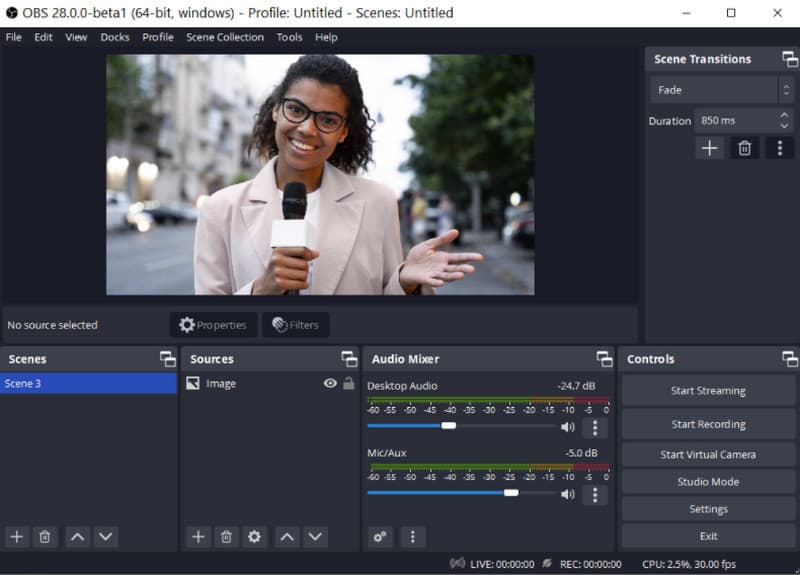
If you need a flexible and cost-effective way to record webinar sessions, OBS Studio is a widely trusted tool. It is an open-source screen recorder used by educators, streamers, and professionals who need full control over video and do an OBS Studio audio record. Although the interface may take some time to learn, OBS offers powerful recording capabilities that allow you to capture webinars with high clarity and customizable layouts.
Key Features:
• Capture screen, webcam, and system audio simultaneously
• Support high-definition recording with customizable output settings
• Create multiple scenes for different presentation layouts
• Open-source software with strong community support and frequent updates
Platforms: Windows, Mac, Linux
3. Camtasia
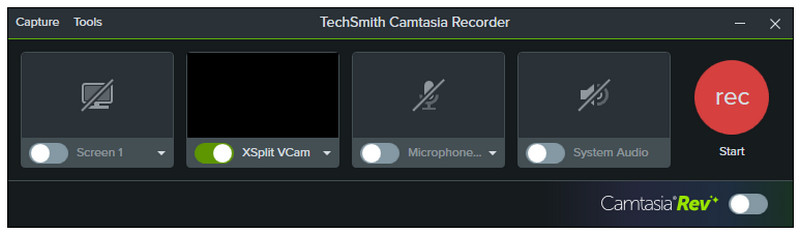
Camtasia is a professional screen recording and editing tool designed for creating polished presentations and tutorials. It is especially useful for recording a Zoom webinar session when you want to refine the video afterward. Presenters can cut errors, add notes, and make the images more attractive, even though they have editing tools to share the finished recording with their audience.
Key Features:
• High-quality screen recording with webcam and microphone capture
• Built-in video editor for trimming, transitions, and annotations
• Cursor effects and visual highlights for clearer demonstrations
• Videos can be shared and distributed in multiple formats
Platforms: Windows and Mac
Part 2. How to Pre-Record a Webinar
1. Zoom
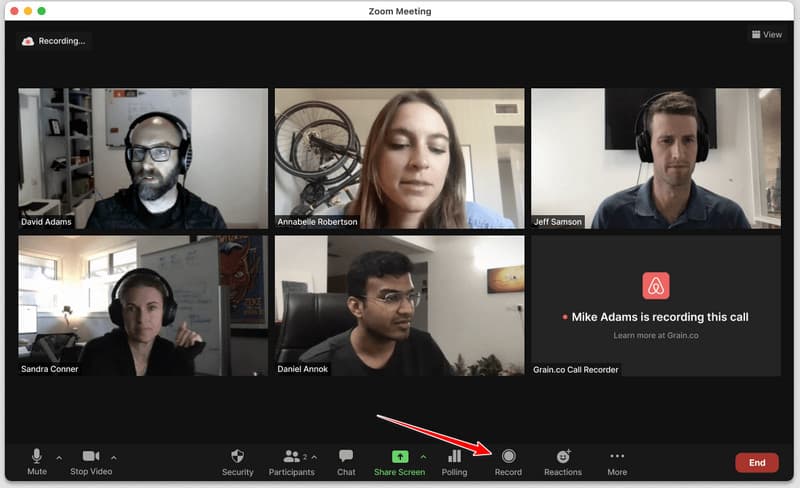
If you are wondering how to record a webinar? Zoom is one of the easiest platforms to use. It allows you to capture video, audio, and screen sharing in one session. To pre-record a webinar, open Zoom and start a new meeting. Prepare your microphone, camera, and presentation slides. Click the Record button on the meeting control bar and present your webinar as if it were live.
2. Microsoft Teams
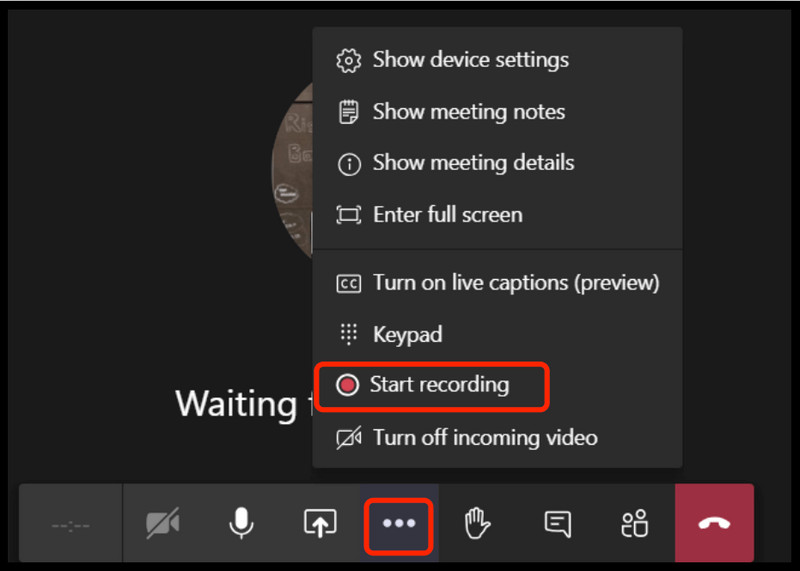
Microsoft Teams is widely used for business meetings and also works well as dependable webinar recording software. It can record screen activity, audio, and video, which makes it suitable for training sessions and presentations. To pre-record a webinar, start a meeting in Microsoft Teams and prepare the materials you plan to present. Click the More Options menu in the meeting controls and select Start Recording.
3. Google Meet
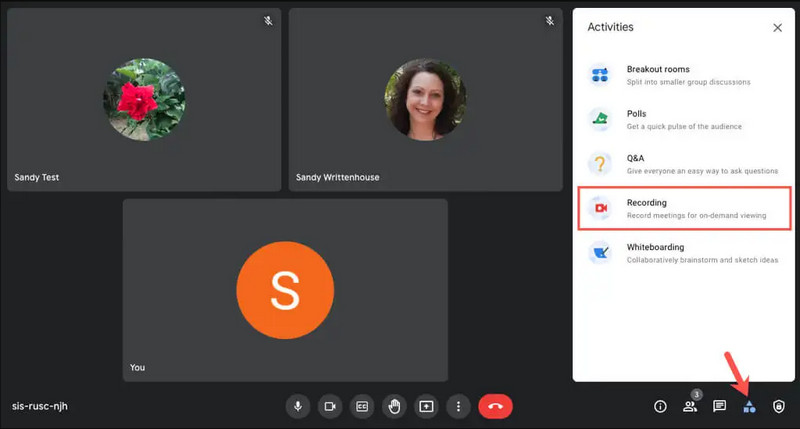
Google Meet is a convenient online tool that can be used by those who would like to know how to record a webinar on their PC without downloading any additional software. It requires a direct connection with Google Workspace and saves the recordings in Google Drive. To pre-record a webinar, start a meeting in Google Meet and prepare your slides or screen-sharing content. Click the Activities button in the meeting controls and select Recording, then start recording your presentation.
4. Cisco Webex
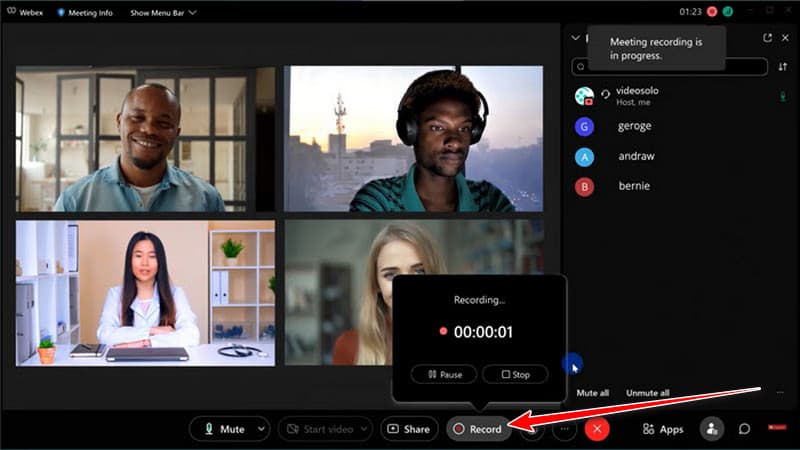
Cisco Webex is a reliable webinar platform often used for professional meetings and corporate training. If you are asking how I can record a webinar on my computer? Webex provides a built-in recorder that captures both the presentation and audio clearly. To pre-record your webinar, start a Webex meeting and set up your microphone, camera, and slides. Click the Record button in the meeting controls and begin your presentation.
5. GoTo Webinar
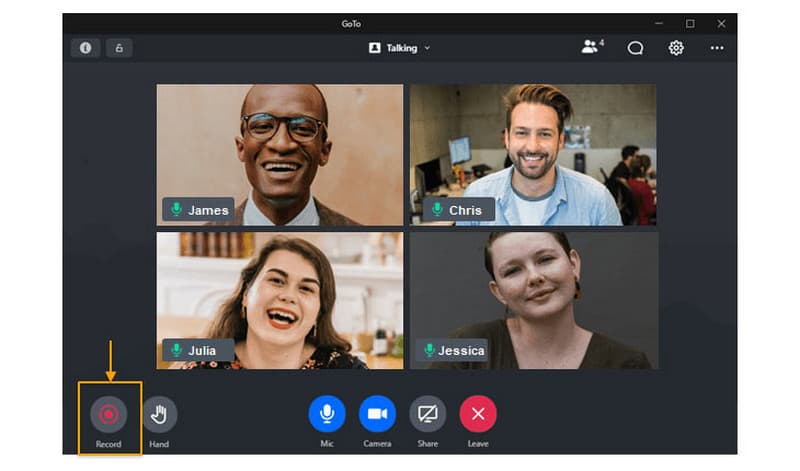
GoTo Webinar is designed specifically for hosting webinars and presentations. It is a helpful platform if you want to know how to capture a webinar before sharing it with a live audience. The platform allows presenters to rehearse and record sessions in advance. To pre-record a webinar, log in to your GoTo Webinar account and schedule a webinar session. Launch the rehearsal or practice mode and click the Record option before starting your presentation.
Part 3. Pro Tips to Record a Flawless Webinar
Recording a webinar becomes much easier when you prepare properly and use the right tools. A few simple practices can improve video clarity, audio quality, and overall presentation flow. Here are five helpful tips to help you create a smooth and professional webinar recording.
1. Choose the Right Recording Tool
A trustworthy screen-capture software can assist you in making sure that your screen, audio, and presentation are captured in a clear way with no lag or interruptions.
2. Test Your Setup First
It is always advisable to have a quick test first before beginning the actual session. This assists you in testing your microphone, camera, and screen sharing so that you are more aware of how to record a webinar in the right way.
3. Record Directly on Your Device
Saving your recording locally gives you better control over the file. Many presenters prefer learning how to record a webinar on their PC so they can easily access and edit the video afterward.
4. Use Quality Recording Software
The selection of the most suitable webinar recording software can significantly increase the quality of videos and audio. Proper tools assist in ensuring stable records when one has a long presentation.
5. Practice Before Recording
Rehearsing is not a waste of time. Knowing how to capture presentations made in a webinar effectively assists you in controlling your time and presenting your material more comfortably.
Part 4. Comparison of the 3 Webinar Recorders
| AVAide Screen Recorder | OBS Studio | Camtasia | |
|---|---|---|---|
| Video Quality | Do a long record in 4K | Full HD | High-quality recording |
| Audio Supports | System and mic audio | Multiple audio sources | System, mic, and voiceover |
| Noise Cancellation | Yes, and it is built-in | Plug-ins are available | Yes, and it is built-in |
Part 5. FAQs of Recording a Webinar
What is the best way to record a webinar?
The best way is to use a reliable screen recorder that captures both video and audio clearly. Tools like AVAide Screen Recorder, OBS Studio, or Camtasia work well. Pre-recording your webinar, testing your equipment, and recording in a quiet environment with high resolution will give the best results.
How much to charge for a 1-hour webinar?
A 1-hour webinar can be priced between $25 and $100 per participant for standard sessions. Corporate or specialized training webinars can charge more, up to $150 - $300 per attendee. Free webinars can still provide value by generating leads or promoting products.
What's the difference between a Zoom and a webinar?
A Zoom meeting lets everyone talk, share video, and interact, making it good for team discussions or classes. A Zoom webinar is for larger audiences where only hosts and panelists can speak or share video. Attendees mainly watch and ask questions through chat or Q&A, which usually uses a Zoom screen recorder. Webinars are best for presentations, lectures, or marketing events.
It does not have to be difficult to record a webinar when it is organized in advance and with the appropriate tools. A pre-recorded webinar allows you to decide when to present, correct errors, and have a perfect performance. Clear video and audio are easy to record with the help of trusted software such as AVAide Screen Recorder, OBS Studio, or Camtasia. Your webinars will become professional and simple to distribute among your audience with the help of preparation and the right tools.
ABOUT THE AUTHOR

Record screen, audio, webcam, gameplay, online meetings, as well as iPhone/Android screen on your computer.