DVDs are perfect if you want to keep your content and collect it. You can even preserve them for a very long time. However, considering the current era, there are the latest devices that don't support playing DVDs, including the iPad from Apple. With that in mind, maybe you are thinking that there is no chance to play DVDs on your iPad. The good part here is that playing DVD is still possible. If you want to learn the process, then you must check all the information in this tutorial. Read here and learn the effective method to play DVDs on an iPad perfectly.
Part 1. Can I Connect an External DVD Player to an iPad to Play DVD
Can I convert a DVD to play on my iPad? Well, this is the common question that video enthusiasts ask when dealing with DVDs on an iPad. Unfortunately, you cannot play DVDs on your iPad. It is because you cannot directly connect an external DVD player to an iPad. Apple's iPads are not created with the hardware or software support needed to read discs. They even lack the required drivers to recognize/read external DVD drives. Even if you use adapters or cables, the iPad's operating system does not support disc playback, making it impossible to play DVDs traditionally.
With that, the best solution you can do is to convert your DVD into a digital format that your iPad supports. With the help of DVD ripping software, you can effectively turn your DVD into an ideal format that you can play smoothly. This method allows you to enjoy your DVD collection on your iPad without requiring an external drive, which also offers you the convenience of a portable digital library. Thus, for an effective DVD playback, converting your DVD is a must.
Part 2. How to Rip DVD to iPad-Compatible Video Formats
As mentioned above, the best solution to play your DVD is to rip it and transform it into an iPad-supported format. With that, you can ensure a simple and smooth video playback. So, if you are looking for the best DVD ripping software that can help/guide you to achieve the result you need, we suggest using AVAide DVD Ripper. This program is ideal since it ensures that you can easily and instantly transcode a DVD into a digital format that the iPad supports, such as MP4, MOV, M4V, HEVC, and more. The best part here is that you can rip DVDs quickly since it supports GPU acceleration and a fast ripping process for up to 30× faster compared with other rippers. In addition, the program ensures that the quality will not be affected, so you can still get the original quality. You can even choose your preferred quality for up to 4K, resulting in better and satisfying video playback.
To learn how to play DVD on an iPad by ripping, you can use the detailed instructions we have provided below.
Step 1The first thing to do is to click the Free Download button below to access AVAide DVD Rippers on your Windows and Mac. Then, launch it to start the process.

FREE DOWNLOAD For Windows 7 or later
 Secure Download
FREE DOWNLOAD For Mac OS X 10.13 or later
Secure DownloadNote: Before going to the next procedure, ensure that your DVD is already inserted into your computer.
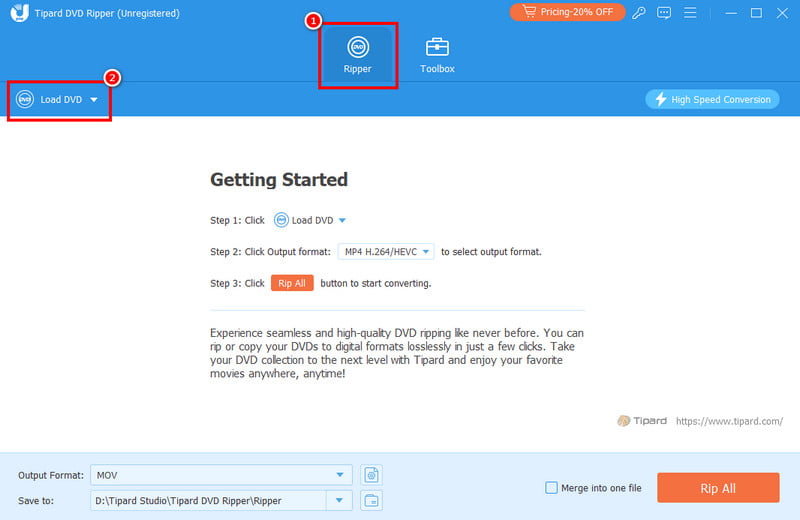
Step 2Then, from the main interface, you can hit the Ripper option above. After that, tap the Load DVD function to start adding the DVD you want to convert.
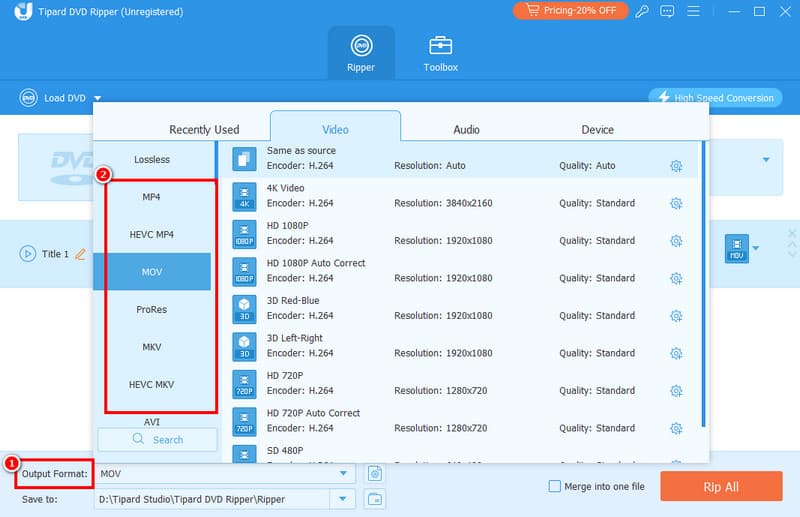
Step 3Now, you can choose your preferred format from the Output Formats section. Ensure that the format that your iPad supports, such as MOV, MP4, M4V, and HEVC.
Step 4You can also edit your video before the saving process. You can click the Edit feature and start editing your video by cropping, rotating, adding filters and effects, and more.
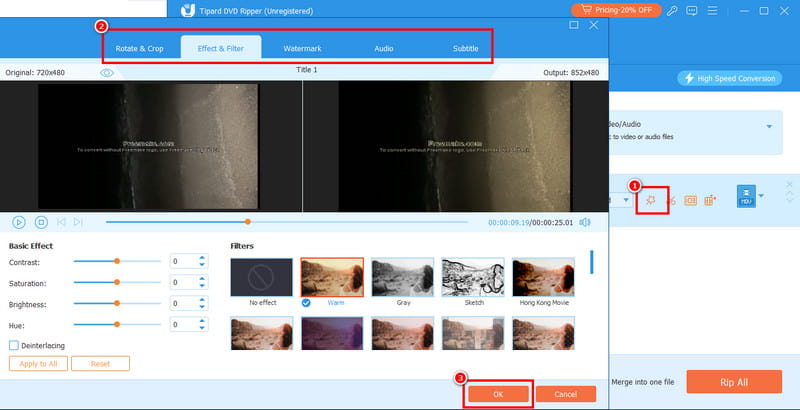
Once you finish editing your file, you can tap the OK button below.
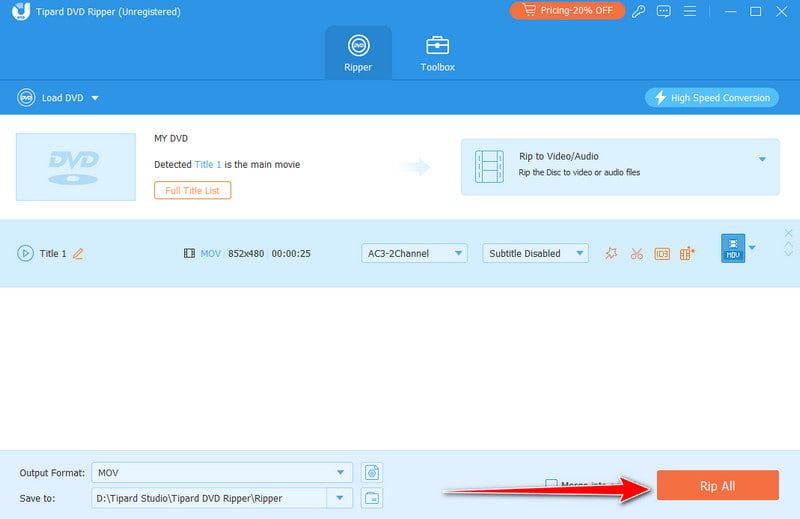
Step 5For the last process, you can now click the Rip All button from the bottom interface. After that, the program will automatically save the final file on your computer.
Thanks to this method, you can successfully rip your DVD and turn it into a digital format to play on your iPad. The best part here is that it has a comprehensive layout, allowing you to navigate all the functions easily. What we like here is that you can do a lot when using the software. You can copy DVDs to Mac and Windows, edit your file, change the metadata, and more, making it the best ripper and editor.
Part 3. Transfer DVD Content to iPad Pro/Air/mini
After ripping your DVDs, maybe you wonder how to transfer them to your iPad Pro, Air, and mini. Well, there are various methods you can use. To explore those methods, you can check all the details in this section.
Method 1. Transfer Ripped DVD to iPad Using Finder
Step 1First, you must connect your Mac to your iPad using a USB-C or Lightning cable.
Step 2After that, launch the Finder app and select the iPad under the Location section. Once done, tap the Movies or Files tab.
Step 3Next, drag and drop the ripped DVD into the Movie section. Then, hit the Sync or Apply button. You can now play the video on your iPad.
Method 2. Transfer Ripped DVD to iPad Using iTunes
Step 1Launch iTunes and tick the File menu to tap the Add to Library section. After that, choose and select the ripped file you want to add to iTunes.
Step 2After that, import it to iTunes to see it in the Films/Movies section.
Step 3Once done, you can start connecting your iPad to your computer using a cable. Once your computer reads the iPad, you can start playing the DVD without the need for a DVD player.
With these methods, you can ensure that you can smoothly and effectively transform your ripped DVD on your iPad for a satisfying video playback. Thus, rely on these instructions and enjoy your favorite videos.
Thanks to this tutorial, you have learned how to play DVDs on an iPad by converting them into a digital format. With that, you can get an effective video playback without relying on any DVD players. Thus, for a better conversion and ripping process, always access AVAide DVD Ripper. With this program, you can turn your DVD into any format you prefer, resulting in a satisfying viewing experience.
Best tool for ripping and converting DVD Disc/Folder/ISO image file into over various formats.