DVDs are tied to a specific region, which is why some DVD discs cannot be played in another country. These restrictions are known as DVD region codes. If you have a DVD that does not work on your player, it means that region restriction kicks in, which is why you need to check the region code. That same applies to computer DVD drives, which may let you change their region a limited number of times. In this guide, you will learn more about the region codes work, how to check, and what you can do when the disc and player use different regions.
- Part 1. What Are DVD Region Codes
- Part 2. DVD Region Codes - Complete List by Country
- Part 3. How to Check Your DVD Player's Current Region
- Part 4. How to Change DVD Region Code on a Computer
- Part 5. How to Make Your DVD Player Region-Free
- Part 6. DVD Region Codes on Game Consoles
- Bonus: How to Play Your DVD on Any Device Without Region Code
Part 1. What Are DVD Region Codes
Definition
DVD region codes are restrictions placed on DVDs to control where they can be played. This DVD region encoding system divides DVDs into different regions based on their intended markets, and each DVD has a region code; the player must support that region for the disc to play normally.
How It Works
When you insert a DVD into the player, it checks the region of the disc against its own region setting. For example, a DVD region code 1 disc is designed to play on a Region 1 player. If the disc and player use a different region, then the DVD may not play.
Why Region Codes Exist
Regional codes are designed to assist movie studios in regulating the distribution of DVDs in the market. They can be employed in order to control the launch times, pricing, and licensing terms between countries. For instance, the US Region 1 DVD is for the United States and other Region 1 countries.
DVD Players vs. DVD Drives:
Standalone DVD players are connected to the TVs and are usually hard-coded to one region, so they may only play discs that match their assigned region. Unlike the Computer DVD drive, it offers flexibility on Windows and Mac. They allow you to change the region settings. However, the number of changes is limited, so you should check the current region before switching it.
Part 2. DVD Region Codes - Complete List by Country
DVDs are divided into six main regions with restrictions, with each covering specific countries and territories. The table below will give you an idea of what and where the restrictions are:
| DVD Region | Countries and Territories |
| DVD Region 1 | United States, Canada, U.S. territories |
| DVD Region 2 | Japan, Europe, Greenland, Egypt, the Middle East, South Africa, and French overseas territories |
| DVD Region 3 | Southeast Asia, South Korea, Hong Kong, Macau, and Taiwan |
| DVD Region 4 | Australia, New Zealand, Mexico, Central America, South America, and the Caribbean |
| DVD Region 5 | Russia, Eastern Europe, India, Africa, North Korea, Mongolia, and Central Asia |
| DVD Region 6 | China |
A DVD may also be labeled Region 0 or All Region, which means that these discs are designed to play on DVD players regardless of their assigned region. However, actual compatibility can still depend on the player and disc format.
Part 3. How to Check Your DVD Player's Current Region
Before playing a DVD from another country or changing the region setting, check which region your player currently supports. The method depends on whether you are using a standalone DVD player or a computer DVD drive.
Check a Standalone DVD Player
For a standalone wireless DVD player, check the player manual, product label, or manufacturer specifications for its region information. You may also find the setting in the player's system information menu. For example, a player that supports DVD region code 2 is designed for Region 2 discs. If the information is not clearly shown, check the manufacturer's documentation for your specific model.
Check a Computer DVD Drive
The region of a DVD drive can be discovered in Windows via Device Manager. Open Device Manager, then expand the DVD/CD-ROM drives, right-click on your DVD drive, and select Properties. Check the DVD Region tab to see the region you're currently in and the number of changes allowed.
A disc that has DVD region code 0 is typically referred to as All Region and will not have a DVD region code limitation. But it does not always go by the DVD player and disc format. On Mac, the region information available is dependent on the DVD drive and the MacOS version. The changes are limited, so make sure you look at the drive or system information before changing the region.
Part 4. How to Change DVD Region Code on a Computer
If your DVD drive and disc use different regions, you may be able to change the drive region setting. Windows allows you to change the DVD region through the drive properties, but the number of changes is limited.
On Windows:
Step 1Open the Device Manager on your computer after you put the DVD into your computer. Then, expand the DVD/CD-ROM drives.
Step 2Tick the DVD drive and select Properties, then go to the DVD Region tab.
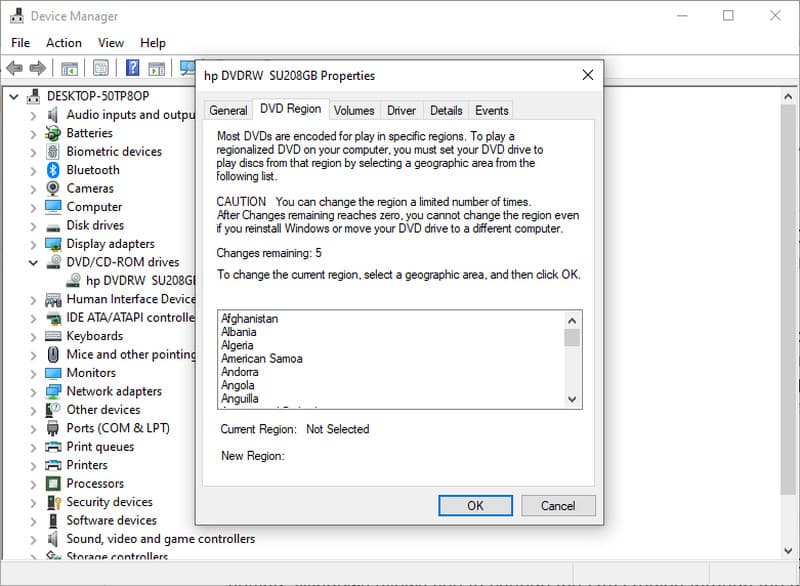
Step 3Select the country or region that matches the DVD and click OK to save the changes. You can only do this with a limited number of attempts. Once all of the attempts reach 0, even if you reinstall the driver or move it, you will not be able to change it again.
Check the number of changes remaining before confirming the new region. Once the allowed changes are used, the drive may stay locked to the last selected region. This is why it is better to change the setting only when necessary.
On Mac:
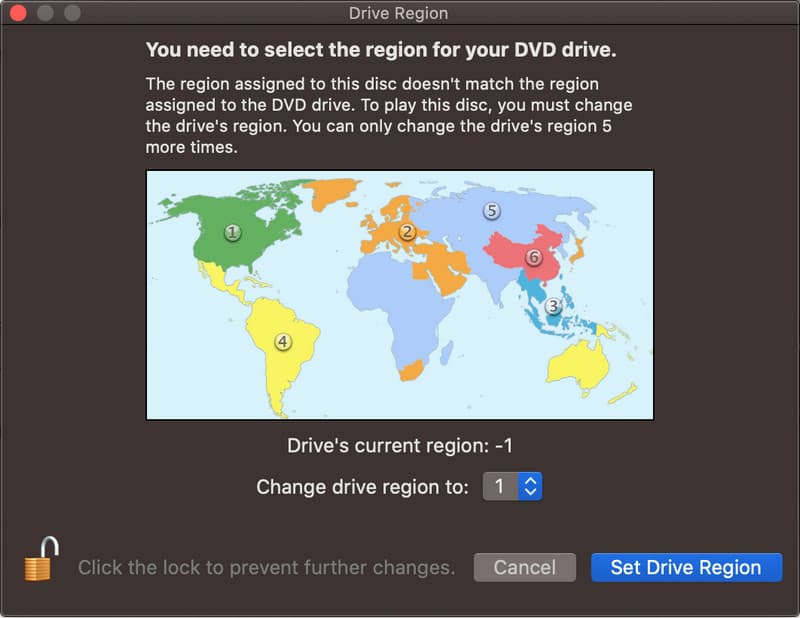
Depending on the macOS version and the type of drive, Mac computers might interpret DVD region codes differently. If you play a DVD on a laptop from a different region, the system will prompt you to choose a region. Select the music region that corresponds to the disc, and confirm the change.
Part 5. How to Make Your DVD Player Region-Free
A region code-free DVD player can play DVDs from different regions without changing the player settings. Some DVD players can be unlocked through a remote-control code or a setting provided for that specific model. Before trying to unlock your player, check the instructions for your exact model. Another simple option is to buy a player that already supports multiple regions. What DVD region is the USA? The USA uses Region 1. Therefore, DVDs made for the United States are usually labeled Region 1.
Part 6. DVD Region Codes on Game Consoles
Game consoles can also have region restrictions when used as DVD players. A console may only play DVDs that match the region it was designed for, so a disc from another country may not work. If you are asking what the region code for a DVD is, you can usually find it on the DVD case or disc label. The code tells you which region the disc is intended for. For example, a DVD from the USA is usually marked as Region 1.
Before using a game console to play a DVD, check the console model and its supported DVD regions. This helps you avoid buying a disc that the console cannot play.
Bonus: How to Play Your DVD on Any Device Without Region Code
If your DVD has a region restriction, the best way to make it compatible without the restriction then converting it into a digital video is the convenient solution. Instead of relying on the DVD player to support the disc region, you can use the AVAide DVD Ripper to convert the DVD into an MP4, MOV, or any digital format that works on any device. Learn how this software works so you can work with it.
Step 1Download and install the software on your computer by clicking the appropriate button that we have prepared here. Then, follow the setup instructions before you can launch it.

FREE DOWNLOAD For Windows 7 or later
 Secure Download
FREE DOWNLOAD For Mac OS X 10.13 or later
Secure DownloadStep 2Insert the DVD into the drive of your computer, and click the Load DVD to import the DVD content here.
Step 3Go to the Rip All to, and choose the output format that you want, such as MP4 or MOV. Select the output settings from the list that appears.
Step 4Set the location where you want the converted DVD to be saved, and click Rip All.
Now you know what the region code for DVD is, which gives you an idea of why some are unplayable on other DVD players, even if you have one on your end. Remember that these restrictions are necessary because they help the movie studios control how DVDs are distributed across different regions and markets. If you want to avoid the constraints of restrictions applied to DVDs, then use a more convenient option by converting them into a digital format, and then play them on supported devices easily.
ABOUT THE AUTHOR

Powerful DVD ripper to convert DVD to MP4, MOV, MKV, and other digital formats with high quality.