When it comes to collecting videos, saving them as a DVD is the best option. However, since modern devices, such as laptops and computers, don't support DVDs anymore, it would be challenging to get an effective and smooth video playback. With that, if you want to play your videos on various platforms without any compatibility issues, the best thing to do is to convert them to some digital file, like MOV. If you are wondering how to transcode your DVD into an MOV doormat, we are here to guide you. Start reading this tutorial as we offer the best methods to convert DVD to MOV successfully.
Part 1. Best DVD to MOV Converter for Windows and Mac
Want to convert a DVD to a MOV file with the best converter? In that case, we would like to introduce AVAide DVD Ripper. This program is ideal if you want a smooth and fast ripping process. Additionally, navigating this software is simple, thanks to its simple user interface. It also has a stable and effective process, allowing you to get your desired result.
What's more, you can ensure getting the best quality, leading to a satisfying video playback. You can even set and adjust various parameters, such as frame rate, resolution, channel, sample rate, bitrate, and more. It can also offer both basic and advanced video editing features that can help you improve your content. You can crop your video, trim, adjust the playback speed, add filters and effects, attach a watermark, and much more. With that, we can tell that AVAide DVD Ripper is one of the best DVD to MOV converters you can access.
To start the ripping/conversion process, use the instructions below.
Step 1Download AVAide DVD Ripper by clicking the Free Download buttons below to access it on your Mac and Windows. Then, ensure that your DVD is already inserted into your computer.

FREE DOWNLOAD For Windows 7 or later
 Secure Download
FREE DOWNLOAD For Mac OS X 10.13 or later
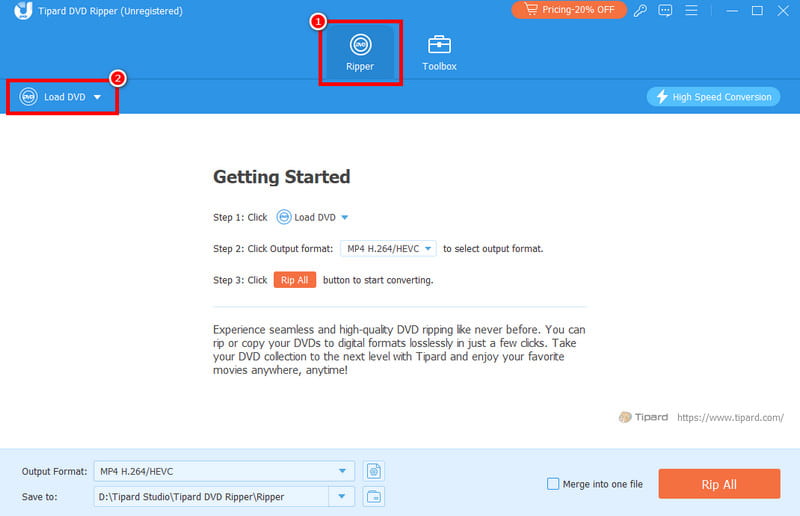
Secure DownloadStep 2After launching the software, proceed to the Ripper section. Once done, hit the Load DVD option to start adding the DVD file you want to convert to MOV format.
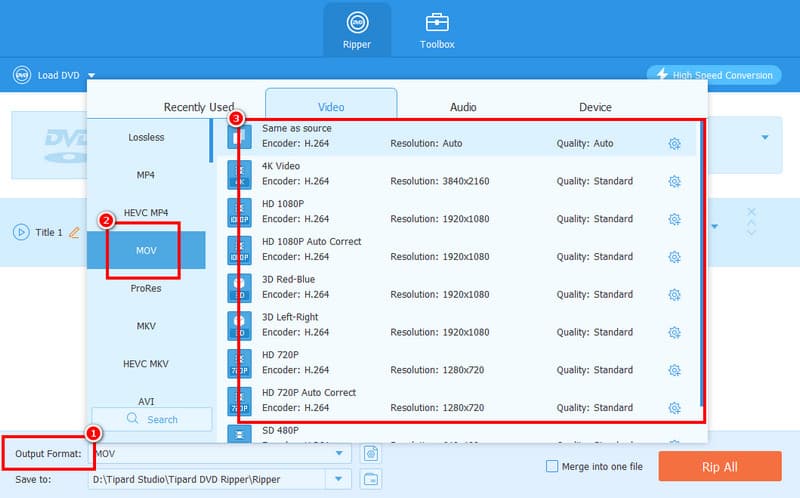
Step 3Go to the Output Format section and search for the MOV format. Click it and start choosing your preferred video quality.
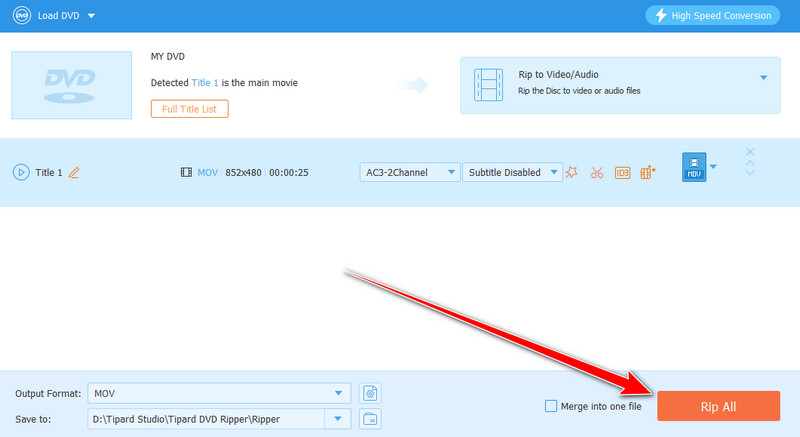
Step 4For the final process, click the Rip All function below the user interface. Once done, you can start watching your file on your media player.
Part 2. How to Convert DVD to MOV Using Handbrake
Do you want to convert DVDs to MOV on Mac and Windows? Then, we recommend using Handbrake. Thanks to this program, you can effectively get an MOOV file from your DVD smoothly and instantly. The best part here is that the main layout of the converter is comprehensive, making it ideal for all types of users. You can also choose your preferred presets for an effective and satisfying video playback. What we like here is that besides DVD, you can also rip Blu-ray on Handbrake, making it the best program you can rely on when dealing with both DVDs and Blu-rays. The only drawback here is that the software's UI is looking outdated, making it not appealing enough to some users.
If you want to start converting DVD into the MOV format, check the instructions below.
Step 1The first thing to do is to download the Handbrake software on your computer. After that, install and run it to start the process. Note that your DVD must already be inserted into your device.
Step 2After you open the program, click the File button to start adding the DVD file. You can also open your file folder and drag the DVD file to the interface.
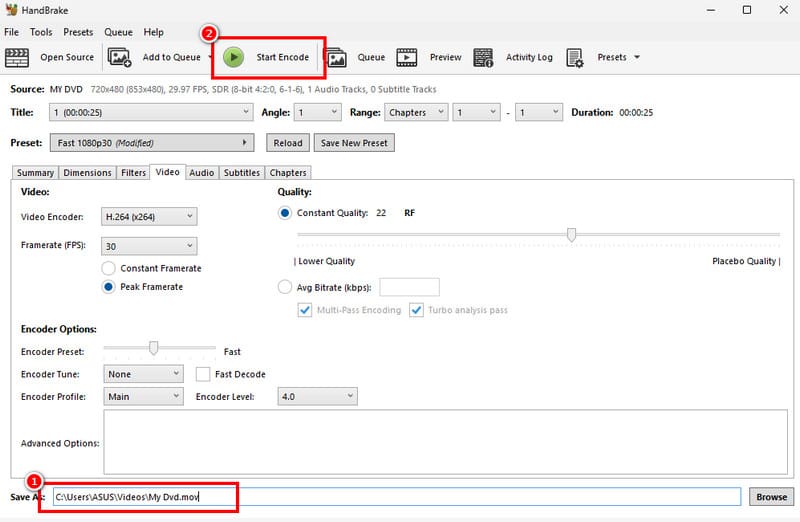
Step 3Go to the bottom interface and change the extension name of the file to .mov. You can also access the editing tools from the software to enhance your video.
Step 4You can also access the basic editing functions to improve your video. Once done, click the Start Encode function above to start the DVD to MOV conversion procedure. After the conversion process, you can start watching your video.
Part 3. Convert DVD to MOV Using VLC
Another open-source and free DVD to MOV converter you can access is VLC Media Player. Well, it is not just your everyday media player. With its converter feature, you can ensure that you can transform your DVD file into an MOV format. It can also keep the original quality of the content, making it ideal for better video playback. Well, ripping a DVD on VLC is an easy task since its UI is simple to navigate. Plus, you can also use some editing tools to improve the video, such as cropper, filters, playback speed, and more. With that, if you want to check the capabilities of this program, use the steps below.
Step 1Download and launch the VLC Media Player on your computer. Then, before proceeding to the process, ensure that your DVD is already inserted into your device.
Step 2After that, navigate to the Media section above and click the Open Disc function. When a mini interface shows up, click Browse to add the DVD file. Once done, tap the Convert / Save button below.
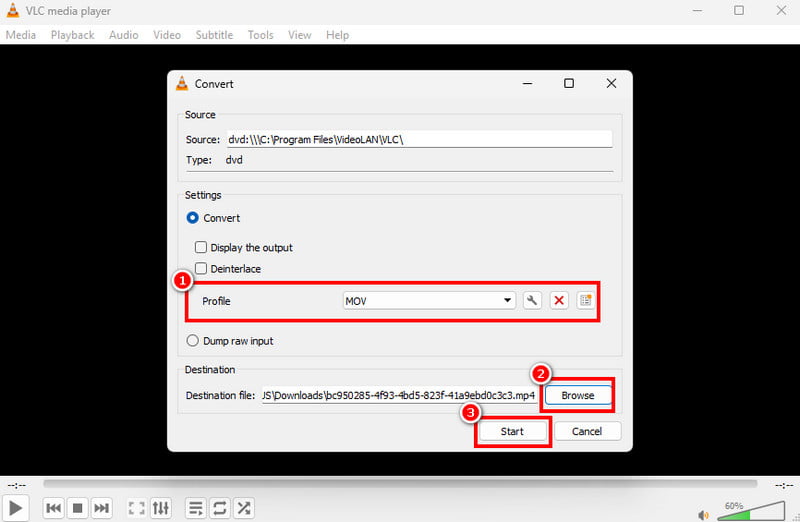
Step 3Proceed to the Profile section and select the MOV format. You can now tap the Browse button below to assign a destination file. For the final process, tap the Start button.
Part 4. Comparison of the Best DVD to MOV Converters
To explore more about the best DVD to MOV converters, you can check the simple comparison table below.
| AVAide DVD Ripper | Handbrake | VLC | |
| Ripping/Conversion Process | Fast | Standard | Slow |
| User Interface | Simple and Appealing | Simple but outdated-looking | Simple but outdated-looking |
| Best for | Skilled and Non-professionals | Non-professionals | Non-professionals |
| Supported Output Format | MOV, MP4, MKV, WMV, VOB, AVI, FLV, and more. | MP4, MKV, WebM, and MOV. | MP4, MOV, TS, etc. |
| Editing Features | Basic and Advanced | Basic | Basic |
| Compatibility | Windows and Mac | Windows and Mac | Windows and Mac |
Thanks to this tutorial, you have learned how to turn a DVD into the MOV format successfully. Thus, use this post as your go-to reference for an effective conversion process. In addition, if you want a better DVD to MOV converter that can give you all the features you need, look no further than AVAide DVD Ripper. With this program, there is no doubt that you can achieve the result you need after the conversion procedure.
ABOUT THE AUTHOR

Best tool for ripping and converting DVD Disc/Folder/ISO image file into over various formats.