Want to play a DVD on a Mac? Well, if you are using an old MacBook, then you can just use its built-in DVD drive to play any DVD content on your device instantly. However, if you have a new MacBook, then you can tell that you must rely on an external drive for effective DVD playback. Now, if you want to learn how to play your DVDs on a Mac without any issues, you must read this post. We are here to give you various methods you can use to watch videos from your DVDs. Plus, we will also give you a detailed tutorial on how to convert your DVD into a Mac-supported digital format for better compatibility. Without further ado, read here and learn more about the discussion.
Part 1. Play DVD on Mac with Built-In DVD Drive
You can play DVDs on a Mac if your device has a built-in drive. The best part here is that you don't have to download any third-party software. All you need is to insert your DVD into the optical drive. If set up correctly, the DVD Player application will start the playback automatically upon inserting a disc. In the event it does not launch, you can manually start it by using the Spotlight search. Activate Spotlight either by tapping its icon in the menu bar or pressing Command and Spacebar simultaneously. What we like here is that the process of playing a DVD is an easy task. You can also insert any DVD types and sizes, making it ideal for all users.
You can check the detailed method below and learn how to play a DVD on a Mac.
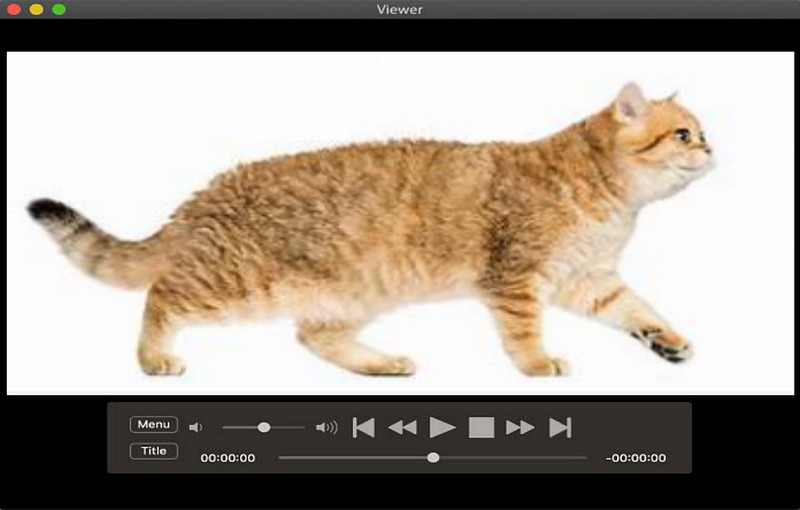
Step 1The first step is to insert the DVD into your Mac's optical drive. After that, your Mac will start reading the disc.
Note: Ensure that your disc has no scratches or any dents for a smooth playback.
Step 2Then, from your folder, you can start browsing the DVD and play the content automatically.
Step 3Now, you can enjoy watching your video. You can also access various playback controls, such as stop, play, pause, next, previous, forward, and more.
Step 4If you want to stop watching a DVD on your Mac, you can just press/tap the Command + Q keys. You can also press the Eject button/key to eject a DVD from your Mac instantly.
Note: You must take note that not all Macs contain a built-in optical drive. Almost all modern and latest Macs don't support the optical drive anymore. It is because the Apple company started phasing out pre-built optical drives over a decade ago to create a lighter, thinner, and more energy-efficient device.
Part 2. Play DVD on Mac Using an External Drive
As mentioned above, not all Macs contain a pre-built optical drive for playing DVDs. With that, if you have the latest Mac, then the best way you can play your DVDs is to use an external drive. With the assistance of the external drive, you can insert your DVD and connect the drive to your Mac for effective playback. So, if you want the best media player, we recommend using AVAide Blu-ray Player. This player is perfect if you want to watch any DVD content since it can give you all the best features you can access. You can even play your DVD with the best quality, access basic editing features, and enjoy its user-friendly interface. The best part here is that you can use numerous playback controls, making the video playback engaging. If you want to play your content, use the steps below using this DVD player for Mac.
Step 1Download AVAide Blu-ray Player on your Mac. After that, launch it to begin the process. Ensure that your external drive is already connected to your Mac.

FREE DOWNLOAD For Windows 7 or later
 Secure Download
FREE DOWNLOAD For Mac OS X 10.13 or later
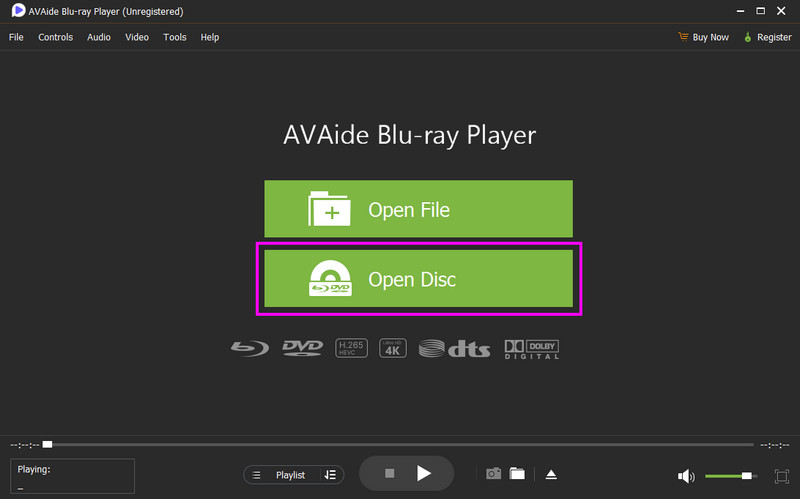
Secure DownloadStep 2From the primary interface, hit the Open Disc button to load and insert the DVD you want to play.
Step 3Now, you can enjoy watching your DVD smoothly. You can also use all the playback control functions if you want to.
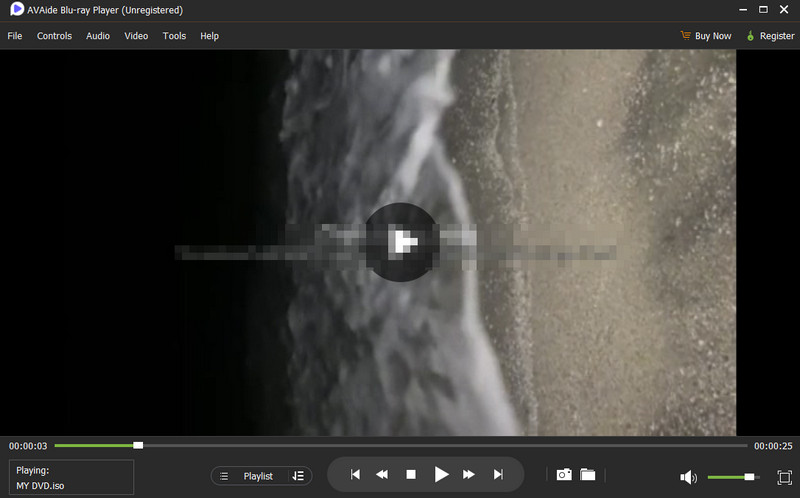
With this method, you can ensure that you can play your DVD on a Mac smoothly. What we like here is that you can also take a screenshot during video playback, thanks to its Snapshot feature. You can also deal with Blu-rays and other video formats, making it an ideal media player. Therefore, it would be best to access this program and achieve an ideal viewing experience.
Part 3. Convert DVD to Mac-Supported Video Formats to Play on Mac
Are you looking for a better way to play your DVD on your Mac? In that case, the best thing to do is to convert the DVD to a Mac-supported digital format. For an effective conversion process, you must use an excellent DVD converter, like AVAide DVD Ripper.
This software is ideal since it lets you transform your DVD into various formats that your Mac supports. It includes MP4, MOV, M4V, AVI, 3GP, and more. What we like about this program is its fast ripping process. It also ensures that you can get the best video quality, resulting in better video playback. In addition to that, you can also navigate all the features easily since its main user interface is simple to follow. With that, if you want to start converting your DVD to a digital format, see the instructions below.
Step 1First, download AVAide DVD Ripper on your Mac by hitting the Free Download button below.
FREE DOWNLOAD For Windows 7 or later
Secure DownloadFREE DOWNLOAD For Mac OS X 10.13 or later
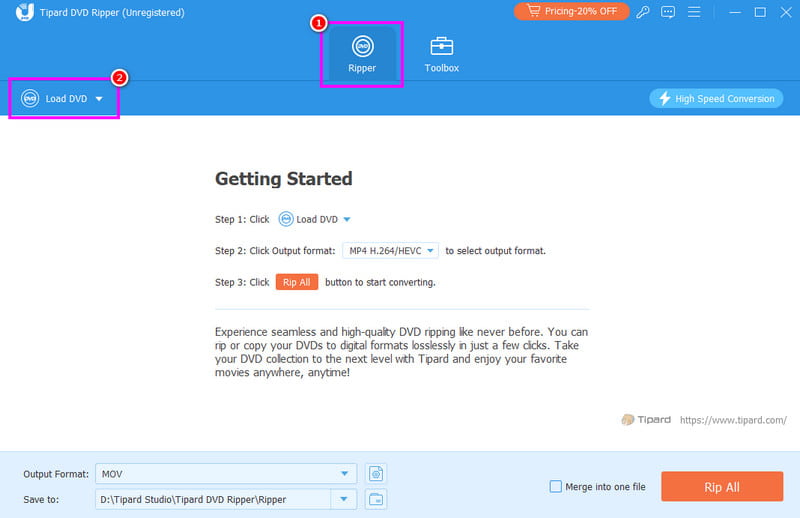
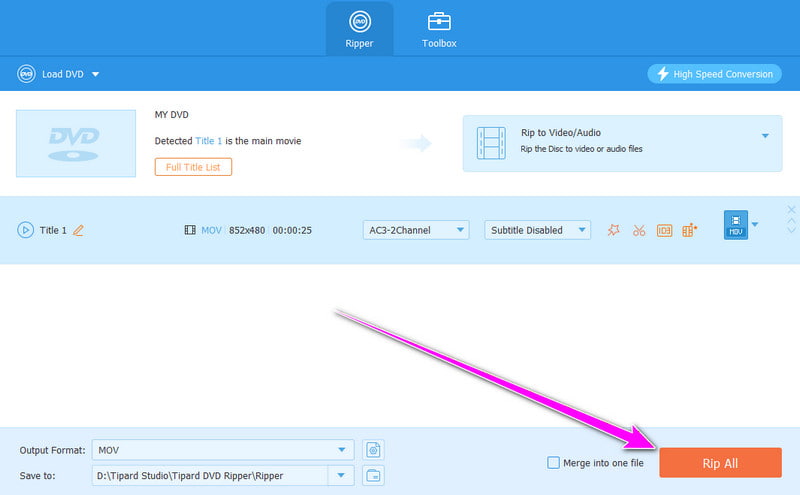
Secure DownloadStep 2After that, proceed to the Ripper section and hit Load DVD to insert the DVD you want to rip and convert.
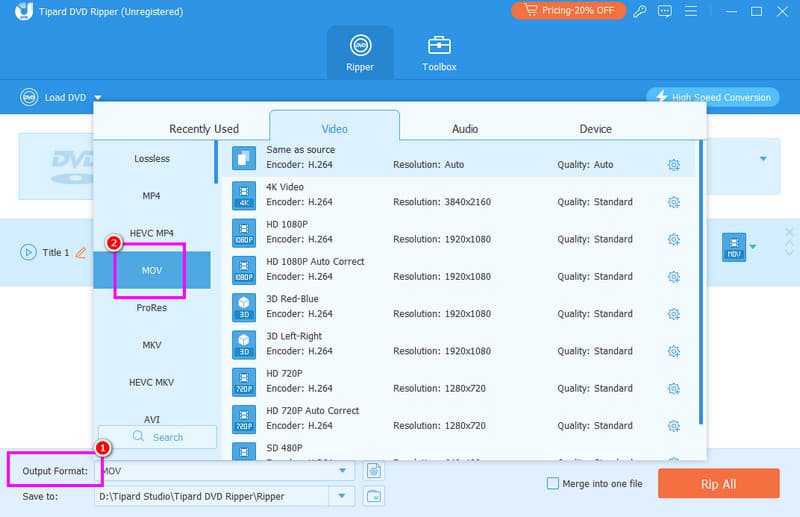
Step 3Then, proceed to the Output Format and select your preferred digital format that your Mac supports, such as MOV, MP4, M4V, and more.
Step 4Finally, tap the Rip All button below to start transcoding your DVD into a digital format. Once done, you can start watching your videos on your device.
Now you know how to play DVDs on Mac with and without an external drive. Thus, if you want to play your DVD using a media player, you can rely on AVAide Blu-ray Player. On the other hand, if you want to digitize your DVD into a Mac-supported format, it is best to use AVAide DVD Ripper. These programs ensure that you can play your DVD, making them remarkable programs for all users.
Full-featured multimedia player to play Blu-rays, DVDs, 4K UHDs, and other video/audio files.