Slik tar du opp skjermbilder på en Lenovo bærbar PC avhenger av verktøyet du velger, fra innebygde Windows-funksjoner til avansert programvare. Denne veiledningen viser enkle, tydelige og effektive metoder for å ta opp skjermen på Lenovo-enheter, enten det er for veiledninger, møter, spilling eller hverdagsopptak.
Metode 1. Bruk av Xbox Game Bar
Den innebygde opptaksfunksjonen til Xbox Game Bar er fra Microsoft, integreres sømløst med Windows og er den mest praktiske opptaksløsningen for Lenovo-brukere. Den ble laget for å spille spill, samtidig som den fungerer som en standard applikasjonsopptaker, veiledningsskaper og nettleseropptaker. Den største fordelen er at den ikke krever noe oppsett; den er klar til bruk med en gang.
Men det finnes definitivt ulemper. Den tar ikke opp skrivebordet eller Filutforskeren, og tilpasning er begrenset til profesjonelle verktøy. Det er imidlertid fortsatt et av de mest praktiske innebygde alternativene for uformelle økter der kvalitet og innsats ikke er like viktig.
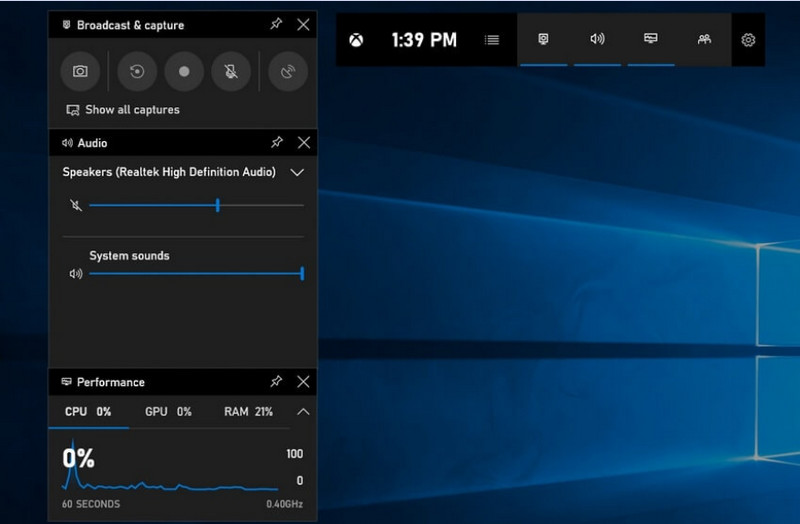
Trinn 1For å åpne Xbox Game Bar, trykk på Windows + G på tastaturet ditt.
Steg 2Finn Fangst panelet eller klikk på det fra Widgeter Meny.
Trinn 3Klikk på Opptak (●) knappen eller trykk Windows + Alt + R.
Trinn 4Hvis du ønsker å ta opp tale, aktiver Mikrofon.
Trinn 5trykk Windows + Alt + R igjen eller klikk Stopp (■) å fullføre.
Trinn 6Du finner opptaket ditt i Videoer > Fanger.
Metode 2. Bruk av Lenovo Vantage
Lenovo Vantage er ikke en skjermopptaker; det er en systemadministrasjons- og optimaliseringspakke. Den spiller mer en indirekte rolle i opptak, med svært få funksjoner som hjelper opptaksprosessen på en eller annen måte, avhengig av opptaksenhetens modell, eller til og med med noen enheter som tilbyr snarveier eller kamera-/skjermverktøy som kan hjelpe med opptaksprosessen.
Dette er en stor variasjon i ytelse og tilgjengelighet. Grunnleggende opptaksfunksjoner kan støttes på noen Lenovo-enheter, men andre har kanskje ikke disse i det hele tatt. Det er begrenset og noe inkonsekvent i hva det kan gjøre for fullskjermopptakere, men det kan være verdifullt for brukere som ønsker å forbli innenfor Lenovo-økosystemet eller spille inn podkast innhold med grunnleggende verktøy.
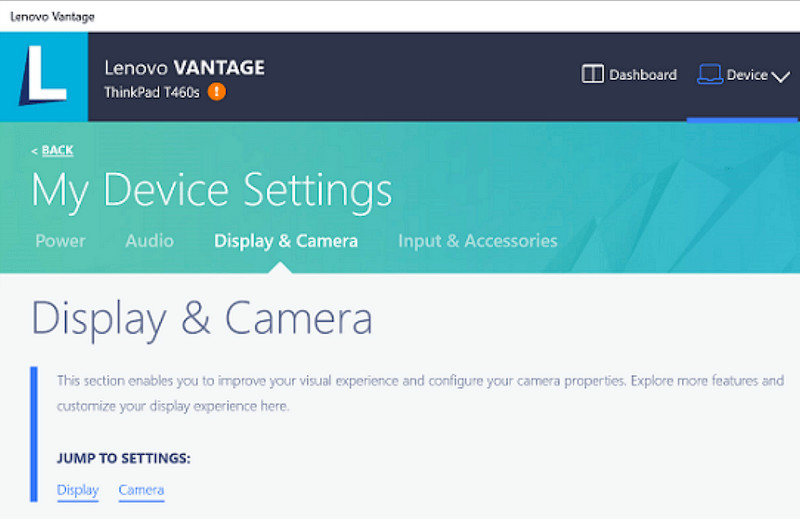
Trinn 1Gå til Start menyen og klikk på Lenovo Vantage.
Steg 2Trykk på Mine enhetsinnstillinger > Skjerm og kamera.
Trinn 3Se etter opptak eller andre tilgjengelige funksjoner.
Trinn 4Gjør alle nødvendige alternativer eller snarveier tilgjengelige.
Trinn 5Spill inn musikken ved hjelp av den medfølgende funksjonen (hvis mulig).
Trinn 6Finn opptak du har lagret i Videoer-mappen din.
Metode 3. Bruk av Legion Zone / Lenovo Nerve Center
Lenovo Nerve Center (eller Legion Nerve Center – nyere verktøy fra Legion har erstattet Nerve Sense) er optimalisert for Lenovo-enheter, spesielt bærbare Lenovo Legion-maskiner, rettet mot spillere. Det er også tett integrert med spillytelsesverktøy, slik at brukere kan ta skjermbilder av spillene sine samtidig som de overvåker og optimaliserer systemressurser.
Det er imidlertid en ganske grunnleggende opptaker. Den handler mer om bekvemmelighet enn tilpasning, og tilbyr bare grunnleggende opptaksalternativer med begrenset kontroll over oppløsning, bitrate og avanserte innstillinger. Den er dessuten bare tilgjengelig på noen nyere systemer, og andre har erstattet eller tatt den bort fra systemene sine, så den er ikke like pålitelig som den en gang var.
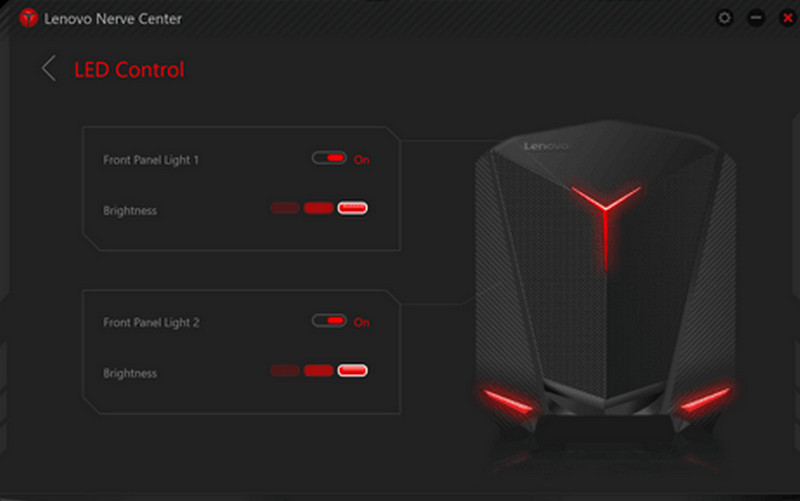
Trinn 1Få tilgang til Lenovo Nervesenter eller Legionssone fra enheten.
Steg 2Naviger til opptaks- og/eller spillverktøyene.
Trinn 3Hvis det er et valg, kan du endre opptaksinnstillingene, for eksempel oppløsning eller lydkvalitet.
Trinn 4Start spillet eller applikasjonen.
Trinn 5Spill inn med standardsnarveien eller knappen.
Trinn 6Stopp opptaket og se i din Videoer mappen for å se om filen er tatt opp.
Metode 4. Bruk av AVAide skjermopptaker
AVAide skjermopptaker er en mer sofistikert og allsidig skjermopptaker for Lenovo enn den innebygde skjermopptakeren. Den er bygget for de som ønsker videokvalitet, jevnere drift og bedre opptakskontroll. Det er det perfekte verktøyet for å lage veiledninger, spille inn møter eller spille inn spilling, uten komplisert oppsett, alt på et profesjonelt nivå.
Selv om den kan ta opp systemlyd, mikrofoninngang, webkamera og skjermområder, støtter den også full HD- og til og med 4K-opptak med minimal forsinkelse sammenlignet med vanlige opptakere. Dette gjør den til et alt-i-ett-skjermopptaksprogram for både jobb og fritid.
- Ta opp videoer i 1080p eller 4K med jevn og forsinkelsesfri ytelse.
- Ta opp i FULLskjerm- eller TILPASSET skjermmodus, avhengig av dine behov.
- Ta opp både intern lyd og stemme samtidig med klar utgang.
- Legg til Facecam-opptak for veiledninger, presentasjoner eller spillvideoer.
- Beskjær, komprimer og forbedre opptak etter opptak.

 Sikker nedlasting
Trinn 1Last ned og installer programvaren
Besøk den offisielle nettsiden til AVAide Screen Recorder. Last ned Windows Installer, installer det på din Lenovo-bærbare PC, og kjør det.
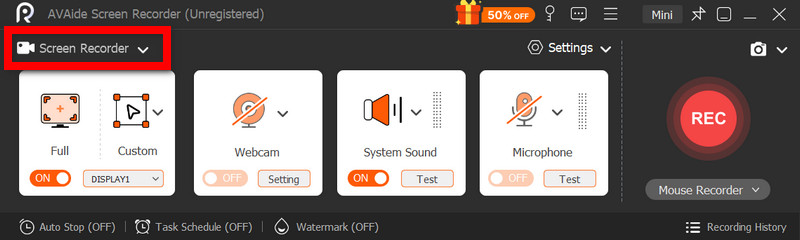
Steg 2Velg opptaksmodus
Åpne programvaren, og klikk deretter på Skjermopptaker. Ta opp hele skjermen med Full eller en del av skjermen med Tilpasset.
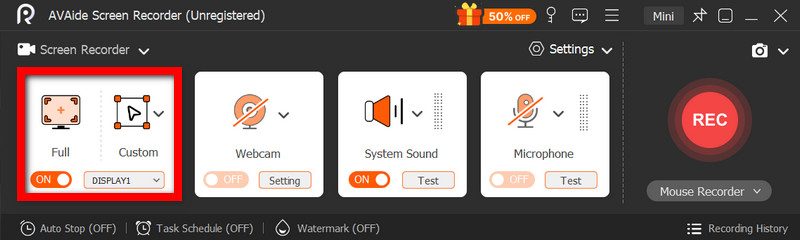
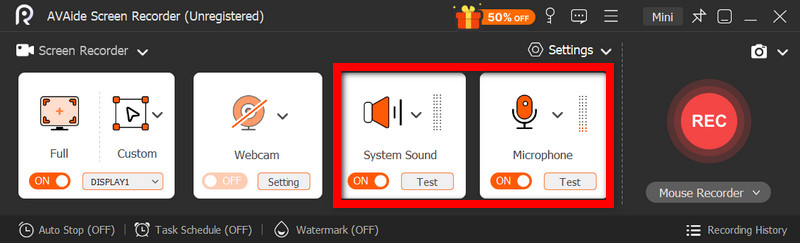
Trinn 3Konfigurer lydinnstillinger
For å ta opp lyder laget av datamaskinen, aktiver SystemlydFor å inkludere din egen stemme, aktiver MikrofonWebkameraet kan også slås på etter behov.
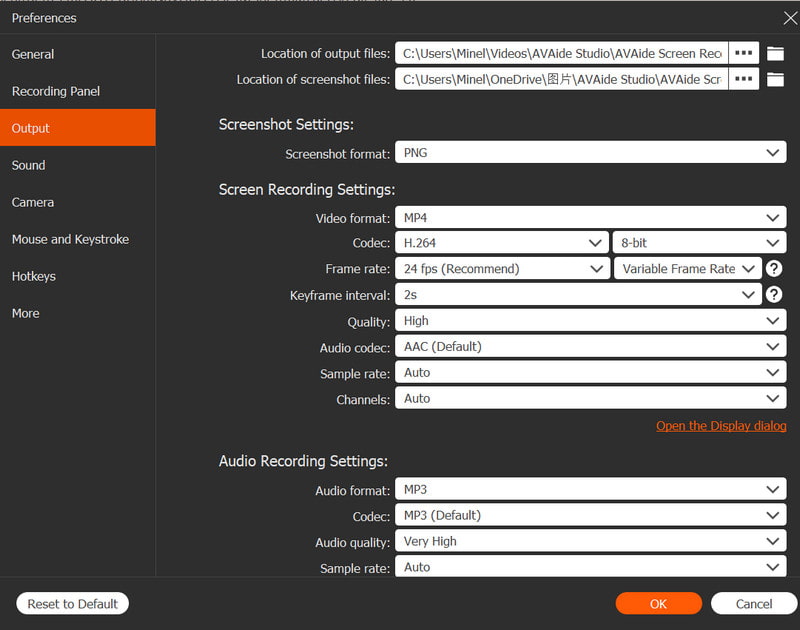
Trinn 4Juster opptaksinnstillingene
Bruke Innstillinger -knappen for å konfigurere videokvalitet, oppløsning, bildefrekvens og utdataformat for å oppnå optimal opptaksytelse.
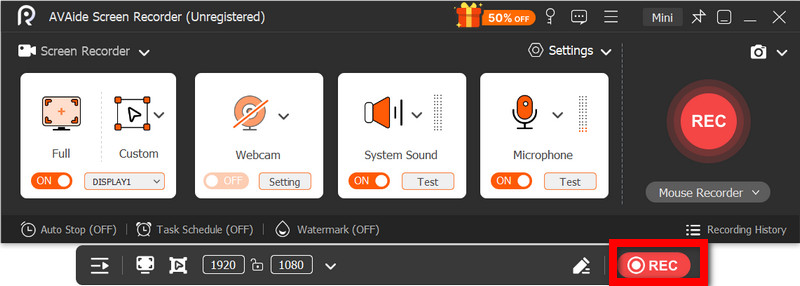
Trinn 5Start opptak
trykk REC -knappen for å starte opptaket. Google Meet-opptak, veiledninger, spilling eller annen aktivitet på skjermen kan tas opp uten problemer.
Trinn 6Stopp og lagre opptaket
Når du er ferdig, klikker du på Stoppe -knappen. Forhåndsvis opptaket, rediger det raskt om nødvendig, og lagre det på datamaskinen din umiddelbart.
Metode 5. Bruk av hurtiginnstillinger
På Lenovo Android-nettbrett finnes det et innebygd skjermopptaksalternativ i hurtiginnstillingene. Den beste måten å ta opp veiledninger, spilling eller appaktivitet på nettbrettet ditt er uten å laste ned tredjepartsapper. Enkel, rask og optimalisert for mobilbruk, og ideell for raske opptak på farten.
Den mangler de avanserte redigerings- og tilpasningsfunksjonene som finnes i andre skjermbildeverktøy, men den er tilstrekkelig for enkle skjermbilder med lyd.
Trinn 1Sveip opp fra bunnen av skjermen for å åpne Hurtiginnstillinger.
Steg 2Se etter Skjermopptak eller Skjermopptaker knappen. Hvis den ikke er der, klikk på Redigere knappen og legg den til i panelet ditt.
Trinn 3Klikk Skjermopptaker, og velg deretter ønskede innstillinger.
Trinn 4Trykk på Start for å starte opptaket. Det vil være en nedtelling før opptaket begynner.
Trinn 5Trykk på den flytende verktøylinjen eller varslingslinjen, og trykk deretter på Stoppe for å avslutte opptaket.
Feilsøking av vanlige problemer med skjermopptak på Lenovo
Du kan lese tips om hvordan du løser vanlige problemer når du tar opp skjermen på en Lenovo-enhet.
Selv om det vanligvis ikke er noen store komplikasjoner med skjermopptak på Lenovo-enheter, er det alltid en mulighet for problemer avhengig av skjermopptaksverktøyet eller enheten som brukes. Nedenfor finner du de vanligste problemene og hvordan du løser dem.
- Skjermopptaker fungerer ikke: Start enheten på nytt og prøv på nytt. For innebygde verktøy som Xbox Game Bar, sørg for at det er aktivert i Windows-innstillinger under Spill.
- Ingen lyd i opptaket: Sjekk om systemlyd eller mikrofon er slått på før opptak. Bekreft også at systemvolumet ikke er dempet.
- Laggy eller lavkvalitetsvideo: Reduser videokvaliteten eller lukk ned programmer i bakgrunnen. Oppgradering av grafikkdriverne kan også forbedre ytelsen.
- Kan ikke ta opp på skrivebordet eller i filutforskeren: Dette er en av de vanlige begrensningene til Xbox Game Bar. Hvis du vil ta opp skjermen og fange opp alt, kan du bruke et avansert program som AVAide Screen Recorder, en av de beste skjermopptakere for Mac og Windows.
- Opptaket lagres ikke: Sørg for at lagringsplassen din ikke er full, og sjekk standard lagringsplassering. Endre utdatamappen i innstillingene, og prøv det.
Lenovo skjermopptaksknapp Alternativene varierer avhengig av enheten din og verktøyet du bruker. Totalt sett gjør innebygde funksjoner og tredjepartsapper opptak enkelt, og gir deg fleksible måter å fange opp, lagre og administrere skjermaktivitet effektivt på Lenovo-enheter.
OM FORFATTEREN

Fang skjermaktiviteter med lyd, nettmøter, spillvideoer, musikk, webkamera osv.
Skjermopptak