Prøver å spill av musikk mens du spiller inn video iPhone-klipp for TikTok, reiseminner eller korte vlogger kan være frustrerende når lyden plutselig stopper. Mange brukere støter på dette problemet i viktige øyeblikk. Heldigvis finnes det flere enkle måter å fortsette musikken å spille mens man spiller inn på både iPhone- og Android-enheter.
- Del 1. iPhone - Slik spiller du musikk mens du spiller inn video
- Del 2. Android - Slik spiller du musikk mens du spiller inn video
- Del 3. Hvorfor setter iPhonen min musikk på pause når jeg starter opptaket?
- Del 4. Musikken stopper eller spiller ikke [Hurtige løsninger]
- Del 5. Hva med å bruke en profesjonell skjermopptaker
Del 1. iPhone - Slik spiller du musikk mens du spiller inn video
Metode 1: Den innebygde metoden
iOS 18 gir noen velkomne forbedringer i brukervennlighet for iPhone-brukere. Tidligere ville eldre versjoner av iOS sette musikkavspillingen på pause mens Kamera-appen spilte inn, men denne oppdateringen løser dette problemet og lar brukere lytte til musikk mens de spiller inn. Det er den enkleste og mest pålitelige måten fordi det ikke er behov for å installere ekstra apper eller bruke hacks; den fungerer direkte i iPhone-systemet.
Trinn 1Gå til Innstillinger-appen på iPhonen din.
Steg 2Trykk på Kamera nederst på skjermen.
Trinn 3 Plukke ut Spill inn lyd eller samme lydalternativ, og slå på Tillat lydavspilling alternativet under opptak.
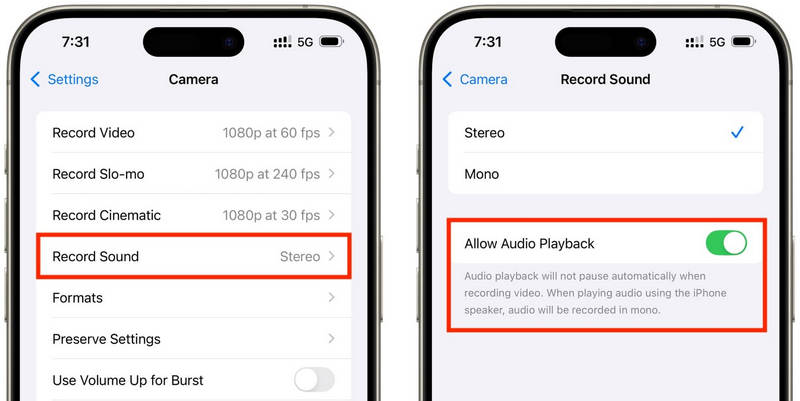
Trinn 4Spill av en sang i musikkappen du ønsker.
Trinn 5Åpne Kamera appen og velg VideomodusMusikken din skal fortsette å spille mens du spiller inn.
Metode 2: QuickTake-trikset (for iOS 17 og eldre)
QuickTake er en av de enkleste måtene å omgå problemet med at musikken pauses når du spiller inn video på eldre iPhoner. I motsetning til å gå inn i videomodus helt, lar QuickTake deg ta klipp rett fra fotomodus, slik at bakgrunnsmusikken fortsetter å spilles av. Det er raskt og enkelt for raske videoer, tvitrede videoer, videoer av deg selv på sosiale medier eller andre tilfeldige hendelser du vil ta opp uten å avslutte lyden.
Trinn 1Spill sangen din i Apple Music, Spotify eller en annen musikkapp.
Steg 2Forbli i standardinnstillingen Foto modus.
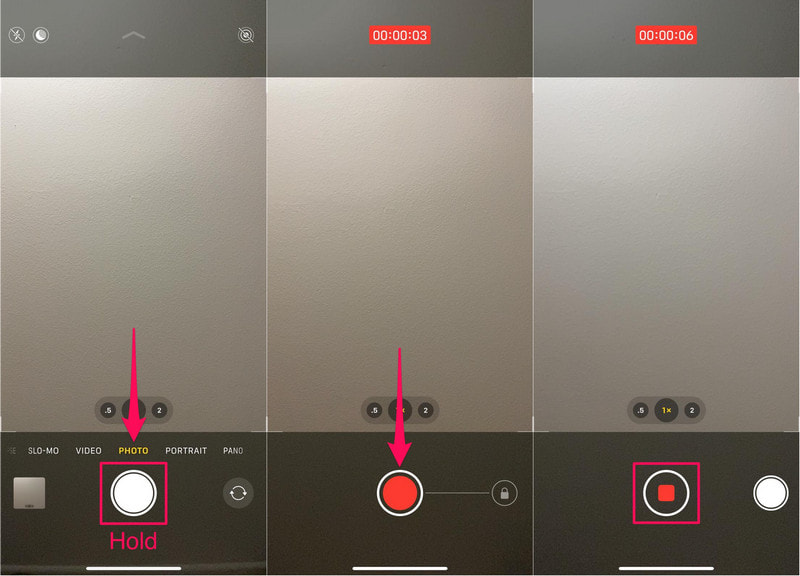
Trinn 3For å starte videoopptak, hold nede Lukker knapp.
Trinn 4 Flytt utløserknappen til høyre for å sikre opptaket, slik at du ikke trenger å holde utløserknappen inne.
Trinn 5Klikk på Stoppe knappen når den er ferdig.
Metode 3: Bruk av en tredjepartsapp
Hvis avspillingen fortsatt avbrytes av musikk, er tredjeparts opptaksprogrammer den perfekte løsningen. Den mest populære er Mideo, en applikasjon som lar brukere spille av musikk og ta opp videoer samtidig. Den håndterer HD- og til og med 4K-opptak på kompatible enheter og inkluderer alle funksjonene du forventer, for eksempel zoom inn og zoom ut-kontroller, støtte for front- og bakkameraer og umiddelbar lagring i Bilder-appen.
Trinn 1Last ned Mideo fra App Store.
Steg 2Gi tilgang til kameraet og mikrofonen.
Trinn 3Åpne Apple Music, Spotify eller en annen strømmeapp, og begynn å spille.
Trinn 4Når musikken starter, åpner du App.
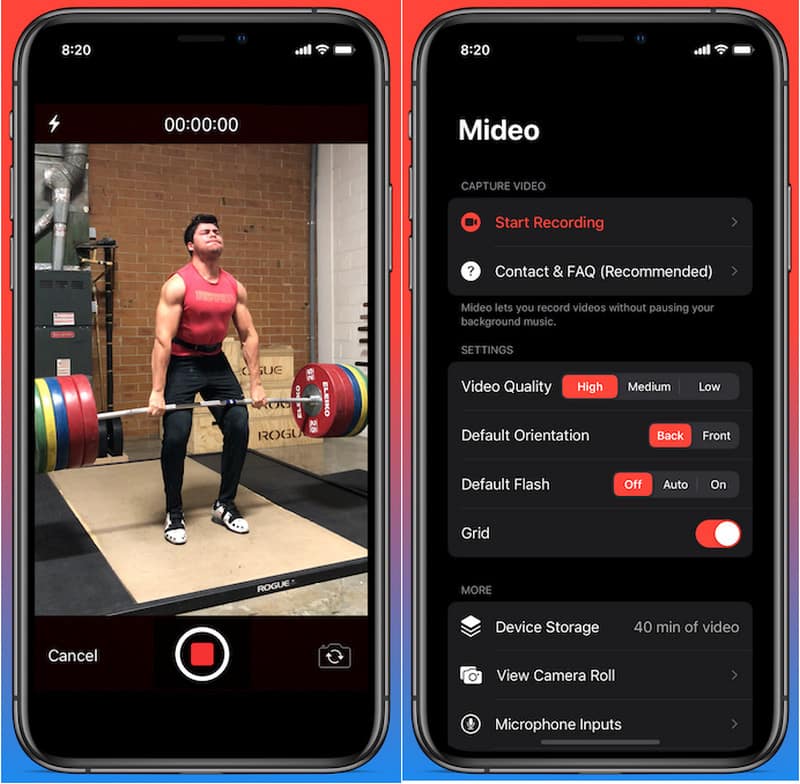
Trinn 5trykk Ta opp -knappen og start opptaket mens musikken spilles av i bakgrunnen.
Metode 4: Bruk av bilde-i-bilde-modus (PiP)
Medieavspilling trenger ikke å slås av når du spiller inn video; du kan bruke Bilde-i-bilde. iPhonen din kan fortsette å spille av en video- eller musikkfil selv etter at du har åpnet Kamera-appen i forgrunnen. Dette er en enkel metode som ikke krever installasjon av ekstra opptaksverktøy.
Trinn 1Spill av en sang eller video fra en app som støtter bilde-i-bilde-modus.
Steg 2Gå til Innstillinger > Generell > Bilde i bilde, og slå deretter på Start PIP automatisk.
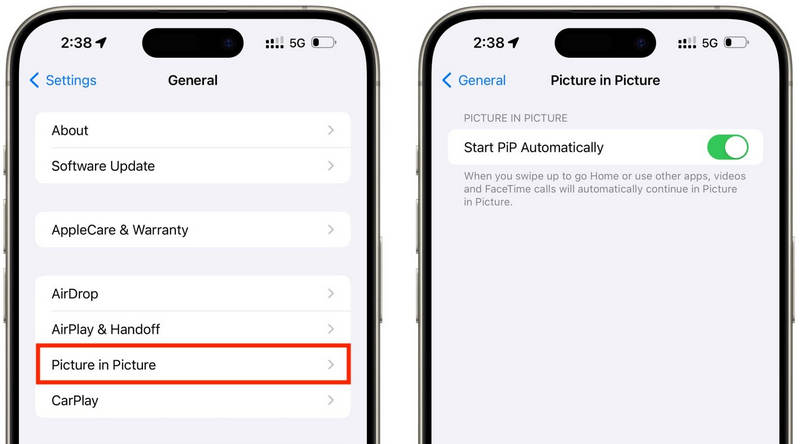
Trinn 3Sveip opp eller trykk på PiP-knappen på videospilleren for å minimere mediene til et flytende vindu.
Trinn 4Start Kamera-appen forsiktig uten å stoppe medieavspillingen.
Trinn 5Spill inn videoen din mens musikken eller mediene fortsetter å spilles av i bakgrunnen.
Del 2. Android - Slik spiller du musikk mens du spiller inn video
Metode 1: Samsung One UI 7 (innebygd)
Med Samsung One UI 7 forbedrer selskapet kamera- og lydkontrollene for å gjøre det enklere å spille av musikk mens man filmer. Funksjonen er integrert i systemet, slik at brukerne kan oppleve en jevnere opptaksopplevelse uten å installere noen ekstra apper. Den er spesielt nyttig for å lage videoer fra sosiale medier, vlogger eller uformelle videoer med bakgrunnsmusikk.
Trinn 1Åpne Kamera appen, og trykk deretter på Innstillinger knapp.
Steg 2Sjekk etter lyd eller Avanserte videoalternativer.
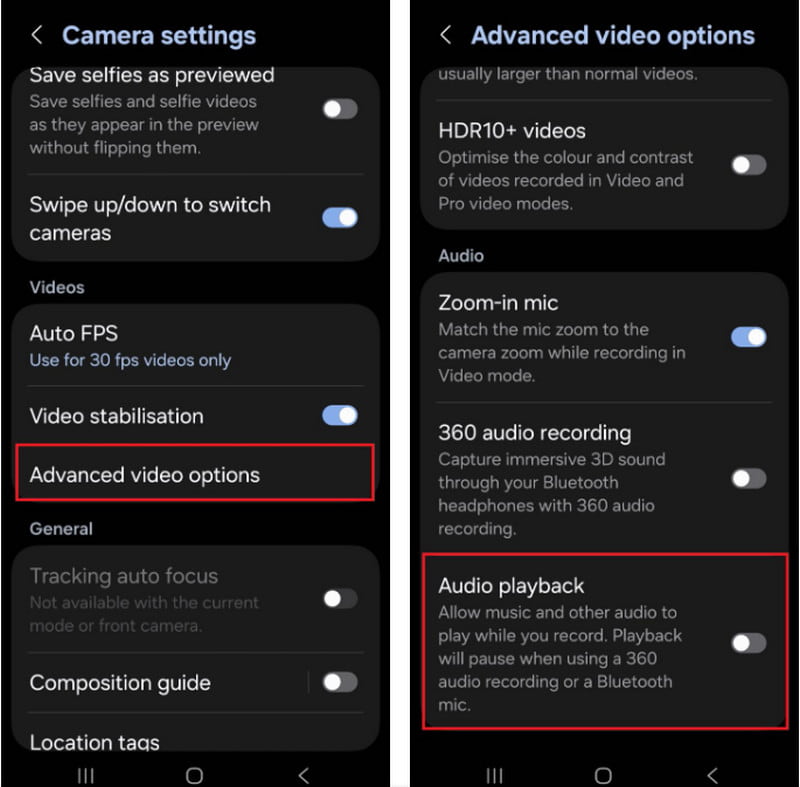
Trinn 3Aktiver Lydavspilling.
Trinn 4Åpne en sang på Spotify, YouTube Music eller en annen app.
Trinn 5Åpne Kamera appen og start opptaket.
Metode 2: Bruk av Google Pixel-skjermopptaker
Den innebygde skjermopptakeren i Google Pixel-telefoner lar deg også ta opp intern lyd. Det er først og fremst en app for skjermopptak, men den kan også spille av musikk mens du spiller inn. Den er veldig nyttig for veiledninger, spilldemonstrasjoner og appdemonstrasjoner med bakgrunnsmusikk.
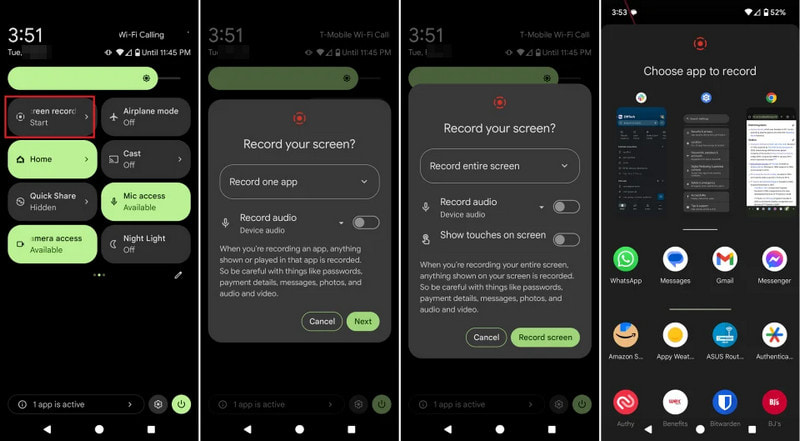
Trinn 1 Trykk og dra ned fra toppen av skjermen.
Steg 2Velg skjermopptakeren som allerede er tilgjengelig.
Trinn 3Velg internt lydopptak eller lydopptak fra enheten.
Trinn 4For å spille av musikken, klikk på favorittmusikkappen.
Trinn 5Start skjermopptaket.
Metode 3: Bruk av en tredjepartsapp
Tredjeparts opptaksapper som Background Video Recorder er mye brukt på Android, ettersom de er mer kompatible med en rekke telefonmerker og Android-versjoner. Et betydelig antall apper tilbyr avspilling av bakgrunnslyd og ekstra lydopptaksalternativer, for eksempel HD-videokvalitet, manuelle kontroller, filtre og stabilisering. De kan være nyttige for folk som trenger flere opptaksalternativer enn den innebygde Kamera-appen tilbyr, spesielt for brukere som ønsker å spille inn en podkast, veiledninger, vlogger eller innhold på sosiale medier med bedre lyd- og videokvalitet.
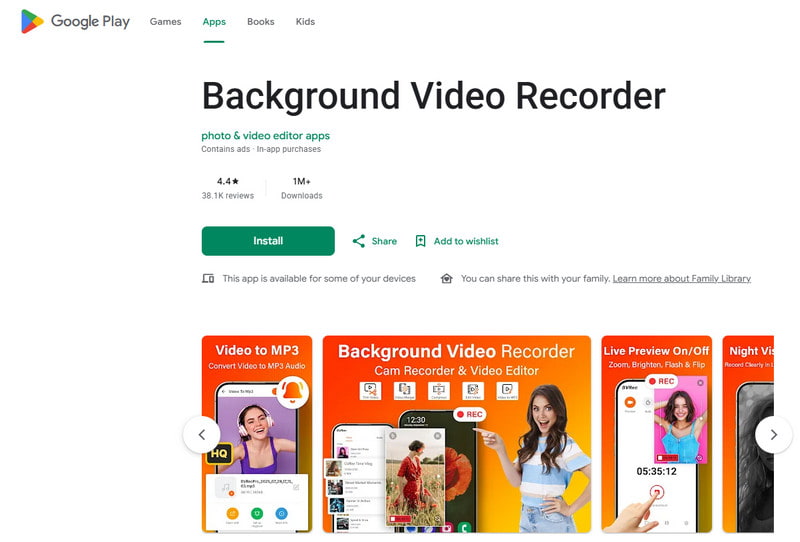
Trinn 1Installer bakgrunnsvideoopptaker fra Google Play Store.
Steg 2Gi tilgang til kamera, mikrofon og lagring når du blir bedt om det.
Trinn 3Åpne Spotify, YouTube Music eller en annen musikkapp og start spillelisten din.
Trinn 4Start opptakeren og juster videokvaliteten eller lydinnstillingene om nødvendig.
Trinn 5Trykk på opptaksknappen mens musikken fortsetter å spille i bakgrunnen.
Del 3. Hvorfor setter iPhonen min musikk på pause når jeg starter opptaket?
Noen iPhone-brukere rapporterer at musikken plutselig stopper når de spiller inn en video av seg selv. Dette er fordi kameramikrofonen på iOS-enheter alltid brukes først til lydopptak i stedet for avspilling av medier. Denne oppførselen ligner på hvordan programvare som tar opp stemme på Mac prioriterer mikrofoninngang under opptak. Flere mulige årsaker kan utløse dette problemet, avhengig av iPhone-modellen og iOS-versjonen din.
- Kamera-appen tar kontroll over lyd: Kamera-appen prioriterer automatisk mikrofonen for videoopptak for å sikre best mulig lydkvalitet.
- Eldre iOS-versjoner har begrensninger: I de fleste tilfeller settes musikken automatisk på pause når du spiller inn videoer på iOS 17 og tidligere.
- Du kan bare spille musikk i bakgrunnen med enkelte musikkapper: Enkelte strømmeprogrammer kan midlertidig sette strømming på pause hvis et annet program bruker innstillingene for lydopptak.
- Bluetooth-enheter kan forårsake konflikter: Trådløse ørepropper eller høyttalere kan være distraherende under opptak.
- Batterisparemodus kan forstyrre: Lavstrømsmodus kan begrense bakgrunnsoperasjoner, for eksempel musikkavspilling.
Del 4. Musikken stopper eller spiller ikke [Hurtige løsninger]
| Problem | Rask løsning |
| Musikken pauses umiddelbart etter at opptaket starter. | Bruk QuickTake-metoden eller aktiver den innebygde avspillingsfunksjonen i kamerainnstillingene. |
| Ingen musikk under innspillingen. | Start både Kamera- og Musikk-appene på nytt, og prøv deretter å ta opp igjen. |
| Bluetooth-lyd kobles fra. | Koble til de trådløse øreproppene eller høyttaleren på nytt etter at du har slått Bluetooth av og på igjen. |
| Tredjepartsopptaker fungerer ikke. | Oppdater eller installer opptaksappen på nytt for å fikse mulige kompatibilitetsproblemer. |
| Musikken stopper fortsatt på iPhonen min. | Start iPhonen på nytt og installer den nyeste tilgjengelige iOS-oppdateringen. |
| Ingen lyd i den innspilte videoen. | Sørg for at mikrofontillatelser er aktivert for både Kamera- og Musikk-appene. |
Del 5. Hva med å bruke en profesjonell skjermopptaker
AVAide skjermopptaker er profesjonell skjermopptaksprogramvare for de som foretrekker jevnere opptak av høyere kvalitet på Windows og Mac. Den kan ta opp systemlyd, mikrofonlyd, webkameravideo og til og med skjermen i høy kvalitet. Programvaren er spesielt nyttig for å lage veiledninger, spillvideoer, reaksjonsvideoer, nettkurs og videopresentasjoner, uten forsinkelser og uten komplisert oppsett.
- Spill inn videoer i opptil 4K- eller 1080p-oppløsning med jevn og stabil ytelse.
- Ta opp intern lyd og mikrofonlyd samtidig for klarere opptak.
- Velg mellom fullskjerm, valgt vindu eller et tilpasset opptaksområde.
- Ta opp webkameraopptak eller speil og ta opp iPhone- og Android-skjermer enkelt.
- Legg til merknader under opptak, og trim eller rediger videoer umiddelbart etter opptak.

 Sikker nedlasting
Trinn 1Installer AVAide Screen Recorder
Gå til det offisielle AVAide-nettstedet og last ned Windows- eller Mac-programvaren. Installer programmet, og kjør det deretter etter installasjonen.
Steg 2Velg opptaksmodus
For å registrere skjermaktiviteten din, klikk på Skjermopptaker alternativet fra hovedskjermen.
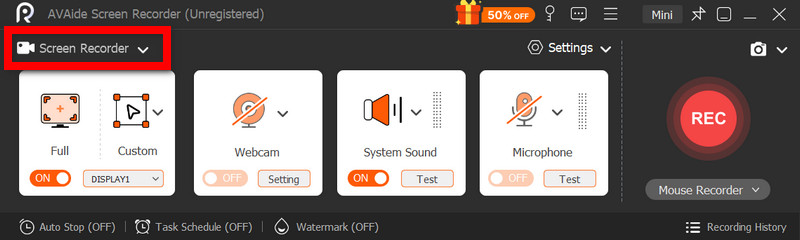
Trinn 3Velg opptaksområdet
Plukke ut Full eller Tilpasset opptaksmodus etter behov.
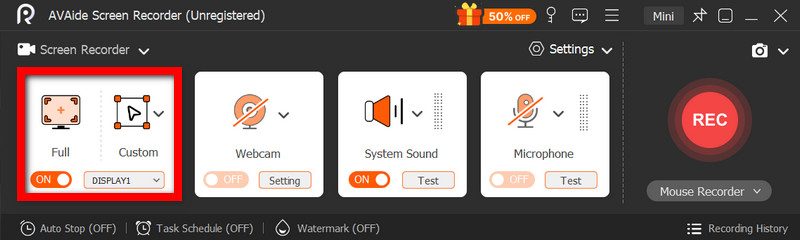
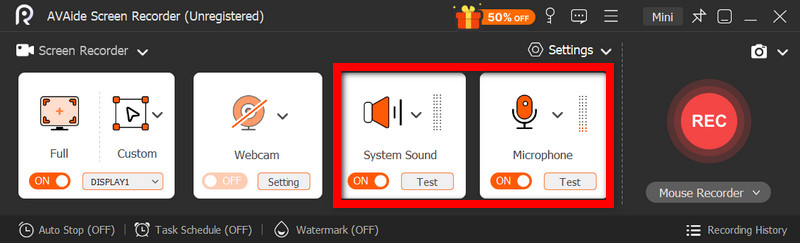
Trinn 4Aktiver lydkilder
Hvis du vil ta opp stemmen din, slå på Mikrofon; hvis du vil ta opp den interne lyden, velg Systemlyd.
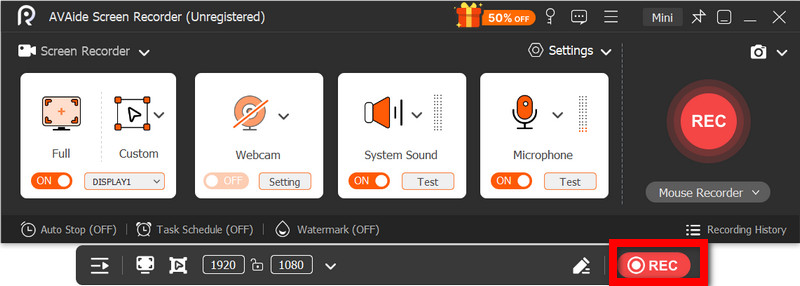
Trinn 5Start opptak
Klikk på REC -knappen for å ta opp skjerm-, video- eller lydaktiviteten din.
Trinn 6Rediger og lagre opptaket
Når du er ferdig, trykk på Stoppe knapp. Se videoen for å få en generell følelse, rediger den kort om nødvendig, og lagre den deretter på datamaskinen.
Spille av musikk mens du spiller inn er noe mange brukere sliter med når de lager videoer for sosiale medier eller personlig bruk. Med de riktige innstillingene, metodene eller verktøyene kan både iPhone- og Android-brukere enkelt spille inn videoer uten å stoppe bakgrunnsmusikken.
OM FORFATTEREN

Fang skjermaktiviteter med lyd, nettmøter, spillvideoer, musikk, webkamera osv.
Skjermopptak