Today's common displays are usually 1080p, 2K, and even 4K. Although your DVD collections have original visuals, they really cannot match today's higher resolutions. Therefore, you can convert DVD to MP4 and upscale those movies. Many reliable DVD ripping programs can digitize Blu-rays and DVDs to standard MP4 profiles, but you should select a reliable program that can help you quickly rip DVD to MP4 while offering the best video and audio quality. This post collects 3 robust DVD rippers for both Windows and macOS. Get your DVD upscaled to modern MP4 videos right now.
Comparison of Top 3 DVD to MP4 Converting Methods
AVAide DVD Ripper, VLC, and HandBrake – they can easily rip DVD to MP4 with the most common and standard presets for most displays and devices. You can have a brief look at them.
| Feature | Tipard DVD Ripper | VLC Media Player | HandBrake |
| Ease of Use | High (One-click presets) | Low (Hidden ripping features) | Medium (Technical UI) |
| Decryption | Strong (Supports CSS, RCE, APS, etc. automatically) | Limited (Needs libdvdcss for most commercial discs) | None (Requires libdvdcss to be installed manually) |
| Output Formats | 500+ (MP4, MKV, AVI, MOV, Device-specific profiles) | Limited (MP4, WebM, TS, OGG) | Modern only (MP4, MKV, WebM) |
| AI Integration | Yes (AI Video Enhancer & Upscaling to 4K) | No | No (Basic filters only) |
| Conversion Speed | Ultra-Fast (GPU Acceleration/30x speed) | Slow (Real-time or slightly faster) | Variable (Depends on encoding settings) |
| Video Editing | Built-in (Trim, Crop, Filters, Subtitles) | Very limited/Experimental | Basic (Cropping, Scaling, Filters) |
| Batch Processing | Yes (Optimized for collections) | No (One by one manually) | Yes (Queue system) |
| Customization Options | High: Support for resolution, bitrate, and codec customization | High: Very good at video frame rate adjustment | High: Best for adjusting video effects |
| Preview Feature | Yes | Yes | Yes |
Top 1. Convert DVD to MP4 Professionally
Platform: Windows and macOS
Best for: Pros and average users who pursue fast and stable DVD ripping
In 2026, digitizing DVD to MP4 mainly requires fast processing. Many free or paid converters can deal with different types of encryptions on DVDs, but AVAide DVD Ripper supports full hardware acceleration for decoding and re-encoding, which means you can fast convert any DVD to MP4 format within 10 minutes on Windows 11/10 and macOS. You can get 720p, 1080p, 2K, and even 4K MP4 presets optimized for different displays, like iPhone, iPad, MacBook, TVs, Android, Samsung, and more. If you are a professional editor who wants raw DVD movies for editing, AVAide DVD Ripper can also quickly remux DVD to MKV and MPG.
- Support GPU acceleration and batch conversion.
- Provide MPEG-4, H.264, HEVC, and AV1 output codecs for MP4.
- Offer dedicated MP4 presets for common and standard screens.
- Bypass all legacy, common, and the latest encryptions on DVDs.
- Work stably and fast on Windows 11/10 and macOS 26 and macOS 27 Beta.

 Secure Download
Steps to Convert DVD to MP4 with AVAide DVD Ripper
Step 1Load DVD to AVAide DVD Ripper
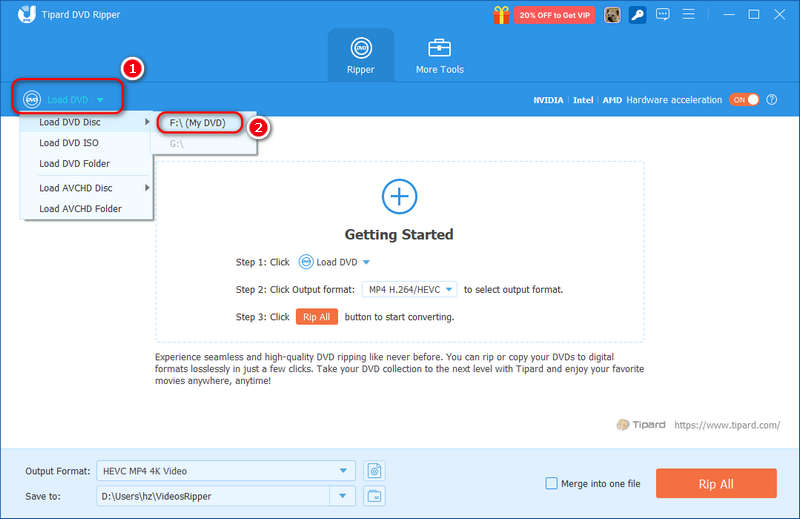
Download, install, and launch AVAide DVD Ripper on your computer. Insert your DVD into your disc drive and connect it to your computer. Click the Load DVD button at top left and select your disc drive to load your DVD.
Step 2Select Output Format
You can select the main movie or all titles on your DVD. This program support batch conversion as long as you follow the following steps.
Click the Output Format dropdown button at the bottom left. For example, you can select HEVC MP4 (a very popular and high-compression video codec) and then select HD 1080p. This dedicated 1080p preset also has assigned proper frame rate, bitrate, and other parameters for MP4. Double-click to make your selection.
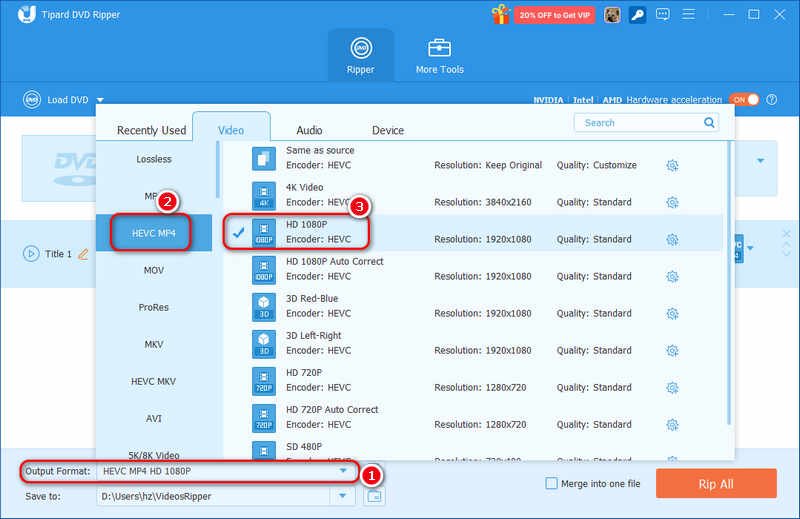
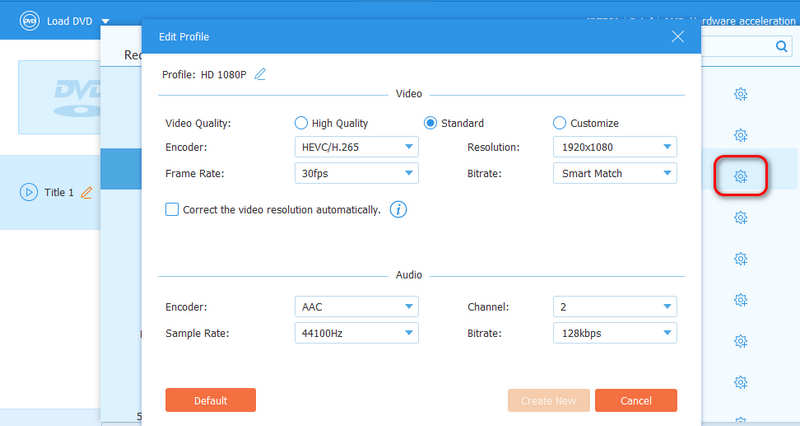
If you are a pro, you can also click the Settings button at the end of each preset. The customization window will appear. You can do your preferred changes on codec, resolution, frame rate, bitrate, and more. However, note that your random customizations may make the MP4 video not compatible with common devices and displays.
Step 3Digitize DVD to MP4 with AVAide DVD Ripper
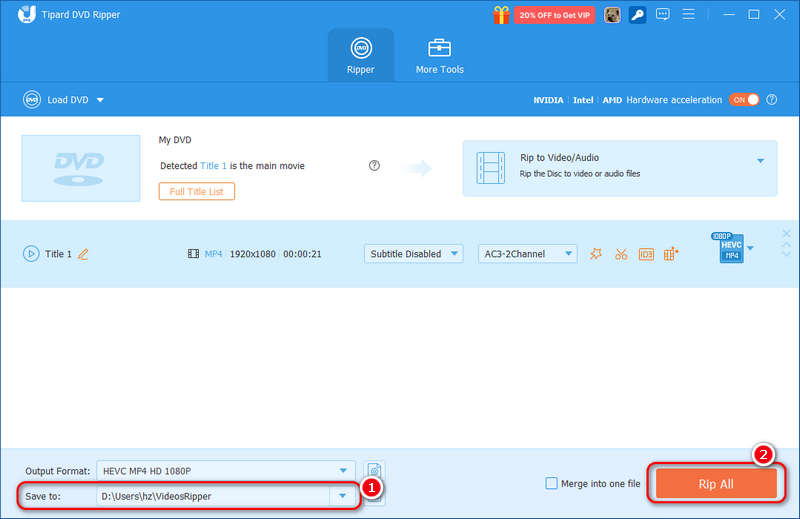
Click the Save to dropdown button to select a desired output folder for the upcoming MP4 video. Then, click the Rip All button to rip DVD to MP4 easily on your Windows or macOS computer.
- Pros
- It offers many standard and useful MP4 presets.
- Rip DVD to MP4 in 1080p or 4K quickly on low-end computers.
- It has a clear interface with a simple workflow.
- Offer deep customization features for professional users.
- Provide AI upscaling and other AI-powered enhancement features.
- Cons
- The output folder feature is not easy to find.
Expert Verdict: AVAide DVD Ripper has hardcore technologies in ripping, conversion, remuxing, re-encoding, and hardware acceleration. It also takes users of different levels into consideration, for it offers many dedicated presets for different output formats. It also keeps up with the development of the visual digital world, for it mainly improves the support for MP4, MOV, MKV, and ProRes. Those formats are taking a great role in today's high-res streaming and monitor fields.
Top 2. General Way to Transfer DVD to MP4 with VLC
Platform: Windows, macOS, and Linux
Best for: VLC fans who are also familiar with media conversion and transcoding
Beyond its reputation as a universal player, VLC harbors a robust, built-in transcoding engine capable of digitizing your DVD collection into high-quality MP4 (H.264/H.265) files. It remains the gold standard for users seeking a reliable, open-source solution without the need for additional third-party bloatware. This DVD to MP4 can output a very compatible MP4 profile so that you can play your MP4 movie on almost any device. If you have multiple disc drives and discs, VLC can also help you extract those DVDs to MP4 videos simultaneously.
Main Features of VLC Media Player:
- Rip from DVD to MP4 on Windows, macOS, and Linux computers.
- Offer many visual effects for your output MP4 files.
- Support batch conversion from different disc drives.
- Offer high customization for output video codec, resolution, FPS, etc.
Steps to Convert from DVD to MP4 with VLC
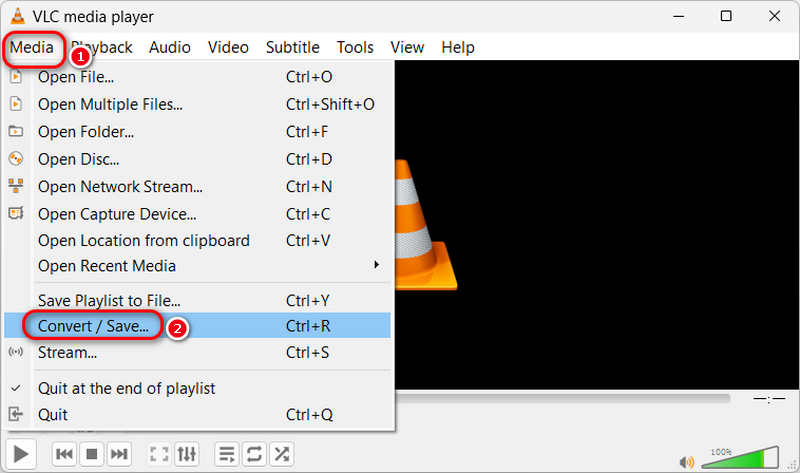
Step 1Insert your DVD disc into the DVD drive on your computer. Then, launch VLC Media Player, go to the Media tab from the top menu bar, and choose Convert/Save… to enter a new window.
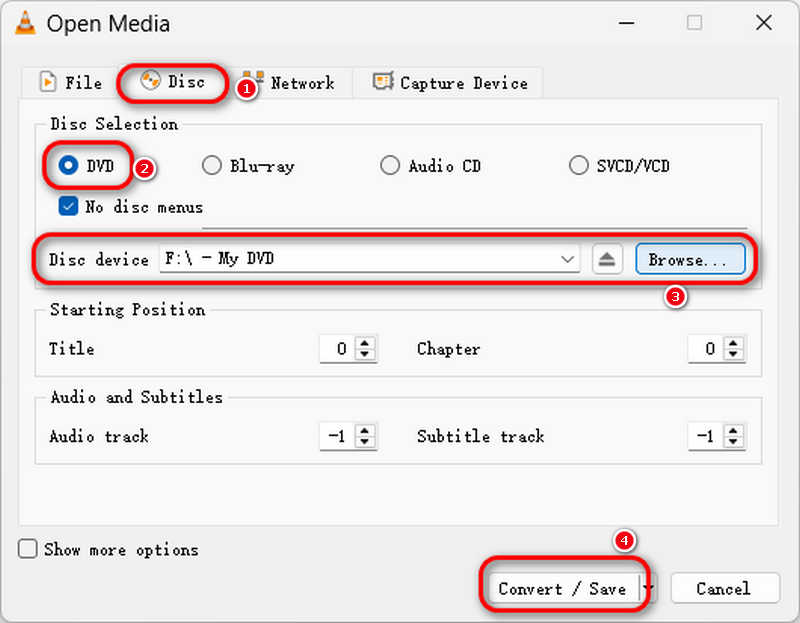
Step 2Go to the Disc tab, then choose DVD under Disc Selection. Then, click the Browse button to choose the DVD location from the drop-down list.
Step 3From the lower-right corner, click the drop-down menu next to the Play button, and choose Convert from the list.
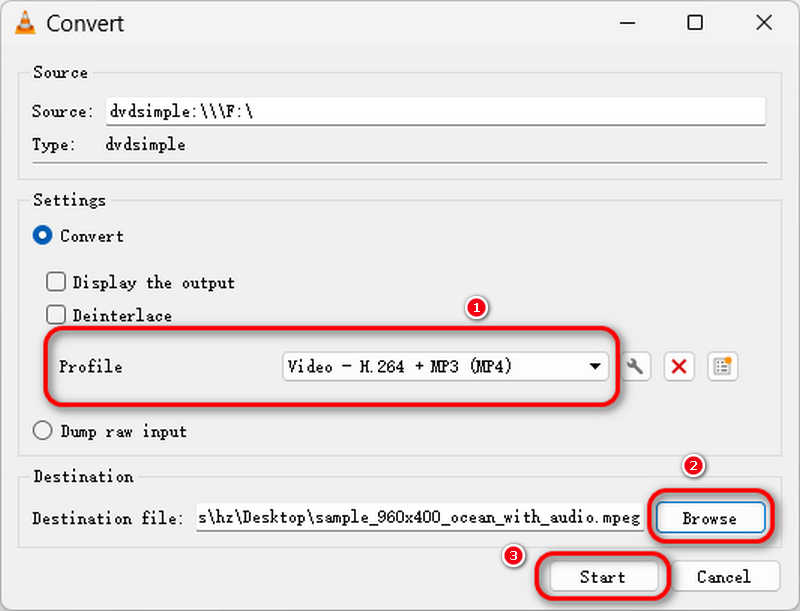
Step 4Then, a new window will display. Here, choose MP4 as the output format from the Profile option under the Settings section. Then, go to the Destination file field and click the Browse button to select the path for saving your converted files.
- Pros
- VLC is free, open source, and cross-platform.
- Provide a widely compatible MP4 profile.
- Allow you to do deep customization for both video parameters and visual effects.
- Support both DVDs and Blu-rays.
- Cons
- Doesn't support hardware re-encoding well.
- Cannot remux DVD to MP4 format.
- The DVD ripper feature is not easy to find.
Expert Verdict: VLC is a good physical and digital media converter. For average users, the default Video – H.265 (or H.264) + MP3 (MP4) output preset can suit almost all common and popular devices and players. If you are a professional, you can also manually customize the video bitrate for your testing or player purposes for specific devices or programs. However, VLC uses simplified GPU encoding algorithms by default, which may cause visual artifacts. Since it's open-source, advanced users and customize the GPU acceleration for VLC, but only slightly.
Top 3. How to Convert DVD to MP4 Using Handbrake
Platform: Windows, macOS, and Linux
Best for: Advanced users who need deep customization, and simple users who need just a ripping feature
Handbrake is a free and open-source video transcoding software that is very small and efficient, suitable for non-professional video transcoding. You can rip Blu-ray and DVD to digital videos using Handbrake with the assistance of a free library called libdvdcss to decrypt the discs.
When it comes to HandBrake converting DVD to MP4, it's deep customization functionality is the most impressive. Even if you are not a professional user, you can try its Constant Framerate and Peak Framerate features, which can either deliver the smoothest visuals or compress the video file size with invisible quality loss. HandBrake also offers many video presets so that you can grab DVD to MP4 to play it on different displays.
Main Features of HandBrake:
- Rip DVD to MP4 with H.264, H.265, AV1, MPEG-4, and many other modern codecs.
- Support GPU acceleration for decoding and encoding.
- Provide deep customization for video, audio, subtitles, chapters, and more.
Steps to Transfer DVD to MP4 with HandBrake
Step 1Open Handbrake and Import libdvdcss
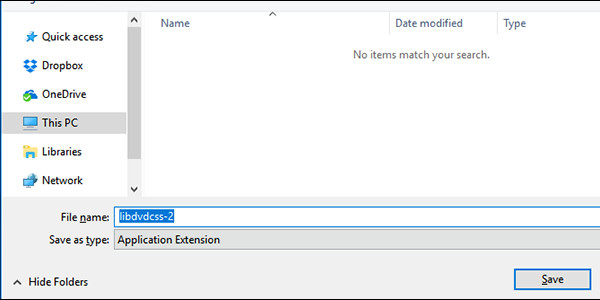
Download and install HandBrake on your computer. Download libdvdcss and copy the file to the program folder of Handbrake (If you install with default settings, the path should be C:Program FilesHandbrake).
Step 2Launch Handbrake and Open DVD
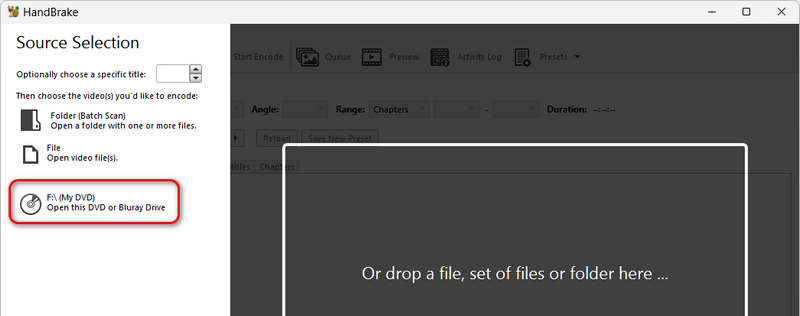
Launch Handbrake and insert your DVD. The program will detect your DVD drive: Just click to open it.
Step 3Convert DVD to MP4 in HandBrake
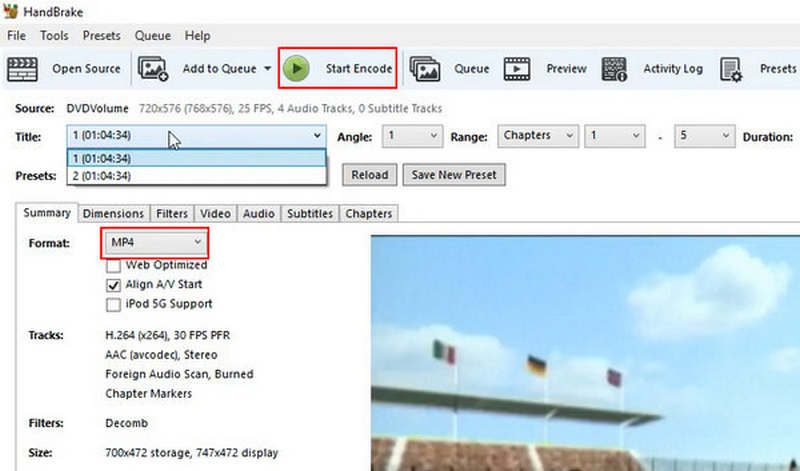
You can only customize output for only one title (video) per time, but you can finally batch convert all DVD titles to MP4.
Locate the Summary tab. Set MP4 as the output format, and click Start Encode to rip DVD to MP4. Before ripping, you can customize various parameters according to your needs.
- Pros
- The ripping speed is very fast.
- Free, open-source, and powerful.
- HandBrake works very well on most Windows, macOS, and Linux computers.
- Cons
- Beginners may not know how to deal with each title.
Expert Verdict: HandBrake is a very robust and stable media converter that can easily deal with DVD ripping. When you transfer DVD to MP4, HandBrake offers all subtle video parameter options, like codecs, resolutions, subtitles and audio management, and of course, its strong capability on FPS – Constant Framerate and Peak Framerate. If you are not a professional, you can just directly use the default preset for MP4 and start encoding. The only drawback is that many decryption file websites don't offer pre-compiled .dll files. You'll need to manually compile it.
FAQs of Converting DVD to MP4
How long does it take to convert DVD to MP4?
The speed of converting DVD to MP4 depends on the performance of the DVD ripper and the computer's configuration. It also depends on the size of your DVD file. Generally, AVAide DVD Ripper can convert a 3-hour movie to digital videos in 5 minutes. Handbrake is a little bit slower than that, and VLC is slower than Handbrake.
Is it illegal to transfer DVDs to MP4?
If the DVD is protocol protected, you can't rip it and sell it for commercial usage. It is generally OK to rip your own DVD and save it as digital video for convenient preserving.
How do I rip a DVD to MP4 using Windows Media Player?
Unfortunately, you can't rip DVDs to any digital video using this Windows default player. Try other third-party programs like AVAide DVD Ripper, VLC, Handbrake, etc.
Digitizing DVD to MP4 doesn't have to be a technical hurdle. Each of the three methods discussed offers a reliable path to digitizing your DVD collection, but the best choice depends entirely on your specific priorities. If you value efficiency and visual excellence, AVAide DVD Ripper is the definitive winner for ripping DVD to MP4. It is engineered for those who want a frictionless experience, combining ultra-fast conversion speeds with intelligent, ready-made presets that ensure your movies look stunning on any modern 4K or mobile display.
Ultimately, whether you are preserving rare home movies or building a high-definition digital library, selecting a tool that balances speed with quality is the key to future-proofing your media. Unlock your DVD collection today and experience your favorite classics with newfound clarity.
ABOUT THE AUTHOR

Best tool for ripping and converting DVD Disc/Folder/ISO image file into over various formats.