Got a collection of old DVD discs sitting on your shelf, but no modern device to play them on? Converting your DVDs to MPEG is one of the easiest ways to bring your physical movies into the digital age. Since MPEG (specifically MPEG-2) is the exact same video format stored on a DVD, converting to MPEG keeps the original video quality intact while making the file much easier to store and play on your computer, TV, or media player.
In this guide, we will show you step-by-step how to convert your DVD to MPEG quickly and safely, even if you are not a tech expert.
Part 1. The Best Way to Rip DVD to MPEG
If you want to convert a DVD disc, a DVD folder, or an ISO image file to the .mpeg/.mpg format, then you should not miss AVAide DVD Ripper. It supports a lossless MPG output option, which means you can rip the original video and audio streams, subtitle tracks, and original content structure to an MPEG file. You can enjoy the original video and audio quality on a supported player or device.
Moreover, you can also convert a DVD to MPEG format with H.264 codec and 720p/1080p resolution, which can help you play the MPEG video on modern devices, like iPhone, TV, tablet, etc. However, most people needing a DVD to MPEG converter still want to get the original streams from a DVD, but AVAide DVD Ripper can help you do both operations.
- Convert DVD to MPEG/MPG format with original video and audio streams.
- Provide MPEG output presets that are widely compatible with specific devices.
- Provide many video editing features for the output MPG files.
- Able to convert the main movie or all video titles and chapters in a DVD.

 Secure Download
How to convert DVD to MPEG on AVAide DVD Ripper
Step 1Get AVAide DVD Ripper
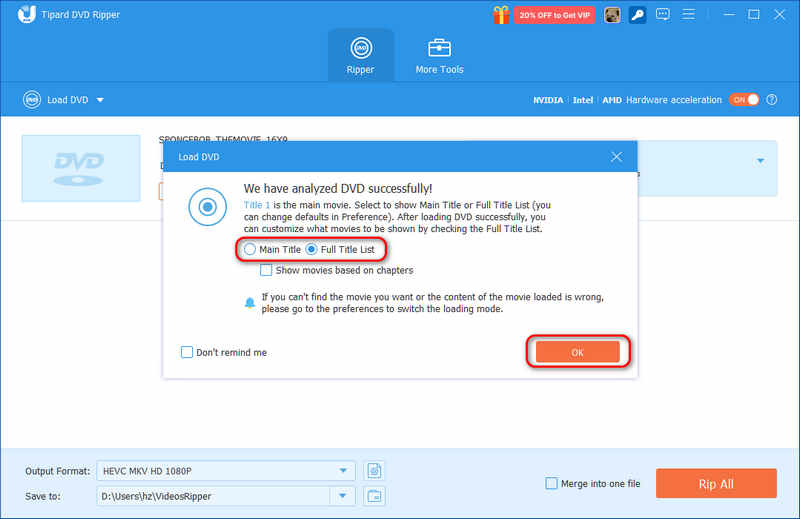
Download, install, and launch AVAide DVD Ripper on your Windows or Mac computer. Insert your DVD into your disc drive and connect it to your computer. Then, click the Load DVD button on the program to select your DVD.
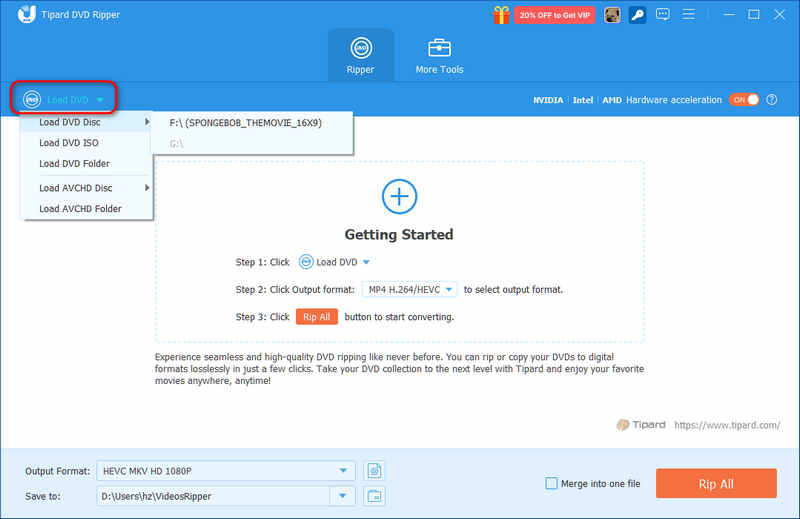
Now, you can select Full Title List to show all titles, which are also videos, in your DVD, or Main Movie to show only the main movie in your DVD. Click the OK button to continue.
Step 2Select an MPEG Output Preset
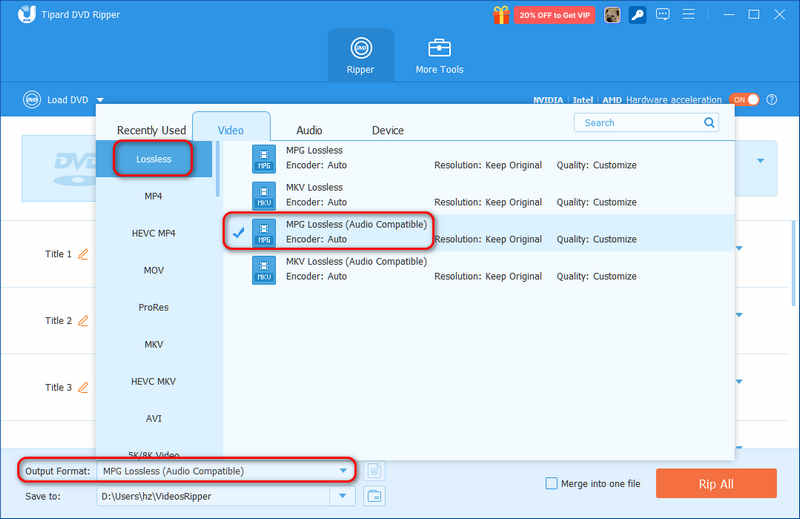
Click the Output Format dropdown button on the bottom left side. Then, locate the Video tab and select Lossless. Here, you can select MPG Lossless or MPG Lossless (Audio Compatible).
- MPG Lossless: All the video and audio streams are directly copy from your DVD to an MPEG file.
- MPG Lossless (Audio Compatible): The video streams are still original, but the audio streams are converted to a more universal format, like AC3. This is helpful when you need to fix ripped MPEG videos with no sound.
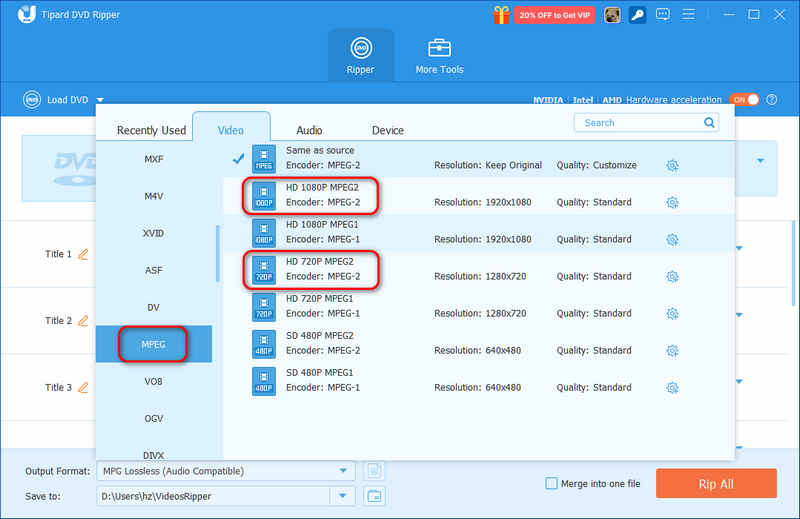
If you don't want a lossless MPG but to re-encode your DVD to MPEG, you can scroll down to select MPEG and then choose a desired output preset, like HD 720P MPEG2 or HD 1080P MPEG2.
Step 3Start Ripping DVD to MPEG
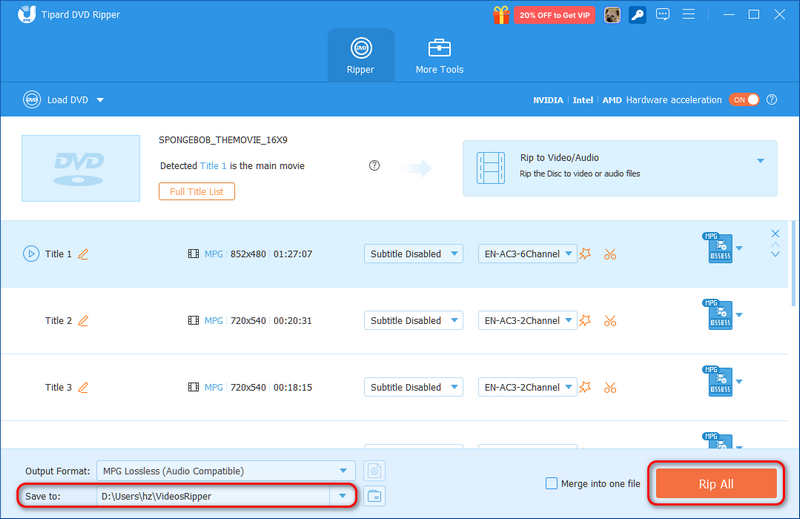
Finally, click the Save to dropdown button to choose an output folder for your MPEG video. Then, click the Rip All button to rip your selected DVD titles to MPEG.
Part 2. How to Convert MPEG to DVD
Sometimes, people also want to convert MPEG to a DVD. Generally, an MPEG video has MPEG-2 video codec, which is the same as a standard DVD video (.vob container). Therefore, it is not difficult to burn MPEG to DVD as long as you select a reliable DVD burner.
Tipard DVD Creator can easily author a DVD with MEPG videos. The built-in Fit-to-Disc feature can automatically convert any video to standard DVD video specs. Let's check how you can easily convert MPEG to DVD.
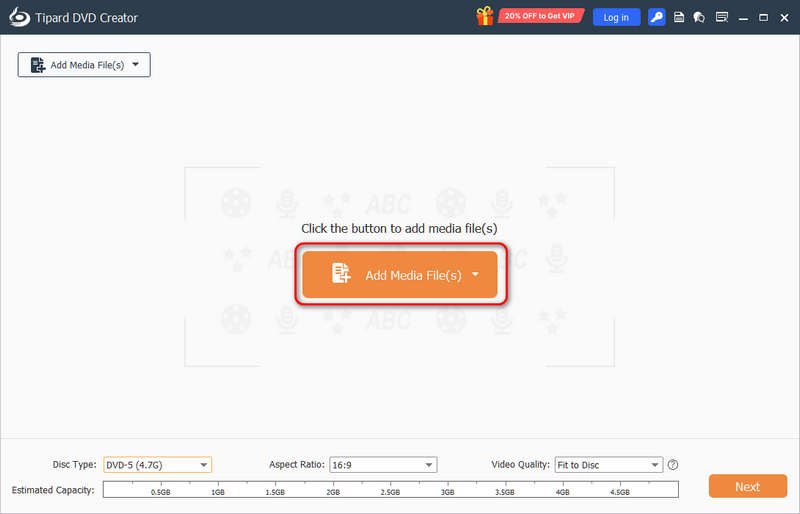
Step 1Launch Tipard DVD Creator on your Windows or Mac. Click the Add Media File(s) button to load your MEPG videos to this program.
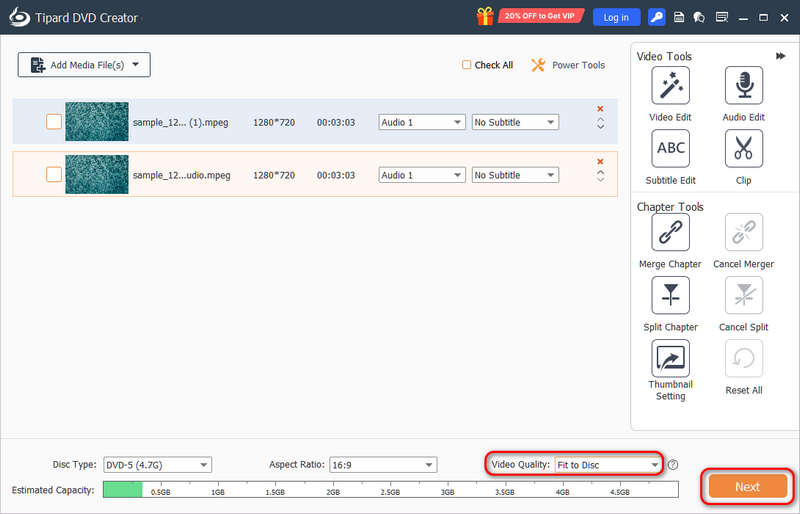
Step 2Ensure to select Fit to Disc in the Video Quality dropdown list. Then, click the Next button.
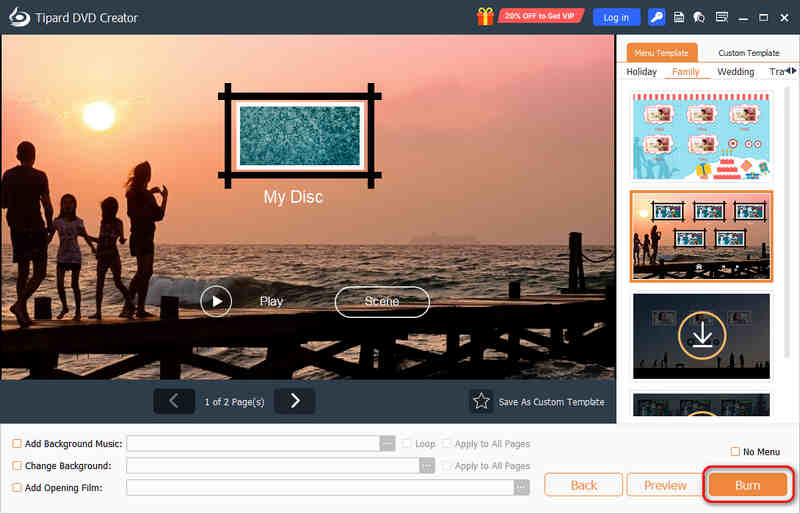
Step 3Here, you can choose a DVD menu template. You can also change the menu background image and music. Then, click the Burn button.
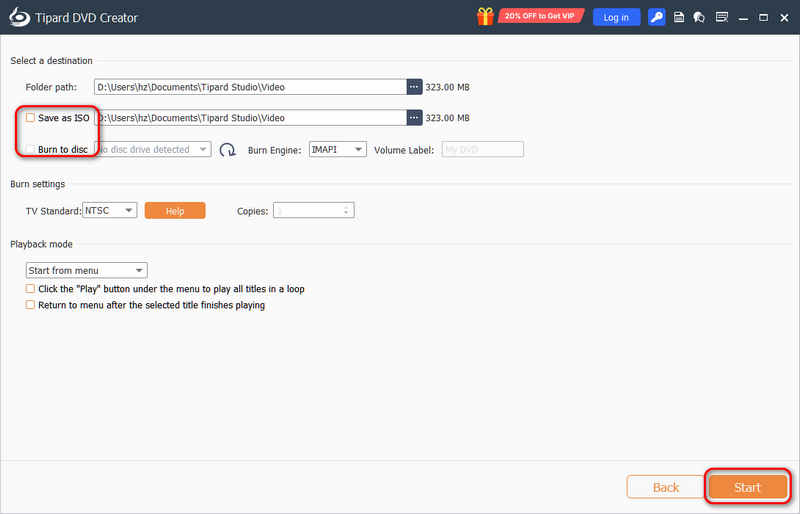
Step 4Now, you can select your disc drive as the output. You can also select Save as ISO to burn your MPEG to a DVD ISO. Finally, click the Start button.
Part 3. FAQs of Converting DVD to MPEG
What is DVD?
DVD is short for Digital Video Disc or Digital Versatile Disc. It is used to contain movies and other media files. Usually, you can find VOB, IFO, and BUP files in the VIDEO_TS folder when you open a DVD folder. Most of the data, like video, audio, and subtitles, is stored in the VOB files. IFO files can contain navigation information. As for the BUP files, they are the backup files for IFO files.
What is MPEG?
MPEG, which stands for Moving Picture Experts Group, has several compression formats, including MPEG-1 and MPEG-2. In fact, there’s also MPEG-4 (MP4). But nowadays, when we talk about MPEG files, we mainly talk about .mpeg/.mpg files.
Why do I need to convert DVD to MPEG?
MPEG-2 is the standard for broadcast-quality television, which means DVD video is actually encoded with MPEG-2. But that doesn’t mean the DVD video data is saved as a .mpg file. The video data is still formatted as VOB. So, you still need a DVD ripper to convert the DVD video from the VOB files to the video with the MPEG format.
We hope that you have understood how to use a DVD to MPEG converter that you are looking for. In short, AVAide DVD Ripper should be your first choice when you need to edit and convert DVD to other video formats. It allows you to rip DVD to MPG with the entire content. DVD to ISO image file or DVD folder in 1:1 ratio.
ABOUT THE AUTHOR

Best tool for ripping and converting DVD Disc/Folder/ISO image file into over various formats.