MP4 has long been known as the universal file format for delivering great video quality within a compressed file. However, it is still not perfect, as every format has its drawbacks. In contrast, 3GP is well-known for its suitability for 3G and 4G mobile devices. It is especially popular for its high compression rate, which often surpasses that of an MP4 file. With this in mind, you might find the need to convert MP4 to 3GP to save storage space on your mobile device. Luckily, this post provides the best solutions for this matter. Let's begin with the best desktop and Android solutions.
Part 1. How to Convert MP4 to 3GP on Windows and Mac
Method 1: AVAide MP4 Converter
AVAide MP4 Converter easily claims the top spot for offline MP4 to 3GP conversion, especially if you want to avoid the typical pixelation that plagues low-resolution 3GP files. Instead of just compressing your video, the built-in video enhancer feature allows you to convert MP4 to 3GP while reducing video noise and optimizing brightness. For those who want absolute control over file size, the MP4 to 3GP software offers a customizable toolbox to tweak the video encoder (H.263/MPEG-4), frame rate, and bitrate. This ensures your 3GP output is perfectly tailored for older 3G/4G devices without completely sacrificing visual clarity.
- Offer standard and widely compatible 3GP output presets.
- Support full hardware acceleration to quickly change MP4 to 3GP format in batches.
- Offer practical video editing features and AI enhancement tools.
- Easily adjust the video bitrate, FPS, resolution, and more parameters.

 Secure Download
How to Convert MP4 to 3GP With AVAide MP4 Converter
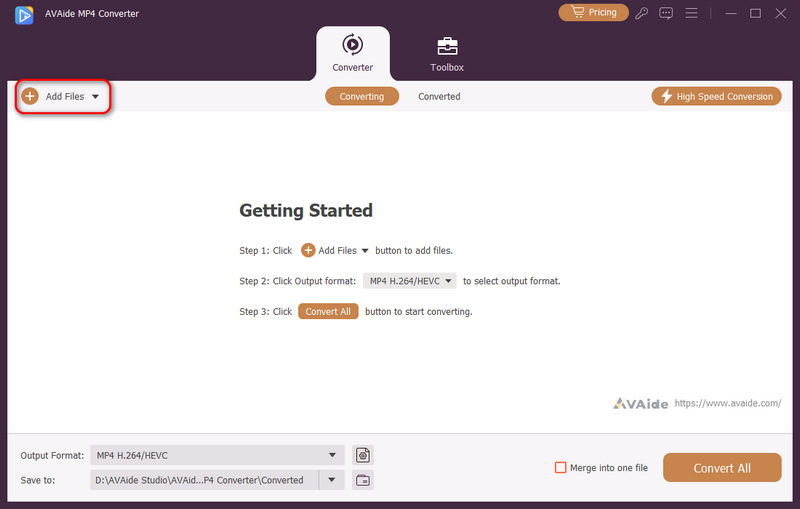
Step 1Add MP4 Fils to AVAide MP4 Converter
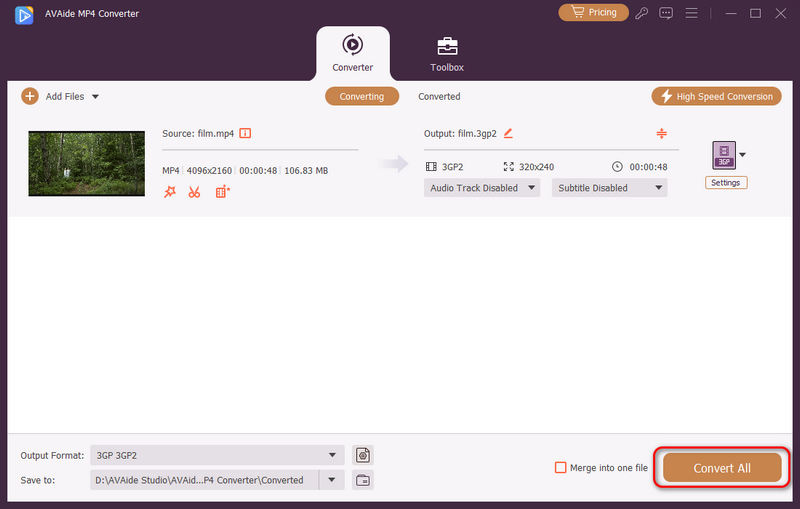
Download, install, and launch AVAide MP4 Converter on your PC or Mac. Click the Add Files button to load your MP4 files, and you will also notice that you can add multiple MP4 files or an entire folder to do a bulk conversion.
Step 2Choose a 3GP Preset
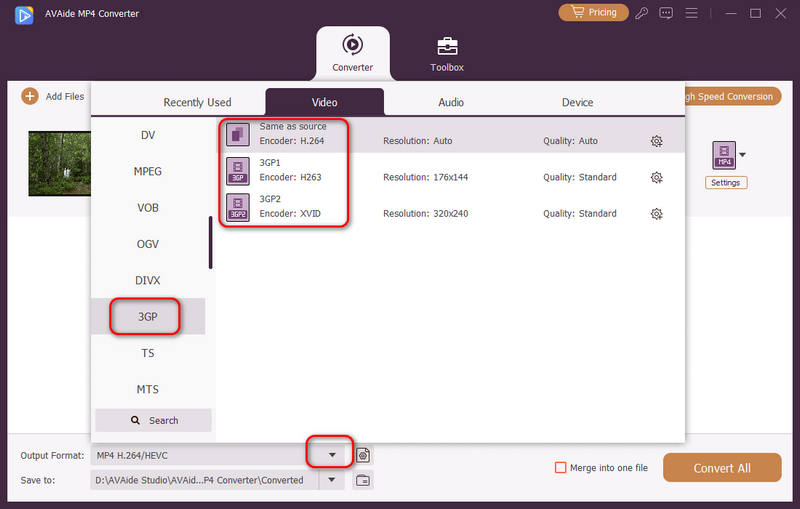
Your MP4 files are loaded. Click the Output Format dropdown button on the bottom left side. Then, select the Video tab, choose the 3GP category, and select a 3GP preset, like Same as Source, 3GP1, and 3GP2. While 3GP is an old format that is playable on legacy devices, we highly recommend you choose 3GP1 or 3G2.
Step 3Convert MP4 to 3GP
Finally, click the Save to dropdown button to select a destination folder for the upcoming 3GP video. Then, click the Convert All button to easily change your MP4 files to 3GP format.
Method 2: WinXvideo AI
WinXvideo AI is another reliable offline option for converting MP4 to 3GP. While it is widely known for its AI upscaling tools, its core conversion engine remains highly capable for daily tasks. It supports a wide range of mobile formats, allowing you to easily compress large MP4 videos into compact 3GP files suitable for older devices. It's a straightforward, solid choice if you need a dependable converter that gets the job done without complex setups.
How to Convert MP4 to 3GP with WinXvideo AI:
Step 1Launch WinXvideo AI and select the Video Converter feature.
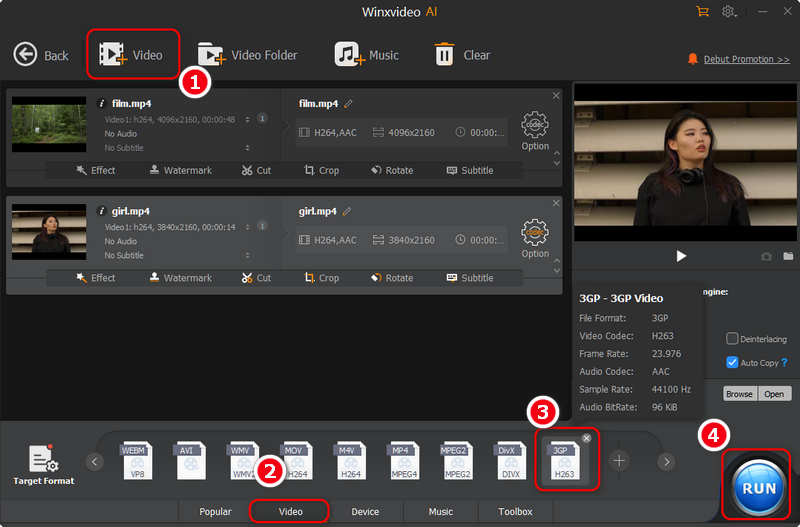
Step 2Click the Video button on the top left side to import your MP4 videos. You can add multiple files.
Step 3Locate the Target Format tab at the bottom. Select the Video tab. Then, you should find and select the 3GP output format.
Step 4Just keep the default settings for the output 3GP format and click the RUN button in the bottom right corner to quickly convert your MP4 to 3GP with hardware acceleration.
Method 3: VLC Media Player
VLC Media Player is a powerful, open-source freeware that hides a robust video converter beneath its famous playback interface. While most users only use it to watch videos, it is a highly reliable option for converting MP4 to 3GP completely free of charge. Granted, VLC's conversion interface isn't the most intuitive for beginners, and the layout can feel a bit dated. However, once you know where to click, it can convert MP4 to 3GP perfectly without requiring you to install any new software. Here is the simplified guide to navigating VLC's conversion feature.
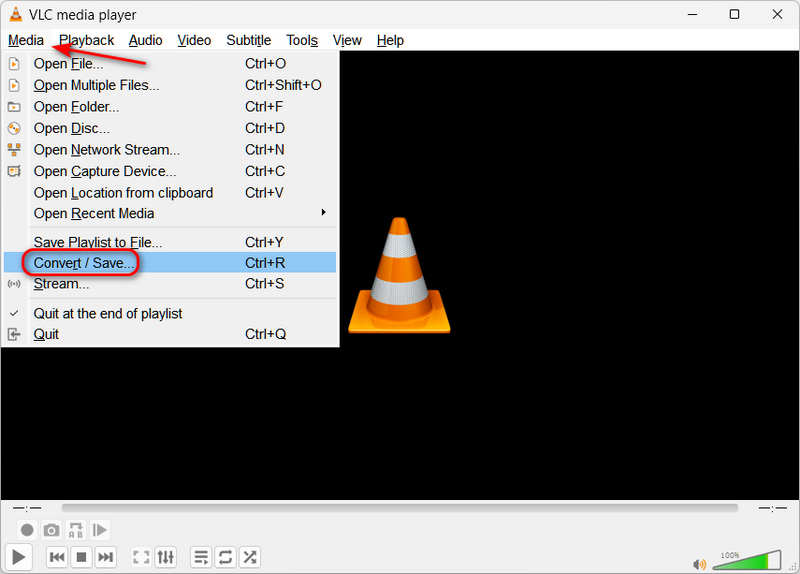
Step 1Launch the tool on your PC. Click the Media button, then the Convert/Save button to launch the media converter tool in VLC.
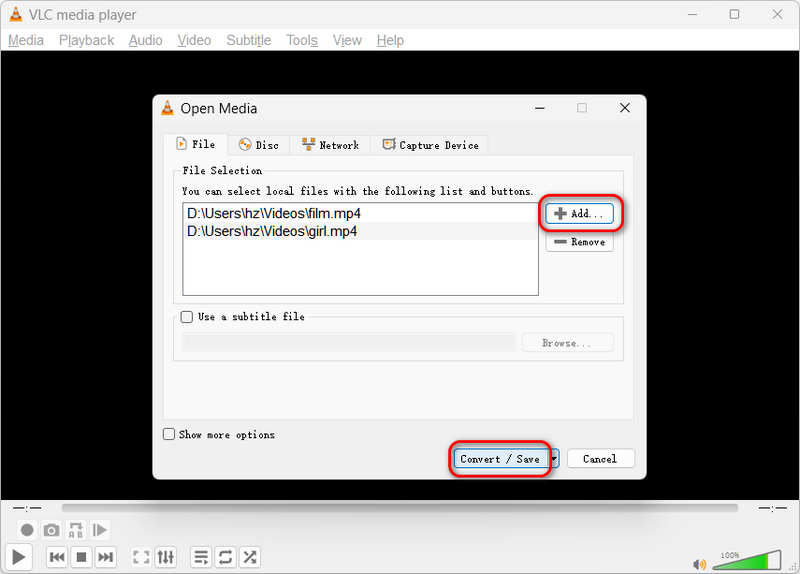
Step 2Add your MP4 files by clicking the Add button, then click Convert/Save button again at the bottom.
Step 3Now, you've come to the most important step. Click the Profile dropdown button and select Video for Android HD. Then, click the Edit selected profile button.
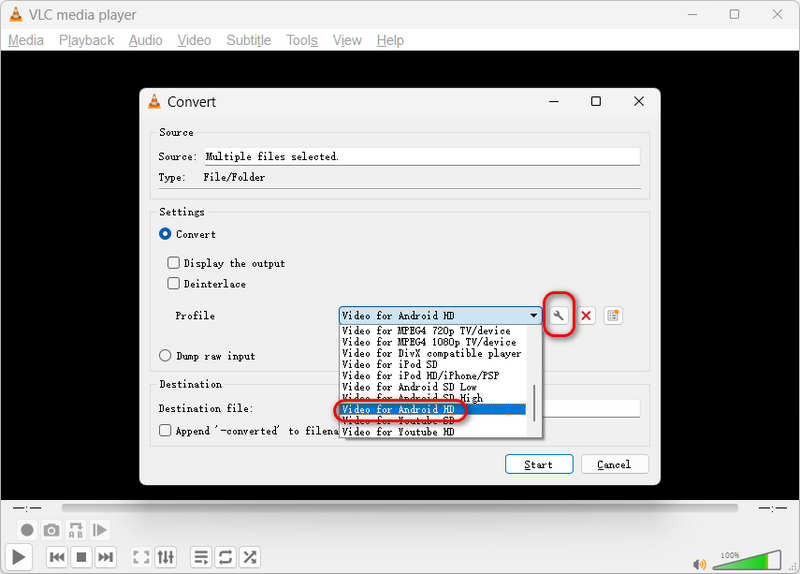
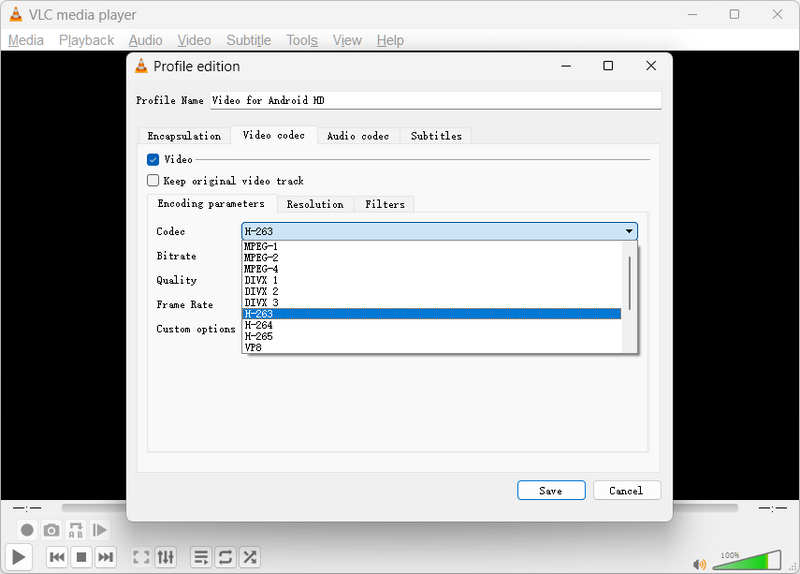
Step 4Select the Video codec tab and click the Codec dropdown button to select H-263.Then, click the Save button.
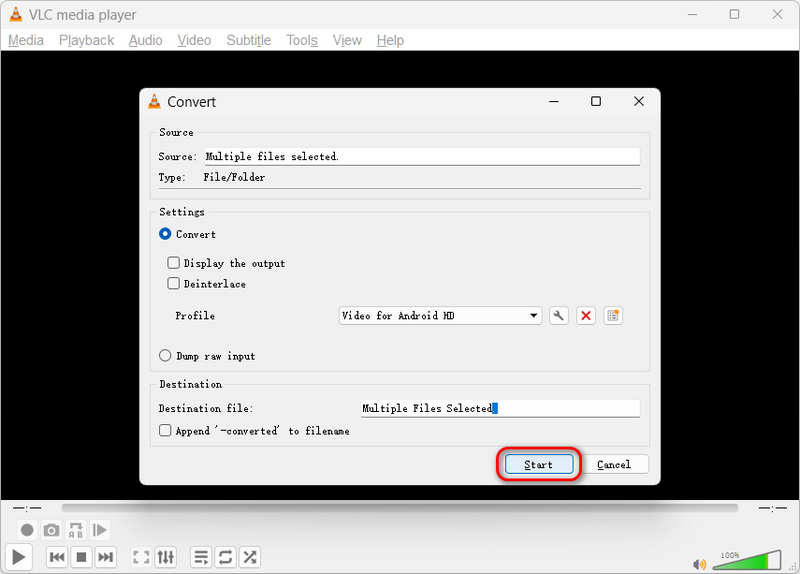
Step 5Finally, just click the Start button to convert MP4 to 3GP with VLC. This is really a free but complicated media converter.
Part 2. How to Convert MP4 to 3GP Free Online
Online conversion is also a great way to convert your files. However, executing conversion online might look risky to others most of the time. Fortunately, AVAide Free Online Converter has finally ended the speculation. This online tool has the safest way to freely convert MP4 to 3GP, rest assured that your files and data are 100 percent secured with its high encryption feature. In addition, no ads will be seen on its webpage. What’s more, it has a built-in setting that will help enhance the video and audio for your preference.
Unlike others, AVAide Free Online Converter allows the users to enjoy the service unlimitedly. No need to sign-up to increase the file size, the users have the privilege to convert any size, anytime, anywhere. Plus it is one of the fastest online converter tools, and so let’s experience the rapid process of this MP4 to 3GP online video converter with the guidelines below.
Step 1Launcher Installation
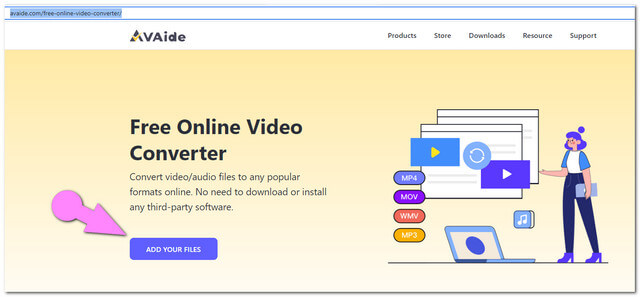
Acquire the launcher from the website. Click the ADD YOUR FILES button, then follow the direction.
Step 2Uploading MP4 Files
Hit the ADD YOUR FILES button again to initially upload files. To add more files, click the Add File button on the interface.
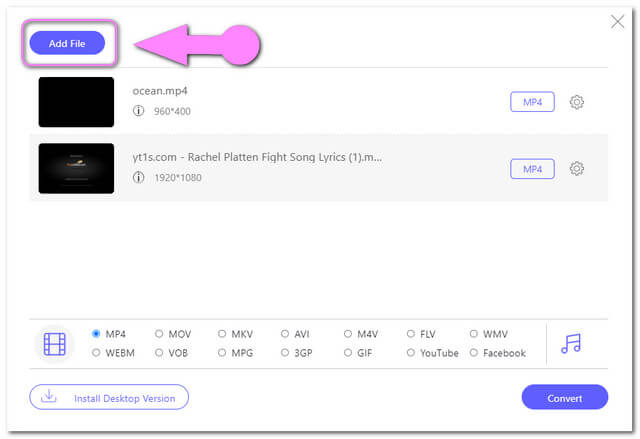
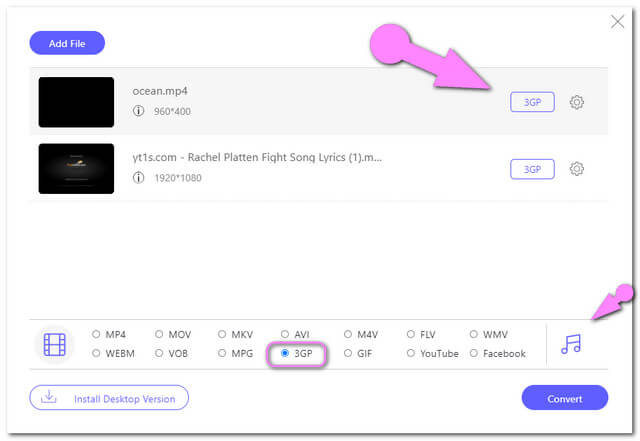
Step 3Preset Outputs to 3GP
Select the 3GP from the video formats presented below. If you wish the audio formats to be available, click the Note icon on the side of the video formats.
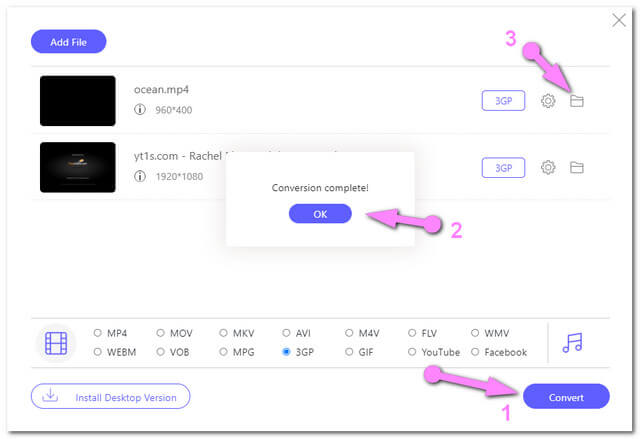
Step 4Start the Conversion
Click the Convert button and choose a local file destination from the pop-up window. Afterward, it will quickly convert MP4 files to 3GP online for free.
Part 3. How to Convert MP4 to 3GP on Android
Video Compressor & Converter by Technozer Solution
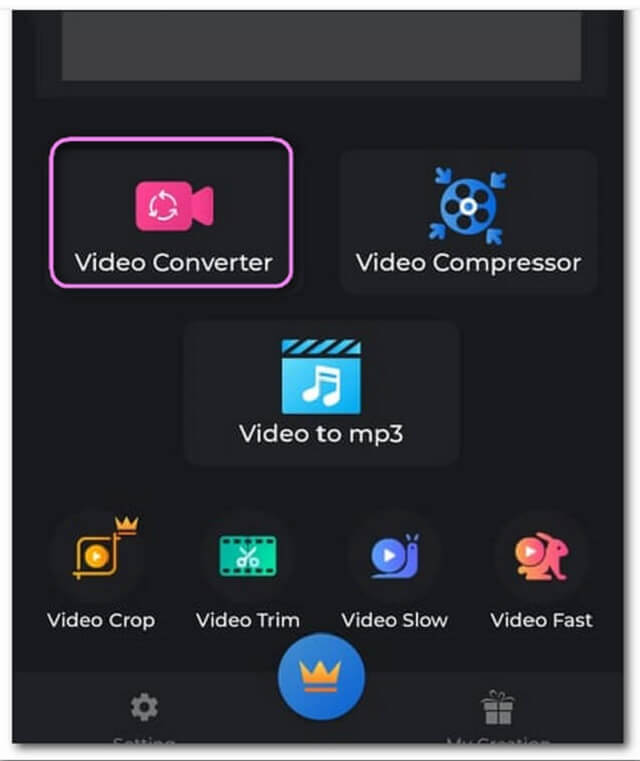
For an Android solution, Video Compressor & Converter stands out as one of the best choices. This MP4 to 3GP app is free to download and accessible anytime you need an on-the-go conversion. Beyond changing formats, it packs handy mobile editing features that allow you to compress, crop, trim, and adjust video speed (fast and slow motion). Follow the simple guidelines below to convert MP4 to 3GP directly on your phone:
Step 1Launch the app and click Video Converter to upload an MP4 file.
Step 2Choose 3GP from the video formats, then click the Convert button.
Step 3Rename the file to save, then tap the Start button to convert your MP4 file to 3GP format.
Part 4. FAQs about MP4 to 3GP Conversion
Does converting MP4 to 3GP affect the video quality?
3GP is a legacy video format, so converting MP4 to 3GP will definitely reduce the video quality. However, you don't need to make the video higher quality because this conversion is mainly for playback on old devices with low-end and outdated screens.
What are the disadvantages of 3GP format?
The 3GP format has two significant disadvantages: It is quite outdated, and most devices and platforms today cannot recognize it; it's video quality is quite low today, mostly no higher than 640:480 pixels.
Why is 3GP outdated?
3GP became outdated because mobile technology rapidly evolved beyond the limitations of early 3G networks. As smartphones introduced high-definition screens and powerful processors, the heavily compressed 3GP format—which relies on low-resolution encodings like H.263 and maximum resolutions of 320×240, could no longer deliver acceptable visual quality.
Now, you've learned some reliable converters that can convert MP4 to 3GP format. You can get a 3GP video and play it seamlessly on your target devices or players. Today, a reliable and stable media converter is needed when you want to get some legacy output formats, so AVAide MP4 Converter is highly recommended. It supports standard 3GP output presets, and you just need to select and convert.
ABOUT THE AUTHOR

A multifunctional MP4 converter to convert any video format to MP4 with high output quality.