กำลังพยายามที่จะ เปิดเพลงขณะบันทึกวิดีโอ การถ่ายคลิปวิดีโอด้วย iPhone สำหรับ TikTok, บันทึกการเดินทาง หรือวิดีโอสั้นๆ อาจทำให้รู้สึกหงุดหงิดเมื่อเสียงหยุดไปกะทันหัน ผู้ใช้หลายคนเจอปัญหานี้ในช่วงเวลาสำคัญ โชคดีที่มีหลายวิธีง่ายๆ ในการทำให้เพลงเล่นต่อไปขณะบันทึกทั้งบน iPhone และ Android
ส่วนที่ 1. iPhone - วิธีเล่นเพลงขณะบันทึกวิดีโอ
วิธีที่ 1: วิธีการในตัว
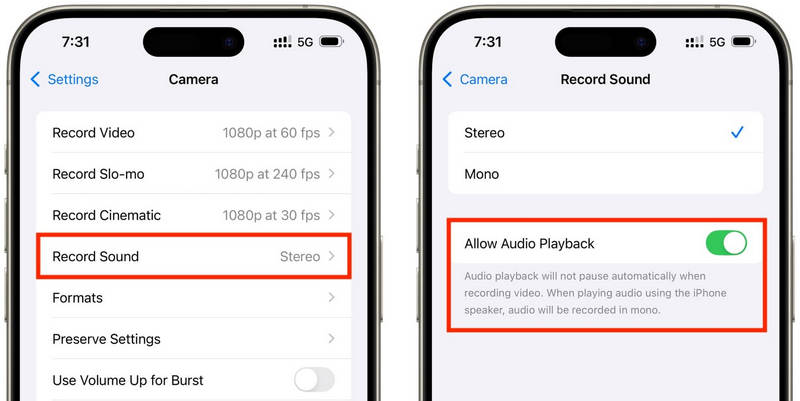
iOS 18 นำมาซึ่งการปรับปรุงที่น่ายินดีในด้านความสะดวกในการใช้งานสำหรับผู้ใช้ iPhone ก่อนหน้านี้ iOS เวอร์ชันเก่าจะหยุดเล่นเพลงขณะที่แอปกล้องกำลังบันทึก แต่การอัปเดตครั้งนี้แก้ไขปัญหานั้นแล้ว และช่วยให้ผู้ใช้สามารถฟังเพลงขณะบันทึกได้ นี่เป็นวิธีที่ตรงไปตรงมาและเชื่อถือได้มากที่สุด เพราะไม่จำเป็นต้องติดตั้งแอปพลิเคชันเพิ่มเติมหรือใช้วิธีการแฮ็กใดๆ มันทำงานโดยตรงภายในระบบของ iPhone
ขั้นตอนที่ 1ไปที่แอปการตั้งค่าบน iPhone ของคุณ
ขั้นตอนที่ 2แตะ กล้อง ที่ด้านล่างของหน้าจอ
ขั้นตอนที่ 3 เลือก บันทึกเสียง หรือตัวเลือกเสียงเดียวกัน แล้วเปิดใช้งาน อนุญาตให้เล่นเสียง ระหว่างตัวเลือกการบันทึก
ขั้นตอนที่ 4เปิดเพลงในแอปพลิเคชันเพลงที่คุณเลือกใช้
ขั้นตอนที่ 5เปิด กล้อง แอปและเลือก โหมดวิดีโอเพลงของคุณควรเล่นต่อไปขณะทำการบันทึก
วิธีที่ 2: เทคนิค QuickTake (สำหรับ iOS 17 และเวอร์ชันเก่ากว่า)
QuickTake เป็นหนึ่งในวิธีที่ง่ายที่สุดในการแก้ปัญหาเพลงหยุดเล่นขณะบันทึกวิดีโอใน iPhone รุ่นเก่า ต่างจากการเข้าสู่โหมดวิดีโอโดยสิ้นเชิง QuickTake ช่วยให้คุณถ่ายคลิปได้โดยตรงจากโหมดภาพถ่าย ทำให้เพลงพื้นหลังยังคงเล่นต่อไป ใช้งานง่ายและรวดเร็วสำหรับวิดีโอสั้นๆ วิดีโอที่โพสต์ลงทวิตเตอร์ วิดีโอของคุณเองบนโซเชียลมีเดีย หรือเหตุการณ์ใดๆ ก็ตามที่คุณต้องการบันทึกโดยไม่ให้เสียงเพลงหยุด
ขั้นตอนที่ 1เล่นเพลงของคุณใน Apple Music, Spotify หรือแอปพลิเคชันเพลงอื่นๆ
ขั้นตอนที่ 2คงไว้ที่ค่าเริ่มต้น รูปถ่าย โหมด.
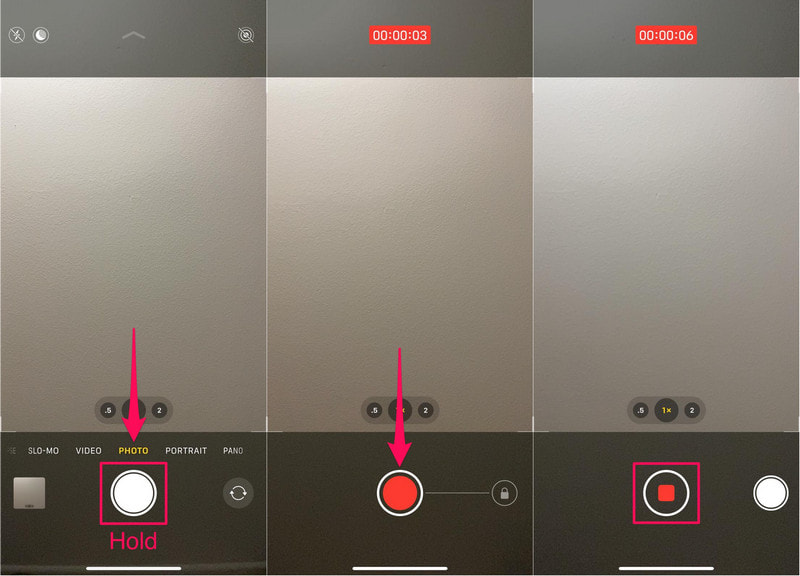
ขั้นตอนที่ 3หากต้องการเริ่มบันทึกวิดีโอ ให้กดปุ่มค้างไว้ ชัตเตอร์ ปุ่ม.
ขั้นตอนที่ 4 เลื่อนปุ่มชัตเตอร์ไปทางขวาเพื่อล็อคการบันทึก คุณจึงไม่จำเป็นต้องกดปุ่มชัตเตอร์ค้างไว้
ขั้นตอนที่ 5คลิกที่ หยุด กดปุ่มเมื่อเสร็จสิ้นแล้ว
วิธีที่ 3: การใช้แอปพลิเคชันจากผู้ให้บริการภายนอก
หากการเล่นวิดีโอยังคงถูกขัดจังหวะด้วยเสียงเพลง แอปพลิเคชันบันทึกเสียงจากผู้พัฒนาภายนอกคือทางออกที่ดีที่สุด แอปพลิเคชันที่ได้รับความนิยมมากที่สุดคือ Mideo ซึ่งช่วยให้ผู้ใช้สามารถเล่นเพลงและบันทึกวิดีโอไปพร้อมกันได้ รองรับการบันทึกระดับ HD และ 4K บนอุปกรณ์ที่รองรับ และมีฟีเจอร์ครบครันตามต้องการ เช่น การซูมเข้าและซูมออก รองรับกล้องหน้าและกล้องหลัง และบันทึกไปยังแอป Photos ได้ทันที
ขั้นตอนที่ 1ดาวน์โหลดแอป Mideo จาก App Store
ขั้นตอนที่ 2อนุญาตให้เข้าถึงกล้องและไมโครโฟน
ขั้นตอนที่ 3เปิดแอป Apple Music, Spotify หรือแอปสตรีมมิ่งอื่นๆ แล้วเริ่มเล่นได้เลย
ขั้นตอนที่ 4เมื่อเพลงของคุณเริ่มเล่นแล้ว ให้เปิด... แอป.
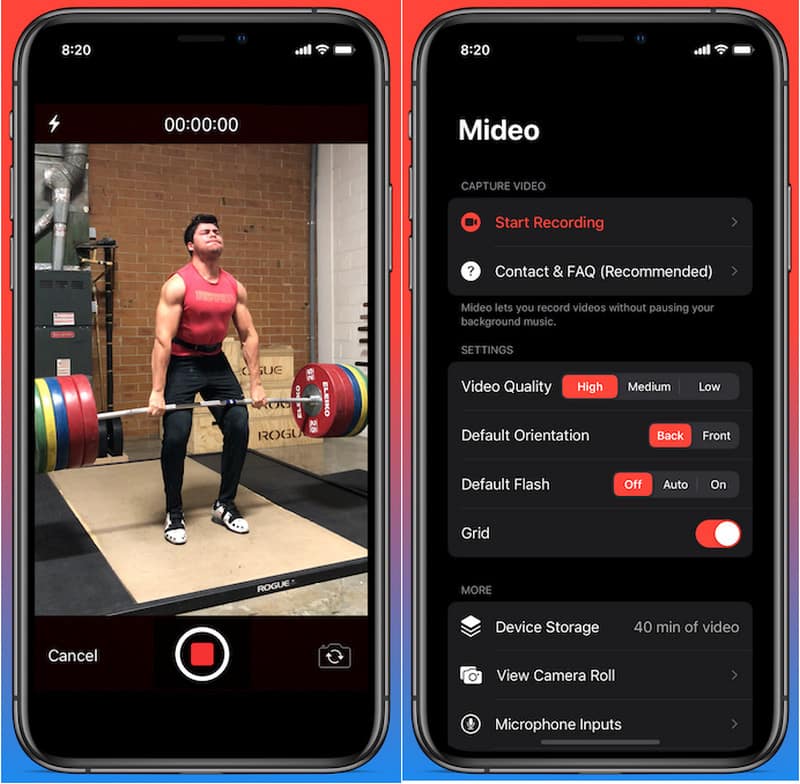
ขั้นตอนที่ 5กด บันทึก กดปุ่มและเริ่มบันทึกขณะที่เพลงของคุณเล่นอยู่เบื้องหลัง
วิธีที่ 4: การใช้โหมดภาพซ้อนภาพ (PiP)
การเล่นสื่อไม่จำเป็นต้องปิดลงขณะบันทึกวิดีโอ คุณสามารถใช้ฟังก์ชัน Picture-in-Picture ได้ iPhone ของคุณจะยังคงเล่นไฟล์วิดีโอหรือเพลงต่อไปได้แม้หลังจากเปิดแอปกล้องในพื้นหน้าแล้ว นี่เป็นวิธีง่ายๆ ที่ไม่จำเป็นต้องติดตั้งเครื่องมือบันทึกเพิ่มเติม
ขั้นตอนที่ 1เล่นเพลงหรือวิดีโอจากแอปที่รองรับโหมดภาพซ้อนภาพ (Picture-in-Picture)
ขั้นตอนที่ 2ไปที่ การตั้งค่า > ทั่วไป > ภาพในภาพจากนั้นเปิดใช้งาน เริ่ม PiP โดยอัตโนมัติ.
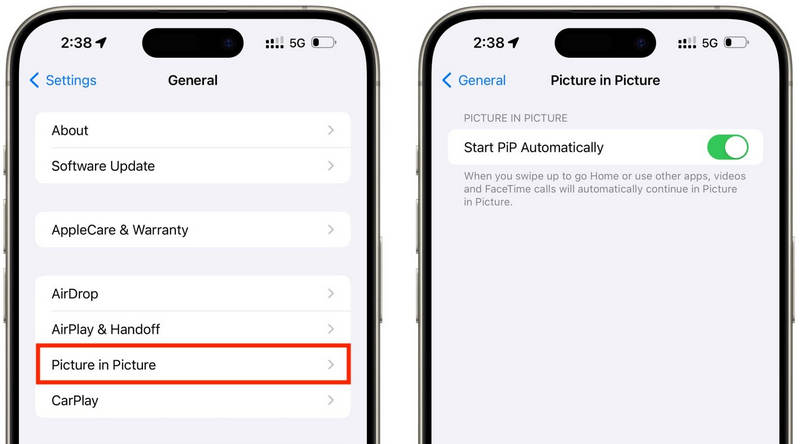
ขั้นตอนที่ 3ปัดขึ้นหรือแตะปุ่ม PiP บนโปรแกรมเล่นวิดีโอเพื่อย่อสื่อลงในหน้าต่างลอย
ขั้นตอนที่ 4เปิดแอปกล้องอย่างระมัดระวังโดยไม่หยุดการเล่นสื่อ
ขั้นตอนที่ 5บันทึกวิดีโอของคุณในขณะที่เพลงหรือสื่ออื่นๆ ยังคงเล่นอยู่เบื้องหลัง
ตอนที่ 2. Android - วิธีเล่นเพลงขณะบันทึกวิดีโอ
วิธีที่ 1: Samsung One UI 7 (ติดตั้งมากับเครื่อง)
ด้วย Samsung One UI 7 บริษัทได้ปรับปรุงการควบคุมกล้องและเสียงให้ดียิ่งขึ้น เพื่อให้การเล่นเพลงขณะถ่ายวิดีโอทำได้ง่ายขึ้น ฟีเจอร์นี้ถูกรวมเข้ากับระบบแล้ว ผู้ใช้จึงสามารถบันทึกได้อย่างราบรื่นโดยไม่ต้องติดตั้งแอปพลิเคชันเพิ่มเติมใดๆ โดยเฉพาะอย่างยิ่งมีประโยชน์สำหรับการสร้างวิดีโอสำหรับโซเชียลมีเดีย วล็อก หรือวิดีโอทั่วไปที่มีเพลงประกอบ
ขั้นตอนที่ 1เปิด กล้อง แอป จากนั้นแตะที่ การตั้งค่า ปุ่ม.
ขั้นตอนที่ 2ตรวจสอบเสียงหรือ ตัวเลือกวิดีโอขั้นสูง.
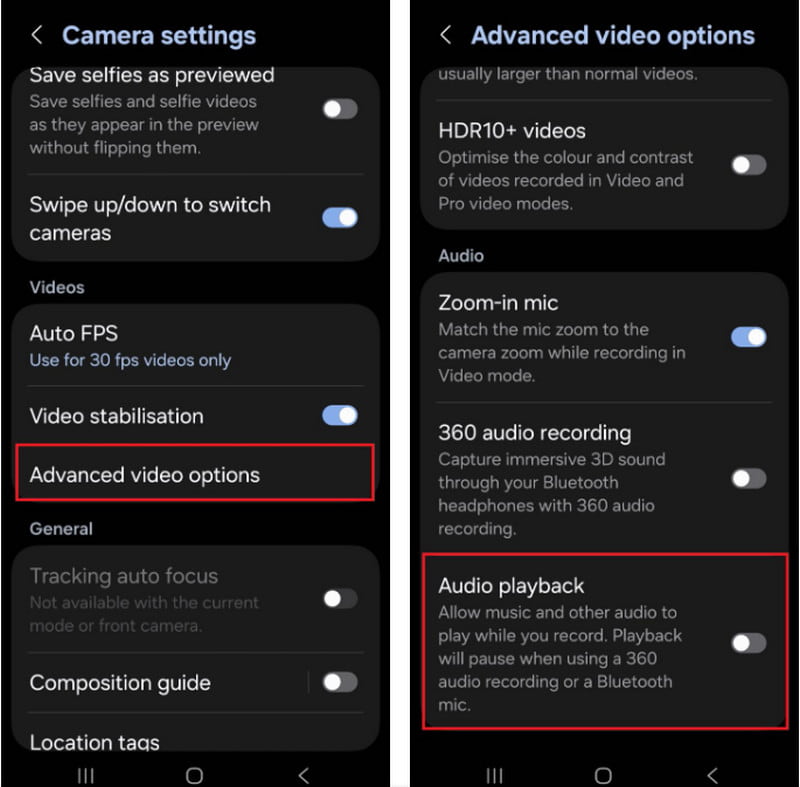
ขั้นตอนที่ 3เปิดใช้งาน การเล่นเสียง.
ขั้นตอนที่ 4เปิดเพลงใน Spotify, YouTube Music หรือแอปพลิเคชันอื่นๆ
ขั้นตอนที่ 5เปิด กล้อง ดาวน์โหลดแอปและเริ่มบันทึก
วิธีที่ 2: การใช้โปรแกรมบันทึกหน้าจอของ Google Pixel
โปรแกรมบันทึกหน้าจอในตัวของโทรศัพท์ Google Pixel ยังช่วยให้คุณบันทึกเสียงภายในได้ด้วย โดยหลักแล้วแอปนี้ใช้สำหรับบันทึกหน้าจอ แต่ก็สามารถเล่นเพลงขณะบันทึกได้เช่นกัน ซึ่งมีประโยชน์มากสำหรับการสอนวิธีการใช้งาน การสาธิตการเล่นเกม และการสาธิตแอปโดยมีเพลงประกอบ
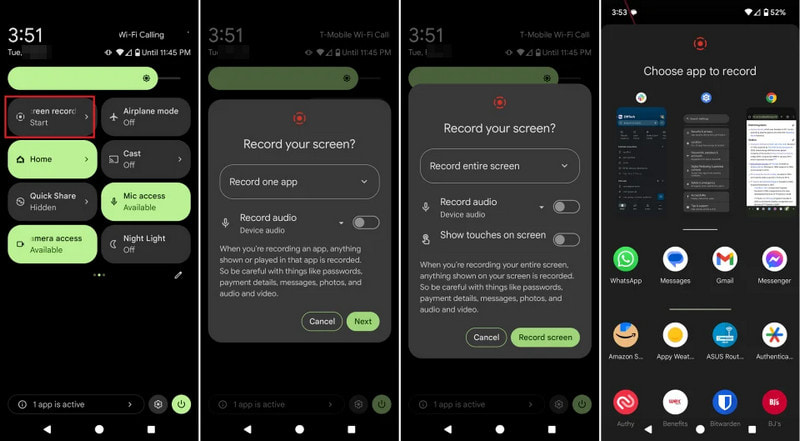
ขั้นตอนที่ 1 แตะและลากลงมาจากด้านบนของหน้าจอ
ขั้นตอนที่ 2เลือกโปรแกรมบันทึกหน้าจอที่มีอยู่แล้ว
ขั้นตอนที่ 3เลือกบันทึกเสียงภายในหรือบันทึกเสียงภายนอก
ขั้นตอนที่ 4หากต้องการเล่นเพลง ให้คลิกแอปเพลงที่คุณชื่นชอบ
ขั้นตอนที่ 5เริ่มการบันทึกหน้าจอ
วิธีที่ 3: การใช้แอปพลิเคชันจากผู้ให้บริการภายนอก
แอปบันทึกเสียงจากผู้พัฒนาภายนอก เช่น Background Video Recorder เป็นที่นิยมใช้กันอย่างแพร่หลายในระบบ Android เนื่องจากใช้งานได้กับโทรศัพท์หลายยี่ห้อและหลายเวอร์ชันของ Android แอปจำนวนมากมีฟังก์ชันเล่นเสียงในพื้นหลังและตัวเลือกการบันทึกเสียงเพิ่มเติม เช่น คุณภาพวิดีโอ HD การควบคุมแบบแมนนวล ฟิลเตอร์ และการปรับความเสถียร แอปเหล่านี้มีประโยชน์สำหรับผู้ที่ต้องการตัวเลือกการบันทึกมากกว่าที่แอปกล้องในตัวมีให้ โดยเฉพาะอย่างยิ่งสำหรับผู้ใช้ที่ต้องการ... บันทึกพอดแคสต์รวมถึงบทเรียน วิดีโอ Vlog หรือเนื้อหาบนโซเชียลมีเดียที่มีคุณภาพเสียงและภาพที่ดีกว่า
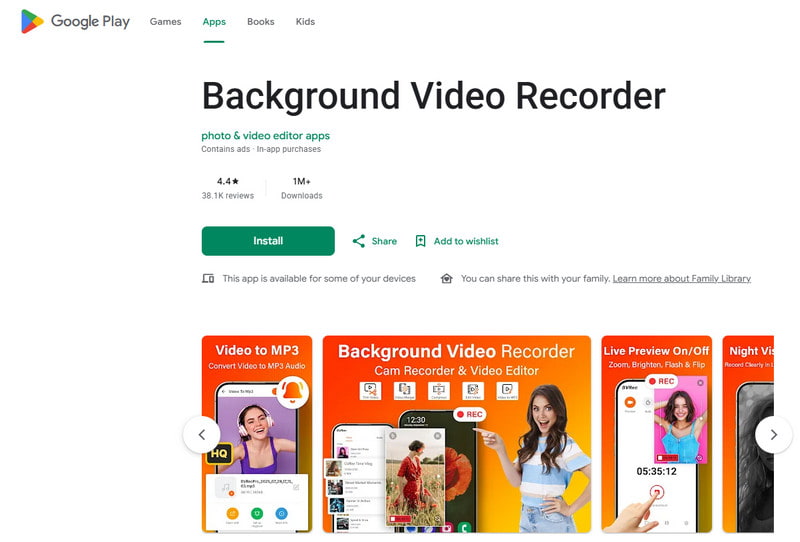
ขั้นตอนที่ 1ติดตั้งแอป Background Video Recorder จาก Google Play Store
ขั้นตอนที่ 2อนุญาตให้เข้าถึงกล้อง ไมโครโฟน และพื้นที่จัดเก็บข้อมูลของคุณเมื่อได้รับแจ้ง
ขั้นตอนที่ 3เปิด Spotify, YouTube Music หรือแอปเพลงอื่นๆ แล้วเริ่มสร้างเพลย์ลิสต์ของคุณ
ขั้นตอนที่ 4เปิดโปรแกรมบันทึกและปรับคุณภาพวิดีโอหรือการตั้งค่าเสียงตามต้องการ
ขั้นตอนที่ 5กดปุ่มบันทึกขณะที่เพลงยังคงเล่นอยู่เบื้องหลัง
ตอนที่ 3. ทำไม iPhone ของฉันถึงหยุดเล่นเพลงเมื่อฉันเริ่มบันทึก?
ผู้ใช้ iPhone บางรายรายงานว่าเพลงหยุดเล่นกะทันหันขณะบันทึกวิดีโอ เนื่องจากในอุปกรณ์ iOS ไมโครโฟนของกล้องจะถูกใช้สำหรับการบันทึกเสียงก่อนเสมอ แทนที่จะเป็นการเล่นเพลง พฤติกรรมนี้คล้ายกับวิธีการทำงานของซอฟต์แวร์บางอย่าง บันทึกเสียงบน Mac แอปจะให้ความสำคัญกับการรับสัญญาณเสียงจากไมโครโฟนระหว่างการบันทึกเสียง ปัญหาดังกล่าวอาจเกิดขึ้นได้จากหลายสาเหตุ ขึ้นอยู่กับรุ่น iPhone และเวอร์ชัน iOS ของคุณ
- แอปกล้องจะควบคุมเสียง: แอปกล้องจะเลือกใช้ไมโครโฟนโดยอัตโนมัติสำหรับการบันทึกวิดีโอ เพื่อให้ได้คุณภาพเสียงที่ดีที่สุด
- ระบบปฏิบัติการ iOS เวอร์ชันเก่ามีข้อจำกัดบางประการ: โดยส่วนใหญ่แล้ว เพลงจะหยุดเล่นโดยอัตโนมัติเมื่อบันทึกวิดีโอใน iOS 17 และเวอร์ชันก่อนหน้า
- คุณสามารถเล่นเพลงในพื้นหลังได้เฉพาะกับแอปเล่นเพลงบางแอปเท่านั้น: แอปพลิเคชันสตรีมมิ่งบางแอปอาจหยุดการสตรีมชั่วคราวหากมีแอปพลิเคชันอื่นกำลังใช้การตั้งค่าการบันทึกเสียงอยู่
- อุปกรณ์บลูทูธอาจก่อให้เกิดปัญหาขัดแย้ง: หูฟังไร้สายหรือลำโพงไร้สายอาจก่อให้เกิดความรบกวนระหว่างการบันทึกเสียงได้
- โหมดประหยัดแบตเตอรี่อาจรบกวนการทำงาน: โหมดประหยัดพลังงานอาจจำกัดการทำงานเบื้องหลัง เช่น การเล่นเพลง
ส่วนที่ 4. เพลงหยุดเล่นหรือเล่นไม่ได้ [วิธีแก้ไขด่วน]
| ปัญหา | แก้ไขด่วน |
| เสียงเพลงจะหยุดทันทีหลังจากเริ่มบันทึกเสียง | ใช้ฟังก์ชัน QuickTake หรือเปิดใช้งานฟีเจอร์เล่นภาพในตัวภายในเมนูการตั้งค่ากล้องของคุณ. |
| ห้ามเปิดเพลงระหว่างการบันทึกเสียง | รีสตาร์ททั้งแอปกล้องและแอปเพลง จากนั้นลองบันทึกอีกครั้ง |
| เสียงบลูทูธตัดการเชื่อมต่อ | เชื่อมต่อหูฟังไร้สายหรือลำโพงของคุณอีกครั้งหลังจากปิดและเปิดบลูทูธใหม่ |
| โปรแกรมบันทึกภาพจากภายนอกใช้งานไม่ได้ | อัปเดตหรือติดตั้งแอปบันทึกเสียงใหม่เพื่อแก้ไขปัญหาความเข้ากันได้ที่อาจเกิดขึ้น |
| เพลงยังคงหยุดเล่นบน iPhone ของฉันอยู่ | รีสตาร์ท iPhone ของคุณและติดตั้งการอัปเดต iOS เวอร์ชันล่าสุดที่มีให้ใช้งาน |
| วิดีโอที่บันทึกไว้ไม่มีเสียง | ตรวจสอบให้แน่ใจว่าได้เปิดใช้งานการอนุญาตไมโครโฟนสำหรับทั้งแอปกล้องและแอปเพลงแล้ว |
ส่วนที่ 5. ลองใช้โปรแกรมบันทึกหน้าจอแบบมืออาชีพดูไหม
โปรแกรมบันทึกหน้าจอ AVAide เป็นซอฟต์แวร์บันทึกหน้าจอระดับมืออาชีพสำหรับผู้ที่ต้องการการบันทึกที่ราบรื่นและมีคุณภาพสูงบน Windows และ Mac สามารถบันทึกเสียงระบบ เสียงไมโครโฟน วิดีโอจากเว็บแคม และแม้แต่หน้าจอด้วยคุณภาพสูง โปรแกรมนี้มีประโยชน์อย่างยิ่งสำหรับการสร้างวิดีโอสอนการใช้งาน วิดีโอเกม วิดีโอแสดงปฏิกิริยา การเรียนการสอนออนไลน์ และการนำเสนอวิดีโอ โดยไม่มีอาการกระตุกและไม่ต้องตั้งค่าที่ซับซ้อน
- บันทึกวิดีโอด้วยความละเอียดสูงสุด 4K หรือ 1080p ด้วยประสิทธิภาพที่ราบรื่นและเสถียร
- บันทึกเสียงภายในและเสียงจากไมโครโฟนพร้อมกัน เพื่อให้ได้การบันทึกที่ชัดเจนยิ่งขึ้น
- เลือกโหมดการบันทึกได้ระหว่างแบบเต็มหน้าจอ แบบเลือกหน้าต่าง หรือแบบกำหนดพื้นที่เอง
- บันทึกภาพจากเว็บแคม หรือสะท้อนและจับภาพหน้าจอ iPhone และ Android ได้อย่างง่ายดาย
- เพิ่มคำอธิบายประกอบขณะบันทึก และตัดต่อหรือแก้ไขวิดีโอได้ทันทีหลังจากบันทึกเสร็จ

 ดาวน์โหลดอย่างปลอดภัย
ขั้นตอนที่ 1ติดตั้ง AVAide Screen Recorder
เข้าไปที่เว็บไซต์อย่างเป็นทางการของ AVAide และดาวน์โหลดซอฟต์แวร์สำหรับ Windows หรือ Mac ติดตั้งโปรแกรม แล้วเรียกใช้งานหลังจากติดตั้งเสร็จ
ขั้นตอนที่ 2เลือกโหมดการบันทึก
หากต้องการบันทึกกิจกรรมบนหน้าจอของคุณ ให้คลิกที่... บันทึกหน้าจอ ตัวเลือกจากหน้าจอหลัก
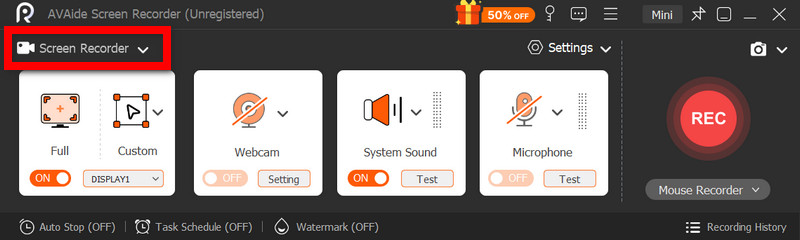
ขั้นตอนที่ 3เลือกพื้นที่การบันทึก
เลือก เต็ม หรือ กำหนดเอง โหมดการบันทึกตามต้องการ
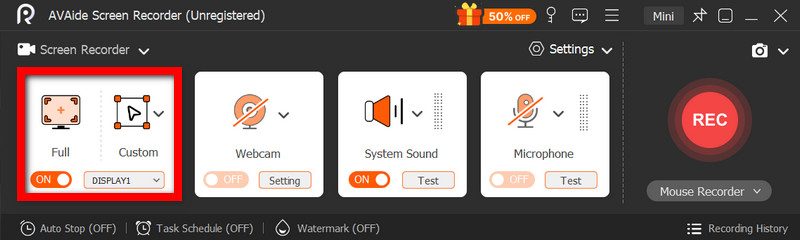
ขั้นตอนที่ 4เปิดใช้งานแหล่งที่มาของเสียง
หากคุณต้องการบันทึกเสียง ให้เปิดใช้งาน ไมโครโฟน; หากคุณต้องการบันทึกเสียงภายใน ให้เลือก ระบบเสียง.
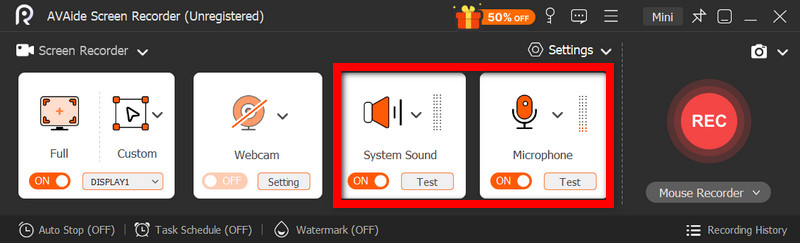
ขั้นตอนที่ 5เริ่มบันทึก
คลิก REC ปุ่มสำหรับบันทึกหน้าจอ วิดีโอ หรือกิจกรรมเสียงของคุณ
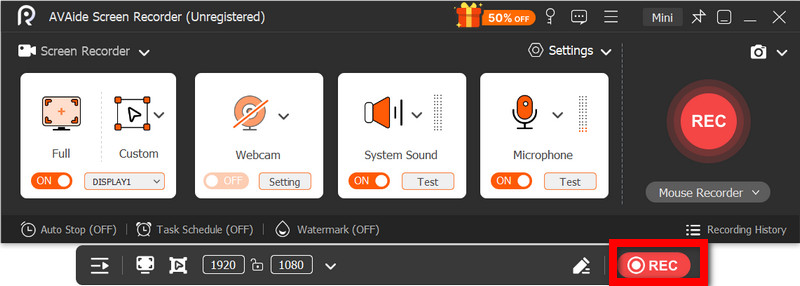
ขั้นตอนที่ 6แก้ไขและบันทึกการบันทึก
เมื่อเสร็จแล้ว ให้กดปุ่ม หยุด ปุ่มนี้ ดูวิดีโอเพื่อทำความเข้าใจภาพรวม แก้ไขเล็กน้อยหากจำเป็น แล้วบันทึกไว้ในคอมพิวเตอร์
เปิดเพลงไปด้วยขณะบันทึกเสียง เป็นปัญหาที่ผู้ใช้หลายคนประสบเมื่อสร้างวิดีโอสำหรับโซเชียลมีเดียหรือใช้ส่วนตัว แต่ด้วยการตั้งค่า วิธีการ หรือเครื่องมือที่เหมาะสม ทั้งผู้ใช้ iPhone และ Android ก็สามารถบันทึกวิดีโอได้โดยไม่ต้องหยุดเพลงประกอบได้ง่ายๆ
เกี่ยวกับผู้เขียน

จับภาพกิจกรรมบนหน้าจอด้วยเสียง การประชุมออนไลน์ วิดีโอการเล่นเกม เพลง เว็บแคม ฯลฯ