Where do you usually need to record webcam videos? Is it for online meetings, live streaming, tutorials, or capturing gameplay?
If you are looking for tools to record webcam videos easily, this write-up has what you need. We will present the best webcam recording software, including their pricing, key features, pros, and cons. We will also provide a step-by-step guide on how to record webcam video on Windows and Mac.
Top 1: AVAide Screen Recorder
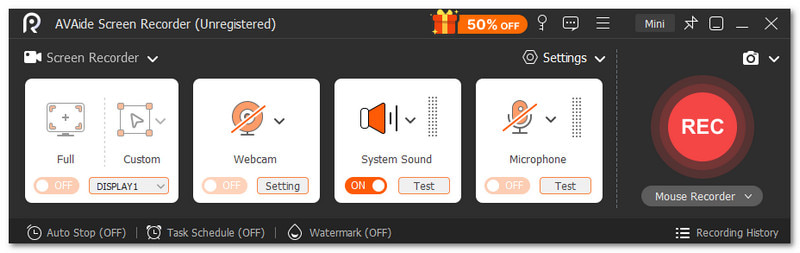
Let us start with AVAide Screen Recorder, the best webcam recorder that makes your videos look clear and professional. You can record in 1080p or even 4K, and set custom frame rates up to 120fps. It can capture your microphone and system sound at the same time, so your audio is perfectly synced.

FREE DOWNLOAD For Windows 7 or later
 Secure Download
FREE DOWNLOAD For Mac OS X 10.13 or later
Secure DownloadAdditionally, it works with various video formats and includes editing tools and screenshot features. You can also schedule recordings to start and stop automatically, making it simple to capture everything you need without missing a moment.
Supported Operating Systems: Windows & Mac
Pricing: Free version available; 1-year subscription $39.00; Lifetime license $59.00.
Ease of Use: Super straightforward; all buttons are clearly visible, so you will not get confused while recording.
Key Features: Capture webcam footage in high quality, take screenshots anytime, add annotations, and edit videos after recording.
Benefits and drawbacks: Allows camera rotation, multiple export formats, smooth recording with no lag, and preview videos immediately, but you need to subscribe for unlimited use with a 30-day money-back guarantee.
Top 2: Bandicam
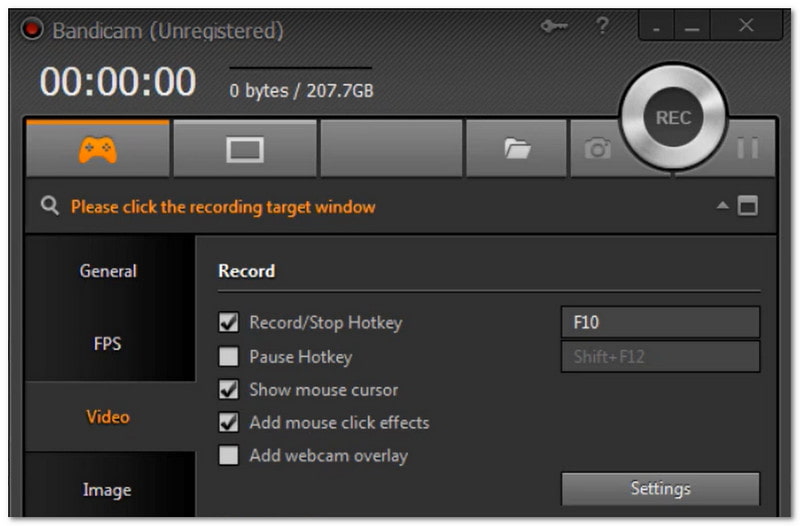
If you want to record games, your computer screen, or your webcam at the same time, Bandicam is one of the best software for recording webcam and screen activity. It is perfect for gamers who want high-clarity captures from Xbox, PlayStation, or a computer.
You can add your face with picture-in-picture, use chroma key, and even set it to stop recording automatically. Bandicam works well for long sessions, making it good for tutorials, streaming, or gameplay videos.
Supported Operating Systems: Windows
Pricing: Free version available. Premium Personal: $49.95 one-time or $36.95 per year. Premium Business: $131.90 one-time or $65.95 per year.
Ease of Use: Simple interface with easy setup, good for beginners and intermediate users.
Key Features: Record in 4K UHD, capture 480 FPS, multiple screen capture modes, draw or annotate in real-time, and mouse effects and animations.
Benefits and drawbacks: Records screens, consoles, and webcams in high quality, but lacks live webcam effects and limits free recording to 10 minutes.
Top 3: OBS Studio
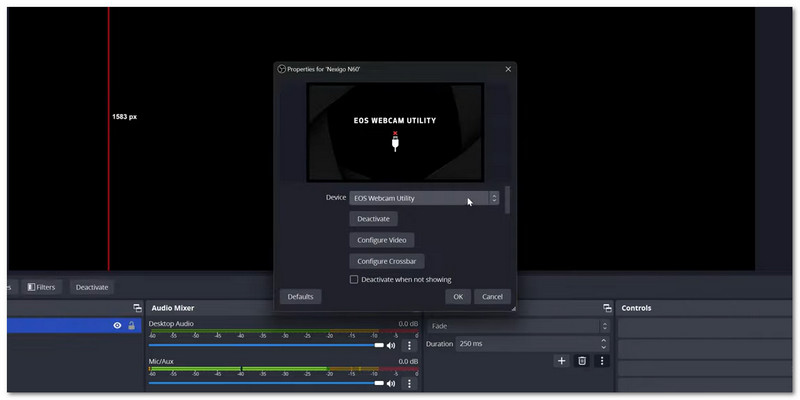
Do you need a webcam recorder that can also manage streaming with multiple sources and custom scenes? This recorder checks that. It is one of the best free webcam recording programs that lets you combine video, audio, images, and text in one scene. Streamers love it for live shows and recording gameplay, but beginners may find it a little complicated at first.
Supported Operating Systems: Windows, Mac & Linux
Pricing: Free
Ease of Use: Steeper learning curve, best for intermediate and advanced users.
Key Features: High-quality video and audio capture, scene creation and switching, audio filters, monitor up to 8 scenes, and wide configuration options.
Benefits and drawbacks: Optimized for gamers and highly customizable, but can be hard to learn and may have stability issues if many programs run at once, and there can be occasional OBS black screen capture problems.
Top 4: YouCam
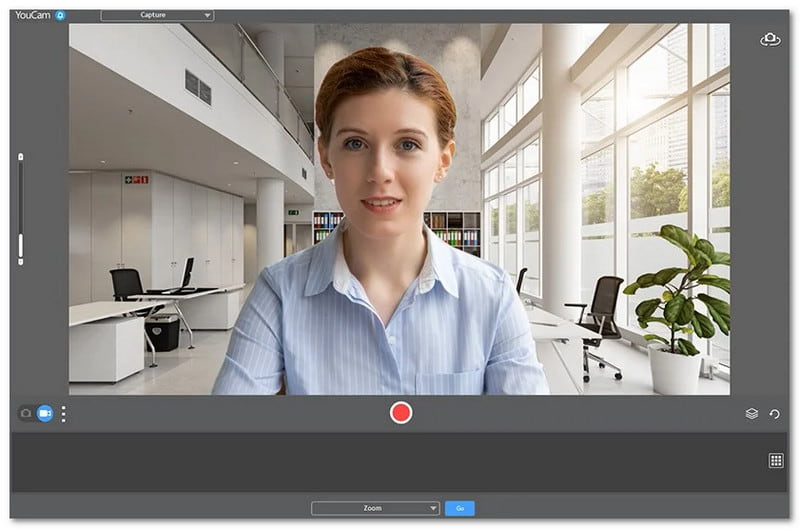
YouCam is one of the best software programs for recording webcam video and adding creative effects. You can apply filters, stickers, AR makeup, and do background replacement. Even beginners can use it easily to enhance video clarity with TrueTheater™ technology. In addition, you can stream or record videos with logos, titles, and promotional messages.
Supported Operating Systems: Windows
Pricing: Free; Premium $3.33/month or $59.99 lifetime
Ease of Use: Easy to use with clear tools and tutorials for beginners.
Key Features: Beautification effects, face tracking, background removal, emojis, overlays, logos, text, and video recording.
Benefits and drawbacks: Lightweight and beginner-friendly with fun effects, but only supports Windows and does not work on Mac or Linux.
Top 5: Camtasia
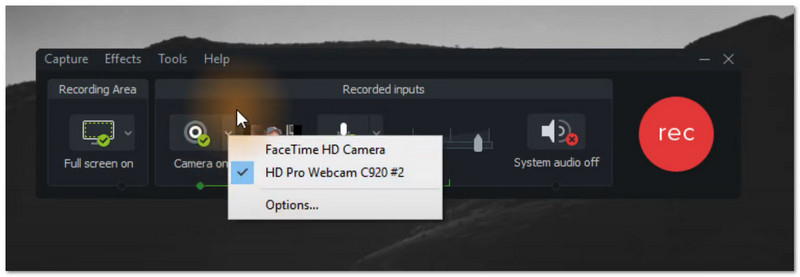
Suppose you want a webcam recorder that is fast and simple for making tutorial videos or recording your screen. In that case, Camtasia is one of the best screen and webcam recording programs you can use. You can add a webcam overlay and record high-quality gameplay or lessons. However, editing tools are basic. With that, you might need another program for advanced edits, but for recording, it is reliable and efficient.
Supported Operating Systems: Windows
Pricing: Free version with watermark; Paid starts at $33.26/year or one-time lifetime license.
Ease of Use: Simple interface, easy for beginners and casual users.
Key Features: Hardware-accelerated recording, low resource use, webcam overlay, select recording area, and audio input control.
Benefits and drawbacks: Fast and lightweight for recording tutorials or gameplay, but no Mac version and limited built-in editing.
Bonus: How to Record Webcam Video on Windows/Mac
Here, we will teach you how to record webcam video on Windows and Mac using AVAide Screen Recorder. There is no need to waste any more time. We will show you right away how to set it up, start recording, and make your videos look clear and professional. So, please follow the steps below.
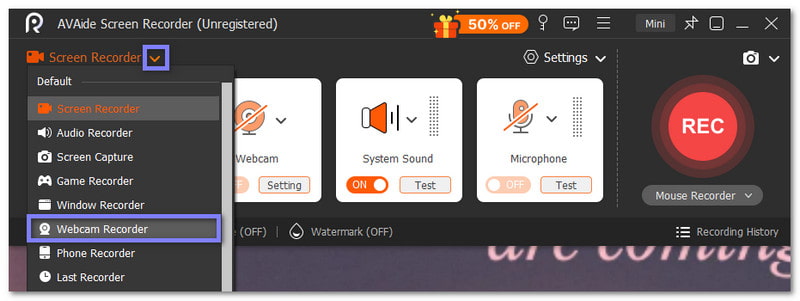
Step 1First, run AVAide Screen Recorder on your Windows or Mac computer. From the drop-down menu, select the Webcam Recorder option. It sets the program to webcam recording mode. Before you start, make sure your webcam is properly connected and working so you do not run into issues.
Step 2Once the webcam display opens, you can see a preview of your recording area. You can move or resize the webcam window to fit your layout. Then, choose your webcam source, then fine-tune the resolution and frame rate, like 1920×108. You can also turn the Microphone on or off and rotate or flip the webcam image to match your setup.
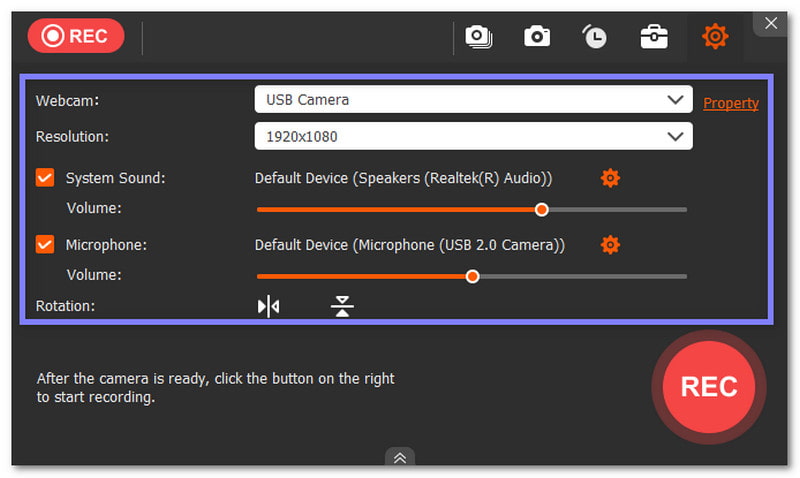
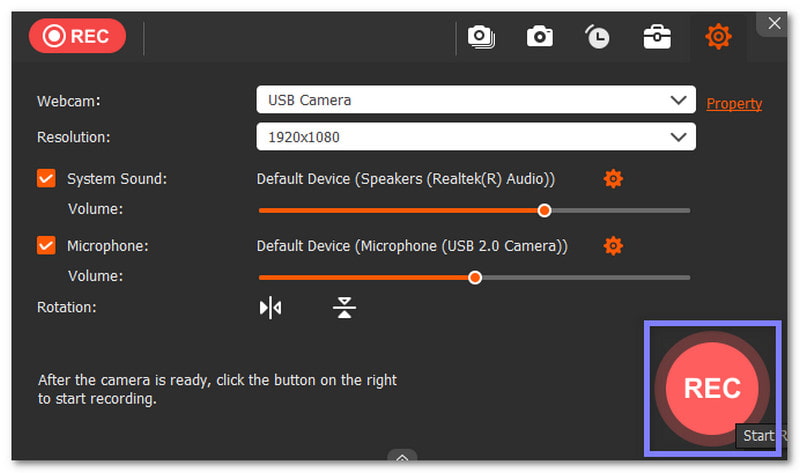
Step 3Hit the big REC button at the top-left corner to begin capturing your webcam video. While recording, a control bar will appear so you can monitor progress. You can also add camera shapes or use burst shooting to capture multiple frames.
Step 4If you want to capture a specific moment, like a highlight or achievement, click the Snapshot button. It lets you take screenshots without stopping your video.
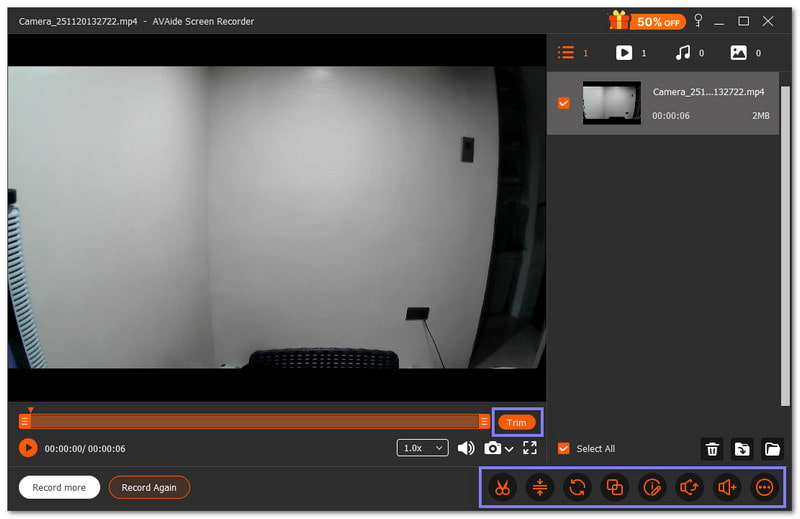
Step 5After you finish recording, hit the Stop button. You will be taken to the media management display, where you can watch your video. From here, you can trim, compress, convert, adjust volume, or edit metadata. It makes it easy to prepare your webcam videos for sharing or further editing.
You have different options to pick for the best software to record video from a webcam. But before choosing, consider ease of use, video clarity, audio recording, supported formats, and extra features like editing or scheduled recording.
Good thing, AVAide Screen Recorder checks all those qualifications. It delivers clear video, captures system sound and microphone at the same time, and gives you editing tools right after recording. You can trust it for all your webcam recording needs!
Record screen, audio, webcam, gameplay, online meetings, as well as iPhone/Android screen on your computer.