As you know, DVDs and DVD players have limits. Discs can get scratched. Players take up space. But in this digital age, you do not always need both to enjoy your favorite movies. You can simply rip it so that you can watch your content anytime.
In this post, we will show you exactly how to rip a DVD on Windows 10 in simple ways. Four methods are waiting for you to try. Do not miss out, check them out now!
Part 1: Quick Overview of the 4 DVD Ripping Software for Windows 10
1. AVAide DVD Ripper
AVAide DVD Ripper is fast, easy, and reliable. It can handle encrypted and region-locked DVDs. You can rip to MP4, MKV, or over 300 formats. It keeps quality high and can upgrade videos to 4K.
2. HandBrake
HandBrake is open-source and free. It allows you to change bitrate and resolution while converting DVDs to MP4 or MKV. But without additional tools, it is unable to rip copy-protected discs.
3. VLC Media Player
VLC is free and widely used as a media player. It can also rip DVDs to MP4 and other popular formats. It is simple to use but slower and has fewer options than dedicated rippers.
4. MakeMKV
MakeMKV rips DVDs to the MKV format while keeping all video and audio quality. It can also handle most encrypted discs. The downside is that it mainly outputs MKV, so you may need an extra program to convert to other formats.
To learn more about these tools and how to use them, please check out the following sections.
Part 2: Best DVD Ripping Software on Windows 10
AVAide DVD Ripper is hands down the best DVD ripping software for Windows 10. It makes ripping DVDs super easy with just one click, so you do not need to worry about complicated steps. You can choose from over 300 output formats, which means you can save your movies in almost any format you need.
One of the best perks is no quality loss. Your DVD movies stay just like the original. You can even upgrade them to 4K for sharper and clearer videos. On top of that, AVAide DVD Ripper can bypass DVD encryption, which means it can rip protected discs safely. It lets you save any movie or show you own without restrictions.
- Rips DVDs up to 30× faster.
- Copy DVDs in full original quality.
- Works with CSS, APS, AACS, and region locks.
- Customize video settings, like resolution, bitrate, and frame rate.
- Edit videos by trimming, adding subtitles and applying filters, etc.

 Secure Download
Check the steps below to learn how to rip a DVD on Windows 10 using AVAide DVD Ripper:
Step 1The first step is to download and install AVAide DVD Ripper on your Windows 10 computer. Once it is ready, open the program, and insert your DVD into your computer's DVD drive.
Step 2On the main screen of AVAide DVD Ripper, click Load DVD and select your DVD to load it.
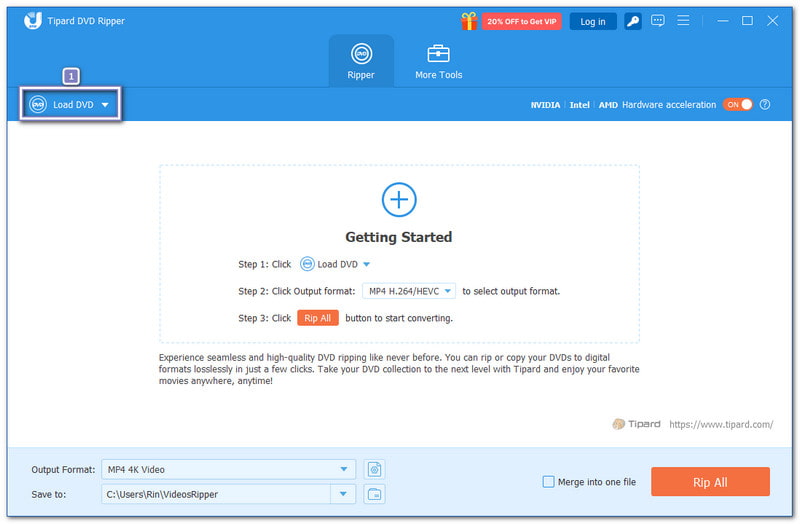
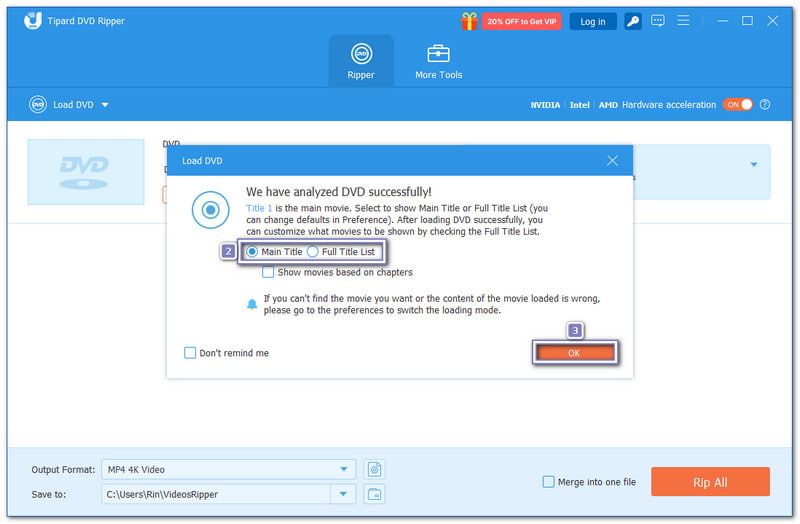
Step 3Now, please choose what part of the DVD to rip. You have two options: Main Movie or Full Title List.
Selecting the Main Movie is faster because it usually grabs the full movie only, skipping extras like trailers or bonus clips. Choosing Full Title List shows everything on the disc. You can pick specific parts, like bonus scenes or short clips. This step gives you control over what you want to save.
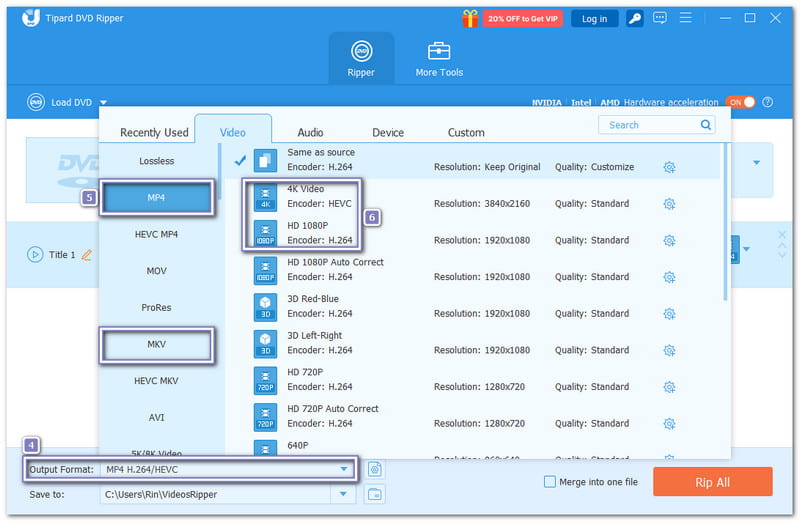
Step 4After selecting your titles, go to the Output Format drop-down menu. Here, you can choose formats like MP4 or MKV. These are the best choices because they keep the video clarity high and can play on almost any device. You can also pick a resolution, such as 720p, 1080p, or 4K.
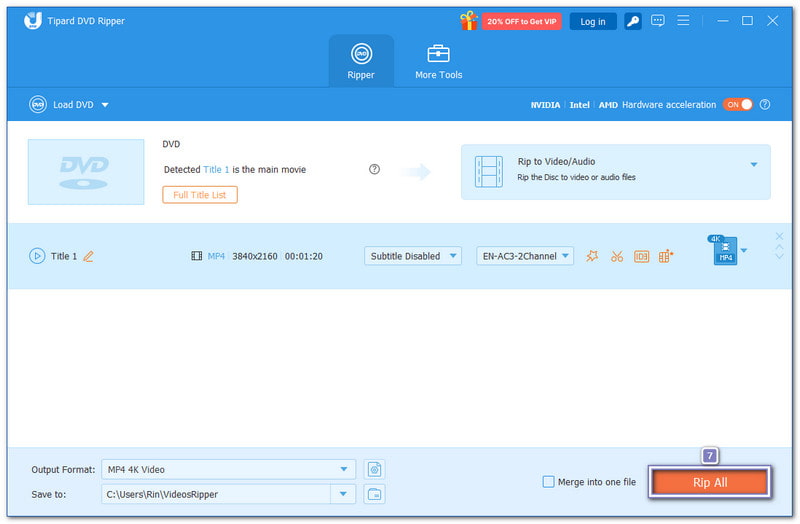
Step 5Everything is ready now. Just click the Rip All button. AVAide DVD Ripper will start turning your DVD into a digital file. Once it is done, you will have your movie or clips in the format you chose. You can now play them anytime on your computer, phone, or tablet without needing the DVD.
Keep in mind: The trial version has limits on file length and the number of rips. Subscribing unlocks full features for unlimited use.
Part 3: Rip DVD on Windows 10 with Handbrake
If you want to learn how to rip a DVD with Windows 10 with HandBrake, it lets you choose between MP4 or MKV and select which parts of the DVD to save. It also gives you control over video settings without too much hassle. On top of that, it can rip DVD while keeping the video clarity high.
Step 1Insert the DVD into your computer's drive. Make sure Windows recognizes it.
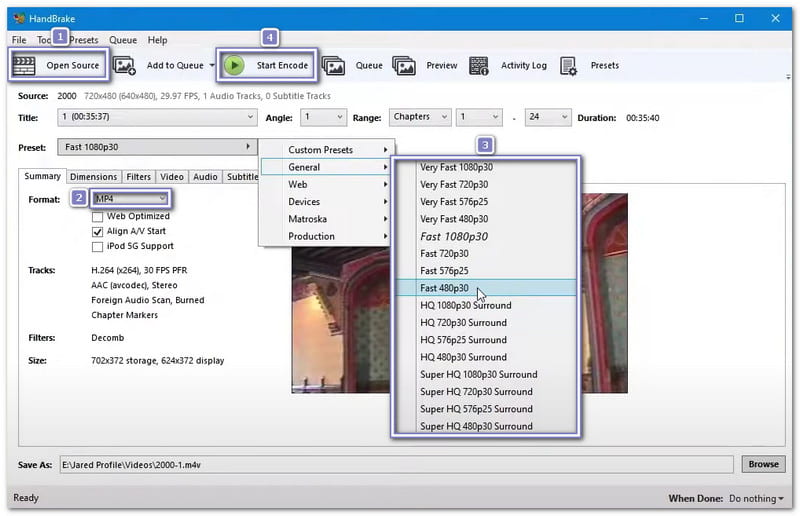
Step 2Open HandBrake. Click Source Selection to load your DVD. You can also select and drop the DVD folder into HandBrake.
Step 3Choose the title you want to rip. Then, under the Summary tab, pick an output format like MP4 or MKV.
Step 4Pick the audio track and subtitle track you want. Go to Dimensions to match the width and height of your source DVD, for example, 720×480.
Step 5Hit Browse to choose where to save your video. Finally, press the green Start Encode button. HandBrake will rip the DVD and save it in your chosen folder.
Keep in mind: HandBrake cannot rip copy-protected DVDs. Also, some settings might be too advanced for complete beginners.
Part 4: Rip DVD Free on Windows 10 Using VLC
If you want to rip a DVD for free on Windows 10 without complicated settings, VLC can help. It is easy for beginners because it keeps things simple and lets you turn your DVD into an MP4 or other common formats quickly. You can also play your ripped videos right in the same player without needing extra applications.
Step 1Put the DVD in your computer. Then, open VLC Media Player.
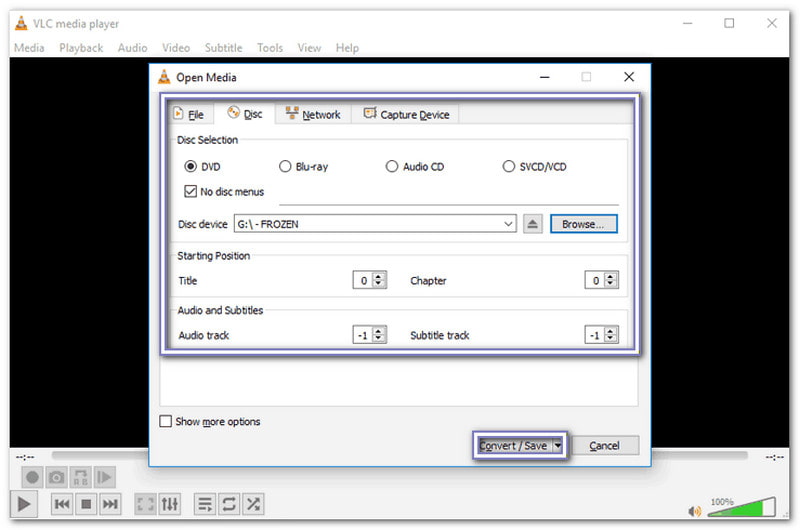
Step 2Click Media > Open Disc, then select your DVD to load it.
Step 3Choose the title you want to rip, and select your preferred audio and subtitle tracks.
Step 4At the bottom, click the drop-down menu and select Convert. Then, pick a format under Profile, like Video - H.264 + MP3 (MP4).
Step 5Hit Browse to select a folder for your video. Press Start, and VLC will convert your DVD into a digital file ready to watch.
Keep in mind: Like HandBrake, VLC also cannot rip copy-protected DVDs. Plus, video editing options are lacking.
Part 5: Rip a DVD with Windows 10 via MakeMKV
When you want to save everything on a DVD, including all audio tracks and subtitles, there is a tool built for that. MakeMKV keeps the video intact in an MKV file and can bypass DVD copy-protection. It is really recommended for keeping the disc's content complete without shrinking it.
Refer to the steps below to learn how to rip a DVD on Windows 10 via MakeMKV:
Step 1Insert your DVD into the computer. It works with both homemade and copy-protected DVDs.
Step 2Now, open MakeMKV and select your disc in the Source tab.
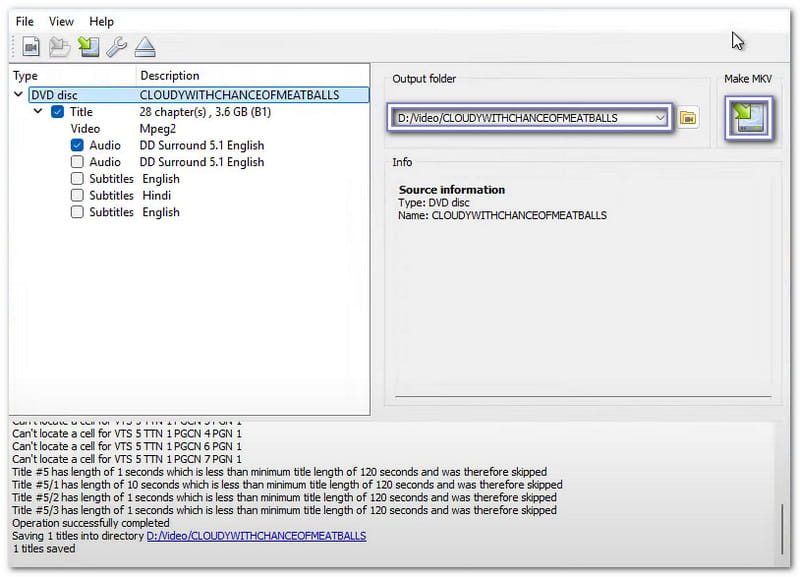
Step 3Press the big Disc button in the center. Then, MakeMKV will scan the DVD for titles.
Step 4Choose the title or multiple titles you want to rip.
Step 5Select an output folder and click the Conversion button. MakeMKV will rip the DVD and save it as an MKV file.
Keep in mind: MakeMKV only rips to MKV, and the output files are very large.
No more "how do I rip a DVD on Windows 10" worries. Now you already know how! We are glad we could help you with this. For the best results, AVAide DVD Ripper is the perfect tool. With just one click, you can rip DVDs in super high quality. Plus, it works smoothly on Windows, as well as on Mac. Try it now!
ABOUT THE AUTHOR

Best tool for ripping and converting DVD Disc/Folder/ISO image file into over various formats.