DVD was used to store video and audio content in a physical state, but have you ever wondered if there is a way to save it as digital content for playing and sharing? Many people face difficulties with copy protection or incompatible formats when trying to extract audio. Fortunately, you can rip audio from a DVD using tools that preserve quality and simplify playback. This guide will show step-by-step methods, from the easiest software to more advanced options, so your audio files are ready for any device.
Part 1: Best Way to Rip Audio from DVD
When it comes to researching how to rip the audio of a certain DVD, you want to begin with a tool that is built to do this accurately and is easily usable. AVAide DVD Ripper is basically compatible with Windows and Mac; it can work with DVDs, folders, and ISO files without complicated configuration. It also saves the original audio quality because it maintains important parameters of bitrate and sample rate. To achieve high compatibility with the devices, you can also export to all the main audio formats such as MP3, WAV, AAC, and FLAC. The interface is clear and easy for users, but it has more advanced controls for users who require them to produce accurate output.
Step 1Visit the official AVAide site and download AVAide DVD Ripper to your Windows or Macintosh system. Start the installer and go through the installation steps through the prompted installation. After installation is complete, open the program to open the main dashboard.

FREE DOWNLOAD For Windows 7 or later
 Secure Download
FREE DOWNLOAD For Mac OS X 10.13 or later
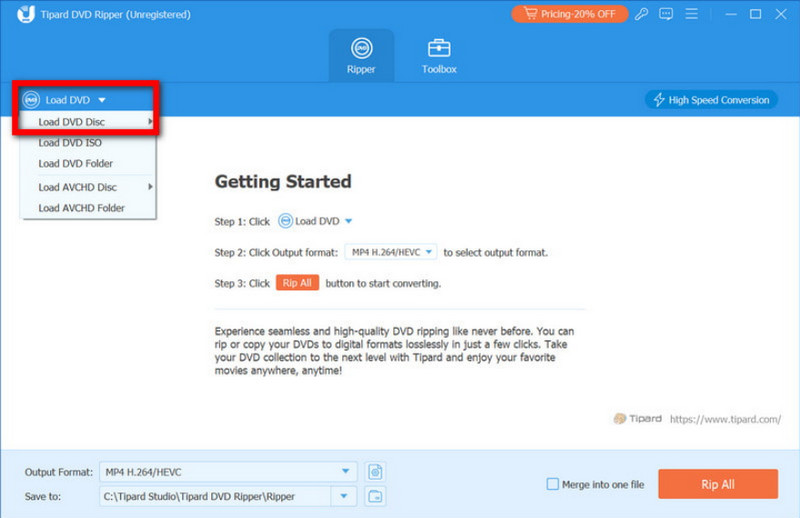
Secure DownloadStep 2Place the DVD into your computer drive. Inside the software, click Load DVD to import the disc. The program will scan and display the available titles, chapters, and audio streams. Select the content you want to extract before moving forward.
Step 3Click the Output Format menu and switch to the Audio category. Select your desired format, such as MP3 for portability, WAV for uncompressed sound, or FLAC for lossless quality. If needed, fine-tune settings like bitrate or sample rate to match your preference.
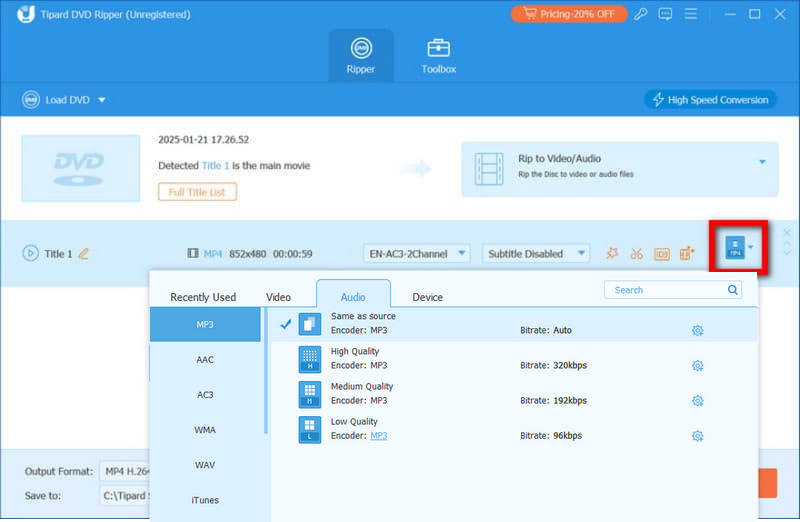
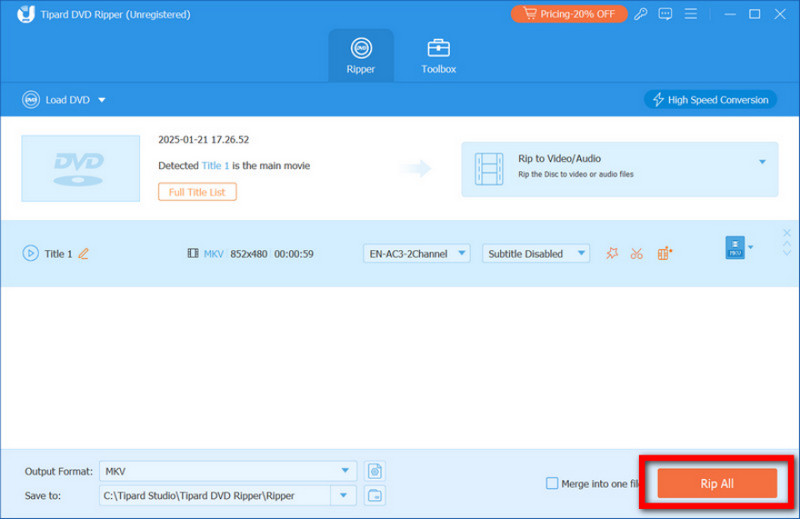
Step 4Review your selections, then click Rip All to start converting. The software uses hardware acceleration to improve speed without reducing audio clarity. After completion, your audio files will be saved to the chosen folder, ready for use on any compatible device.
Part 2: How to Rip Audio from DVD Using VLC
Before using advanced software, many users wonder, can you rip audio from a DVD with a free media player? VLC Media Player is widely known for playing almost any media format, but it also supports basic DVD audio extraction. With built-in DVD input and flexible audio output profiles, VLC can export sound into MP3, OGG, or FLAC formats. Keep in mind that it works only with non-encrypted DVDs. Protected commercial discs require a dedicated DVD ripper.
Step 1Insert your DVD into the drive. Download and install the latest version of VLC Media Player from its official website if it is not already installed. Launch the program once ready.
Step 2Tick Media in the top menu and pick the Convert/Save button. In the Open Media window, switch to the Disc tab and choose DVD as your source.
Step 3Select your DVD drive under Disc Device. You may tick No Disk Menu to skip the menu screen. Leave the default settings to extract the entire disc, or manually enter a specific title or chapter number if you only need part of the audio.
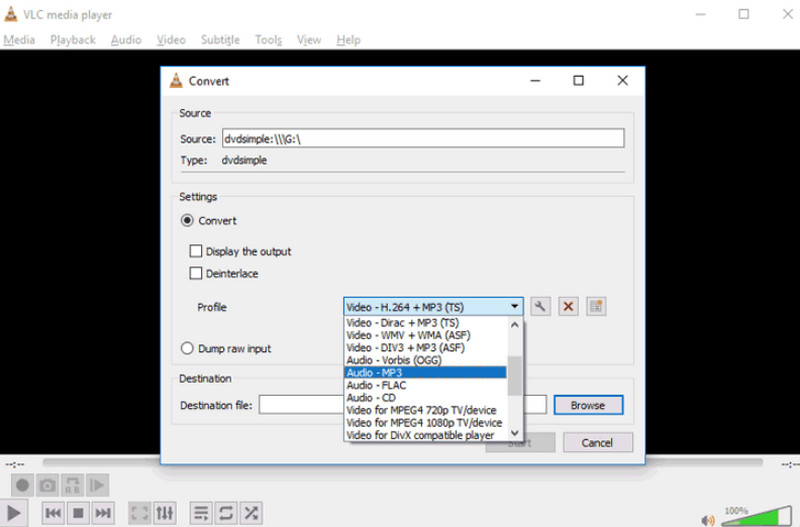
Step 4Click Convert/Save, then select an output profile such as Audio MP3, Audio Vorbis OGG, or Audio FLAC. If needed, create a custom profile to adjust codec or bitrate settings. Click Browse to choose a destination folder, then press Start to begin extracting the audio.
Part 3: How to Rip Audio Files from a DVD via Windows Media Player
Many users search for how to rip audio from a DVD in Windows Media Player, expecting a built-in solution. However, Windows Media Player does not support extracting audio directly from DVD video discs. It can rip audio CDs, but it cannot process DVD video structures such as VOB files or encrypted commercial discs. This limitation exists because DVD movies use a different file system and often include copy protection.
If you insert a DVD movie into your computer and open it, you will only be able to play the DVD on Windows Media Player, not extract its audio tracks. There is no Convert or Rip option available for DVD video content inside the program.
Part 4: How to Rip Audio Files from DVD with Handbrake
If you are researching how to rip audio files from a DVD using HandBrake, it is important to understand its limits first. HandBrake is a trusted open source video converter and DVD ripper, but it does not export audio-only formats. It outputs video files such as MP4, MKV, and WebM. This means you must first convert the DVD into a video file, then use a separate video-to-audio converter to extract the sound into MP3, FLAC, or other audio formats. The process is less direct, but still workable with the right steps.
Step 1Open HandBrake. The software usually detects the inserted DVD automatically and displays it as a source option. If it does not appear, click Folder to browse and import the DVD directory manually.
Step 2After loading the disc, you will see the source information. Choose the correct Title from the dropdown list.
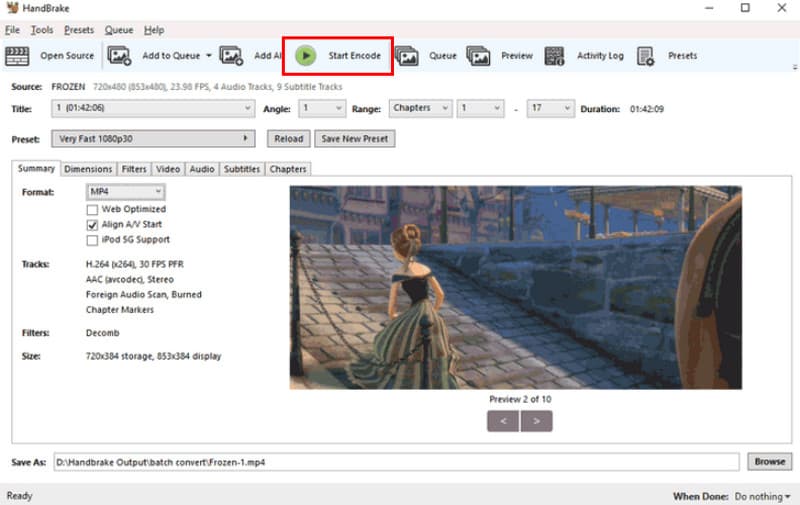
Step 3Go to the Preset section and choose a profile such as Very Fast 1080p 30 to speed up the conversion. Select MP4, MKV, or WebM as the output format, since these are the supported options.
Step 4Choose a destination folder, then click Start Encode to begin ripping the DVD into a video file.
A Comparison Table of the 4 Tools at a Glance
If you are exploring how to rip audio files from a DVD, choosing the right tool can save time and protect sound quality. Some programs support direct audio extraction, while others require extra conversion steps. The table below highlights the key differences between the four methods covered in this guide.
- Platform Available
- Handles Encrypted DVD
- Ease of Use
- Limitations
| AVAide DVD Ripper | VLC | Windows Media Player | HandBrake |
| Windows and Mac | Windows and Mac | Windows | Windows and Mac |
| Yes | No | No | Limited |
| Very Easy | Average | Average | Average |
| No Limitation | Limited selection formats | Can not process a DVD for ripping into an audio format | Does not have any audio formats available |
In case you are trying to find out how to rip audio from a DVD on a Mac, it is not so difficult; it is just necessary to select a corresponding tool. There are programs that you can use to extract audio directly, but there are also those where you have to convert the DVD to a video file first. In the case of discs that are secured, one uses a special DVD ripper that is most dependable and can preserve the original sound quality. Free software is capable of working on unprotected DVDs, but there are limitations. Select the most appropriate approach that suits your machine and proceed to the procedures to ensure you have the best audio files that can be played.
ABOUT THE AUTHOR

Best tool for ripping and converting DVD Disc/Folder/ISO image file into over various formats.