Nowadays, streaming and digital files always dominate. However, we can't hide the fact that DVDs are among the common formats for storing movies, personal recordings, and lectures. The only challenge here is that you need to get a specific video part, rather than the entire clip. Well, cutting videos from a DVD is not as simple as trimming digital video files. So, are you looking for an effective process to cut your videos from a DVD for a satisfying viewing experience? You are lucky since all the details you need are in this article. Read here and learn more about the most reliable ways to cut DVD videos successfully.
Part 1: How to Cut and Extract DVD Video Files in One Click
Want to learn how to cut videos from a DVD on Mac and Windows? Well, cutting videos is a simple task if you have the best DVD cutter. So, if you are looking for an excellent tool that can help you achieve your results, access AVAide DVD Ripper. When it comes to cutting videos from a DVD, this software is perfect since it can give you all the functions you need. You can cut or trim videos based on your preferred output. Plus, you can even use the Fast Split function to cut your videos instantly. The best part here is that you can even use the Add Segments to attach another clip that can lengthen your videos. The good part here is that you can deal with your copy-protected DVDs, so there is no need to worry about the type of DVD you have. Plus, this high-end DVD Ripper harnesses GPU acceleration and optimizes multicore processing using NVIDIA CUDA technology.
- The DVD ripper delivers up to 30× faster conversion speeds when transcoding DVD movies into digital formats.
- The program can produce a lossless ISO or MPG backup of the original disc.
- It supports various digital formats, such as MP4, M4V, WMV, MKV, AVI, and more.
- The software can offer a smooth export process.
- The program is also capable of extracting audio files, sound, and background music from a DVD.

 Secure Download
You can check/follow the detailed instructions below and learn how to cut videos from a DVD.
Step 1Download and launch AVAide DVD Ripper on your Mac or Windows computer. Then, before proceeding to the next process, ensure that your DVD is already inserted into your device.
Step 2After you launch the interface, you can go to the Ripper section and add the DVD by hitting the Load DVD button.
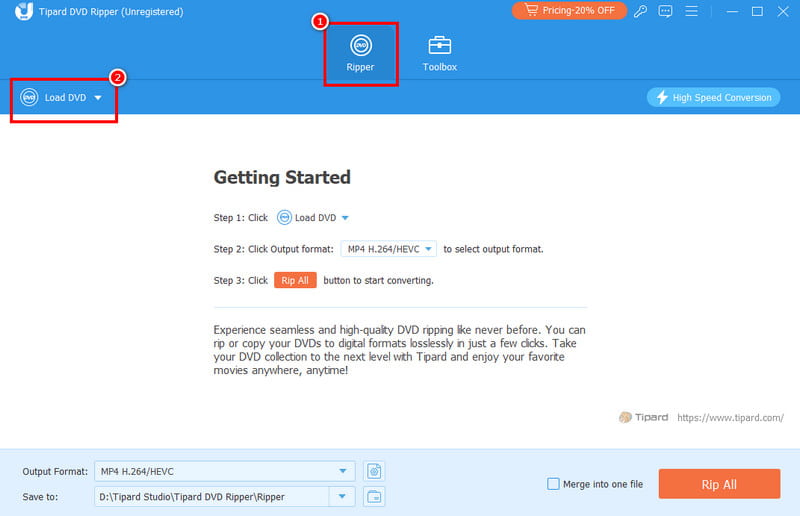
Step 3Then, tap the Cutter feature. Another interface will appear on your screen. You can start cutting your videos based on your preferences.
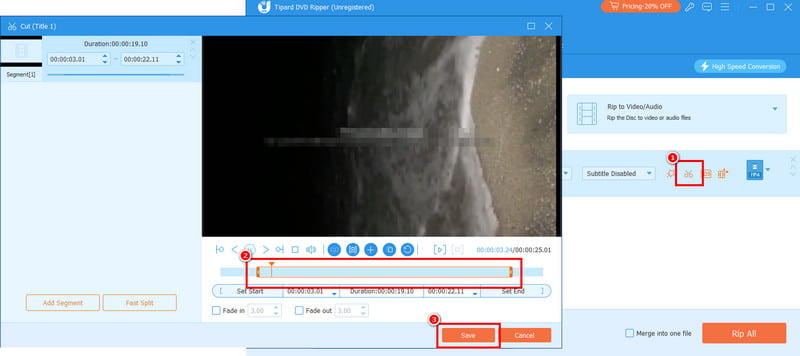
You can also use the Fade effects if you want to add another flavor to your video. Then, tap the Save button.
Step 4To save your DVD on your computer, you can proceed to the Output Format section and choose your desired format. You can also choose/select your preferred video quality.
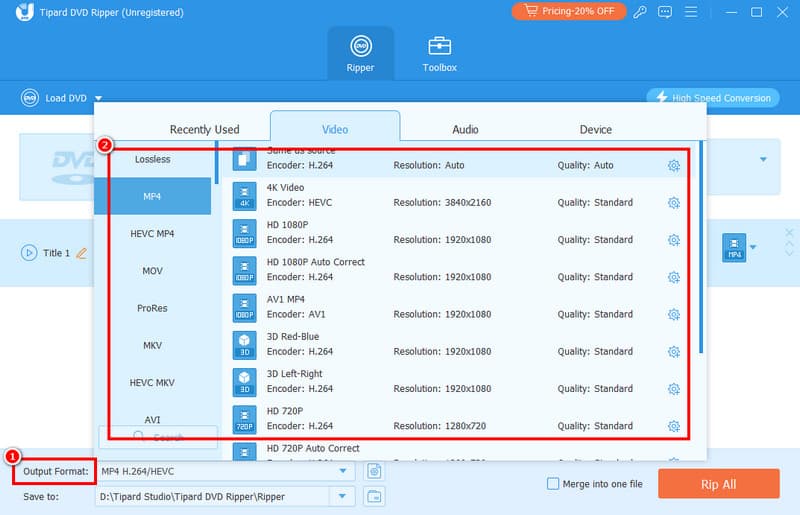
Step 5For the last process, you can now save your file by hitting the Rip All option. Once done, you can start watching your videos smoothly.
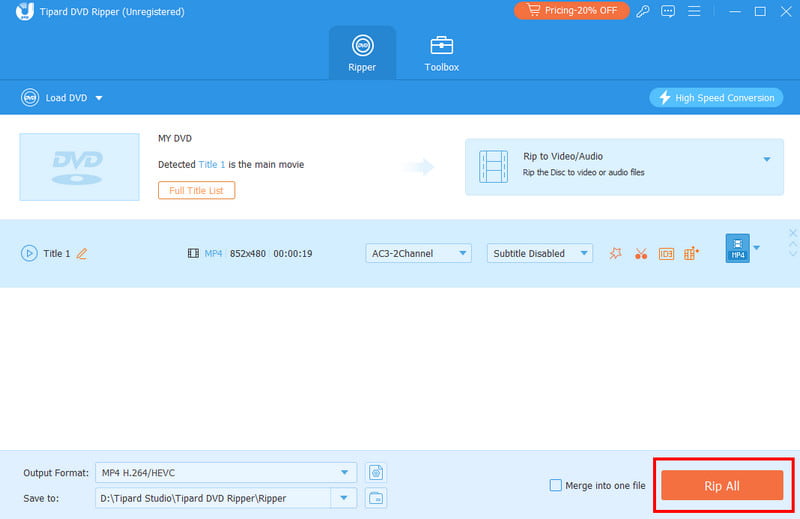
Part 2: How to Cut DVD Video Files in HandBrake
If you are still looking for another program that can cut videos from a DVD, you can try using Handbrake. This free and open-source program is capable of cutting your videos manually. It lets you adjust the duration of the video based on your preferences. What makes this software ideal is its simple user interface. In addition, you can even ensure that the original video quality won't be affected. You can even access more features that can enhance your file. You can flip the video on Handbrake, crop, add filters, remove video noise, and more. You can also have your DVD in various digital formats, like MP4, MKV, and WebM. The only drawback here is that the program's main interface looks outdated. Plus, some features are not performing well. But still, if you need the best video cutter, consider using this program.
To cut a video from a DVD, you can check the simple methods below.
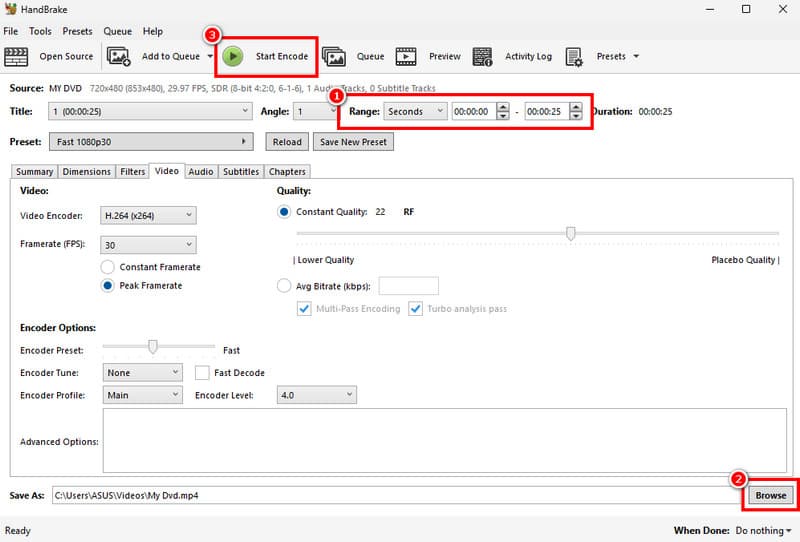
Step 1The first thing you need to do is download the Handbrake program on your computer. After that, install and launch it to start the process. Ensure that your DVD is already inserted into your computer.
Step 2Then, from the main interface, click the File button to add your DVD. You can even drag and drop the DVD file from your file folder.
Step 3After adding the DVD, proceed to the Range section and manually customize the start time and end time you want to save on your device.
Step 4Once you are done cutting your videos, you can go to the Browse section below to choose your destination folder. You can also access various basic video editing tools for improving your videos.
Step 5Finally, click the Start Encode button above to begin the saving process. After that, you can now open the video on your computer and check the result.
Part 3: Comparison between the 2 DVD Editors
Do you still want to learn more about the two excellent DVD editors? In that case, you can check the comparison table in this section and obtain more insights.
| AVAide DVD Ripper | Handbrake | |
| Platform | Windows and Mac | Windows and Mac |
| User Interface | Simple and Engaging | Simple, but looking outdated. |
| Ease of Use | User-friendly interface with presets. | More technical, requires manual setup. |
| Ripping/Saving Process | 30 times faster | Standard |
| Editing Features | • Compressor • Cropper • Splitter • Filter and Effects • Adding subtitles • Converter and more. | • Denoiser • Deblur • Flipper • Rotator and more. |
| Pricing | Free and Purchaseable | Free and open-source |
| Output Formats | MP4, M4V, MOV, MKV, WMV, AVI, HEVC, etc. | MKV, MP4, and WebM. |
After viewing the table above, we can tell that you already have all the details you need. Thus, always use these tools for an effective DVD video-cutting procedure. The programs even ensure that the original quality of the video won't be affected, allowing you to enjoy the content to the fullest.
If you want to cut videos from a DVD, you can use all the methods provided above. The programs are also free to use, allowing you to achieve your desired output without spending a penny. Also, if you want to cut your videos and enhance them using basic and advanced editing features, we suggest using AVAide DVD Ripper. With this program's video cutter, you can get your desired result successfully.
ABOUT THE AUTHOR

Best tool for ripping and converting DVD Disc/Folder/ISO image file into over various formats.