Ripping a copy-protected DVD can be frustrating because copy protection blocks access to the content. It is designed to guard the DVD, but it often prevents users from making personal backups or watching movies on other devices.
But do not worry anymore, we are here to help you with that. We have four ways to rip a copy-protected DVD made for you. So, please explore each approach now and start saving your movies!
Part 1: Quick Overview of All Tools Mentioned
Before choosing the right DVD ripper for copy-protected DVDs, it helps to see how each tool compares. Below is a quick overview of the tools mentioned, showing their system support, copy protection handling, output formats, and what each one does best.
| Tools | Compatible Operating Systems | Supported DVDs & Protections | Supported Output Formats | Best for |
| AVAide DVD Ripper | Windows & Mac | It can rip DVDs protected by CSS, region codes, and advanced copy protections with high success. | It supports MP4, MKV, AVI, MOV, and many other popular video formats. | For users who want the easiest and most reliable way to rip copy-protected DVDs with flexible output options. |
| MakeMKV | Windows, Mac & Linux | It supports DVDs and Blu-rays protected by CSS, AACS, BD+, and some region locks. | It can only convert DVD to MKV. | For users who want lossless DVD or Blu-ray backups with original clarity preserved. |
| VLC | Windows, Mac & Linux | It can read CSS-protected and region-locked DVDs only when libdvdcss is installed. | It allows users to convert DVDs to MP4, MKV, AVI, and other formats. | For users who need a free program for light DVD ripping and basic playback. |
| HandBrake | Windows, Mac & Linux | It can rip some CSS and region-locked DVDs with the help of libdvdcss. | It supports output formats such as MP4, MKV, and WebM. | For tech-savvy users who want full control over clarity settings when ripping older DVDs. |
Part 2: Best Way to Rip Copy-Protected DVD
The easiest and most reliable approach to rip a copy-protected DVD is to use a program that does the hard work for you. That program is none other than AVAide DVD Ripper. It easily handles CSS protection, AACS, APS encryption, and region-locked DVDs.
It also keeps the original clarity and structure, like chapters, audio tracks, and subtitles. In addition, it supports popular formats, like MP4, MKV, MOV, AVI, WMV, FLV, and rare formats, like 3GP and MTS. With up to 30× faster speed, most movies finish in minutes.
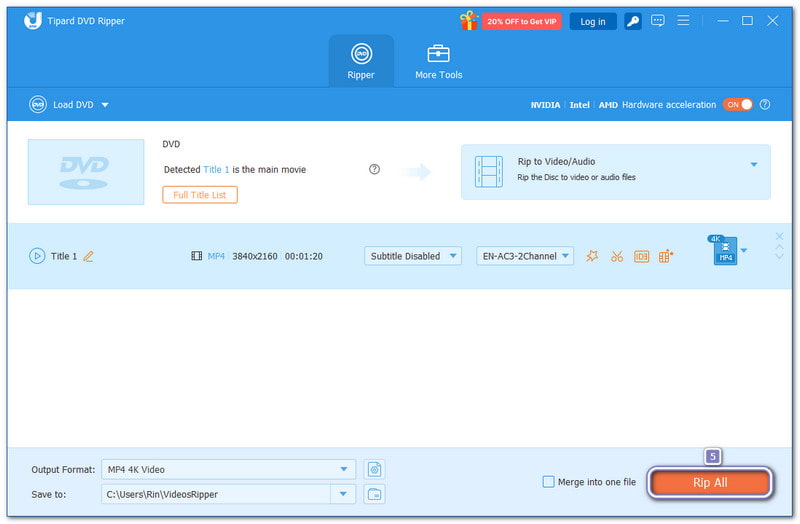
Step 1First and foremost, download AVAide DVD Ripper on your Windows or Mac computer using the Download buttons below. Then, please follow the setup guide on the screen. Once done, open the program and get it ready to use.

FREE DOWNLOAD For Windows 7 or later
 Secure Download
FREE DOWNLOAD For Mac OS X 10.13 or later
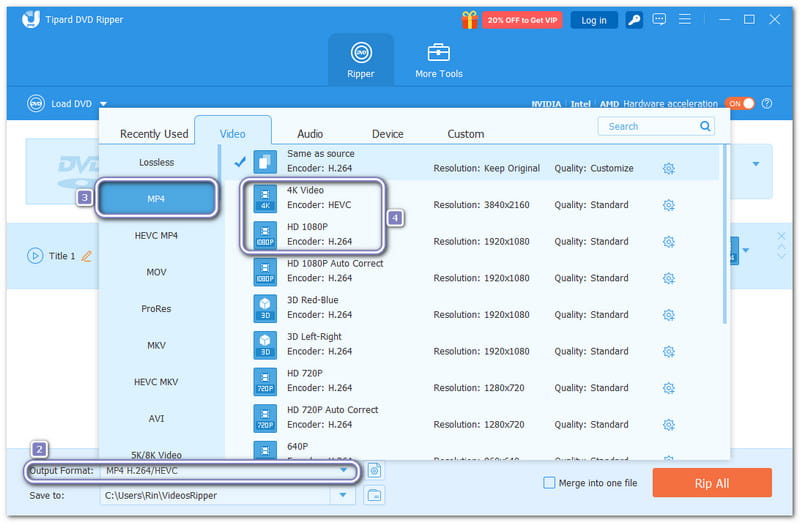
Secure DownloadStep 2Get your DVD and insert it into your computer's optical drive. Then, click Load DVD and choose DVD Disc. After the disc is detected, select Main Title, which is chosen by default for the main movie, or pick Full Title List if you want to copy extra videos, episodes, or bonus content.
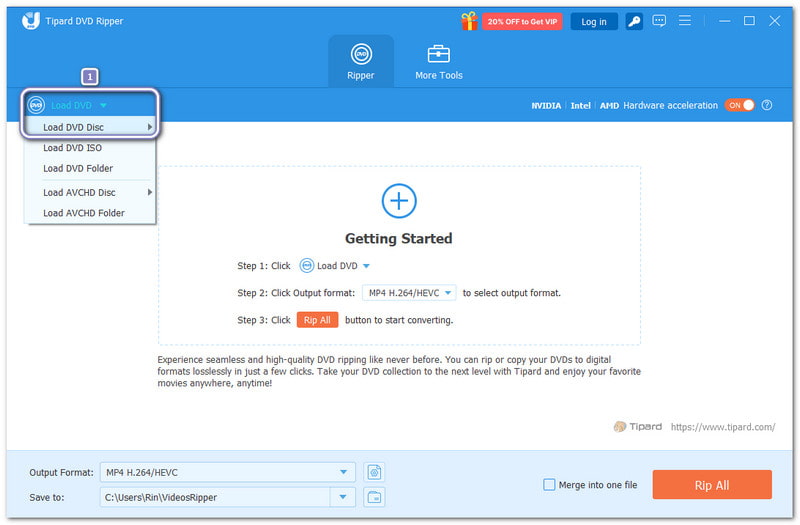
Step 3Open the Output Format drop-down menu and choose MP4, MKV, or another format. On the right side, select HD 1080P or 4K for clearer video. You can also leave it at its original clarity.
Step 4Once everything is set, click the Rip All button to begin removing DVD copy protection and converting the disc. Please wait until the process finishes. You will then get a fully ripped DVD saved on your local folder with the same structure or improved clarity, ready to play or transfer to any device you want.
Part 3: How to Rip Copy-Protected DVD via MakeMKV
Fast ripping without clarity loss is what many users want, and MakeMKV does exactly that. It focuses on turning copy-protected DVDs into clean MKV files without re-encoding. It also works well with CSS, region codes, and even tricky disc structures. Moreover, it is best for backups. It is because it keeps chapters, audio tracks, and metadata intact. However, the output files can be large.
Below is a step-by-step guide on how to rip a copy-protected DVD using MakeMKV:
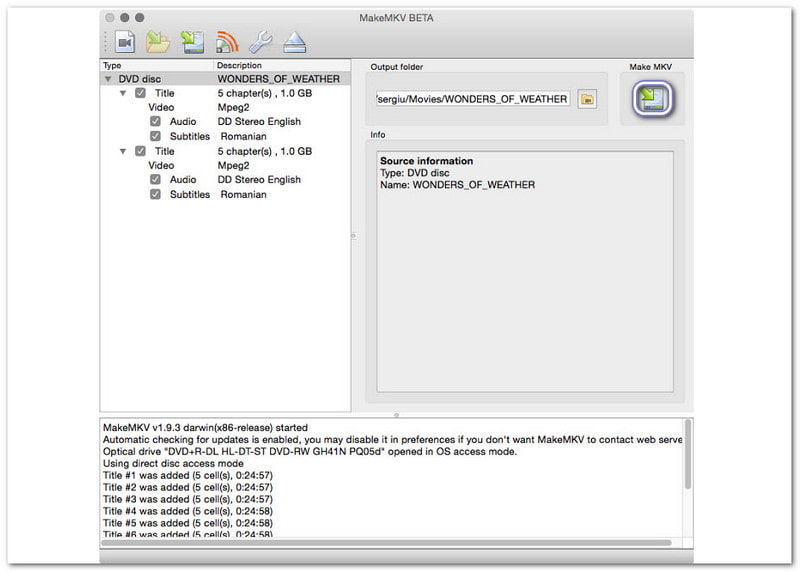
Step 1Insert the DVD into your optical drive. Then, open MakeMKV and click the Optical Drive option so the program can read the disc.
Step 2Please wait while MakeMKV checks the disc. Once scanned, MakeMKV shows the DVD as a list. It is time for you to select the main title, audio tracks, and subtitles you want to keep.
Step 3Click the Folder button to choose where to save the MKV file. Finally, press the MakeMKV button to begin ripping. You can watch the progress on screen.
Part 4: How to Rip a DVD with Copy Protection with VLC
It is for sure that many people know VLC as a media player, but it can also rip DVDs with copy protection. It becomes useful when paired with libdvdcss, which helps it read CSS-protected and region-locked discs. It supports many output formats, giving users more flexibility. However, it still struggles with advanced protections and large collections.
Step 1Head to the primary VLC website and install the desktop version.
Step 2Install libdvdcss so VLC can read protected discs. On Windows, place the libdvdcss DLL file inside the VLC plugin folder. On Mac, copy the dylib file to the local library folder.
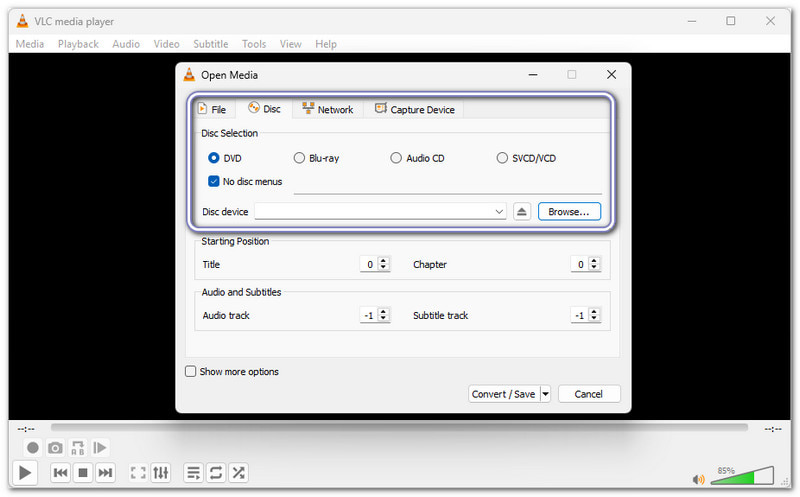
Step 3Now, open VLC and click Media, then choose Convert / Save. Then, select the Disc tab, choose DVD, and pick the correct DVD drive.
Step 4Pick an output profile, set the file location, and click the Start button. VLC will begin ripping the DVD, even if it has copy protection, and save it to your computer.
Part 5: How to Rip a Copy-Protected DVD Using HandBrake
Custom control is where HandBrake shines. It lets you fine-tune video clarity, file size, and formats. If you want to rip copy protected DVD, you should know that on its own, HandBrake cannot break DVD copy protection. But with libdvdcss installed, it can handle some CSS and region-locked DVDs. However, the process can be slow, and the interface may confuse beginners.
Step 1Get HandBrake from the main website. Install the version that matches your system, whether Windows, Mac, or Linux.
Step 2Install libdvdcss, and then please restart your computer so HandBrake can detect it.
Step 3Now, insert the DVD and run HandBrake. Then, select the DVD from the source list. HandBrake will scan and show the available titles.
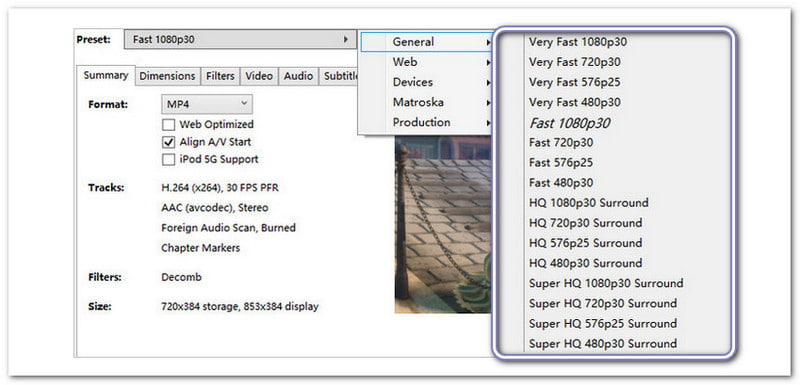
Step 4Pick a preset like Super HQ 480p or 576p. Use H.264 for better playback. Keep the quality setting between RF 18 and 22.
Step 5Hit Browse to name the file and choose a save location. For the last step, click the Start Encode button, and please wait for the progress bar to finish.
Part 6. FAQs About Copy-Protected DVD
Which DVD ripper can handle Sony ARccOS protection?
Rippers with advanced error-handling and structural analysis can bypass Sony ARccOS. Standard rippers without protection support usually fail or freeze during analysis.
How can I tell if a DVD has copy protection?
You may see abnormal title counts (dozens of fake titles), extremely large or tiny VOB files, or ripping errors at specific sectors.
How to rip 99-title DVDs without the software crashing?
Use software that automatically identifies the main movie and ignores fake titles, enable safe/compatibility mode, and avoid ripping all titles at once. You should select only the correct playlist.
Does ripping an encrypted DVD reduce the video quality?
No. Decryption itself does not lower the quality. Quality loss only occurs if you re-encode with lossy settings; direct copy or lossless remux keeps the original video intact.
There you go! You have learned how to rip a DVD with copy protection. Our question to you now is, which tool do you feel most comfortable using or looking forward to using?
If you are still unsure, we recommend AVAide DVD Ripper. It can handle CSS-encrypted discs, APS, AACS encryption, and region-locked DVDs with ease. Also, with fast, accurate ripping and original clarity preserved, it is the one you really need.
Best tool for ripping and converting DVD Disc/Folder/ISO image file into over various formats.