Working with Blu-ray discs on a Mac may be confusing without the appropriate software. Not all tools are able to save video and work with protected discs. It is crucial to select a Blu-ray ripper on Mac that will match the speed, support formats, and handle the encryption. This guide will take you through the process of choosing the most successful tool, the comparison of the top five tools, and the answers to the frequently asked questions, so that you can choose the right tool.
Part 1. How to Choose a Reliable Blu-ray Ripper for Mac
We tested the optimal Blu-ray ripper on Mac regarding the actual performance. Our approach is based on seven critical areas:
1. Decryption Capability
Does the software support the new Blu-ray security, such as AACS, BD+, and region codes? We tried the latest commercial releases so that the process of ripping was not complicated by the necessity to use additional plugins.
2. Lossless Quality & Formats
Does it maintain video and audio originality? Applications that aid in creating 1:1 lossless backups, MKV passthrough, and a wide range of formats like MP4, HEVC, or MOV rate higher in terms of quality and device support.
3. Speed & Performance
What is its speed in ripping discs with Mac hardware? We also measured actual ripping time and verified the efficiency of the use of GPU acceleration and multi-core usage.
4. Usability & Interface
Is the software intuitive? Easy navigation, drag-and-drop support, and clear device presets improve workflow and reduce user errors.
5. Editing & Customization Features
Can it be trimmed, cropped, subtitle chosen, or soundtrack adjusted? These alternatives are useful in customizing output files without any extra programs.
6. Compatibility & Stability
Is it compatible with Intel and Apple Silicon Macs? We checked the stability of the various rips to prevent crashing or errors when working on long sessions.
7. Value & Licensing
Is it a free trial, subscription-based, or a one-time purchase? We looked at price in relation to features, constant updates, and customer service.
Part 2. Top 5 Blu-ray Rippers for Mac
1. Tipard Blu-ray Converter
Tipard Blu-ray Converter is widely regarded as one of the best Blu-ray rippers for Mac, offering an impressive balance of performance, quality, and ease of use. Being able to read the regular and 4K Blu-ray discs, it enables the Mac users to digitalize their real media without losing the quality and without the loss of the details. Its interface is lean and easy to use, being friendly to entry-level users and, at the same time, providing advanced functionalities to expert users.

FREE DOWNLOAD For Windows 7 or later
 Secure Download
FREE DOWNLOAD For Mac OS X 10.13 or later
Secure Download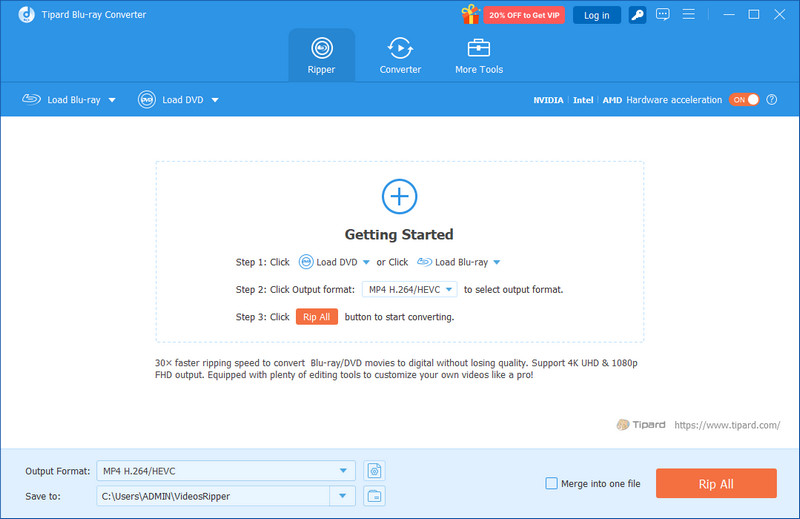
Key Features:
• Rips 4K Blu-ray without video and audio degradation.
• Transcodes Blu-ray to MP4, MOV, MKV, and many other popular formats.
• Offers format presets in 4K, HEVC, 5K, and so on to optimize the device.
• Makes use of level-3 hardware acceleration to accelerate decoding, editing, and encoding.
• In-app editing options include trim, crop, merge clips, and squeeze audio or subtitles.
- Pros
- Extremely fast ripping thanks to GPU acceleration
- Maintains excellent video clarity and audio synchronization
- Wide range of output formats and device-ready presets
- User-friendly interface suitable for both beginners and pros
- Reliable handling of encrypted Blu-ray discs
- Cons
- Full features require a paid license
Test Result:
Tipard ripped a full-length 4K Blu-ray movie in about 35 to 45 minutes. The output was high quality with clear video, synchronized audio, and no errors. Batch ripping also worked smoothly, making it a reliable and efficient choice for Mac users.
2. DVDFab Blu-ray Ripper
DVDFab Blu-ray Ripper for Mac OS X is a powerful solution for users who want extensive format support and strong decryption capabilities. It supports discs of high quality and advanced security, which are flexible for different devices.
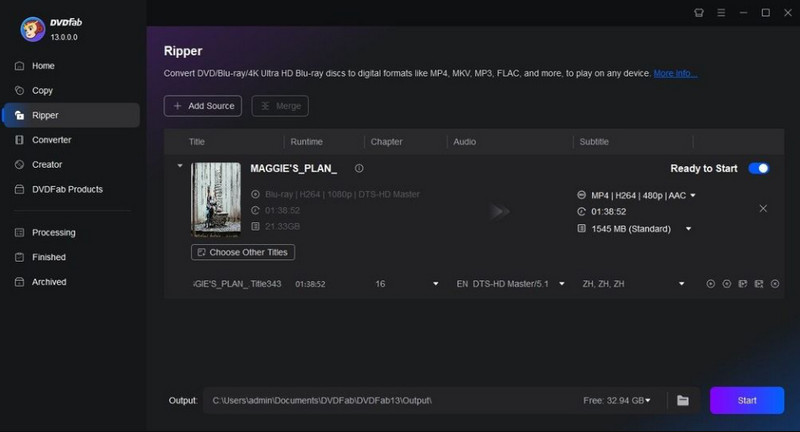
Key Features:
• Supports Blu-ray discs, folders, and ISO images
• Exports to 1000+ video and audio formats
• Removes AACS, BD+, BD-J, Cinavia, and other protections
• Built-in video editor for trimming, cropping, and filters
- Pros
- Handles heavily protected discs
- Massive output format library
- Video quality and file size can be customized
- Cons
- Paid subscription required
- The interface may feel complex for beginners
Test Result:
Approximately 35-50 minutes of a converted Blu-ray disc of superior quality and synchronous audio. The broad-based formats simplified the process of creating mobile or desktop files.
3. MakeMKV
MakeMKV is a reliable free Blu-ray ripper Mac tool focused on lossless backups. It preserves all video, audio, and subtitle tracks while converting discs to MKV, ideal for users who want simple, high-fidelity rips.
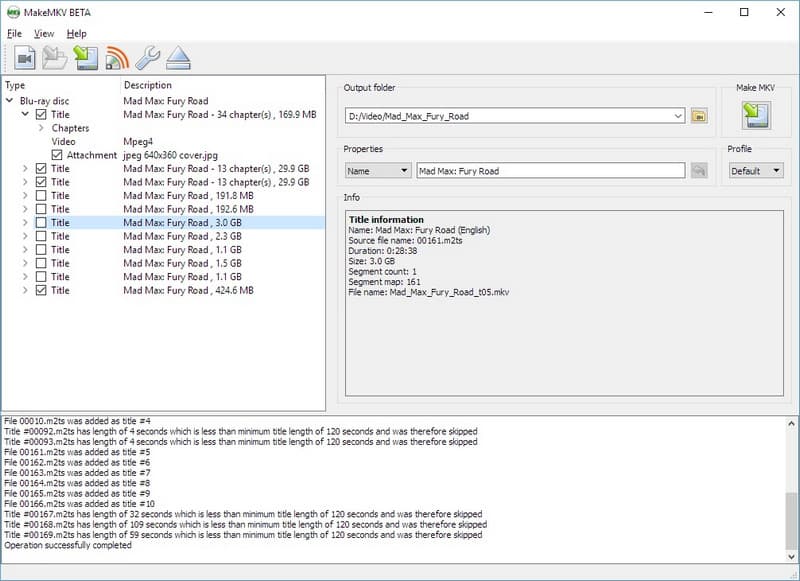
Key Features:
• Converts Blu-ray and DVDs to MKV format
• Preserves all original video, audio, and subtitle tracks
• Handles AACS and BD+ encryption
- Pros
- Completely free during beta
- Lossless output preserves full quality
- Very simple and easy to use
- Cons
- Only outputs MKV format
- The resulting files can be large due to the lack of compression
Test Result:
Converted a protected Blu-ray to MKV in 50-60 minutes. The output retained all audio tracks, subtitles, and original quality, making it ideal for archiving discs.
4. Leawo Blu-ray Ripper
Leawo Blu-ray Ripper is a practical macOS Blu-ray ripper combining ripping and editing features. It is compatible with numerous formats and does not require any additional effort to break common Blu-ray protections.
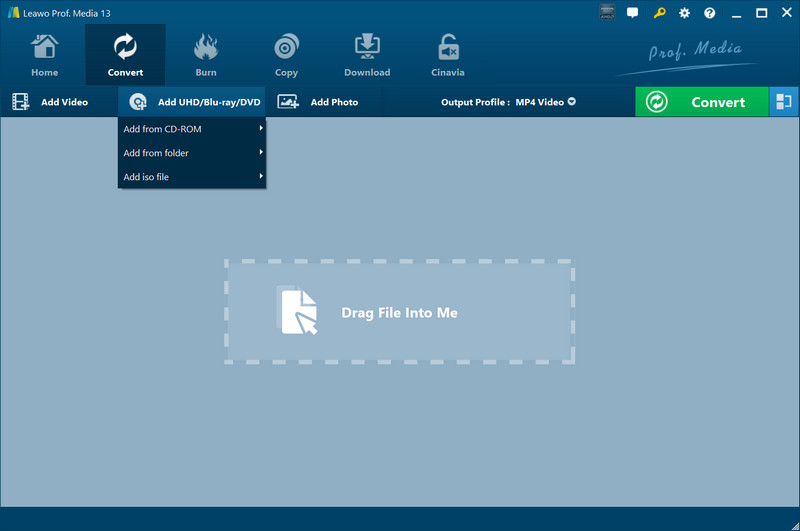
Key Features:
• Converts Blu-ray discs and folders to 180+ formats
• Built-in editor for trimming, cropping, and effects
• Automatic protection removal and region-free playback
• 3D display with optional viewing, subtitles, and audio
- Pros
- Balanced features for casual and moderate users
- Good format and editing support
- Simple protection handling
- Cons
- Slower than premium alternatives
- Interface feels slightly outdated
Test Result:
Ripped a standard Blu-ray in about 60 minutes. The output MP4 file played smoothly on Mac, with slightly compressed but high-quality video and audio.
5. HandBrake
HandBrake is a flexible Blu-ray ripper Mac freeware tool for converting unprotected discs or decrypted files. While it does not bypass Blu-ray encryption natively, it offers detailed control over ripping Blu-ray with HandBrake and output.
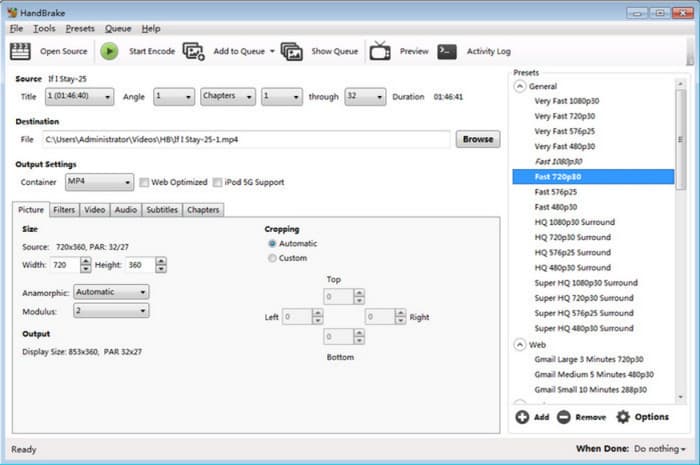
Key Features:
• Changes files to MP4 or MKV through advanced settings
• Provides the quality profiles
• and device presets
• Cropping, scaling, and encoding options are included
- Pros
- Open-source and totally free
- Very customizable for high-end users
- Active community support
- Cons
- Unable to decrypt encrypted discs without other tools
- Slower conversion speed
- Complex for beginners
Test Result:
Processed unprotected Blu-ray content in about 70-90 minutes. Output quality was decent but slightly lossy, requiring manual tuning for best results.
Part 3. FAQs of Blu-ray Ripper for Mac
What is the best Blu-ray ripper for Mac?
The best option depends on your needs. Tipard Blu-ray Converter is the fastest and easiest choice, supporting 4K discs, multiple formats, and GPU acceleration. Other options include DVDFab for advanced features, MakeMKV for free lossless backups, and Leawo for editing tools.
Why is Blu-ray being discontinued?
Blu-ray is declining because most people now prefer streaming and digital downloads. Physical discs take up space and are less convenient than online services, even though they offer higher video and audio quality.
Is it legal to rip Blu-rays you own?
Laws vary by country. Creating a personal backup of a disc that you own can be commonly permitted, but cracking copy protection can be unlawful. Check local rules and use rippers only to playback or make personal backups.
A good Blu-ray ripper for Mac lets you turn your discs into high-quality digital files quickly and easily. The correct tool will preserve your movies clearly, audio in sync, and offer you control over the formats and subtitles. It is easy to play your collection of Blu-rays on any device without compromising on quality, whether you prefer speed, features, or even a free solution as you select the right ripper.
ABOUT THE AUTHOR

Best tool for ripping and converting DVD Disc/Folder/ISO image file into over various formats.