Backup DVD is important, especially if you collect or love DVDs. A disc can get scratched or damaged at any time, and once it does, the content may be gone for good. Instead of waiting for that to happen, it is smarter to act early, and we are here to guide you step-by-step on how to do it. So, please make sure to read the whole post.
Part 1: Importance of DVD Backup
There is more to DVD backup than just copying a disc. It is about protecting your important files, movies, and videos. Over time, DVDs may be lost, damaged, or scratched. Without a backup, your favorite movies or memories could disappear.
- 1. Protect Your Movies: DVDs are fragile. Scratches, cracks, or drops can make them useless. A backup keeps your videos safe even if the original disc gets ruined.
- 2. Watch Anywhere: With a backup on your computer, you can watch your movies anytime. No DVD player or disc is needed. You can enjoy your films on a phone, tablet, or computer.
- 3. Save Space: Storing DVDs takes up room. Digital backups keep all your movies in one place without cluttering your home.
- 4. Keep Quality: A proper backup keeps the original video and sound clear. Your movies stay as good as the original DVD.
- 5. Share Safely: You can share your movies without giving away the physical disc. Backups let others watch while keeping your DVDs safe.
- 6. Avoid Wear & Tear: Playing DVDs many times can wear them out. Backups protect the original discs from damage.
In short, DVD backup is about safety, convenience, and flexibility. It is a simple step that keeps your DVDs safe for years to come.
Part 2: How to Back Up a DVD to a Computer
Do you want to keep your DVDs safe and watch your movies anytime? Learning how to back up a DVD to a computer is the best way. It protects your discs from scratches and lets you enjoy your videos without the DVD. You get all these perks with AVAide DVD Ripper. It works with almost any DVD and can back up to popular video formats like MP4, AVI, MOV, and MKV.
Another good thing is that it can also handle copy-protected DVDs. It is fast, too. A two-hour DVD can be backed up in about 5-10 minutes safely, keeping the original quality. AVAide DVD Ripper works on Windows and Mac, so start backing up your DVDs today and never lose your favorite movies!
Step 1Download and install AVAide DVD Ripper on your Windows or Mac computer. Once it is installed, open the program. Then, proceed to insert the DVD you want to back up into your computer's DVD drive.

FREE DOWNLOAD For Windows 7 or later
 Secure Download
FREE DOWNLOAD For Mac OS X 10.13 or later
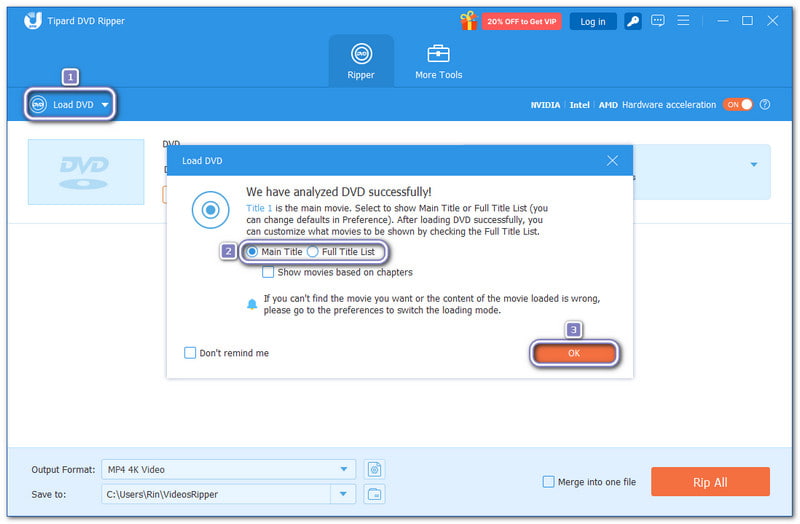
Secure DownloadStep 2Press the Load DVD drop-down menu and select DVD Disc from the options. Then, select Main Title or Full Title List, and click OK.
- The Main Title usually has the full movie, while the Full Title List shows all the videos on the DVD.
Step 3Open the Output Profile drop-down menu in the lower left corner. It is best to back up a DVD to MP4 or MKV under the Video section. MP4 is widely compatible, and MKV keeps high clarity.
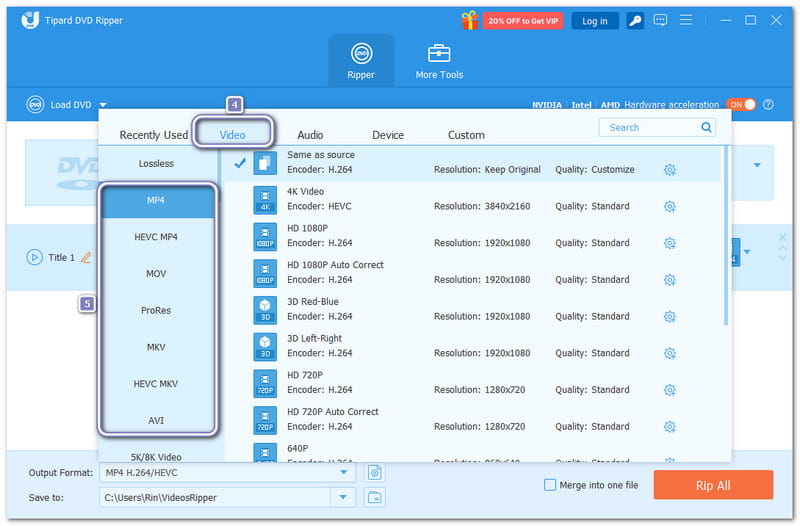
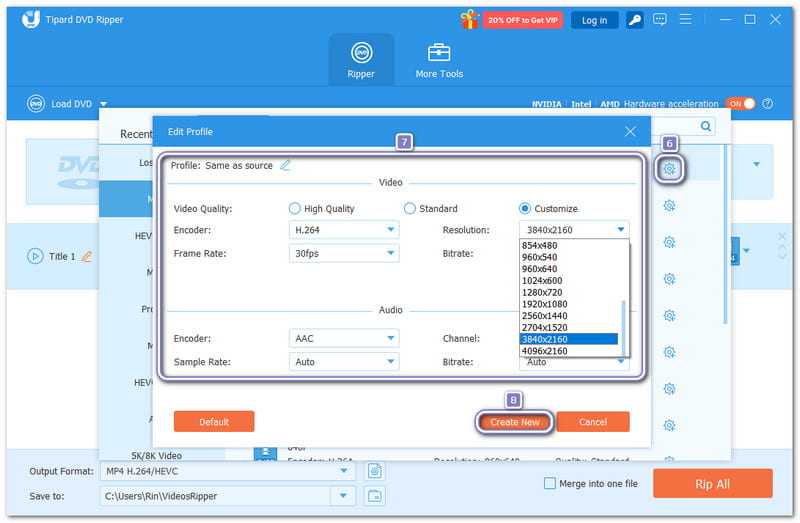
Step 4Optionally, you can open the Custom Profile option to modify video and audio settings. You can fine-tune the video encoder, frame rate, resolution, and bitrate. You can also modify the audio encoder, sample rate, channels, and bitrate. Please do not forget to click the Create New button to save your settings.
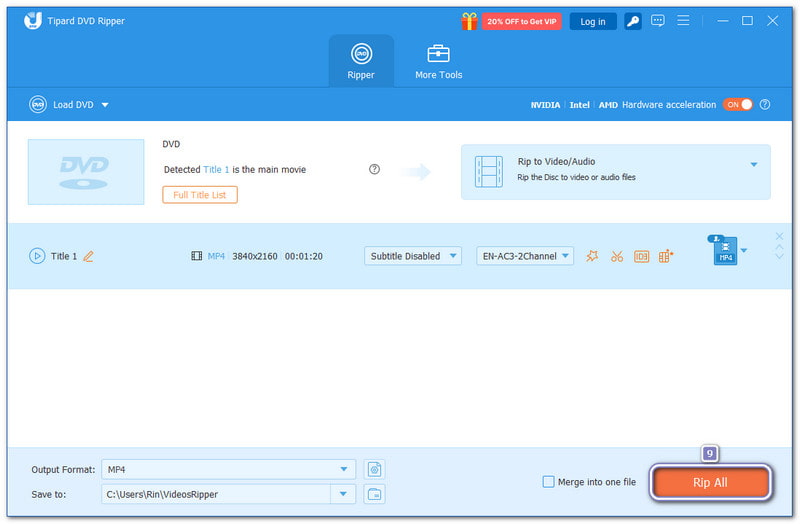
Step 5Next, choose where you want to save your backup by opening the Save to option. After picking a location, press the Rip All button in the lower right corner. AVAide DVD Ripper will start backing up your DVD to your chosen digital format. Once it is done, you can watch your movie anytime on your computer.
Part 3: Best DVD Backup Software
Below are some of the best DVD backup software programs you can use to keep your movies safe and enjoy them anytime.
1. DVDFab DVD Ripper
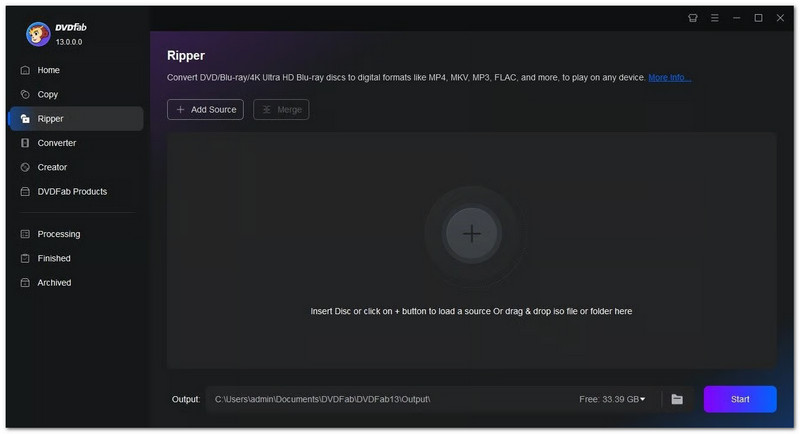
DVDFab DVD Ripper is perfect for users who want high-quality DVD backups. It supports over 1,000 output formats and can upgrade movies to 4K UHD using AI technology. You can copy multiple DVDs at once and copy a DVD to a hard drive or save it to your computer or cloud. It also helps bypass DVD encryption for commercial movies. The only downside is the price, which is higher than most casual users need.
2. WinX DVD Ripper Platinum
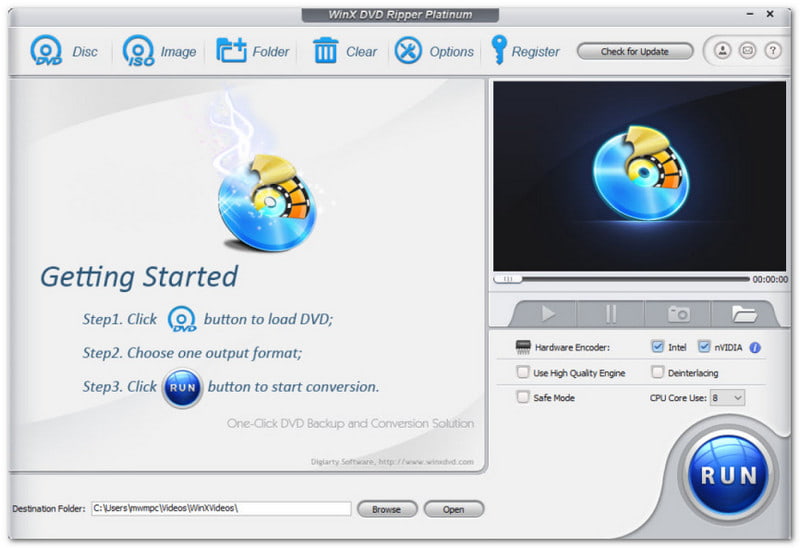
WinX DVD Ripper Platinum is known for its speed and smooth performance. It uses advanced GPU tools to make DVD ripping fast. It can even back up copy-protected DVDs quickly. It has ready-made settings to improve playback on phones, TVs, and computers. However, the free version is limited, so you need the premium edition to unlock all features.
3. CloneDVD
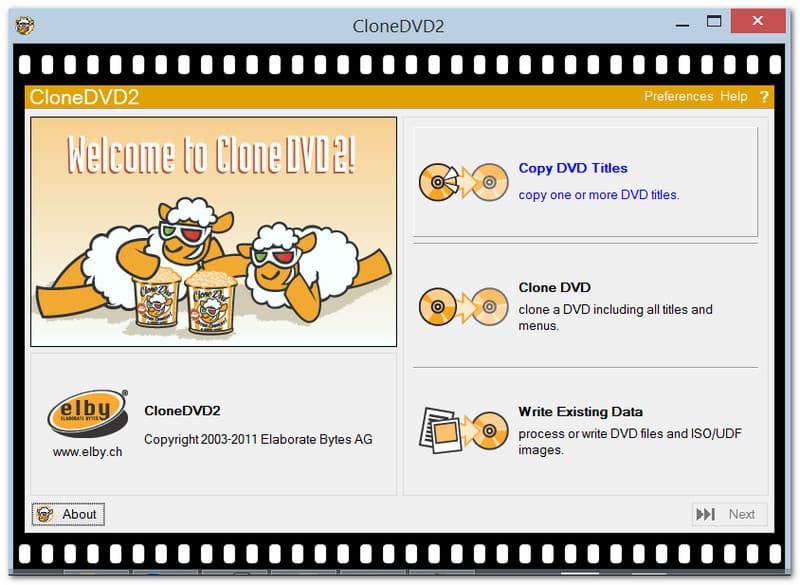
CloneDVD lets you copy a DVD to a DVD easily, whether it is the entire disc or just the main movie. You can also shrink the files to fit smaller discs and remove extra features like subtitles or menus. On top of that, it is affordable and reliable. It makes it a great option for anyone who wants to back up DVDs without spending too much.
Part 4: How to Back Up a DVD to a DVD
Tipard DVD Cloner lets you copy a DVD to another disc or back up a DVD to an ISO or DVD folder while keeping the original quality. It supports DVD-R, DVD+R, DVD-RW, DVD+RW, DVD-R DL, DVD+R DL, DVD folders, and ISO files.
You can pick from three copy modes: Full Copy, Main Movie, or Customize. It also lets you shrink a DVD-9 to DVD-5 to save space. When copying to another disc, Tipard DVD Cloner can remove the region code, so your DVD copy will play on any device without restrictions.
Step 1Acquire and set up Tipard DVD Cloner on your computer, whether it is Windows or Mac. Next, take the DVD you want to back up and place it in your computer's DVD drive.
FREE DOWNLOAD For Windows 7 or later
Secure DownloadFREE DOWNLOAD For Mac OS X 10.13 or later
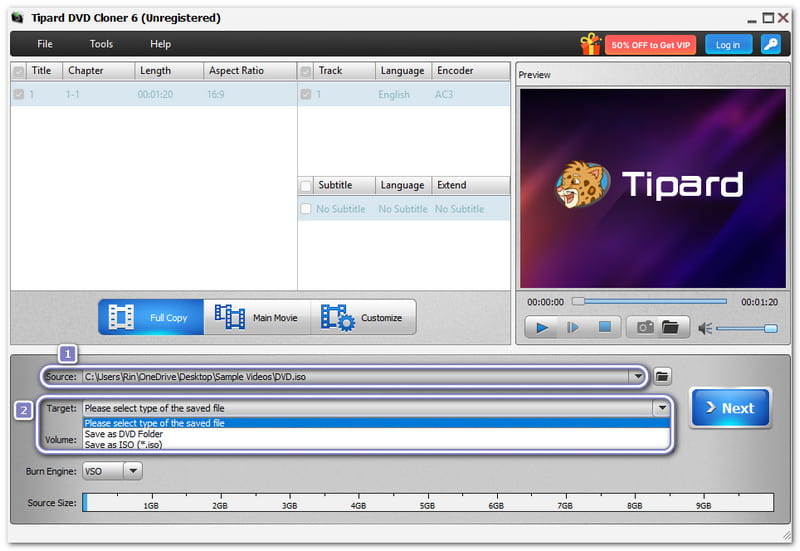
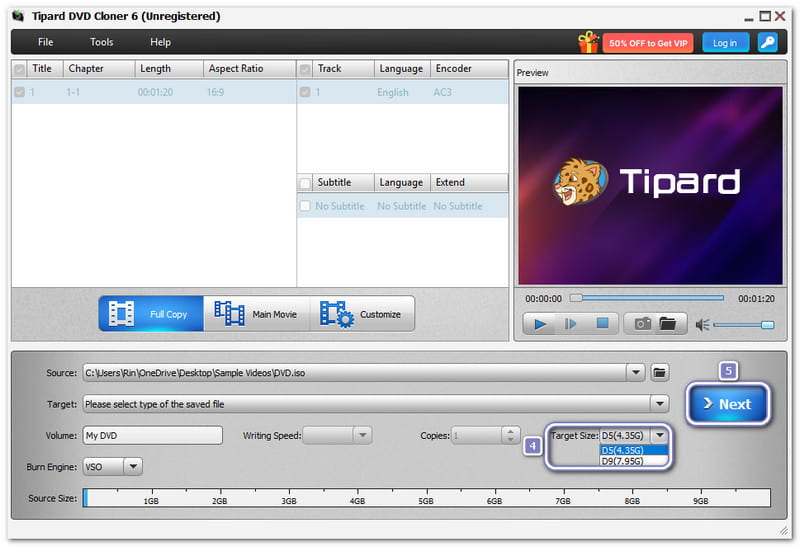
Secure DownloadStep 2Head to the Source drop-down menu and select how you want to load your DVD. Next, go to the Target drop-down menu and select Save as DVD Folder or Save as ISO.
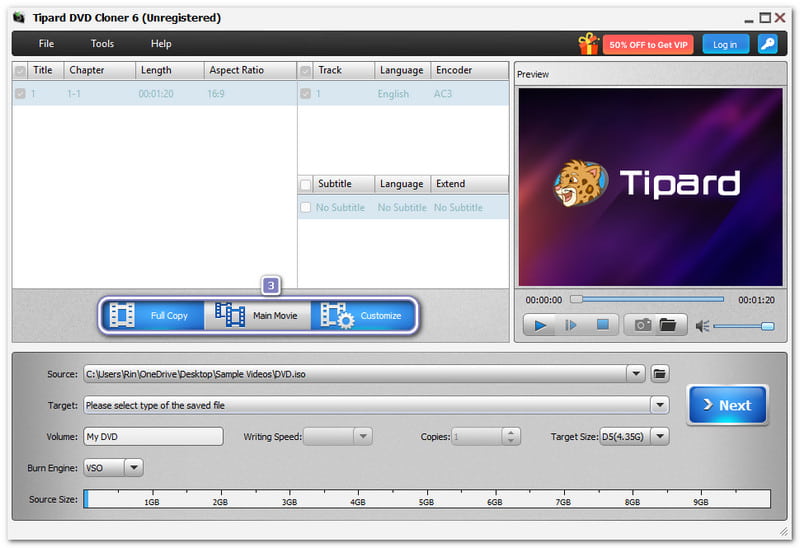
Step 3Tipard DVD Cloner gives you three options to backup DVD movies: Full Copy, Main Movie, or Customize. Please pick the one that fits your needs.
- Full Copy copies the entire DVD with everything on it. Main Movie copies only the main movie. Customize lets you pick exactly what you want.
Step 4Select your preferred size by opening the Target Size drop-down menu. You can choose D5 (4.35G) or D9 (7.95G), depending on your DVD. After that, click the Next button to continue.
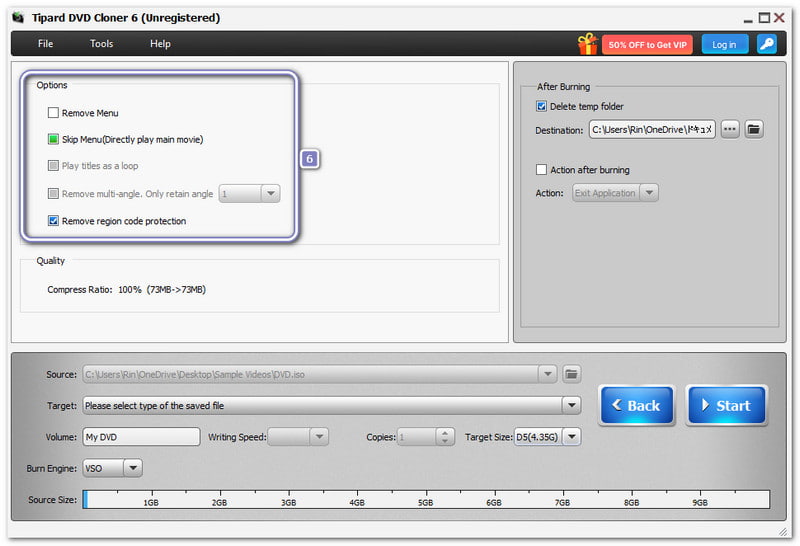
Step 5Under Options, you can choose to Remove Menu, Skip Menu, or Remove Region Code Protection by putting a check mark.
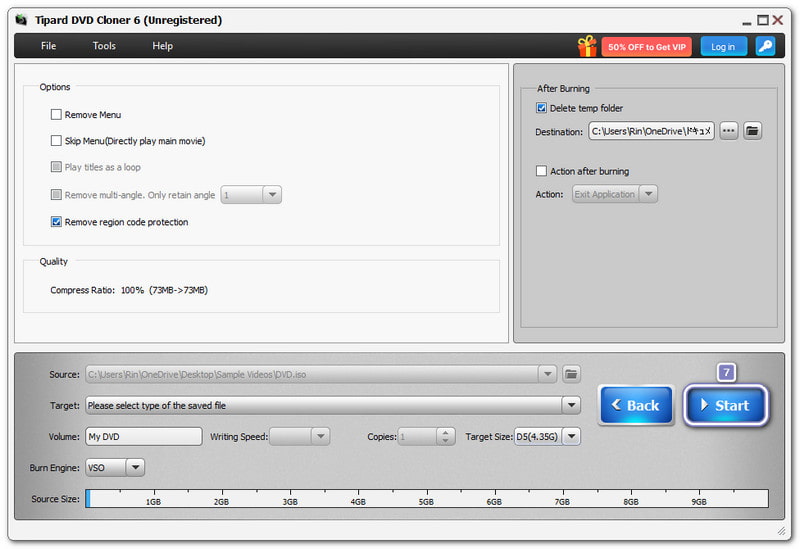
Step 6Once everything is ready, press the Start button on the lower right. Once done, your DVD will be copied safely, and you can watch or use it whenever you need.
We cannot deny the fact that there are many benefits to DVD backup, so it is really worth taking advantage of them. You can use AVAide DVD Ripper to back up your DVD to your computer and choose the format you want, like MP4 or MKV.
By making digital copies, you protect your discs and enjoy your content without worrying about scratches or lost DVDs.
ABOUT THE AUTHOR

Best tool for ripping and converting DVD Disc/Folder/ISO image file into over various formats.