According to our research, there are over a hundred video formats on market. They are developed for different purposes. MP4 is a commonly used video format. It has been around for decades, so almost all platforms and media players are compatible with it. DivX, on the other hand, is another file format to store high quality video in small file size. It is a good choice to distribute videos via the internet or save local storage. This guide will tell you how to convert MP4 to DivX.
Part 1: Convert MP4 to DivX Using the Best Converter on Mac and PC
When you want to convert MP4 to DivX, what you want to keep is the high quality of the MP4 file. AVAide MP4 Converter can help you easily convert MP4 videos to DivX codec in the best video and audio quality. Moreover, you can use many practical video editing features, such as clipping and cropping. You can also color grade or add a filter to your video to enhance it.
- Convert MP4 to DivX with one click in the best quality.
- Support batch converting with high speed.
- Allow to customize the DivX resolution, quality, bitrate, and more.
- You can do some easy video editing in it, such as trimming, splitting, cropping, and adjusting volume.
- Enhance DivX video quality using AI and advanced technology.

 Secure Download
How to Convert MP4 to DivX on Mac and PC
Step 1Download AVAide MP4 Converter
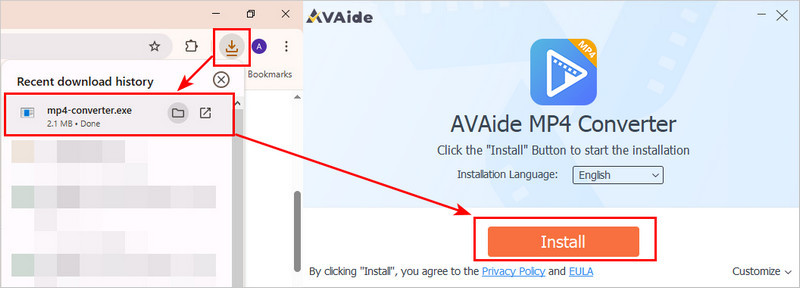
Download the software from the two links according to your computer system. Double-click the downloaded file to install AVAide MP4 Converter.
Step 2Add videos
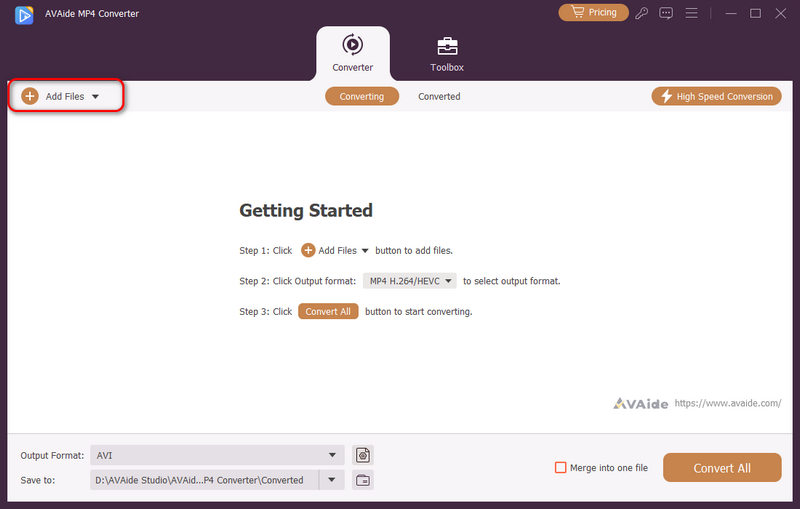
Launch the best MP4 to DivX converter once you install it on your PC. There is another version for macOS. Go to the Add Files menu at the upper left side, and choose Add Files or Add Folder to open the video files that you want to convert, such as MP4.
Step 3Set output format
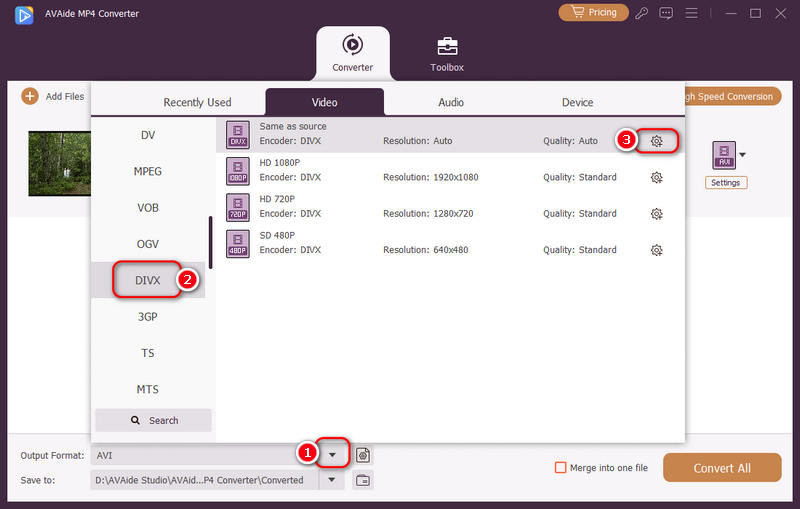
Click the Output Format dropdown button on the bottom left side to trigger the profile dialog. Go to the Video tab, search for the target output format, like DivX, and choose a proper preset. By default, the video converter has optimized each parameter. You can change them by clicking the Settings button.
Step 4Convert MP4 to DivX
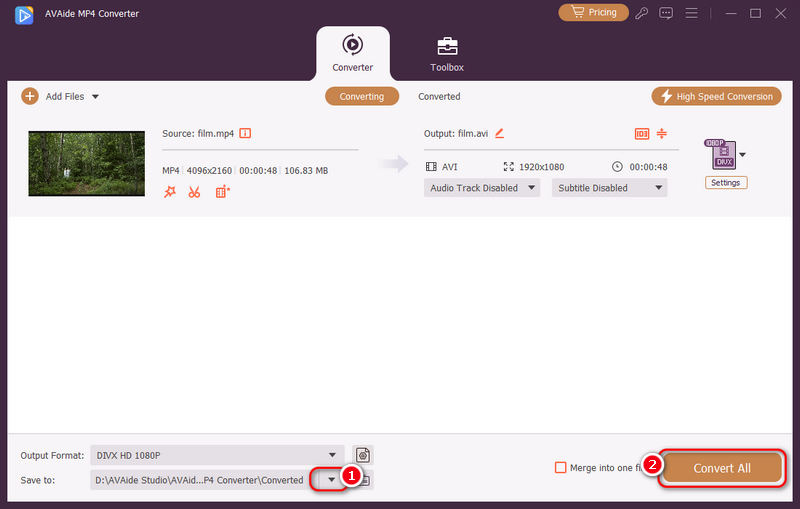
Locate the bottom area in the main interface, and click the Save to dropdown button to select a specific directory for saving the output files. Finally, click on the Convert All button to begin converting MP4 to DivX.
Part 2: How to Convert MP4 to DivX Online
Web-based video converter apps are another choice to convert MP4 to DivX online. Since they are not reliable, we identify and share two ways below.
Way 1: How to Convert MP4 to DivX on Convertio
Convertio enables you to convert several MP4 files up to 100MB for each video per time for free. Moreover, it provides some custom options.
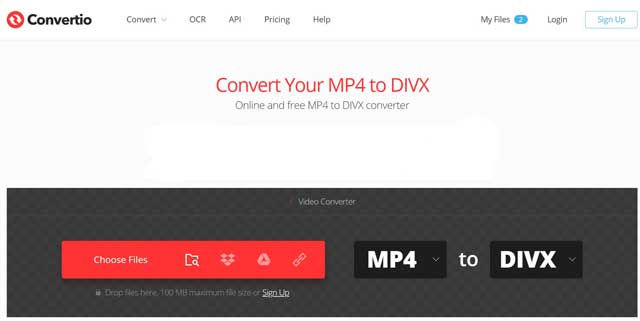
Step 1Access https://convertio.co/mp4-divx/ to open the online MP4 to DivX converter.
Step 2Upload the MP4 files from your computer, Google Drive, Dropbox or URL. Select DIVX from the target format option.
Step 3Click the Convert button to initiate converting MP4 to DivX online. When the download page appears, get your video file.
Way 2: How to Convert DivX to MP4 by OnlineConverter
OnlineConverter is a long-standing video converter online. It is completely free to use since there is no option related to registration or payment. It allows you to convert a DivX up to 200MB to MP4 per conversion.
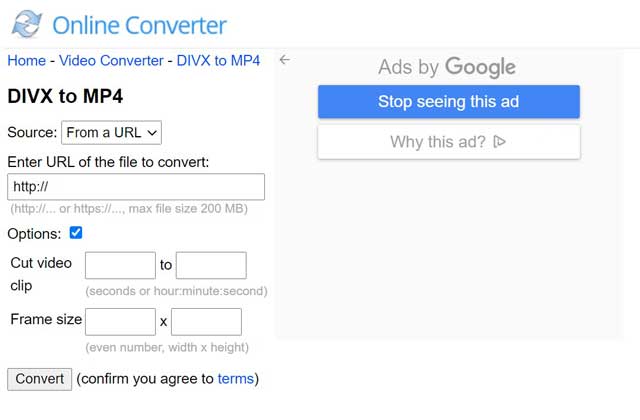
Step 1Open https://www.onlineconverter.com/divx-to-mp4 in your browser. Then the converter page will show up.
Step 2Upload the MP4 file that you intend to convert from your computer or URL. Optionally, you can cut the video and only convert a clip. Check the box next to Options and set it as you wish.
Step 3Hit the Convert button, and then download the MP4 file to your computer.
Part 3: FAQs of Converting MP4 to DivX
What players can play DivX?
Both Windows Media Player and QuickTime Player cannot open DivX files. Alternatively, you have to use a third-party media player, like VLC, to watch DivX.
Is DivX better than MP4?
The answer is determined by your situation and purpose. To save space, DivX is a good choice. If you wish to play your videos anywhere, MP4 is a better option. Although DivX provides better quality, it is hard to tell the divergence.
What is DivX?
DivX is a type of video format. It compresses video files so they become much smaller while still keeping good picture quality. DivX videos are easier to store and play. It was popular for downloading movies or fitting long videos on CDs or DVDs. Nowadays, it's less common, but some devices and TVs can still play DivX videos.
Why convert MP4 to DivX?
To convert MP4 to DivX, the biggest advantage is that the video will be smaller, but still remains a higher quality than just compressing the MP4 file to the same size. However, make sure you have an older device to play DivX files, since DivX is less compatible than MP4.
This guide has shared three ways to convert MP4 to DivX. Although MP4 is available to most devices and players, DivX provides a smaller size. Of course, you can do the job online with web-based video converter apps. However, we suggest you try AVAide MP4 Converter. It is not only easy to use, but also able to protect video quality.
ABOUT THE AUTHOR

A multifunctional MP4 converter to convert any video format to MP4 with high output quality.
Convert to DivX