Only a few media players support DV files, and most popular ones are not included in those few. On the other hand, the MOV file is on the top list for Apple products, for it is perfectly made for the QuickTime framework, which is the leading media player of the company. Therefore, if you are an Apple babe and currently using a Mac, better to convert all your DV to MOV files to comply with your player's compatibility. It's a good thing you reach this article, for you will be learning the best video converter tools for your Mac as well as on Windows.
Part 1. A Brief Description of DV
The Digital Video or the DV is a file produced from digital cameras and recorders like the Nikon, Canon, and Sony. In other words, the DV file refers to a series of tapes and codecs used for saving raw and digital videos. Let us enlighten you on why we need a DV to MOV converter. Moreover, this format uses lossy compression while having an uncompressed one for the audio. And so, with all of these notes, don't be surprised if your DV files are not accepted by your media players, for this file is only accepted by a few.
Part 2. How to Transfer DV from an Old Camcorder to a Mac
You can choose different software based on your system type to receive DV files. If FireWire is unavailable, you can also use an AV video capture card to capture DV. Here, we'll use FireWire as an example to describe the steps for importing DV to a Mac.
Step 1Use a FireWire (IEEE 1394) cable to connect the DV camcorder to your computer. Newer computers often require an expansion card or adapter.
Step 2On a Mac, run capture software like iMovie and select the DV device as the input source. Click Capture/Import.
Step 3The camcorder will play the tape in real time, saving the video to your computer in DV-AVI or DV-MOV format.
Part 3. How to Convert DV to MOV Flawlessly on Mac
We introduce you to this reliable software, AVAide Video Converter. It works best on Mac, Windows, and Linux. This DV to MOV transformer's beautiful attributes can make you customize the videos into video collages, movies, make 3Ds, and GiFs. Moreover, its acceleration technology also works even on converting bulk files, which is why it continuously gains good reviews from users. On the other hand, it offers a wide variety of different devices for your output, in which you can rip your favorite movie and turn it into a format that suits your device.
Pros
Its versatility will give you many options in using it.
You won't worry about the time, for it converts faster than others.
It allows you to convert all DV to MOV files at once.
It supports a wide range of file formats.
It comes from exciting and powerful editing tools.
Cons
You need to purchase it to experience a better version.
- It is supported by the popular OS with their different versions.
- It supports more than 300 input and output formats.
- It converts multiple files at once with an ultrafast acceleration speed.
- It comes from numerous video and audio editors.
- It is a practical way to boost your talent in movies, collages, 3Ds, and GIFs making.

 Secure Download
Step 1Install the Software on the Mac
First, you need to have the software on your Mac. Click on the download button applicable on Mac, then install it.
Step 2Add the DV Files
Launch the tool, and start uploading the DV files to initiate DV to MOV conversion. Click on the Add Files button or drag and drop the files at the center of the interface.

Step 3Configure the Files to MOV
Once all the DV files are on the interface, toggle the Convert All To Arrow tab. On the next window, select the MOV from the video format list, then tap a resolution.

Note: For additional settings, hit the Star icon for the rotate, crop, filter, effect, watermark, audio, and subtitle of the file. And the Scissors icon if you want to add a segment, split, cut, and merge the video.

Step 4Convert DV to MOV on Mac Now
After customizing, you can now hit the Convert All red button at the right bottom-most. This conversion process will only take a minute to complete.

Step 5Share the Output Online (Optional)
After the conversion, go to the Converted to see the outputs. Then, hit the Share icon for you to upload the outcomes to the social media platform of your choice.

Part 4. How to Convert DV to MOV Online for Free
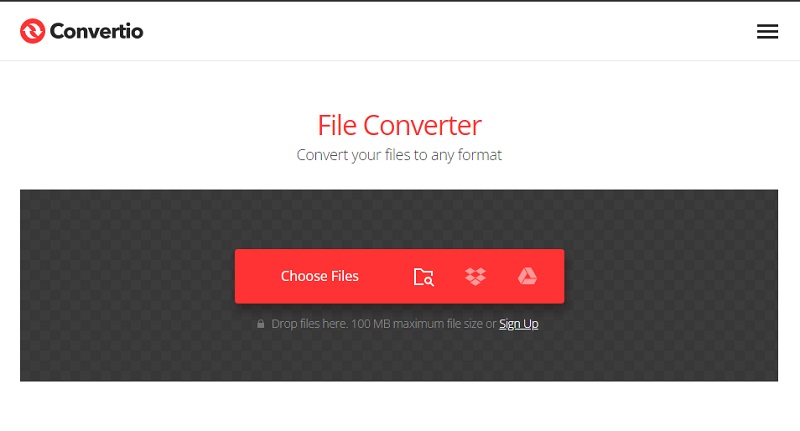
Utilize the Convertio
Convertio is a converter tool that converts different files online for free but with a size limit of 100 MB. Furthermore, its conversion is being done in the cloud, which means consuming space on your device will only take place when you download the converted files. Therefore, let us convert DV to MOV for free with Convertio by following the simple guidelines below.
Pros
You don't need to download any software to convert DV to MOV.
It is an online tool with different categories and editing tools.
Cons
Since it is a web tool, you cannot access it without the internet.
The free conversion is limited to up to 100 MB of files only.
The conversion process takes time, depending on the internet connection. Extended Reading
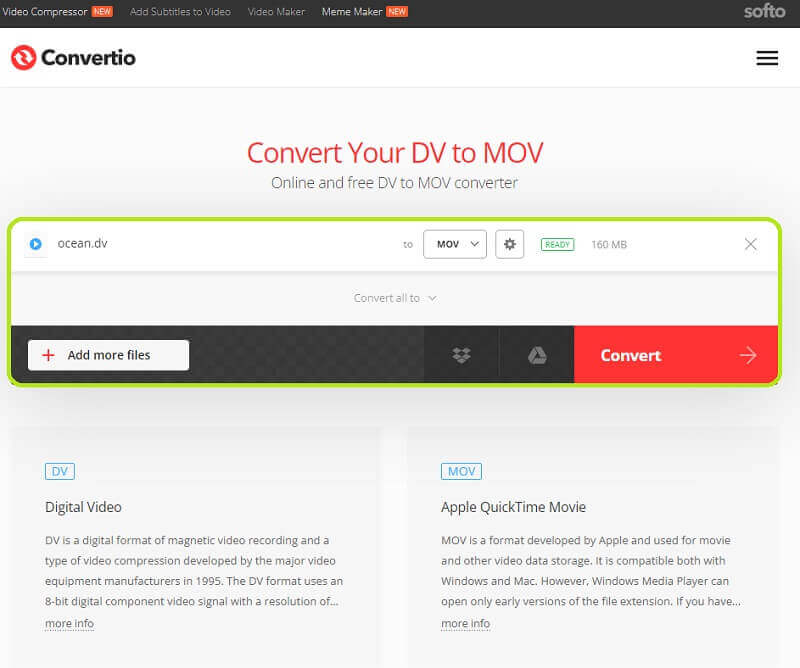
Step 1Upload the DV Files
Open your browser and begin by visiting its official website. Directly hit the Choose Files tab to upload your DV files.
Step 2Output Format Selection
Click on the Arrow drop-down tab next to the To, and from there, go to the Video and choose the MOV as the output.
Step 3Start the Conversion
Begin the conversion process by hitting the Convert button. Wait for the process to finish, then download the coveted file after.
Part 5. FAQs About DV and MOV
Can I change the metadata description of my DV files?
Yes. DV files are also in for metadata editing. Use the AVAide Video Converter as it has the most potent media metadata editor, along with other exciting tools.
Can I convert DV to MOV on iMovie?
Although the iMovie is an ideal movie and video editor on Mac, it doesn't guarantee converting your DV to MOV.
Does the QuickTime Player support the DV file?
The QuickTime player plays some DV files, but some couldn't be played.
In summary, using these video converters makes it easy to convert DV to MOV. Both software and online converters have their pros and cons, but this doesn't fully measure their performance and functionality. Therefore, AVAide Video Converter is your best choice, offering the most practical features suitable for users of all skill levels.
ABOUT THE AUTHOR

Your complete video toolbox that supports 350+ formats for conversion in lossless quality.