An ISO mounter becomes essential when you download a large software ISO and need quick access without burning a disc, helping you mount, explore, and use files easily while saving time and resources efficiently overall.
Part 1: What Is an ISO Mounter?
An ISO mounter is software that allows you to treat an ISO file like a physical disc (CD, DVD, or Blu-ray), that you can use without having to actually burn it to a physical disc.
An ISO file is a complete digital duplication of a disc, including all the data and file structures of the original disc (including boot information if applicable), but an ISO file is not a folder or file that can be used directly. This is why an ISO mounter is needed.
An ISO mounter operates by making a virtual drive on your computer. When you mount an ISO file:
- The software creates a virtual disc drive.
- The ISO file is placed in the virtual drive.
- The ISO file is treated like a physical disc by your computer.
This allows you to access, install, or execute files from the ISO file just like you would from a CD/DVD.
ISO mounters have many uses, including:
- Installing programs that come in ISO file format
- Playing games or using programs without a physical disk
- Using copies of CDs and DVDs
- Trying out disc images before committing to a burn
Why Native ISO Mounters on Windows and Mac Are Limited
The built-in mounters available in Windows 10 and macOS are certainly accessible, but they offer less functionality than most alternatives.
- Narrower Feature Sets: These mounters offer functionality to mount an image to a drive and unmount it, but lack features such as batch mounting, image format conversion, or image editing.
- Basic functionality: The only features they provide are mounting and unmounting. They do not provide additional features such as batch processing, image editing, or conversion.
- Limited management: Users cannot manage their virtual drives as much as they cannot do things like drive letter assignments or performance.
- Older system OS: The earlier versions of these operating systems had either no ISO mounting or required third-party tools.
Part 2: Top 5 ISO Mounters for Windows and Mac
1. DAEMON Tools Lite
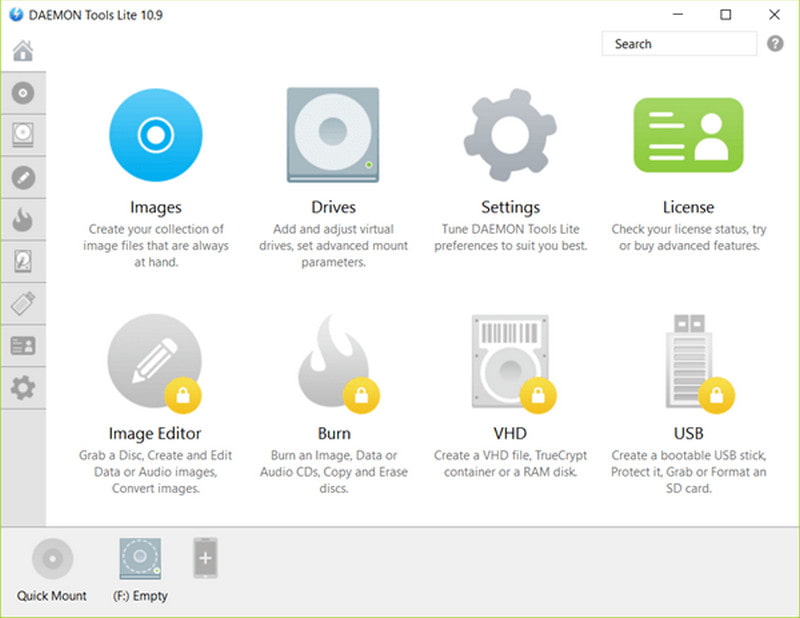
One of the oldest and most reputable ISO mounters is DAEMON Tools Lite. The program offers the right degree of complexity for the virtualization and disc image features, providing users with a comfortable user interface. The software is meant for users who need more functionality beyond merely mounting, as it offers a more extensive system for handling disc images, virtual drives, and their backups.
Verdict:
An excellent option for users looking for a reliable ISO mounter with additional features and functionality, though casual users may find the offerings overwhelming.
Key Features:
- Possibility of mounting several disc images at the same time, with support for several virtual drives.
- Wide format range supported: ISO, BIN, MDF/MDS, NRG, and others.
- Reliable emulation of virtual drives like disc drives.
- For those who need additional functionality, there are extra paid modules.
- Pros
- Very good compatibility with most image formats.
- Very stable performance of mounting/unmounting.
- Usable on Windows and Mac software.
- Cons
- Premium features are at an extra cost.
- If you do not pay attention during the installation, you might get unwanted bundled software.
2. WinCDEmu
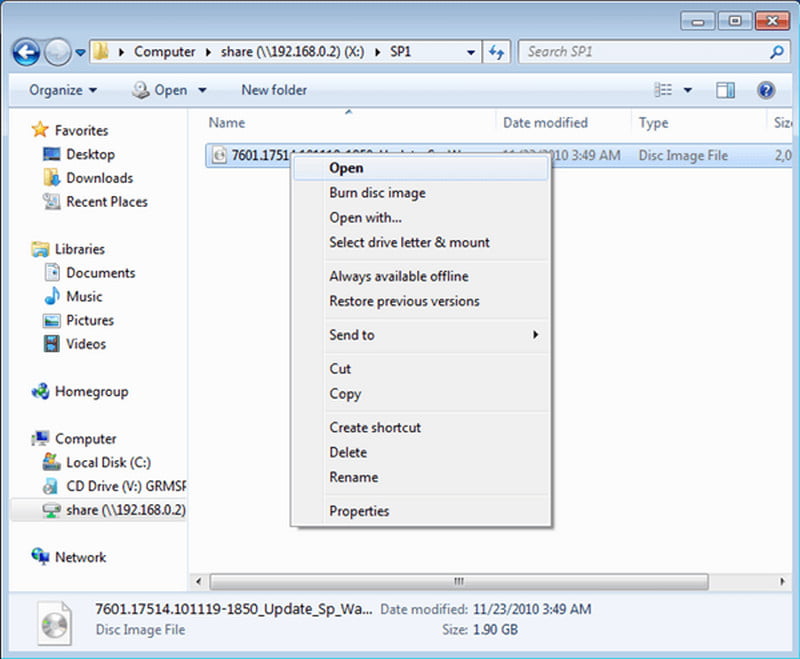
As an open-source program, WinCDEmu aims to keep the design and functionality of the application as simple as possible. For this reason, the application is integrated into the Windows Explorer context menu, and users seeking a simple way to mount disc images will benefit from the approach.
Verdict:
Best suited for users who need a straightforward, no-cost ISO mounter without advanced requirements or cross-platform needs.
Key Features:
- Mounting was made fast and simple using only one click with the help of the Windows Explorer context menu.
- Unrestricted and auto-configured virtual drives.
- A system reboot is unnecessary after installation.
- Portable with a small footprint.
- Pros
- Speed and lightweight are at the top of the list.
- Windows Explorer integration contributes to the simplicity of use.
- Cons
- The user is limited to Windows products.
- The user is also limited to the use of simple iOS.
3. Virtual CloneDrive
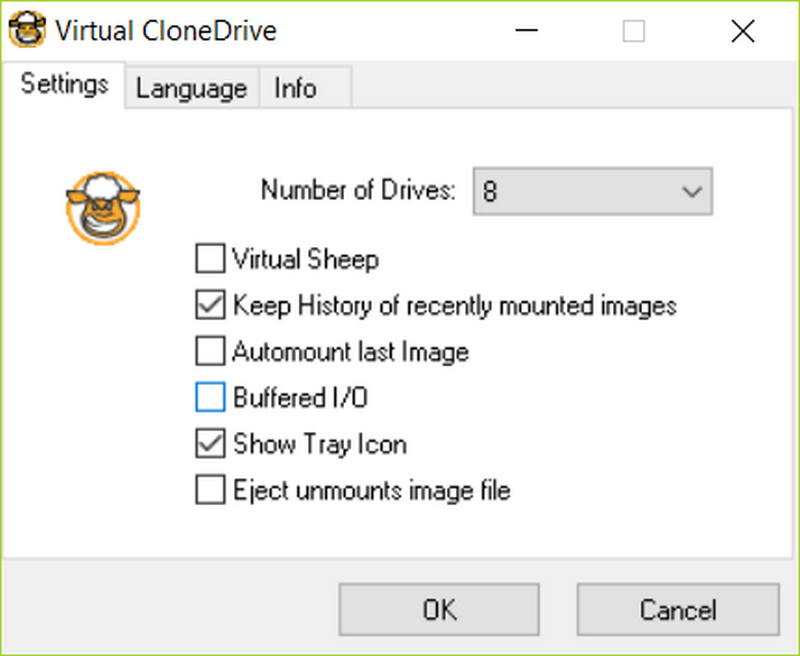
Clone Drive is a user-driven program allowing the impersonation of an actual CD/DVD unit. The system chooses to run an ISO as a function of a double click, even without the demand. The simplicity and stability of the program is an advantage compared to complexity.
Verdict:
It is an option for the user who would want a free mounting program that does the job and is low tech, but for a user who wants advanced features, it is not suitable.
Key Features:
- Multiple simultaneous virtual drives can be used.
- A double click does the mounting, and there is an option to do it with the menu.
- Common images of ISO, BIN, and CCD are available in the menu.
- The system load is low, and the installation is fast.
- Pros
- Very simple and beginner-friendly interface.
- Stable and reliable performance.
- Low impact on system resources.
- Cons
- The program is Windows-based, and therefore, a lack of a version for Mac is present.
- The selection of images that can be used is smaller than that of other programs.
4. PowerISO
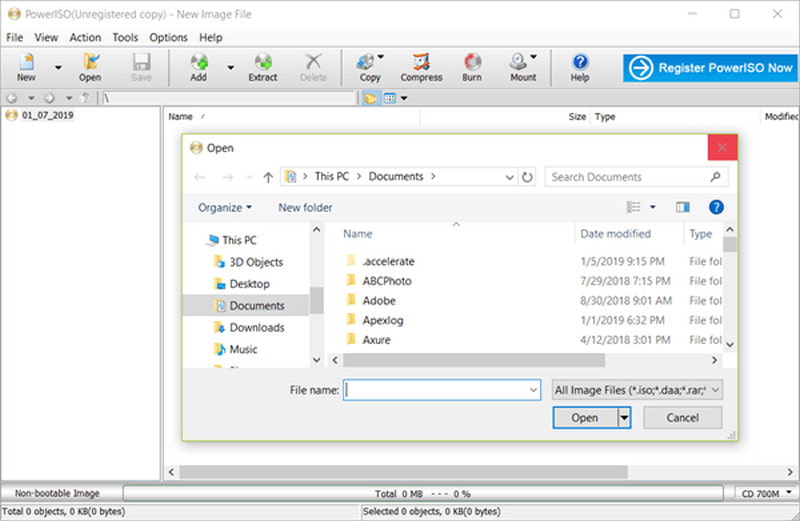
PowerISO is an advanced disc image management tool that offers a variety of features that extend beyond basic ISO mounting. This software is aimed directly toward advanced users who need in-depth control of disk images, including their creation, editing, and conversion, as well as the ability to create bootable media.
Verdict:
This is aimed at users who have a need for more than mounting, especially those dealing with ISO editing, conversion, or creation of bootable media.
Key Features:
- Integrate the mounting, creating, editing, compressing, and converting of disc image files.
- Build a bootable USB drive directly within the software.
- Include disc burning and extraction features.
- Open and edit the contents of an ISO directly.
- Pros
- Disc image management is done in one software.
- Flexible support and conversion options.
- Better suited to advanced users.
- Cons
- Unlock advanced features with a paid license to burn DVDs and more.
- It can be less user-friendly.
5. OSFMount
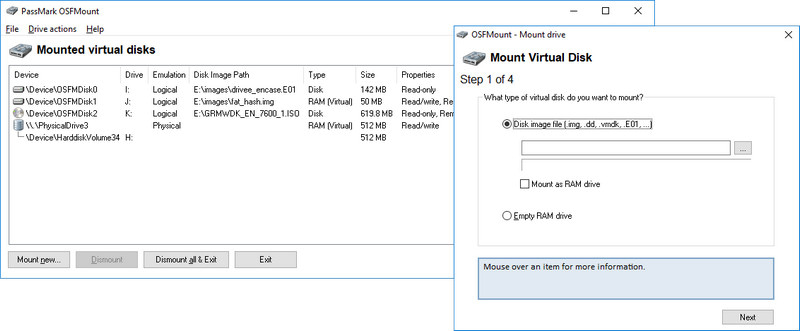
OSFMount is a simple software that specializes in the mounting of disk image files for the purposes of analysis or in instances where the image should remain read-only. It is most common in areas of a business where the analysis and integrity of the data are of high priority.
Verdict:
Most appropriate for users who value secure inspection and analysis of disk images over simple and routine ISO management activities.
Key Features:
- Mount disk images, including ISOs and others, as virtual drives with drive letters.
- Enables the mounting of physical disk images for the purpose of analysis.
- Helpful for forensics and debugging, useful alongside the best DVD burner tools.
- Pros
- Focuses on data integrity and safe usage.
- Lightweight and efficient.
- Ideal for advanced users and for performing detailed technical analyses.
- Cons
- Lacks editing, burning, and converting capabilities.
- User interface and usability functions are limited.
- Not aimed at casual and non-technical users.
Part 3: How to Directly Convert ISO to Playable Media Files
With AVAide DVD Ripper, you can convert ISO files into different digital formats, including MP4, AVI, and MOV. Rather than mounting ISO files as a virtual drive, you can use this software to extract and convert the files into standard videos that can be played on a computer, smartphone, or tablet. There is no need to have a disc drive. This also works great for digitally archiving ISO files on DVDs.
- Rip all types of video ISO images to multimedia files.
- Utilize GPU acceleration to rip ISO files quickly.
- Supports many output formats and codecs.
- Support batch conversion for multiple ISO files at once.
- Preserve original video quality, including audio tracks, subtitles, and chapters.

 Secure Download
Step 1Download and Install the Tool
Go to the official website, download the installer, and run it. Follow the instructions and open the application.
Step 2Load the ISO File
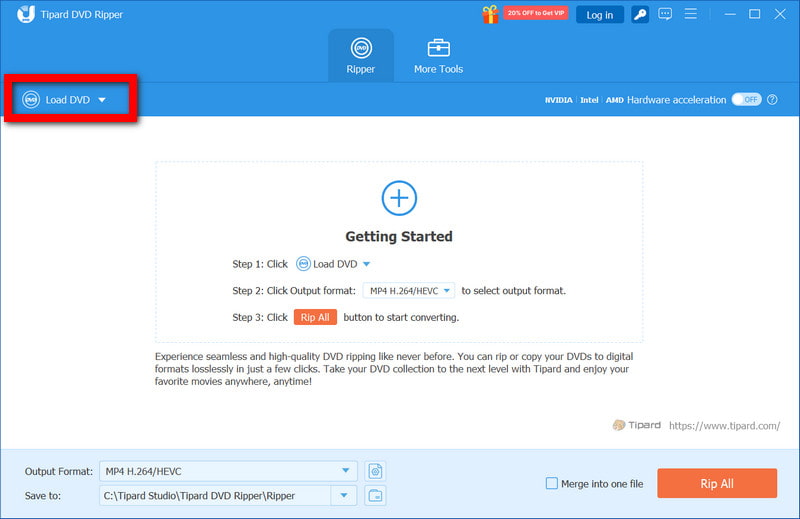
When the application is opened, click Load DVD and select the ISO file from your computer. The software will analyze the file and determine the titles, chapters, audio tracks, and subtitles.
Step 3Choose Output Format
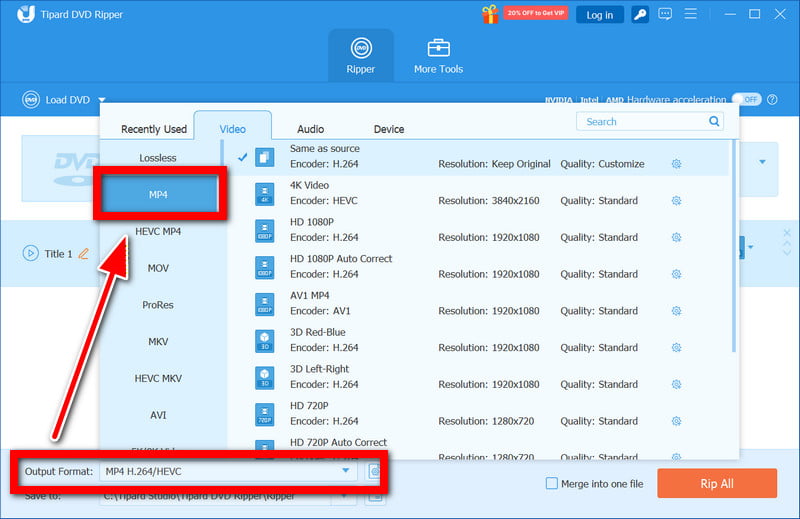
In this section, select MP4 for the output format and adjust other parameters such as resolution, codec, and audio bitrate settings to match your playback needs.
Step 4Edit (Optional)
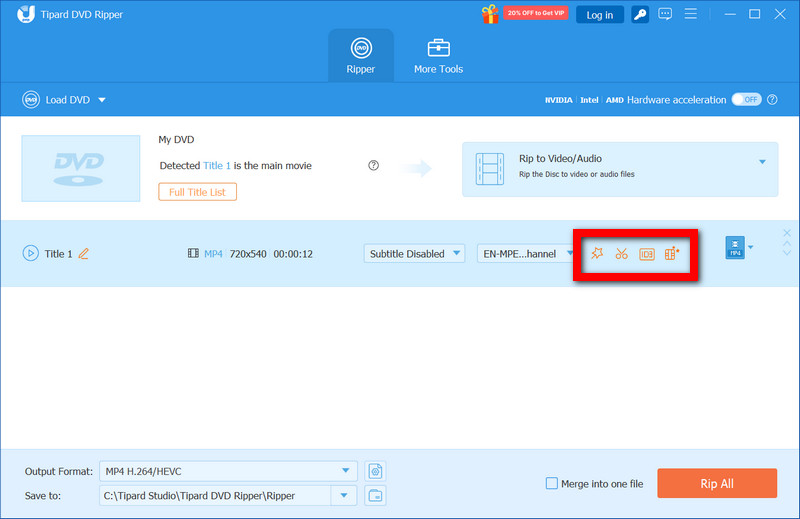
You can use the application to trim, crop, and merge videos. Adjusting the subtitle and audio tracks, as well as applying visual audio effects to the videos, is possible.
Step 5Starting the Conversion
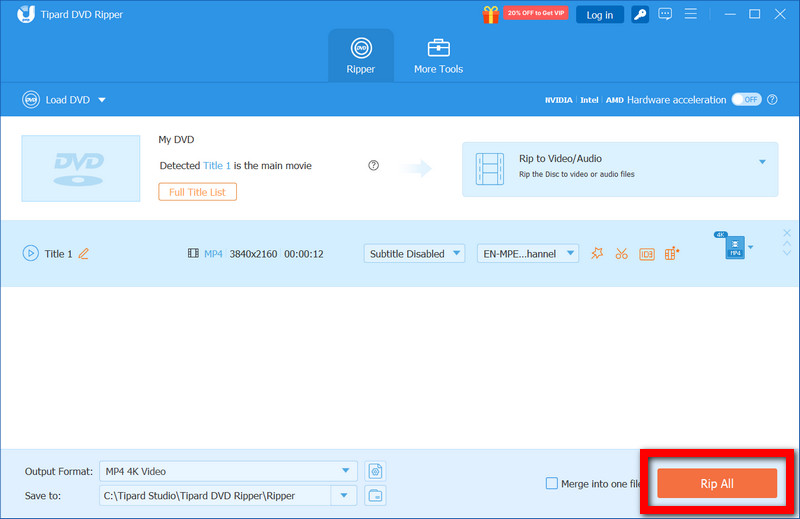
To start the conversion of the ISO file into the preferred format, click the Rip All button. For faster conversion, especially with large ISO files, you may turn on hardware acceleration.
The best ISO mounting software helps you easily access and manage ISO files, improve workflow, and enhance compatibility. At the same time, tools like AVAide DVD Ripper also provide reliable conversion to playable media formats efficiently.
ABOUT THE AUTHOR

Best tool for ripping and converting DVD Disc/Folder/ISO image file into over various formats.