"How can I copy my DVD to a USB so I can watch it on my TV, computer, or phone without losing quality or worrying about scratches or protection?"
That is just so easy! And here, we will teach you how to copy a DVD to a USB. There are different methods, so pick the one that fits your situation or works best for you.
Part 1: Benefits of Copying a DVD to a USB Memory Stick
Copying a DVD to a USB memory stick is useful. It makes your movies and files easier to carry. You do not need a DVD player or a disc to watch them, and a USB is small and fits in your pocket or bag.
It also protects your DVD from scratches or damage. Once the content is on a USB, you can play it anytime without worrying about breaking the disc. You can watch it on TVs, computers, or even some mobile devices that support USB.
Another benefit is speed because USB drives load files faster than DVDs. You can skip menus or jump to scenes quickly. It also saves space because you do not need to store bulky discs. Overall, copying a DVD to a USB makes your movies safer, easier to use, and ready to watch anywhere.
Part 2: Basic Way to Copy DVD to USB Stick
The simplest way to copy a DVD to a USB stick is to transfer the files directly. However, this method does not work with protected DVDs, may not play on all devices, and some data could be lost during the transfer.
Step 1Put the DVD into the disc drive and place the USB stick into the USB port. Please wait until the computer reads both devices.
Step 2Open File Explorer on Windows or Finder on Mac. Then, click the DVD drive to view the DVD files.
Step 3Now, select the DVD files you want. Right-click and choose Copy. It works best for home or data DVDs that are not protected.
Step 4Open the USB stick folder, right-click inside the folder and choose Paste. Please wait until the copy process ends. Safely remove the USB stick once done.
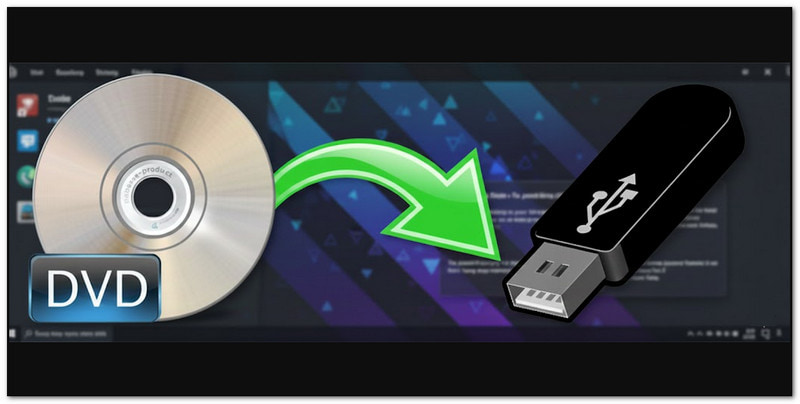
Part 3: How to Copy a Protected DVD to a USB Drive
Even if your DVD is protected, AVAide DVD Ripper can handle it. It works with DVDs protected by CSS, Region Codes, etc. It supports numerous video formats like MP4, AVI, and MKV that play on TVs, computers, and mobile devices.
It also keeps the original quality with no loss. On top of that, it offers a direct way to save your converted protected DVD to a USB drive on both Windows and Mac. Discover how to copy a DVD to a USB drive below:
Step 1Get and set up the AVAide DVD Ripper on your Windows or Mac computer. Next, insert the DVD you want to copy into your computer's DVD drive. After that, connect your USB drive to a USB port. Once settled, proceed to open the program.

FREE DOWNLOAD For Windows 7 or later
 Secure Download
FREE DOWNLOAD For Mac OS X 10.13 or later
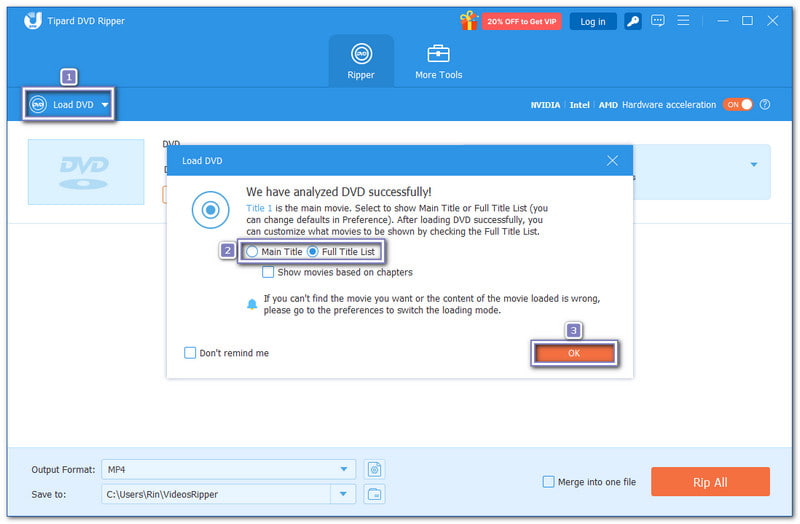
Secure DownloadStep 2Click the Load DVD drop-down menu and choose Load DVD Disc to import your DVD. Then, choose whether to load only the Main Title or the Full Title List of your DVD. Once decided, click the OK button to continue.
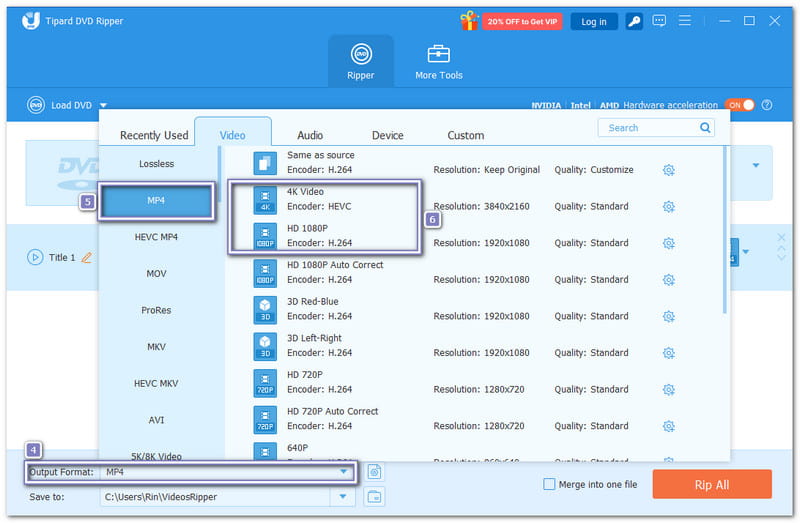
Step 3Go to the Output Format menu. For TVs, computers, and mobile devices, choose MP4, which works on almost all devices. Then, pick your resolution, like 4K Video for ultra-clear images, HD 1080P for sharp quality, or HD 720P for smaller files.
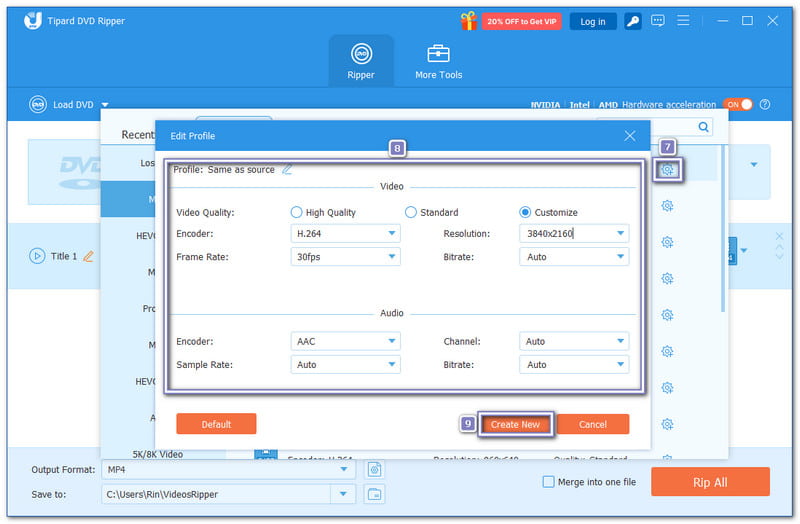
Step 4To customize settings, click the Cogwheel button. You can change the video's encoder, resolution, bitrate, and frame rate. You can also change the audio's channel, bitrate, and sample Rate. Hit the Create New button to save your changes.
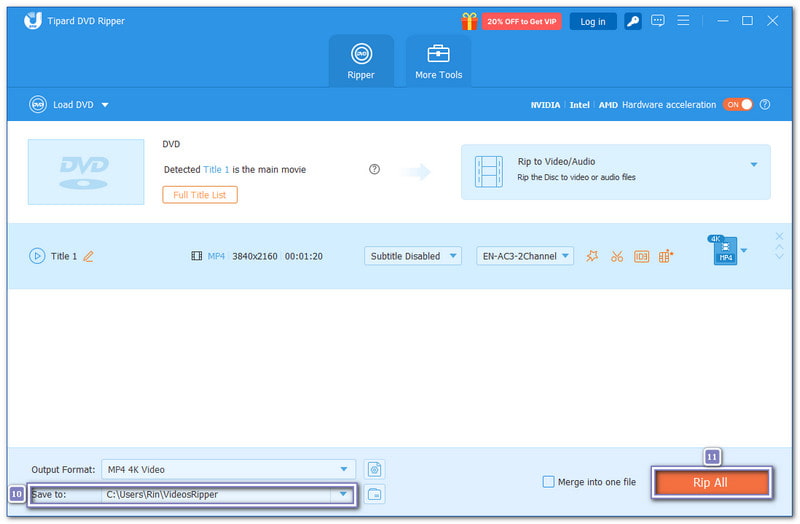
Step 5Click Save To option to select your USB drive as the destination. Once ready, click the Rip All button to convert the protected DVD and save it directly to your USB drive. After it finishes, safely eject the USB and insert it into your TV, media player, or computer to make sure the file plays properly.
- You can also use AVAide DVD Ripper to transfer a DVD directly to an SD card on both Mac and Windows.
Part 4: How to Copy a DVD to a USB Free
You can copy a DVD to a USB for free using VLC. It has a hidden feature that rips DVDs and saves them as normal video files. After that, you can move the files to your USB easily. The best thing about it is that it works with numerous popular video and audio formats, and most people already have it installed.
Put the DVD you want to copy into your computer's DVD drive. In VLC, go to Media and choose Convert / Save.
Step 1Click on the Disc tab. Make sure the DVD drive is selected. Check the No disc menus box to speed up the process. Then, click Convert / Save.
Step 2Pick the format you want, like MP4, MKV, or MP3. These formats work on most devices. Then, set the destination folder on your computer where the DVD file will be saved.
Step 3Press Start to begin copying the DVD. Once VLC finishes, look for the saved file in your local folder. After that, put your USB flash drive and copy the file to it. Now your DVD is safely on your USB.
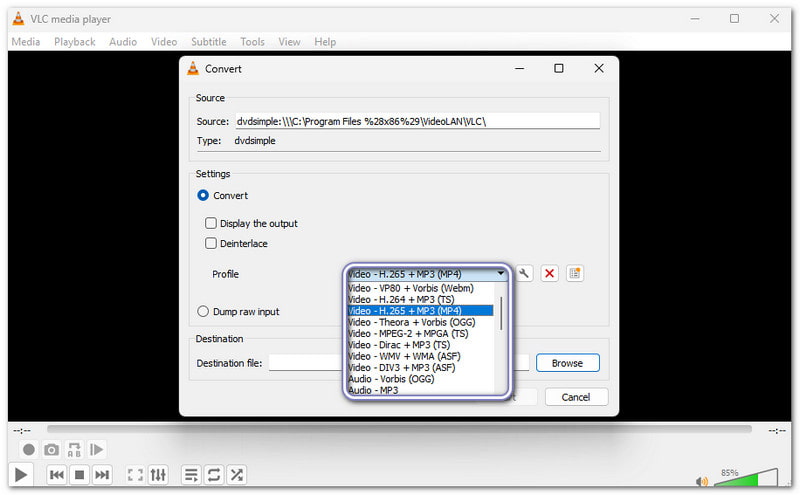
- To copy a protected DVD with VLC, you need to install the libdvdcss library. It allows VLC to read encrypted discs and make a copy.
Part 5: Transfer DVD to USB Without a Computer
If you want to transfer a DVD to a USB drive without a PC, you can use a home movie transfer service. These services let you send your DVD to them. They convert it to a digital format and save it on a USB drive. Two popular services are Walmart Photo and CVS Photo.
1. Walmart Photo
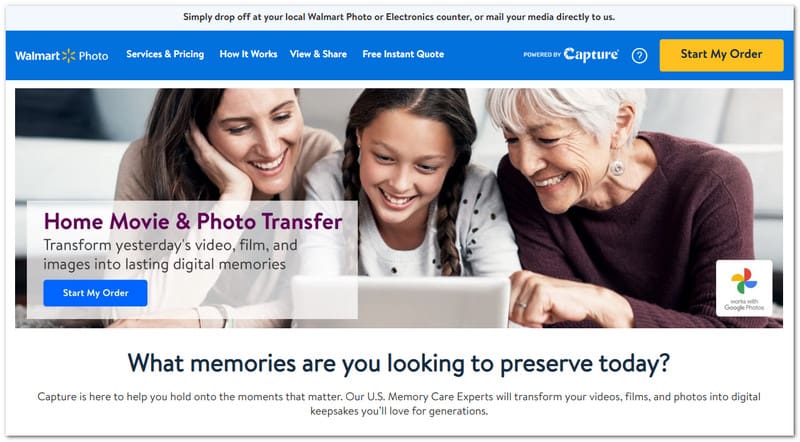
Walmart Photo allows you to copy DVDs from YesDVD, Walmart DVD, DVD, CD, VCD, and MiniDVD. Your digital copy is stored in your MemoryCloud account for 60 days. During this time, you can view it or download it to your devices. You can also order extra DVDs or USBs. A digital copy costs $12.96 for the first 30 minutes and $5.46 for each extra 30 minutes. Additional DVD and USB copies cost $3.96 and $12.96.
To use Walmart Photo, create an order online, send or drop off your media at a Walmart store, wait for it to be digitized, and then receive your digital copy, original media, and any extra copies.
2. CVS Photo
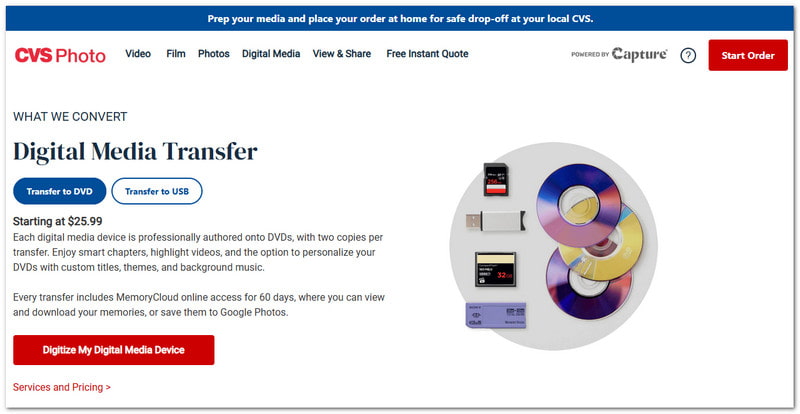
CVS Photo supports DVDs, CDs, VCDs, MiniDVDs, and YesDVDs. You can get a DVD, Blu-ray, or USB copy, plus a digital copy stored in your MemoryCloud account for 60 days. A DVD copy costs $25.99 for 90 minutes from one device, a Blu-ray copy costs $33.99, and a USB copy costs $34.99.
To use CVS Photo, place an order online, bring your media to a CVS Photo Center, wait for digitization, and then receive your USB, DVD, or Blu-ray copy along with your digital copy and original media.
We have provided various ways on how to copy a DVD to a USB flash drive. You can do it directly or even without using a computer. But if you want to copy a protected DVD to a USB drive, AVAide DVD Ripper is the best choice. It can handle copy-protected DVDs, convert them to digital formats, and even let you customize the output settings. It makes it easy to save and play your DVDs on any device!
Best tool for ripping and converting DVD Disc/Folder/ISO image file into over various formats.